Music Video artwork: Difference between revisions
Overhaul |
m Updated for v20 |
||
| (One intermediate revision by the same user not shown) | |||
| Line 4: | Line 4: | ||
<section begin="intro" /> | = Introduction = | ||
<section begin="intro" />This page details information specific to artwork for music videos used in the Music Video library.<section end="intro" /> | |||
; {{see|Music videos}} | ; {{see|Music videos}} | ||
*The Music Video library is part of the Video Library ''(MyVideos#.db)'' and not the Music Library ''(MyMusic#.db)'' | *The Music Video library is part of the Video Library ''(MyVideos#.db)'' and not the Music Library ''(MyMusic#.db)'' | ||
*'''''[[Smart_playlists|Smart Playlists]]''''' can be created to include Music and Music Videos by using the type '''Mixed''' | *'''''[[Smart_playlists|Smart Playlists]]''''' can be created to include Music and Music Videos by using the type '''Mixed''' | ||
| Line 77: | Line 22: | ||
File:Artwork-MusicVideoExample01.jpg|'''Correct naming and placement of artwork''' | File:Artwork-MusicVideoExample01.jpg|'''Correct naming and placement of artwork''' | ||
</gallery> | </gallery> | ||
= Scraping = | |||
The {{kodi}} scrapers can automatically download artwork without any extra effort from the user. Although it should be noted that artwork for individual music videos are not as abundant as they are for albums and artists. | |||
Artwork settings for the video library are adjusted in the {{kodi}} settings pages here... {{highlight|[[Settings/Media/Videos#Artwork|Settings > Media > Videos > Artwork]]}} | |||
You may also need to adjust artwork settings in the Scraper settings pages. | |||
| Line 93: | Line 47: | ||
= Artist Image = | = Artist Image = | ||
The Artist Image for Music Videos has the same requirements as for the artist image in the Music library. | The Artist Image for Music Videos has the same requirements as for the artist image in the Music library. | ||
: '''''See: [[ | : '''''See: [[Artwork/Artist|Artist Artwork]]''''' | ||
| Line 119: | Line 73: | ||
*[[Music concerts]] | *[[Music concerts]] | ||
*[[Music videos]] | *[[Music videos]] | ||
| Line 126: | Line 79: | ||
{{Top}} | {{Top}} | ||
{{updated|20}} | |||
[[Category:Karellen]] | [[Category:Karellen]] | ||
[[Category:Music library]] | [[Category:Music library]] | ||
[[Category: | [[Category:Video library]] | ||
Latest revision as of 00:33, 5 February 2023
| Artwork contents |
|---|
See also: Return to: |

|
 Video library Music library Video library Music library |
Artwork |
Music Video artwork
|
Introduction
This page details information specific to artwork for music videos used in the Music Video library.
- See: Music videos
- The Music Video library is part of the Video Library (MyVideos#.db) and not the Music Library (MyMusic#.db)
- Smart Playlists can be created to include Music and Music Videos by using the type Mixed
Local Artwork
Local Music Video artwork is saved in the same folder where the music video file is saved.
The default file name for music video artwork is <music video file name>-<arttype>.<ext> - see image below.
-
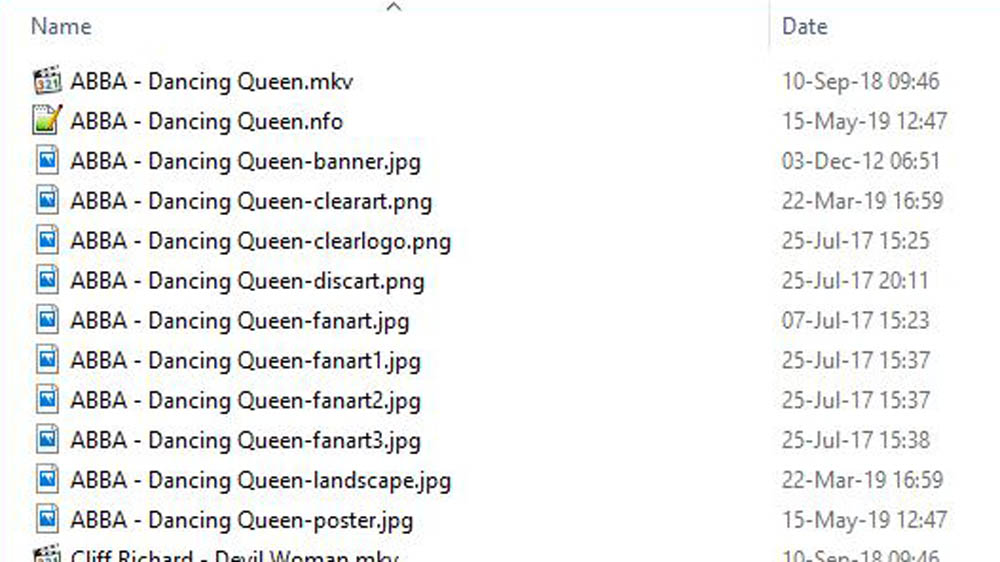 Correct naming and placement of artwork

Scraping
The Kodi scrapers can automatically download artwork without any extra effort from the user. Although it should be noted that artwork for individual music videos are not as abundant as they are for albums and artists.
Artwork settings for the video library are adjusted in the Kodi settings pages here... Settings > Media > Videos > Artwork
You may also need to adjust artwork settings in the Scraper settings pages.
Manually Adding Music Video Artwork
To add or change artwork manually, follow the steps in the images...
-
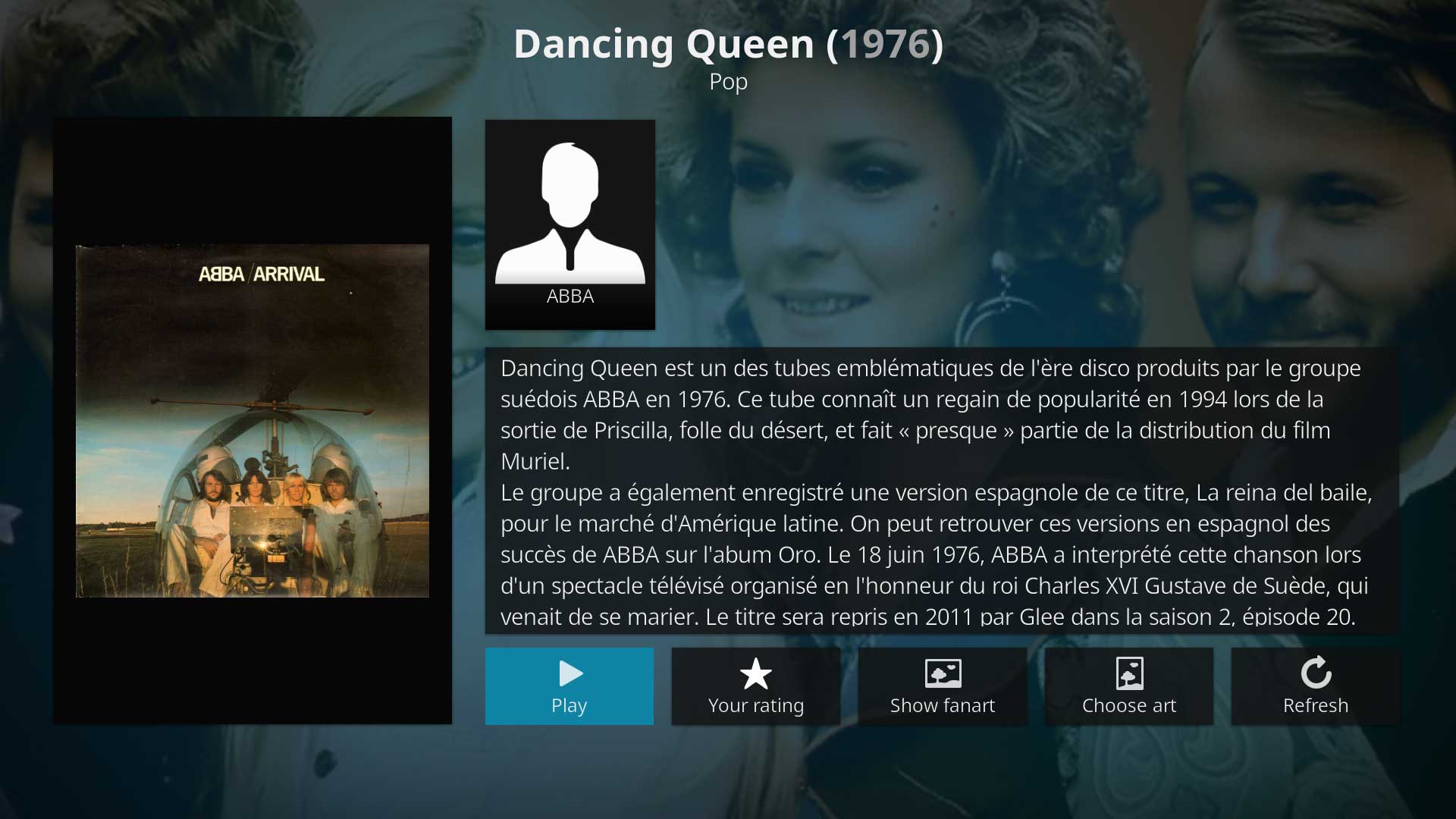 Image 1- From the Information page for the Music Video clip, select Choose art
 -
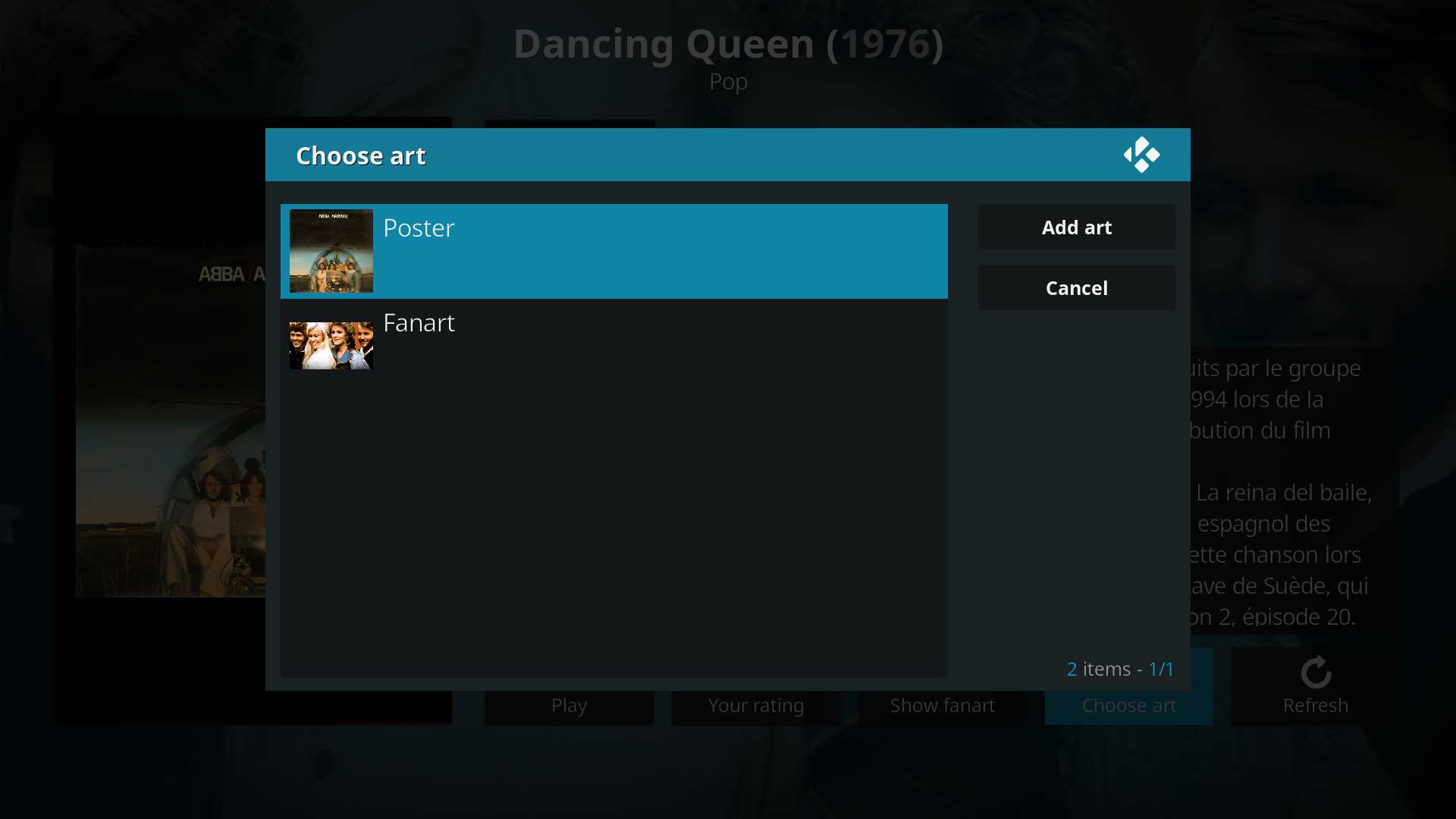 Image 2- Select which artwork type to modify
 -
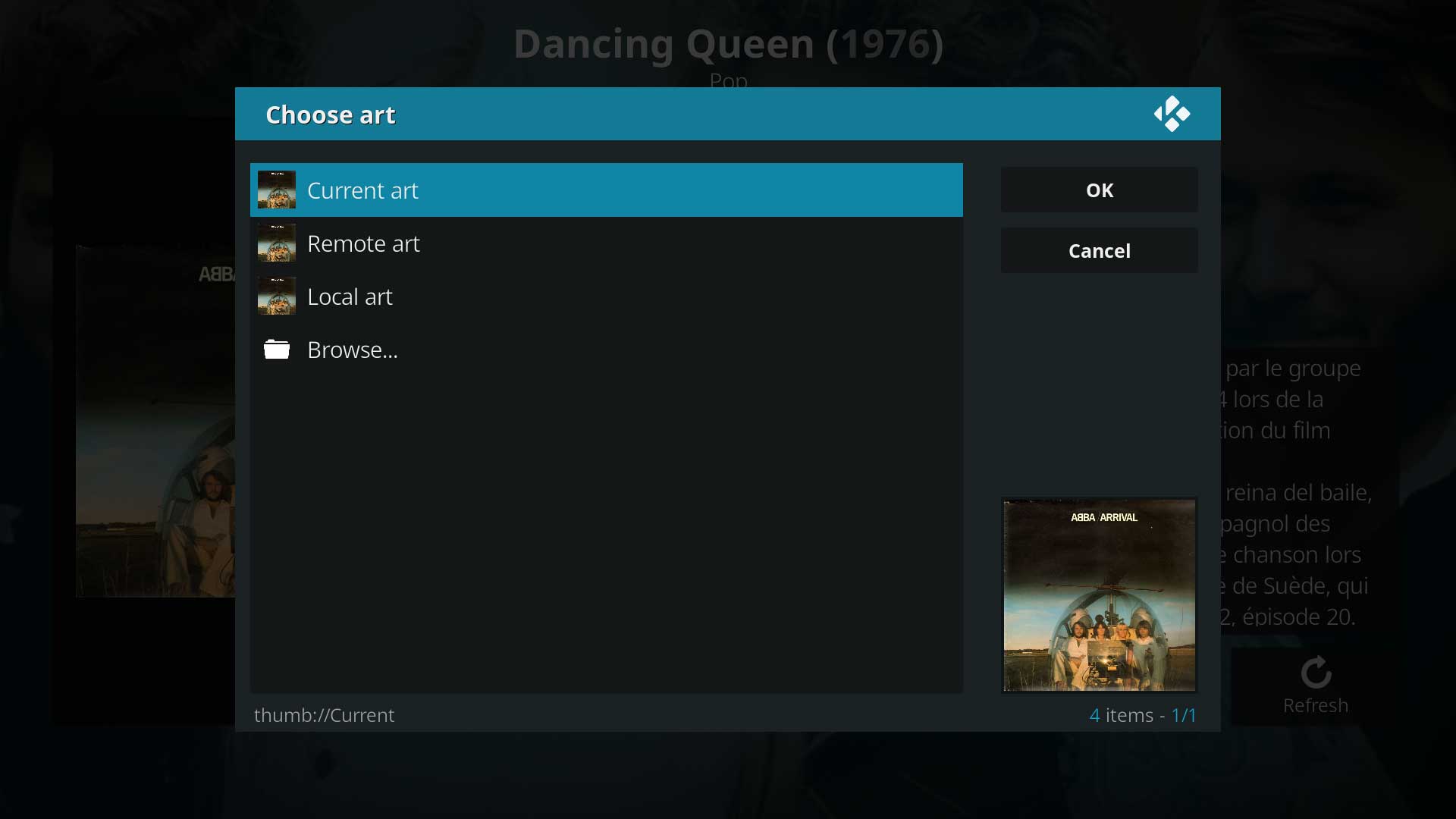 Image 3- Select the artwork from Current, Remote (online) or browse Local sources


Artist Image
The Artist Image for Music Videos has the same requirements as for the artist image in the Music library.
- See: Artist Artwork
If the same Artist is listed in the Music library, artist images will be automatically inherited from the Music library
If the artist does not appear in the Music Library, then use the manual method described below to add artist images
Manually Adding Artist Artwork
From within Kodi, you have the ability to manually change the artwork at any time as follows:
- Highlight the Artist whose artwork you would like to add or change.
- Call up the Context Menu. (Image 1)
- Select Set artist thumb. (Image 1)
- Select Browse to navigate to the location of the image on your local or network drives. (Image 2)
- Select the desired artwork. Once selected it will be automatically applied and return to the Artist listing.
-
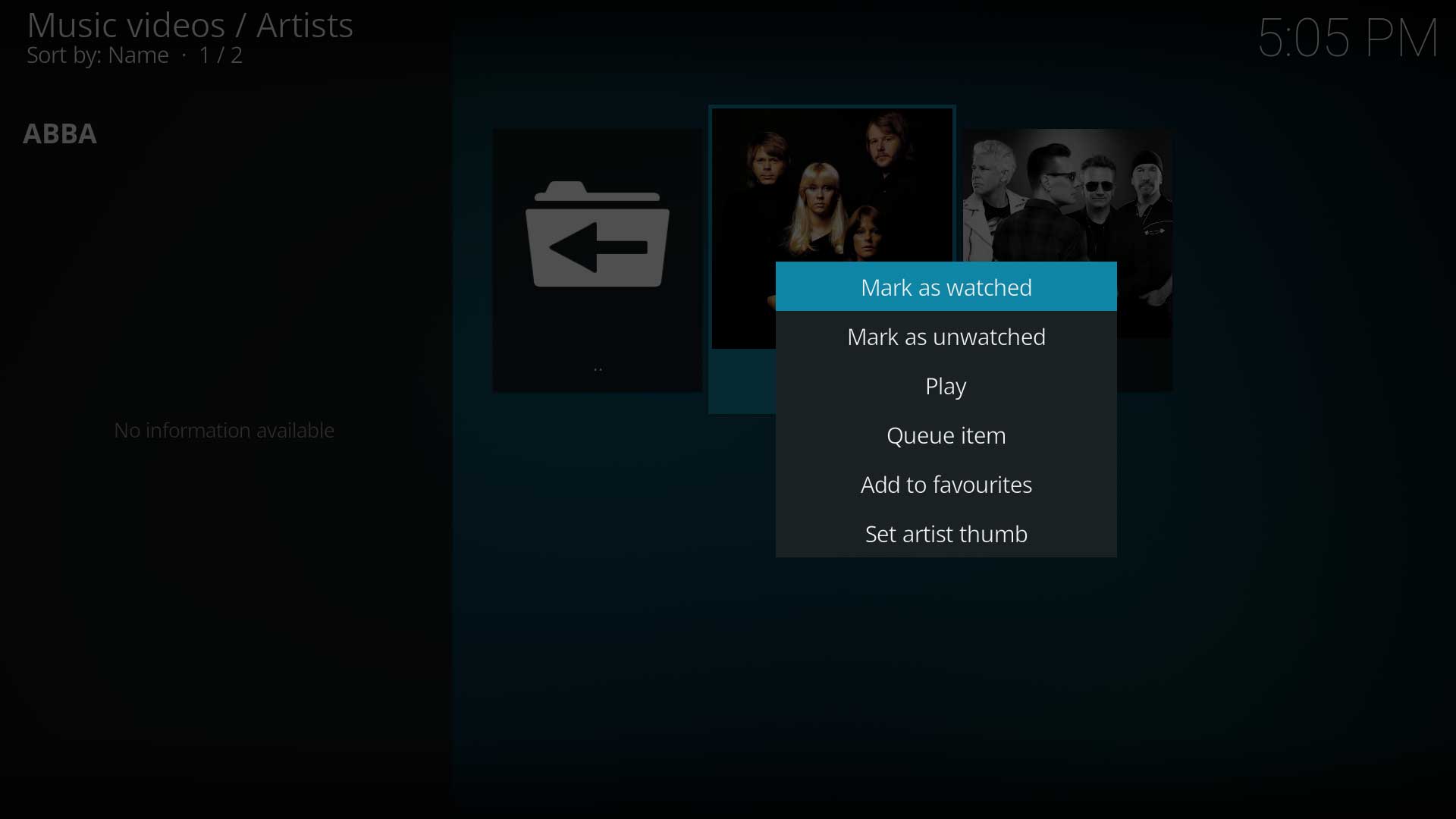 Image 1- Select Set artist thumb from the Context Menu
 -
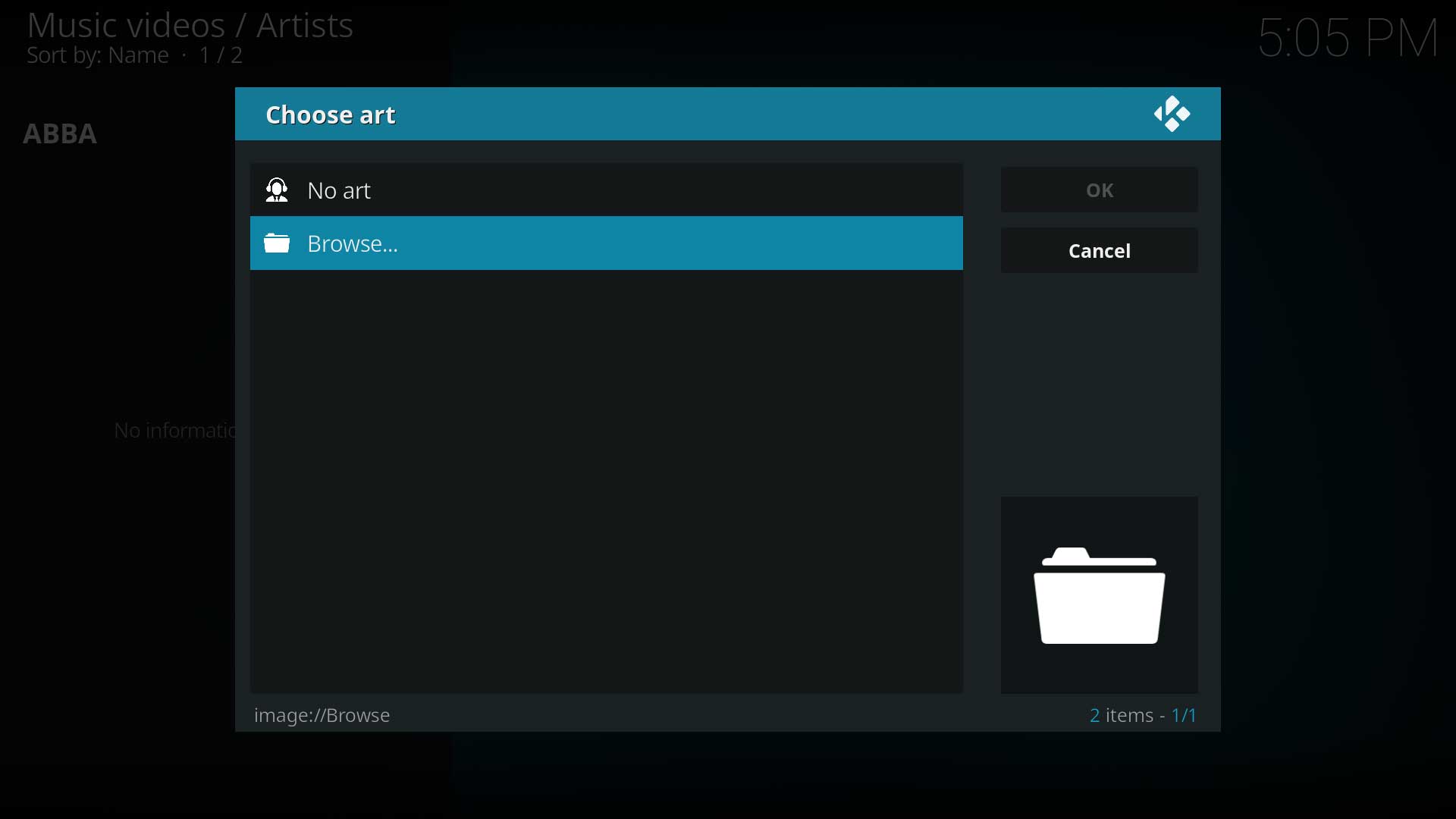 Image 2- The browse screen to locate and select your image


See Also
| Return to top |
|---|