Settings/Media/Videos

|
 Settings Settings |
Media |
Videos
|
All

Default select action
| Settings level: | Basic |
| Description: |
Allows you to change the default action when clicking on a library item.
|
Default play action
| Settings level: | Advanced |
| Description: |
Control what to do if a video contains a Resume point. [1]
|
Use video tags
| Settings level: | Advanced | ||
| Description: | Same concept as embedded tags in music files. The video library can read tags in *.mp4 or *.mkv files when this setting is enabled. This feature is limited in the tags that are read and does not match the amount of metadata that can be scraped.
The below image is a typical example of why scraping fails in most cases. The Title usually contains junk data and the scraper will be unable to find the correct title.
|


Extract video information from files
| Settings level: | Advanced |
| Description: | Extract file metadata such as audio and video codecs, audio stream languages, audio channel layout, aspect ratio, subtitle languages, duration. |
Extract chapter thumbnails
| Settings level: | Advanced |
| Description: | Capture a frame of the video stream. This frame will be displayed in chapter timeline displays used by some skins. |
Files

Combine split video items
| Settings level: | Standard |
| Description: | Combines multi-part video files and DVD/Bluray folders into a single item in Files view.
Note: Library lists are not affected by this setting. |
Replace file names with library titles
| Settings level: | Standard |
| Description: | When a file is scanned into the library the file list will display the scanned title instead of the filename. Disable this setting to display the filename instead. |
Library

Show all items entry
| Settings level: | Advanced |
| Description: | Show the "All items" entry in library lists e.g. All Albums or All seasons |
Show information for unwatched items
| Settings level: | Basic |
| Description: | Hide information to prevent spoilers. All information is shown by default. Movie plot, Episode plot and Episode thumb can be removed from the list. |
Language details to display
| Settings level: | Basic |
| Description: | The language and codec icons displayed by skins in library listings normally show the media default. This media default may be different to your needs. For example, your preference is for French audio tracks, but the codecs for the English track are displayed. This setting allows you to choose which audio language flags are shown in the library listings for a title. |
Show movie sets
| Settings level: | Standard |
| Description: |
Note: The separate Movie Sets node is not affected by this setting.
|
Include sets containing a single movie
| Settings level: | Standard |
| Description: | Can work with, or independently of the previous setting.
Note: The separate Movie Sets node is not affected by this setting.
|
Flatten hierarchy
| Settings level: | Advanced |
| Description: | Removes the title, genre, etc. nodes from the library view. Selecting a category takes you straight to the title view |
Flatten movie versions
| Settings level: | Advanced |
| Description: | Settings ► Media ► Library ► Video Library ► Flatten movie versions This is the same concept as the setting Show movie sets above. |
- See: Video Versions
Flatten TV show seasons
| Settings level: | Advanced |
| Description: | Adjusts when Season lists are removed from TV Show views. Instead a list of episodes from all seasons is displayed.
Options are:
Note: Cover art for individual seasons will also be hidden. |
Show empty TV shows
| Settings level: | Advanced |
| Description: | Show TV shows with no episodes when browsing through the library. |
Select first unwatched TV show season / episode
| Settings level: | Advanced |
| Description: | When enabled:
|
Include "All seasons" and "Specials"
Settings level: Advanced Description: Works with the previous setting. Whether or not consider the items from "All season" and "Specials" in the unwatched item selection
Movie set information folder
| Settings level: | Advanced |
| Description: | Nominate the location of the Movie Set artwork.[5] |
Show all performers for music videos
| Settings level: | Advanced |
| Description: | When enabled, shows all contributors in addition to the artists. [6] |
Artwork
-
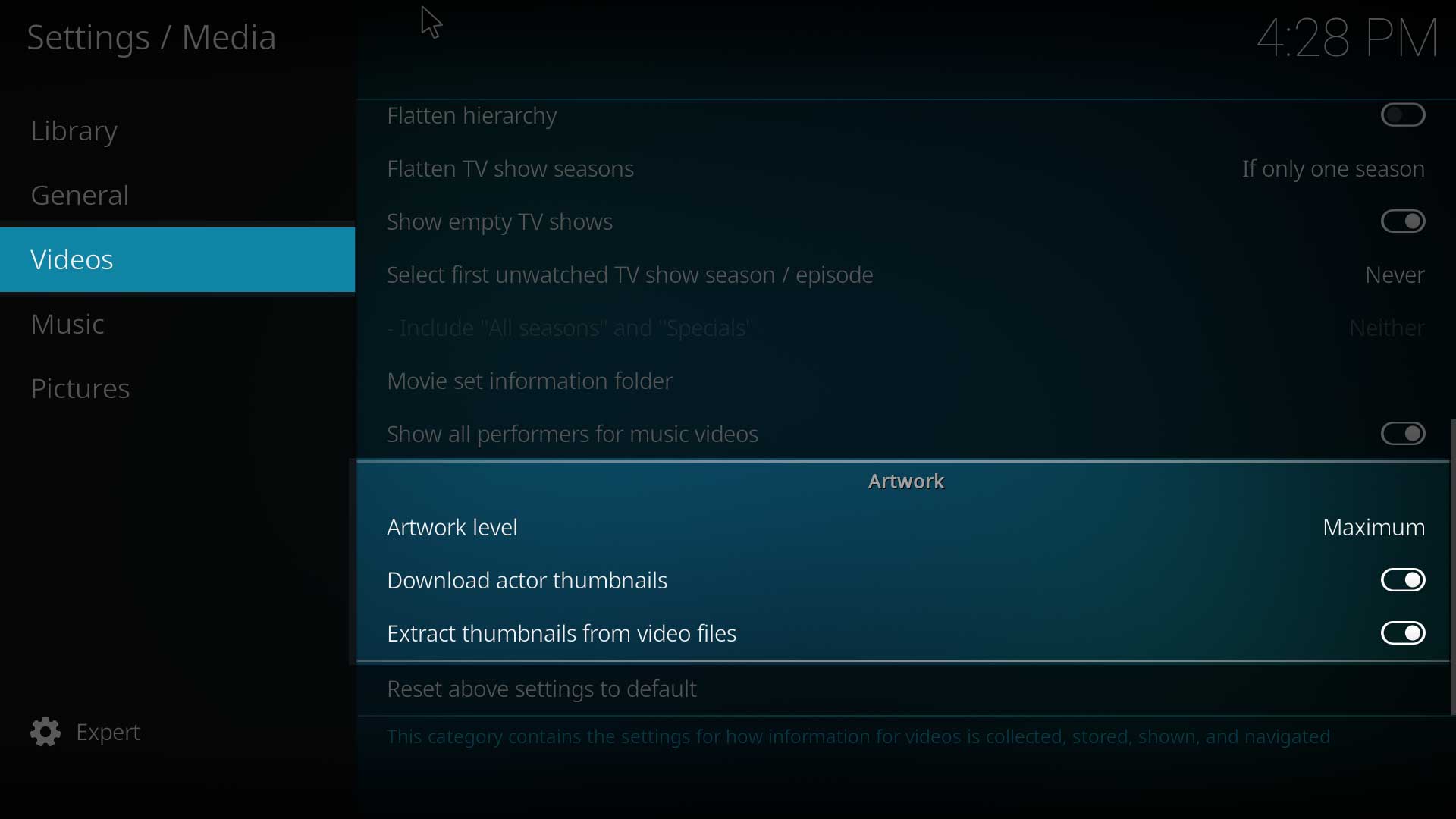 Image 4 - Available settings for Maximum artwork level
 -
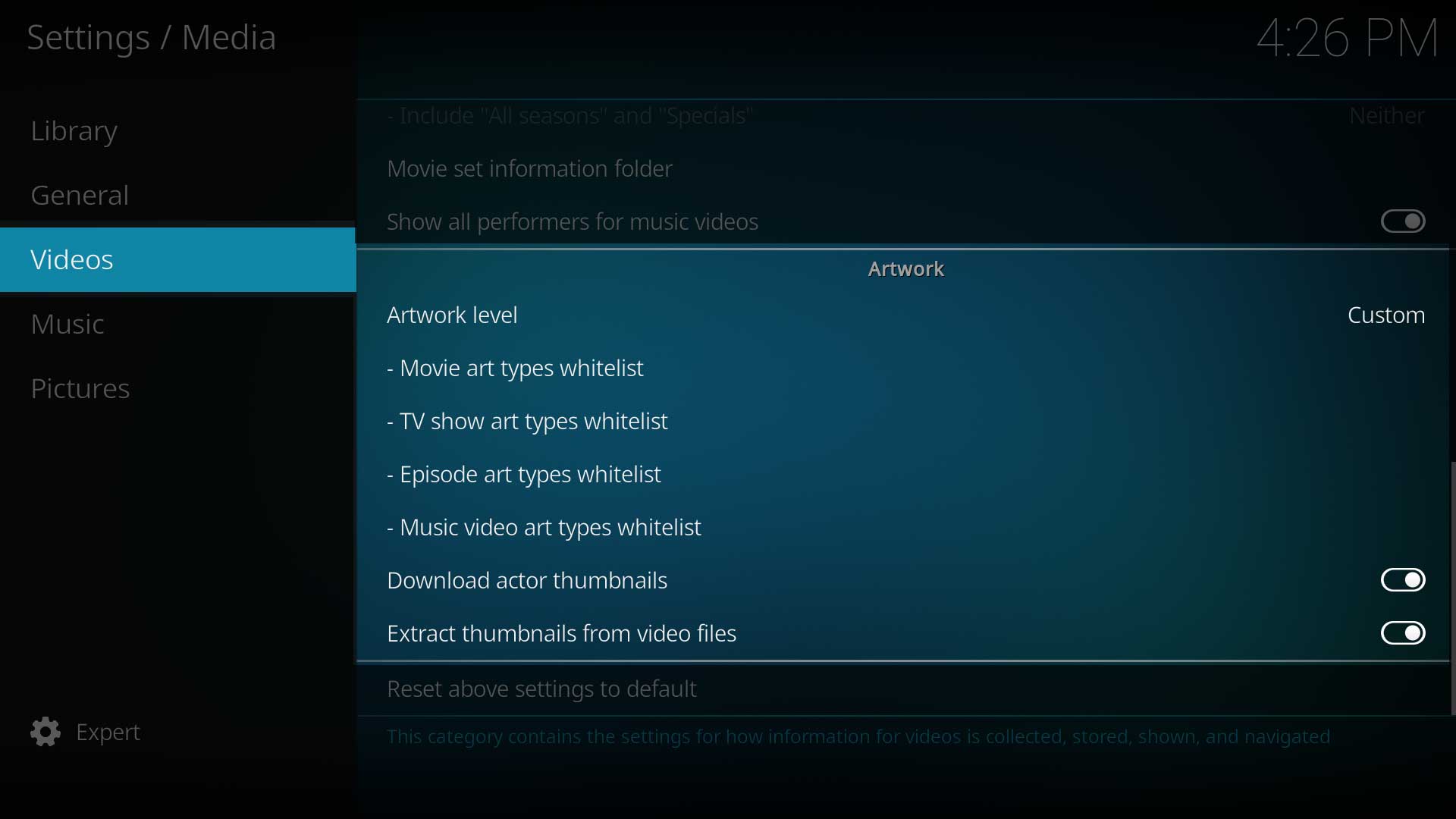 Image 5 - Avaialble settings for the Custom artwork level


Artwork level
| Settings level: | Advanced |
| Description: | Allows you to choose the types of artwork to be added to Kodi. Options are:
Note: This includes artwork that does not conform to Kodi's naming scheme, which will not be displayed unless you have modified the skin to do so.
|
The following four settings relate to the Custom setting.
Movie art types whitelist
Settings level: Advanced Description: Relates to the Custom artwork level. Add to the whitelist the artwork to be scanned or scraped for movies.
- The listed Movie artwork also extends to the equivalent for Movie Sets. E. g., poster includes Movie poster and Movie Set poster.
- Kodi standard artwork is available for selection. Additional types can be added using the Add art type button.
Note: Before adding a new art type, check it is used by the skin, as adding a new art type does not necessarily mean it will be displayed.
TV show art types whitelist
Settings level: Advanced Description: Relates to the Custom artwork level. Add to the whitelist the artwork to be scanned or scraped for TV Shows.
- The listed TV show artwork also extends to the equivalent for Seasons. E. g., poster includes TV show poster and Season posters.
- Kodi standard artwork is available for selection. Additional types can be added using the Add art type button.
Note: Before adding a new art type, check it is used by the skin, as adding a new art type does not necessarily mean it will be displayed.
Episode art types whitelist
Settings level: Advanced Description: Relates to the Custom artwork level. Add to the whitelist the artwork to be scanned or scraped for episodes.
- Kodi standard artwork is available for selection. Additional types can be added using the Add art type button.
Note: Before adding a new art type, check it is used by the skin, as adding a new art type does not necessarily mean it will be displayed.
Music Video art types whitelist
Settings level: Advanced Description: Relates to the Custom artwork level. Add to the whitelist the artwork to be scanned or scraped for Music Videos.
- Kodi standard artwork is available for selection. Additional types can be added using the Add art type button.
Note: Before adding a new art type, check it is used by the skin, as adding a new art type does not necessarily mean it will be displayed.
Download actor thumbnails
| Settings level: | Advanced |
| Description: | Also download actor artwork when scanning/scraping media. |
Extract thumbnails from video files
| Settings level: | Advanced |
| Description: | Capture a frame of the video stream. This frame will be displayed when episode artwork or when movie poster or fanart are missing. |
Retrieve art
| Settings level: | Expert |
| Description: | Previously, some artwork was scraped but never cached in Kodi until it was first accessed by the user, normally by viewing the item on-screen while browsing. For users that liked to backup their library by using the export facility in Kodi this caused export issues as some artwork was missing from the cache and therefore could not be exported. The caching behaviour has changed in v22 so all artwork is queued for caching.
|
References
| Return to top |
|---|