HOW-TO:Fix buttons skipped while mapping: Difference between revisions
Jump to navigation
Jump to search
mNo edit summary |
|||
| (8 intermediate revisions by 3 users not shown) | |||
| Line 1: | Line 1: | ||
{{mininav| [[Remote controls]] {{l2| [[Games]] }} | [[Game controllers]]}} | {{mininav| [[Remote controls]] {{l2| [[Games]] }} | [[Game controllers]]}} | ||
<section begin="intro" />While following [[HOW-TO:Configure controllers]], you may notice that some buttons are skipped. This page lists possible | <section begin="intro" />While following [[HOW-TO:Configure controllers]], you may notice that some buttons are skipped due to a bug in the driver. This page lists possible solutions.<section end="intro" /> | ||
== Solution == | |||
<gallery widths=360px heights=180px> | |||
File:Ignore input.jpg|Use the "Ignore Input" utility | |||
File:Ignore input dialog.jpg|Press buttons to detect erratic input | |||
File:Buttons were ignored.jpg|Confirm the dialog to ignore the listed input | |||
</gallery> | |||
When you confirm the dialog, all the listed buttons and axes will be ignored. To reset this, select Reset. | |||
== Other solutions == | |||
* Try moving the trigger or analog stick slower (especially on OSX!) | * Try moving the trigger or analog stick slower (especially on OSX!) | ||
* If your controller has an accelerometer, try placing it flat on a table | * If your controller has an accelerometer, try placing it flat on a table | ||
* If skipping continues to occur, please ask for help in the forum | * If skipping continues to occur, please ask for help in the forum | ||
=== | == See also == | ||
* {{big|'''[[HOW-TO:Share button maps]]'''}} | |||
[[ | |||
[[ | [[Category:Gaming]] | ||
[[Category:Manual]] | |||
[[Category:Remotes]] | |||
Latest revision as of 21:41, 16 December 2020

|
 Remote controls Games Remote controls Games |
Game controllers |
HOW-TO:Fix buttons skipped while mapping
|
While following HOW-TO:Configure controllers, you may notice that some buttons are skipped due to a bug in the driver. This page lists possible solutions.
Solution
-
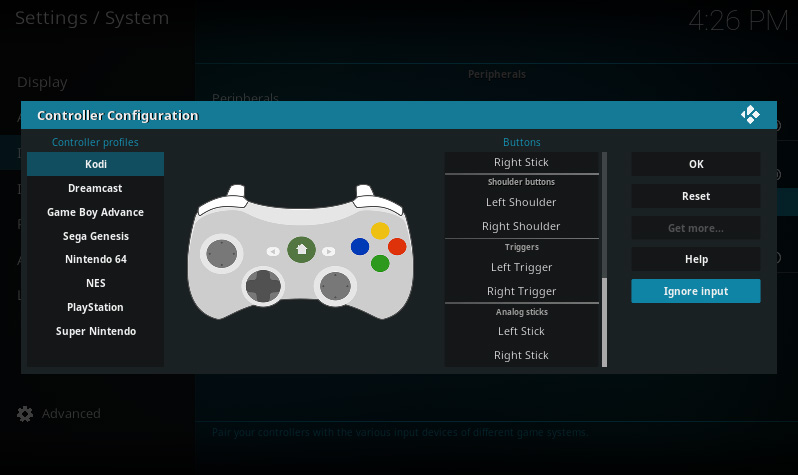 Use the "Ignore Input" utility
 -
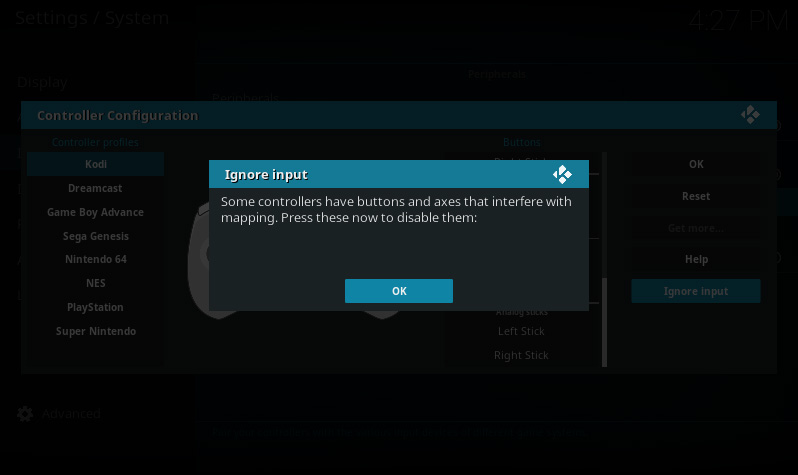 Press buttons to detect erratic input
 -
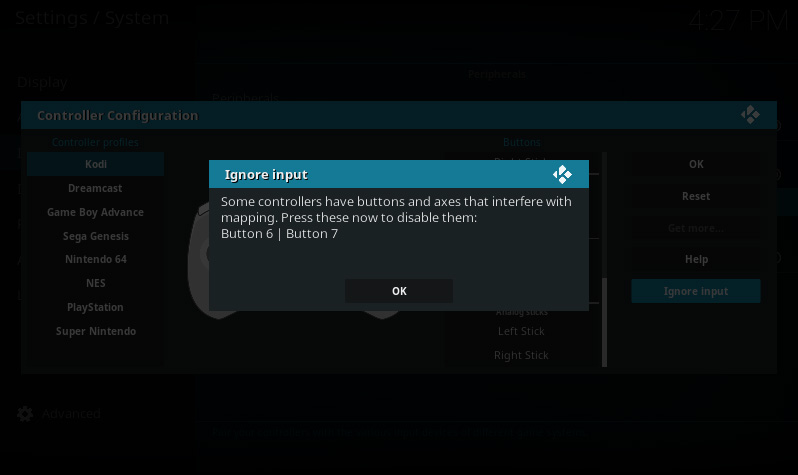 Confirm the dialog to ignore the listed input


When you confirm the dialog, all the listed buttons and axes will be ignored. To reset this, select Reset.
Other solutions
- Try moving the trigger or analog stick slower (especially on OSX!)
- If your controller has an accelerometer, try placing it flat on a table
- If skipping continues to occur, please ask for help in the forum