Player process info: Difference between revisions
mNo edit summary |
Updates for v22 |
||
| Line 25: | Line 25: | ||
=== Media | === Media === | ||
This screen provides details of the Audio and Video | This screen provides details of the Audio and Video streams of the media file currently playing | ||
=== Player | === Player === | ||
; Video decoder | ; Video decoder | ||
: Describes the video decoder currently in use. The decoder will vary depending on operating system. See... [https://trac.ffmpeg.org/wiki/HWAccelIntro Intro to FFmpeg Decoders] | : Describes the video decoder currently in use. The decoder will vary depending on operating system. See... [https://trac.ffmpeg.org/wiki/HWAccelIntro Intro to FFmpeg Decoders] | ||
| Line 42: | Line 42: | ||
; Video stream | ; Video stream | ||
: A number of items detailing the properties of the video stream. The values shown in the image are an example and will vary with the media being played. | : A number of items detailing the properties of the video stream. The values shown in the image are an example and will vary with the media being played. | ||
:: ''1,920x1, | :: ''1,920x1,080p'' - Resolution of the image in pixels based on the Storage Aspect Ratio (SAR), and scan type identifier - '''p''' for progressive scan or '''i''' for interlaced scan | ||
:: ''1.78 AR'' - The aspect ratio of the image. Based on the Display Aspect Ratio (DAR) | :: ''1.78 AR'' - The aspect ratio of the image. Based on the Display Aspect Ratio (DAR) | ||
:: '' | :: ''25.000 FPS'' - The frame rate of the video stream | ||
; Player cache | |||
: The status of the cache. 100% = fully utilised | |||
; Audio decoder | |||
: ''ac3'' - The audio coding format | |||
; Audio channels | |||
: ''FL,FR'' - The audio channels in the audio stream. When using Audio Passthrough settings, the channels will be displayed as ''raw'' | |||
; Audio stream | ; Audio stream | ||
:: ''32 bits'' - The bit depth of the audio stream | :: ''32 bits'' - The bit depth of the audio stream | ||
:: ''48,000 Hz'' - The sample rate | :: ''48,000 Hz'' - The sample rate | ||
=== System | === System === | ||
; Screen resolution | ; Screen resolution | ||
: The resolution and refresh rate of the display | : The resolution and refresh rate of the display | ||
; System rendering speed | ; System rendering speed | ||
: | : Frame rate | ||
; System memory usage | ; System memory usage | ||
| Line 66: | Line 72: | ||
; System CPU usage | ; System CPU usage | ||
: The CPU currently being used on the system. This is a total usage by all processes, not just {{kodi}} | : The CPU currently being used on the system. This is a total usage by all processes, not just {{kodi}} | ||
; CPU temperature | |||
: Where available, will display the core temperatures. | |||
| Line 86: | Line 95: | ||
; Line 1 | ; Line 1 | ||
: ''aq: | : ''aq:95%'' - The audio queue saturation | ||
: ''Kb/s: | : ''Kb/s:379.70'' - Current audio bitrate reported by the player | ||
: '' | : ''a/v corrections'' - The corrections required to sync the audio and video streams. <ref>https://github.com/xbmc/xbmc/pull/22770</ref> | ||
:: The (50ms) is the out-of-sync delay to align the streams. It is calculated at the start of playback. | |||
:: The count, 0 in the image, indicates the number of times corrections have been made during playback.<ref>https://forum.kodi.tv/showthread.php?tid=371292</ref> | |||
; Line 2 | ; Line 2 | ||
: ''vq: | : ''vq:95%'' - Video queue saturation | ||
: ''Mb/s: | : ''Mb/s:0.26'' - Current video bitrate reported by the player | ||
: ''fr: | : ''fr:25.000'' - Frame rate | ||
: ''drop: | : ''drop:23'' - Number of dropped frames | ||
: ''skip: | : ''skip:11'' - Number of skipped frames | ||
: ''pc:1'' - Pullup correction pattern length | : ''pc:1'' - Pullup correction pattern length | ||
; Player | ; Player | ||
: ''a/v:-0. | : ''a/v:-0.022'' - Audio/video sync difference in real time | ||
: ''forward: | : ''forward: 22.06 MB / 92% / 38.433s / 1.329%'' - Cache amount in MB / % of cache filled / number of seconds cached / percentage of movie cached | ||
: ''100%'' - Percentage of cache in use | : ''100%'' - Percentage of cache in use | ||
; VSync | ; VSync | ||
: ''VSyncOff: - | : ''VSyncOff: -11.2'' - Indicates the offset between the vertical sync signal of the display and the timestamps of the video frames. This offset is used for audio visual synchronisation. <ref>https://forum.kodi.tv/showthread.php?tid=332156&pid=2737399#pid2737399</ref> | ||
:: If ''VSyncOff'' is greater than zero and constant, then synchronisation is all good. | :: If ''VSyncOff'' is greater than zero and constant, then synchronisation is all good. | ||
:: If the value shows 0.0, the framerate (fps) of the video does not match the refresh rate (Hz) of the display which may cause micro-stuttering of the video, especially during panning shots. | :: If the value shows 0.0, the framerate (fps) of the video does not match the refresh rate (Hz) of the display which may cause micro-stuttering of the video, especially during panning shots. | ||
: ''Latency: 0.080'' - Adjustment in seconds required to sync audio and video | : ''Latency: 0.080'' - Adjustment in seconds required to sync audio and video | ||
| Line 188: | Line 194: | ||
<References /> | <References /> | ||
| Line 195: | Line 199: | ||
{{top}} | {{top}} | ||
{{updated| | {{updated|22}} | ||
[[Category:Karellen]] | [[Category:Karellen]] | ||
[[Category:Video library]] | [[Category:Video library]] | ||
Revision as of 03:09, 5 August 2025

|
 Video library Video library |
Playback |
Player process info
|
Introduction
Kodi can display information about the system and the media that is currently being played. This information is available through a number of on-screen overlays.
Player Process Info
The Player Process Information OSD details the static information (metadata) of the Audio and Video streams in use.
The OSD can be activated using one of the following methods...
- Pressing o on a keyboard
- Pressing the equivalent key on your remote control. This is not a standard button press and will need to be mapped to your remote control. See: Keymap Editor
- Using one of the remote control Apps, special functions are available to activate and deactivate this OSD
-
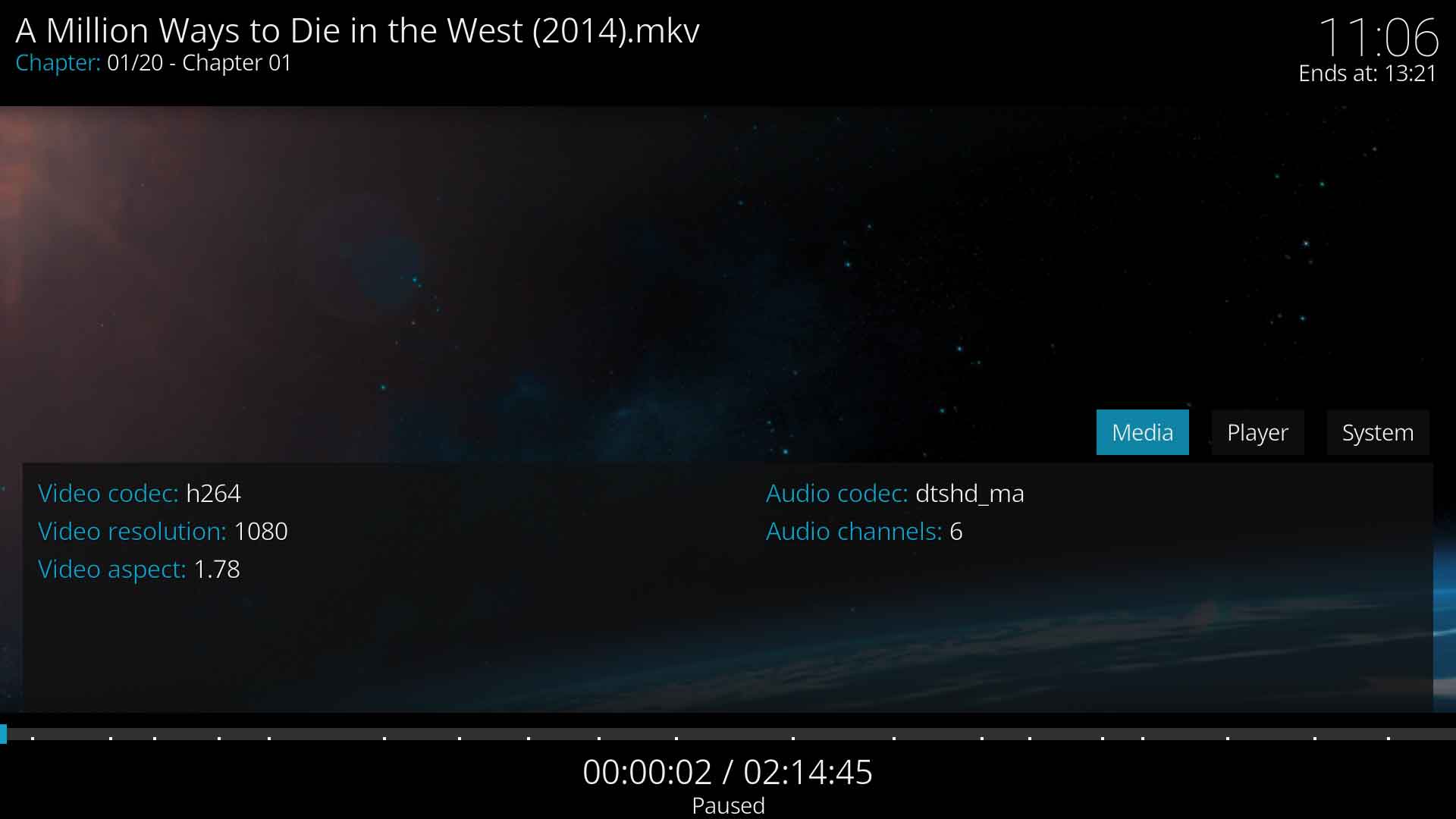 Image 1 - The Media Process Information overlay
 -
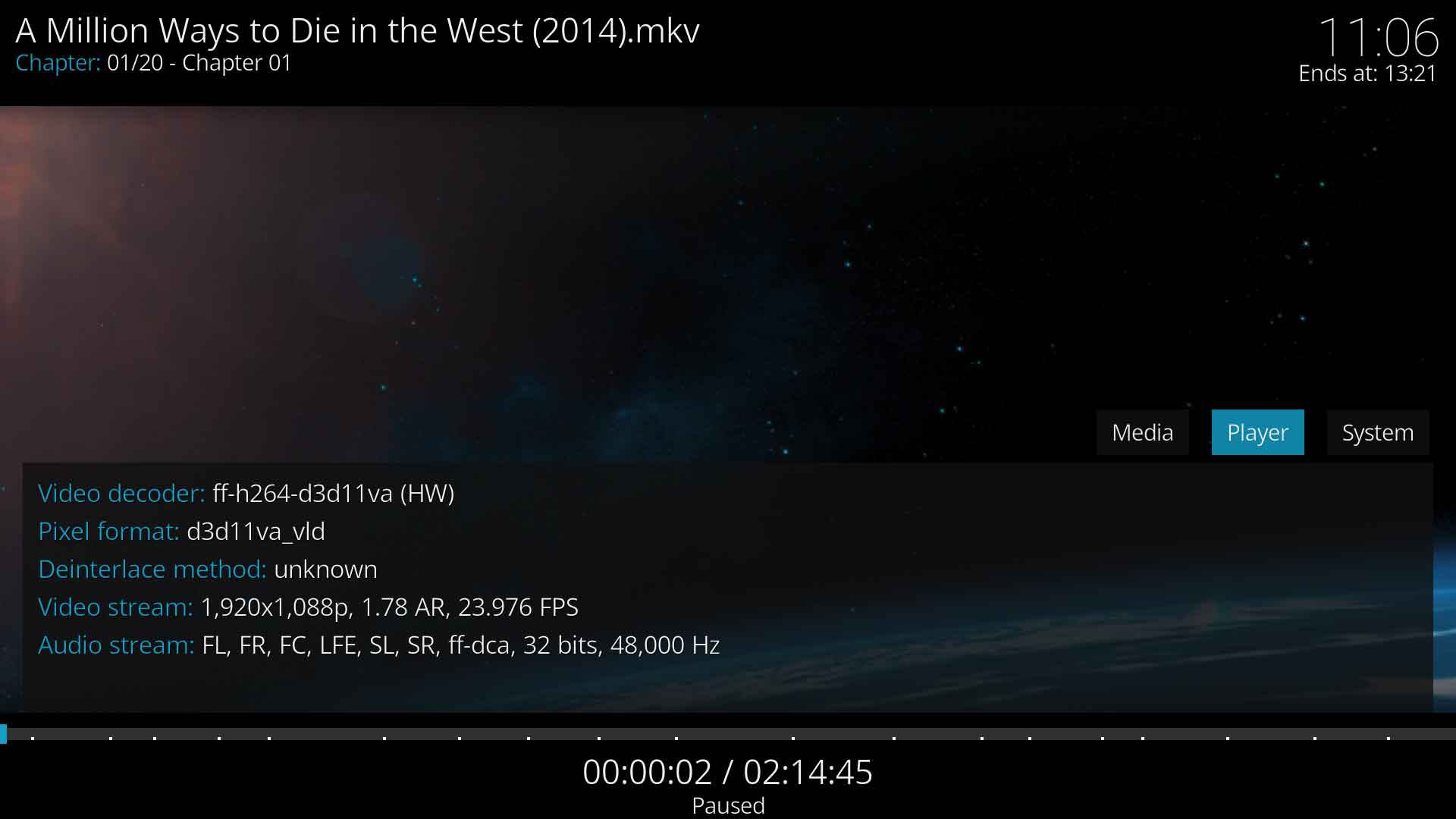 Image 2 - The Player Process Information overlay
 -
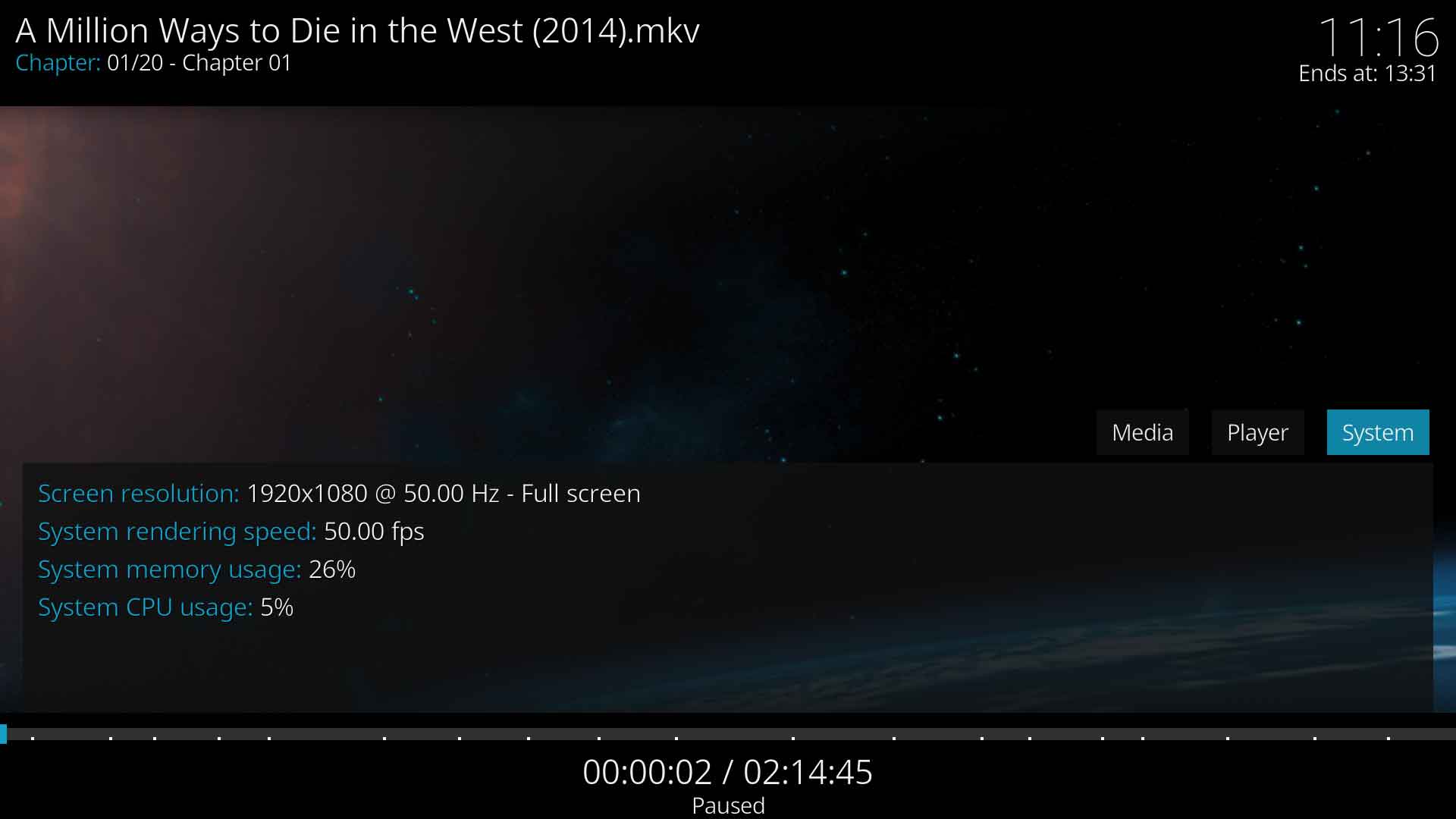 Image 3 - The System Process Information overlay


The following is a brief description of the information being displayed:
Media
This screen provides details of the Audio and Video streams of the media file currently playing
Player
- Video decoder
- Describes the video decoder currently in use. The decoder will vary depending on operating system. See... Intro to FFmpeg Decoders
- The item in brackets indicates whether decoding is currently being performed by Hardware (HW) or Software (SW). See... Platform Specific Hardware Acceleration settings
- Deinterlace method
- The method used to deinterlace the currently playing video stream, if required.
- Video stream
- A number of items detailing the properties of the video stream. The values shown in the image are an example and will vary with the media being played.
- 1,920x1,080p - Resolution of the image in pixels based on the Storage Aspect Ratio (SAR), and scan type identifier - p for progressive scan or i for interlaced scan
- 1.78 AR - The aspect ratio of the image. Based on the Display Aspect Ratio (DAR)
- 25.000 FPS - The frame rate of the video stream
- Player cache
- The status of the cache. 100% = fully utilised
- Audio decoder
- ac3 - The audio coding format
- Audio channels
- FL,FR - The audio channels in the audio stream. When using Audio Passthrough settings, the channels will be displayed as raw
- Audio stream
-
- 32 bits - The bit depth of the audio stream
- 48,000 Hz - The sample rate
System
- Screen resolution
- The resolution and refresh rate of the display
- System rendering speed
- Frame rate
- System memory usage
- The memory currently being used on the system. This is a total usage by all processes, not just Kodi
- System CPU usage
- The CPU currently being used on the system. This is a total usage by all processes, not just Kodi
- CPU temperature
- Where available, will display the core temperatures.
Player Debug Info
The Player Debug Info screen displays real-time dynamic data of the current audio/video streams.
Note - What is displayed will depend on your settings for Sync playback to display and Adjust display refresh rate
The OSD can be activated using one of the following methods...
- Pressing ctrl+⇧ Shift+o on a keyboard
- Pressing the equivalent key on your remote control. This is not a standard button press and will need to be mapped to your remote control. See: Keymap Editor
- Using one of the remote control Apps, special functions are available to activate and deactivate this OSD
-
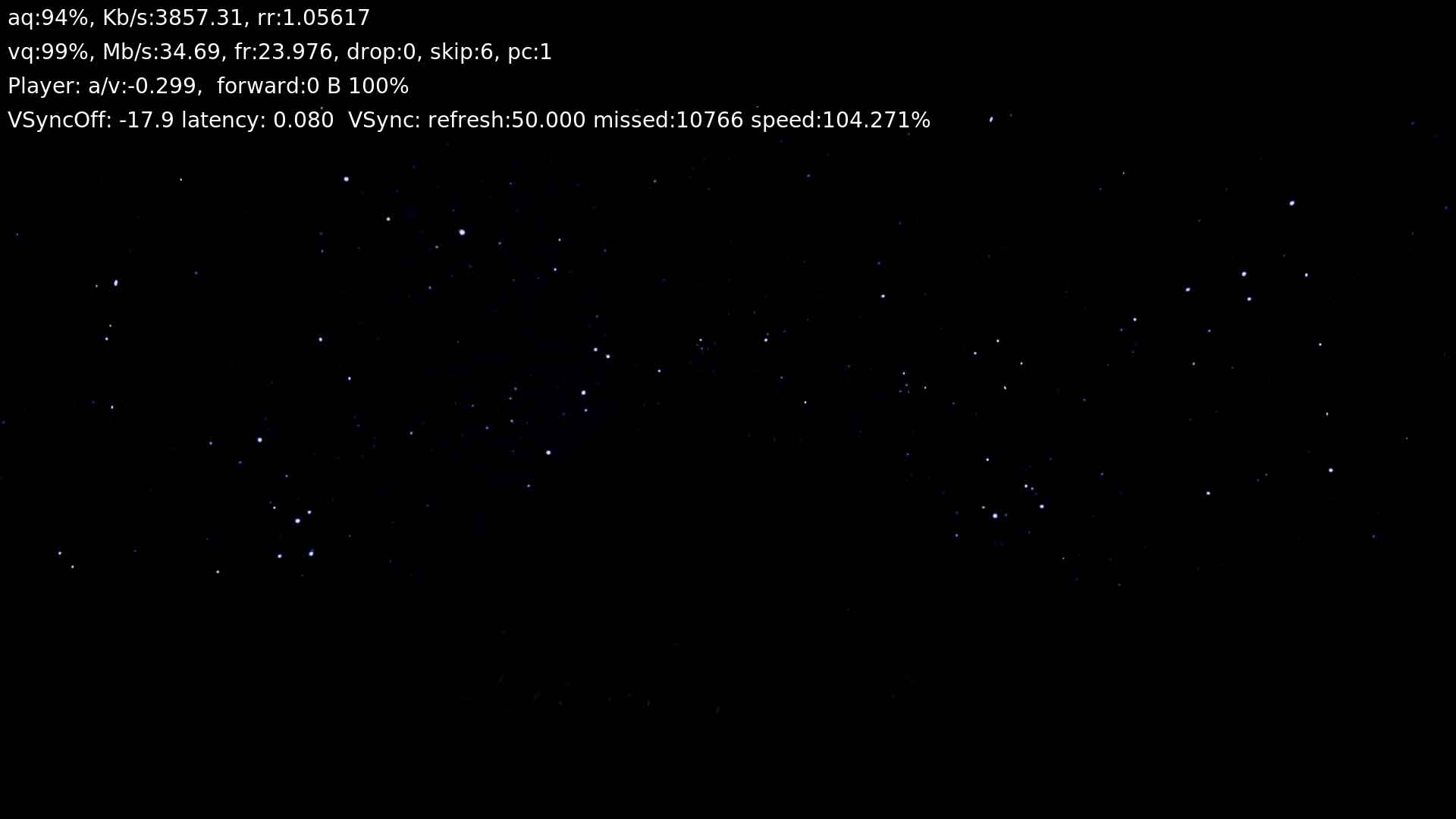 Image 4 - The Player Debug Information overlay

The following is a brief description of the information being displayed:
- Line 1
- aq:95% - The audio queue saturation
- Kb/s:379.70 - Current audio bitrate reported by the player
- a/v corrections - The corrections required to sync the audio and video streams. [3]
- The (50ms) is the out-of-sync delay to align the streams. It is calculated at the start of playback.
- The count, 0 in the image, indicates the number of times corrections have been made during playback.[4]
- Line 2
- vq:95% - Video queue saturation
- Mb/s:0.26 - Current video bitrate reported by the player
- fr:25.000 - Frame rate
- drop:23 - Number of dropped frames
- skip:11 - Number of skipped frames
- pc:1 - Pullup correction pattern length
- Player
- a/v:-0.022 - Audio/video sync difference in real time
- forward: 22.06 MB / 92% / 38.433s / 1.329% - Cache amount in MB / % of cache filled / number of seconds cached / percentage of movie cached
- 100% - Percentage of cache in use
- VSync
- VSyncOff: -11.2 - Indicates the offset between the vertical sync signal of the display and the timestamps of the video frames. This offset is used for audio visual synchronisation. [5]
- If VSyncOff is greater than zero and constant, then synchronisation is all good.
- If the value shows 0.0, the framerate (fps) of the video does not match the refresh rate (Hz) of the display which may cause micro-stuttering of the video, especially during panning shots.
- Latency: 0.080 - Adjustment in seconds required to sync audio and video
Video Debug Info
This display is available on MS Windows systems only.
The Video Debug Info screen displays additional video stream and HDR metadata, shader and swapchain information (flip, discard / sequential), Windows HDR state, all of which are not available elsewhere in Kodi[6]
The OSD can be activated using one of the following methods...
- Pressing alt+o on a keyboard
- Pressing the equivalent key on your remote control. This is not a standard button press and will need to be mapped to your remote control. See: Keymap Editor
- Using one of the remote control Apps, special functions may be available to activate and deactivate this OSD
-
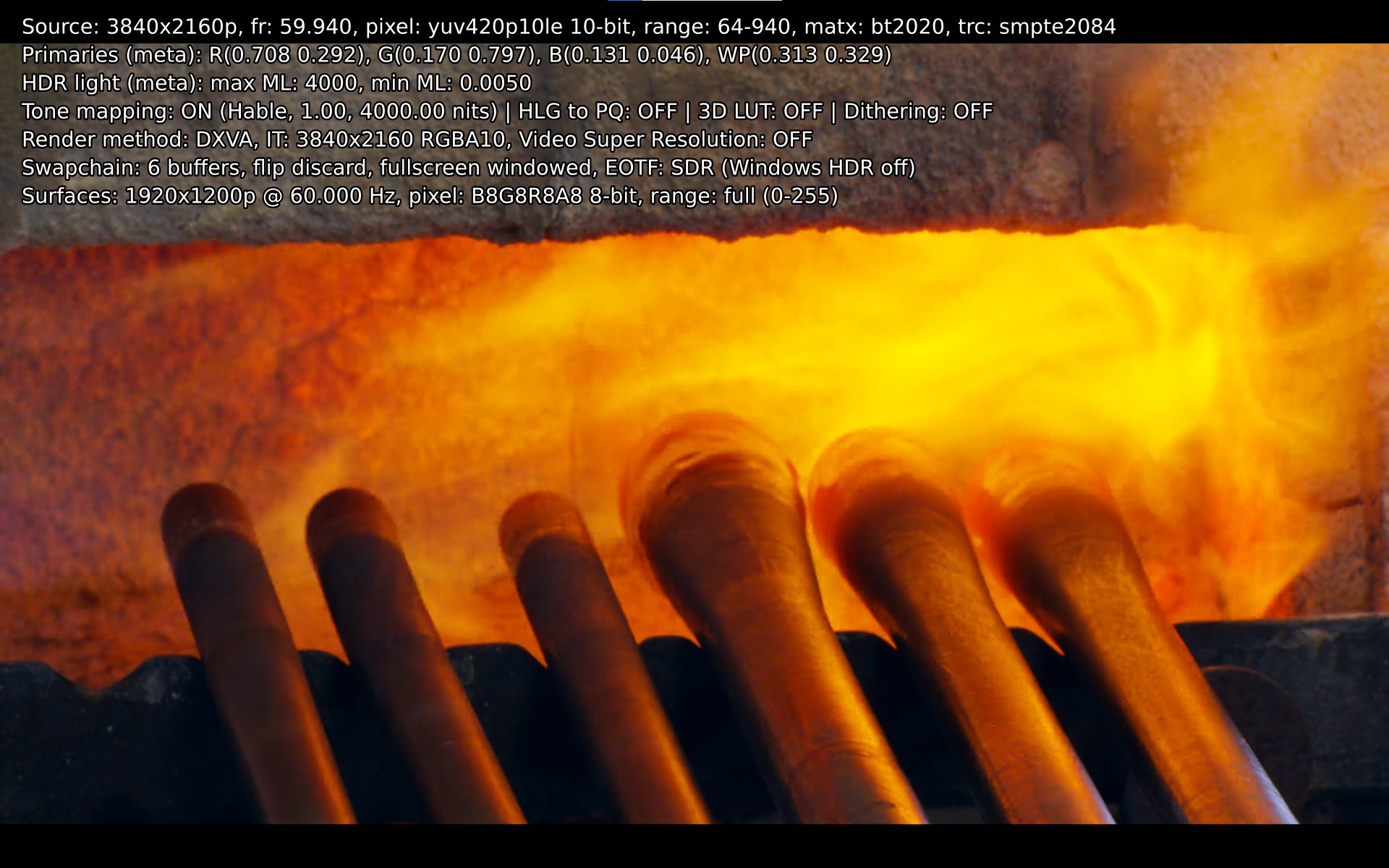 Image 5 - The Video Debug Information overlay

Display Info
The Display Information screen displays the View Mode, Aspect Ratio and other display related data.
The OSD can be activated using one of the following methods...
- Pressing z on a keyboard
- Pressing the equivalent key on your remote control. This is not a standard button press and will need to be mapped to your remote control. See: Keymap Editor
- Using one of the remote control Apps, special functions are available to activate and deactivate this OSD
-
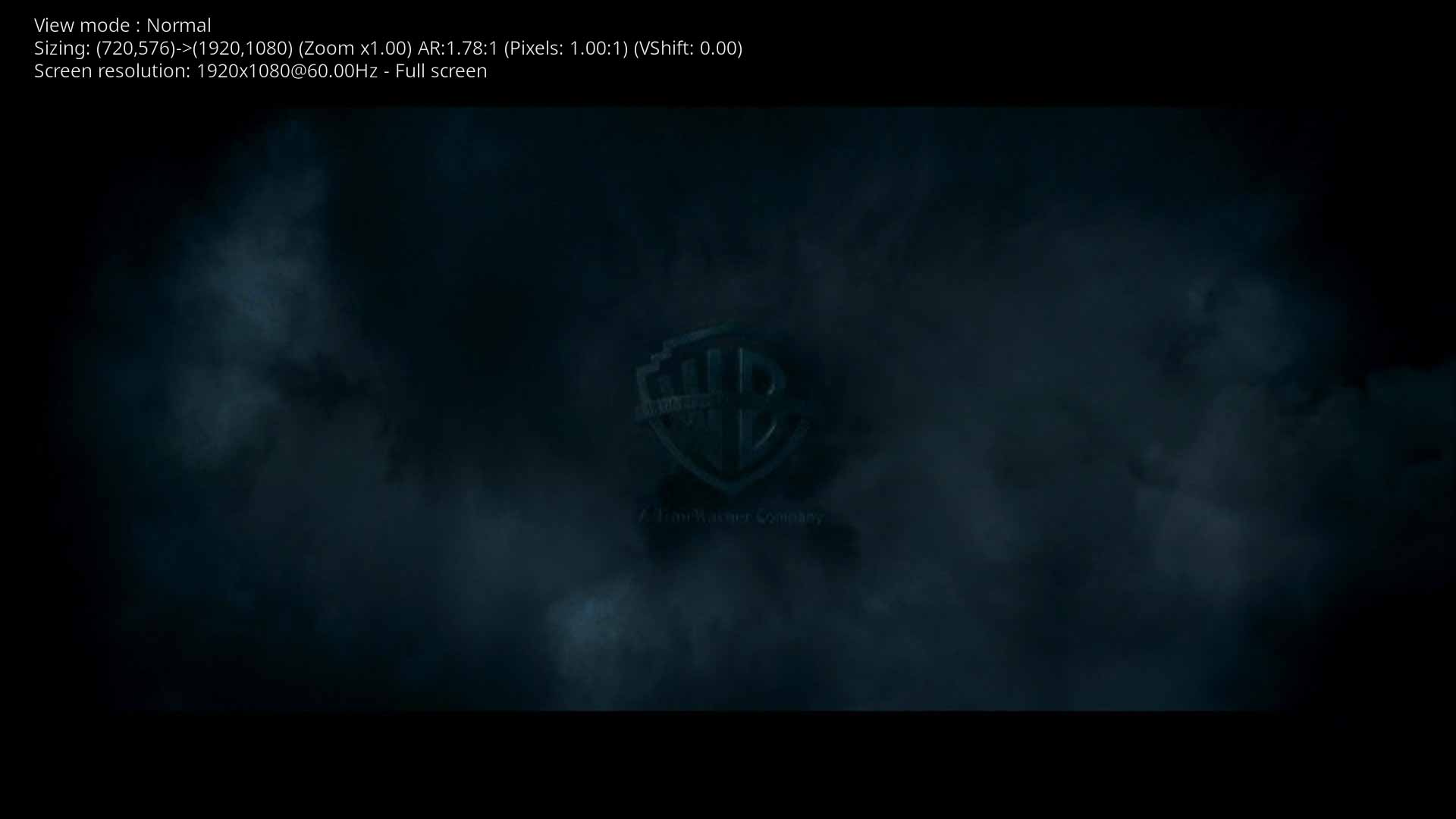 Image 6 - The Display Information overlay

The following data is displayed
- View Mode
- The zoom/crop/stretch mode currently in use. For available options see: Video Settings.
- Sizing
- Information about the output display of the video stream
- (720,576)->(1920,1080) = (Resolution of video)->(Output resolution) Reveals any upscaling or downscaling. The example shows upscaling by Kodi and your TV may further upscale. eg in this example a 4K TV will upscale from 1920x1080 to 3840x2160.
- (Zoom x1.00) Reveals if any zoom has been applied
- AR:1.78:1 Aspect Ratio of video
- (Pixels: 1.00:1) Pixel ratio in use
- (VShift: 0.00) Amount of Vertical Shift applied
- See: Video Settings for more information.
- Screen resolution
- Reported resolution to Kodi. Usually the resolution set on the graphics card, and the TV may then further upscale. Also displays the type of Full Screen in use.
Debug Mode
Although normally used to enable debug logging in the Kodi log files, the overlay provides additional useful information.
The Debug Mode can be activated using one of the following methods...
- Enable the setting Enable debug logging in the settings page located at Settings > System Settings > Logging
- Pressing ctrl+⇧ Shift+d on a keyboard
- Create an entry in the advancedsettings.xml file. See: Advanced Method
-
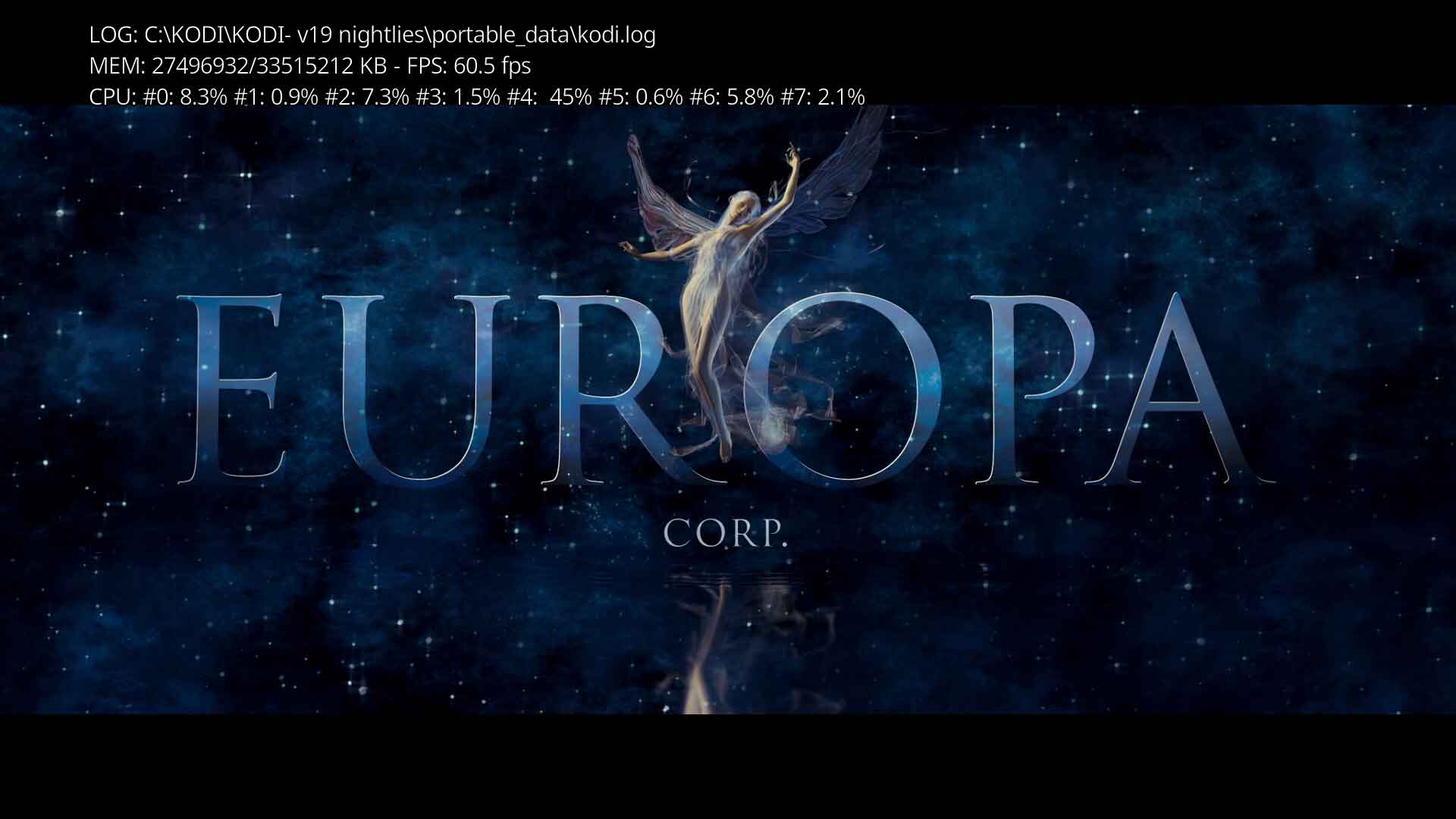 Image 7 - The Debug Mode Information overlay

- LOG
- Reveals the location of the debug log
- MEM
- System memory available / Total system memory in Kilobytes
- FPS
- The refresh rate of the display
- CPU
- #The CPU thread : The work load on the thread as a percentage of maximum rated
References
- ↑ https://www.amd.com/en/support/kb/faq/dh2-007
- ↑ https://ffmpeg.org/doxygen/3.2/pixfmt_8h.html#a9a8e335cf3be472042bc9f0cf80cd4c5
- ↑ https://github.com/xbmc/xbmc/pull/22770
- ↑ https://forum.kodi.tv/showthread.php?tid=371292
- ↑ https://forum.kodi.tv/showthread.php?tid=332156&pid=2737399#pid2737399
- ↑ https://github.com/xbmc/xbmc/pull/19126
| Return to top |
|---|