[[File:Settings - Player - Videos - Action.jpg|500px|right]]
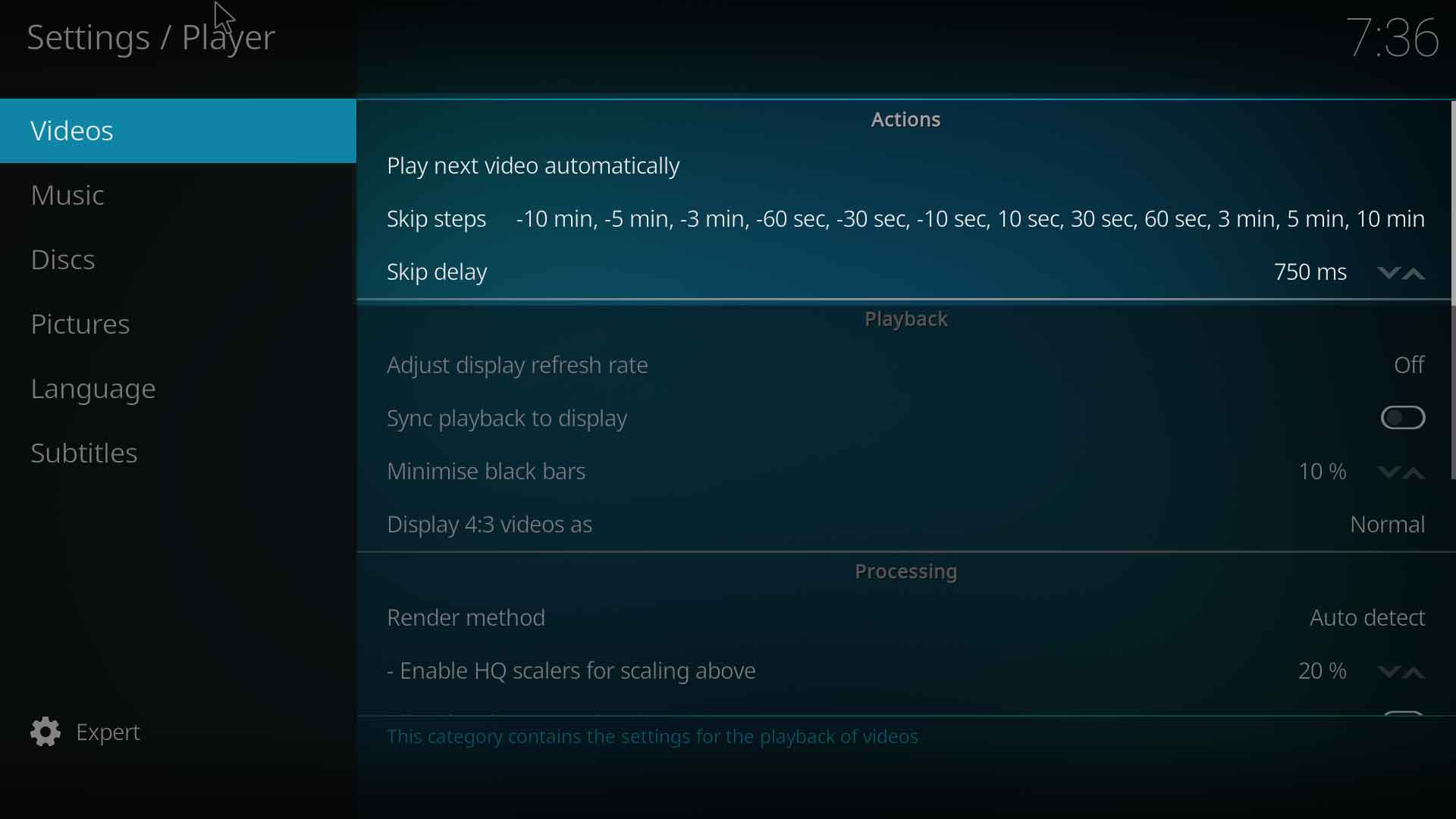
=== Play next video automatically ===
{|
|- valign="top"
| width=120px | {{nowrap|'''Settings level:'''}}
| Basic
|- valign="top"
| '''Description:'''
| When selected this enables automatic playback of the next file in the list.
|}
; {{small see also|Playlists}}
=== Skip steps ===
{|
|- valign="top"
| width=120px | {{nowrap|'''Settings level:'''}}
| Standard
|- valign="top"
| '''Description:'''
| Defines the amount of time each press of the Skip button will skip forward or backwards. A (-) will define backwards and no (-) will define forward. You can set multiple times so each press will skip more time in the video. So if, for example you use '''10 sec, 30 sec, 60 sec''' when press the Skip button once it will skip 10 seconds foward, double pressing the Skip button will skip 30 seconds and triple pressing the Skip button will skip 60 seconds.
|}
; {{small see also|Skip steps}}
=== Skip delay ===
{|
|- valign="top"
| width=120px | {{nowrap|'''Settings level:'''}}
| Standard
|- valign="top"
| '''Description:'''
| Defines how much time it takes before the skip step occurs. The range is '''none''' (which will cause the skip step to happen immediately) & '''250 - 3000ms''' (milliseconds).
|}
{{-}}
== Playback==
[[File:Settings - Player - Videos - Playback.jpg|500px|right]]
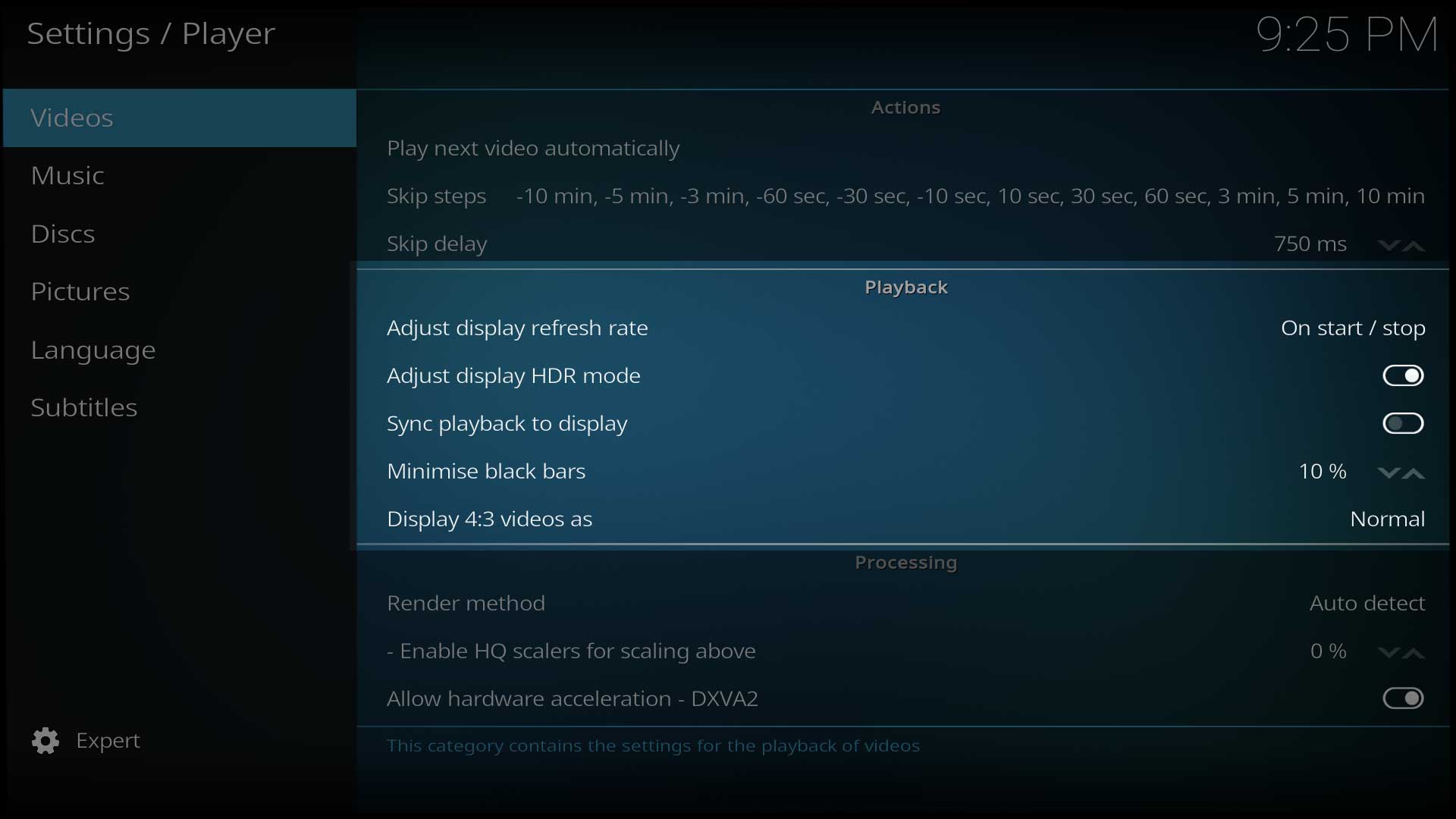
=== Adjust display refresh rate ===
{|
|- valign="top"
| width=120px | {{nowrap|'''Settings level:'''}}
| Standard
|- valign="top"
| '''Description:'''
| Defines when the refresh rate adjustments should take place. Activate to automatically set the refresh rate which is best matched with the video that is playing (default off). This potentially allows for perfectly smooth video reproduction, as video material can be recorded in a variety of frame rates (23.976fps, 24fps, 25fps, 29.97fps, 30 fps, etc.) which need to be properly matched by the refresh rate of the display, in order to be displayed smoothly.
|}
=== Sync playback to display ===
{|
|- valign="top"
| width=120px | {{nowrap|'''Settings level:'''}}
| Standard
|- valign="top"
| '''Description:'''
| This setting enables syncing the video to the refresh rate of the monitor.
|}
{| width=85%; class="prettytable"
=== Minimise black bars ===
! width=210px | Setting
{|
! Description
|- valign="top"
! width=100px | Level
| width=120px | {{nowrap|'''Settings level:'''}}
|-
| Advanced
| Play next video automatically || When selected this enables automatic playback of the next file in the list || Basic
|- valign="top"
|-
| '''Description:'''
| Skip steps || Defines the amount of time each press of the Skip button will skip forward or backwards. A (-) will define backwards and no (-) will define forward. You can set multiple times so each press will skip more time in the video. So if, for example you use '''10 sec, 30 sec, 60 sec''' when press the Skip button once it will skip 10 seconds foward, double pressing the Skip button will skip 30 seconds and triple pressing the Skip button will skip 60 seconds. || Standard
| Allow video player to try to fit video to screen by ignoring aspect ratio by a certain amount.
|-
| Skip delay || Defines how much time it takes before the skip step occurs. The range is '''none''' (which will cause the skip step to happen immediately) & '''250 - 3000ms''' (milliseconds). || Standard
|}
|}
=== Playback===
{| width=85%; class="prettytable"
=== Display {{nowrap|4:3}} videos as ===
! width=210px | Setting
{|
! Description
|- valign="top"
! width=100px | Level
| width=120px | {{nowrap|'''Settings level:'''}}
|-
| Advanced
| Adjust display refresh rate || Defines when the refresh rate adjustments should take place. Activate to automatically set the refresh rate which is best matched with the video that is playing (default off). This potentially allows for perfectly smooth video reproduction, as video material can be recorded in a variety of frame rates (23.976fps, 24fps, 25fps, 29.97fps, 30 fps, etc.) which need to be properly matched by the refresh rate of the display, in order to be displayed smoothly. || Standard
|- valign="top"
|-
| '''Description:'''
| Sync playback to display || This setting enables syncing the video to the refresh rate of the monitor. || Standard
| Determines the zoom level that 4:3 videos are shown on widescreen displays.
|-
| Minimise black bars || Allow video player to try to fit video to screen by ignoring aspect ratio by a certain amount. || Advanced
|-
| Display 4:3 videos as || Determines the zoom level that 4:3 videos are shown on widescreen displays. || Advanced
|}
|}
=== Processing general ===
{| width=85%; class="prettytable"
{{-}}
! width=210px | Setting
! Description
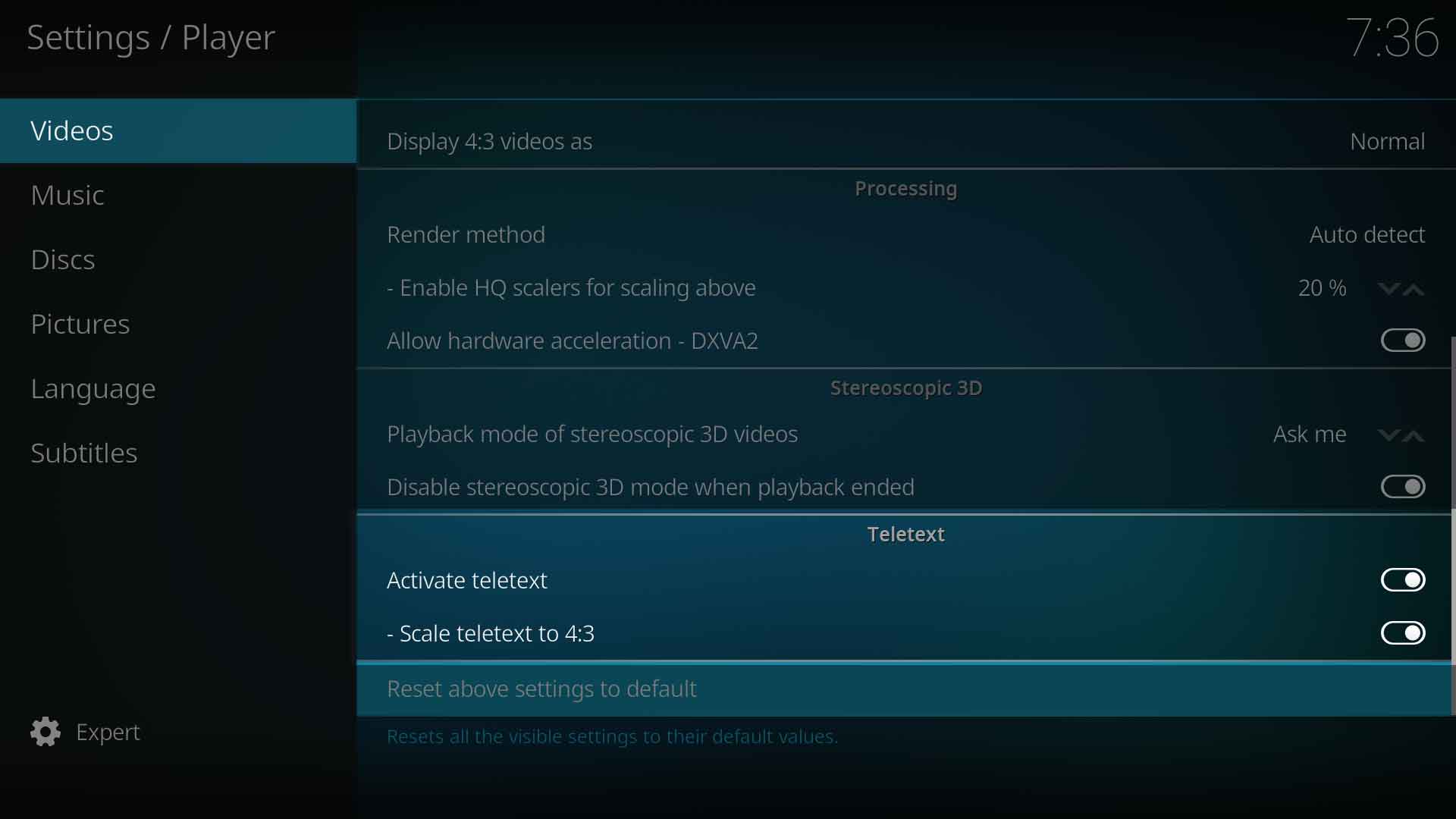
== Processing ==
! width=100px | Level
[[File:Settings - Player - Videos - Processing.jpg|500px|right]]
|-
| Render method || Controls the method used by the player to process and display the video, (which is called rendering). || Advanced
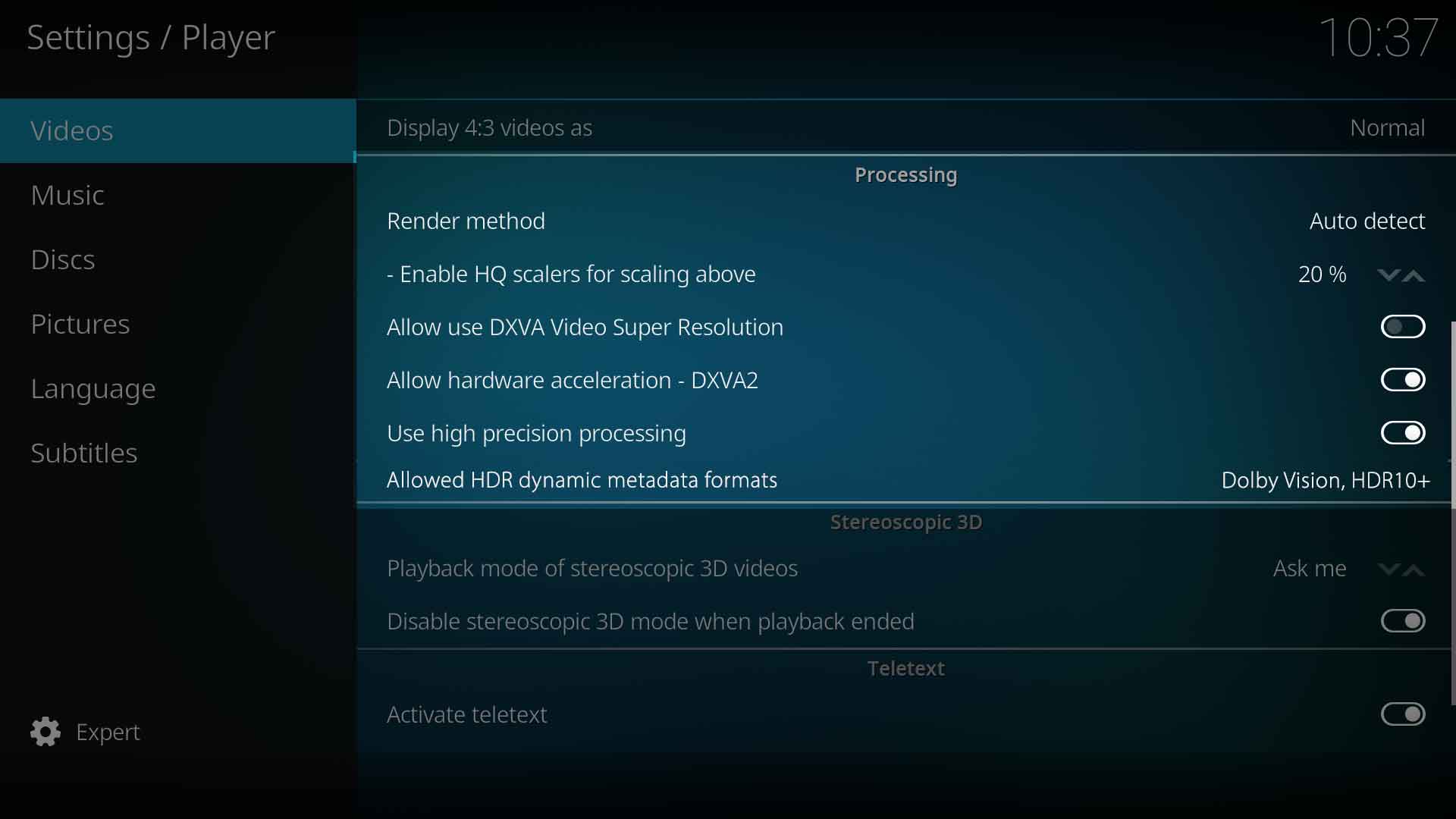
=== Render method ===
|-
{|
| Enable HQ scalers for scaling above || Use high quality scalers when upscaling a video by at least this percentage. A value below 5% makes little sense as video is processed with high GPU load without any visible picture quality improvements || Advanced
|- valign="top"
| width=120px | {{nowrap|'''Settings level:'''}}
| Advanced
|- valign="top"
| '''Description:'''
| Controls the method used by the player to process and display the video, (which is called rendering).
|}
|}
==== Processing Windows only ====
{| width=85%; class="prettytable"
=== Enable HQ scalers for scaling above ===
! width=210px | Setting
{|
! Description
|- valign="top"
! width=100px | Level
| width=120px | {{nowrap|'''Settings level:'''}}
|-
| Advanced
| Allow hardware acceleration DXVA2 || Enable VDPAU hardware decoding of video files. || Expert
|- valign="top"
| '''Description:'''
| Use high quality scalers when upscaling a video by at least this percentage. A value below 5% makes little sense as video is processed with high GPU load without any visible picture quality improvements
|}
|}
=== Platform Specific Hardware Acceleration settings ===
:The following settings will show up for the '''Processing''' section for their respective platforms:
{{collapse top|Windows specific settings (click 'expand' to expand)}}
; Allow hardware acceleration DXVA2
{|
|- valign="top"
| width=120px | {{nowrap|'''Settings level:'''}}
| Advanced
|- valign="top"
| '''Description:'''
| Enable DXVA2 hardware decoding of video files.
|}
{{collapse bottom}}
{{collapse top|Linux specific settings (click 'expand' to expand)}}
; Allow hardware acceleration - VDPAU
{|
|- valign="top"
| width=120px | {{nowrap|'''Settings level:'''}}
| Advanced
|- valign="top"
| '''Description:'''
| Enable VDPAU hardware decoding of video files, mainly used for NVIDIA graphics and in some circumstances AMD graphics.
|}
==== Processing Linux only ====
{| width=85%; class="prettytable"
; Prefer VDPAU video mixer
! width=210px | Setting
{|
! Description
|- valign="top"
! width=100px | Level
| width=120px | {{nowrap|'''Settings level:'''}}
|-
| Advanced
| Allow hardware acceleration - VDPAU || Enable VDPAU hardware decoding of video files, mainly used for NVIDIA graphics and in some circumstances AMD graphics || Advanced
|- valign="top"
|-
| '''Description:'''
| Prefer VDPAU video mixer || Bypassing VDPAU mixer saves resources on low power systems but slightly reduces picture quality || Advanced
| Bypassing VDPAU mixer saves resources on low power systems but slightly reduces picture quality.
|-
| Allow hardware acceleration - VAAPI || Enable VAAPI hardware decoding of video files, mainly used for Intel graphics and in some circumstances AMD graphics. || Advanced
|-
| Use MPEG-2 VAAPI || Enable this option to use hardware acceleration for MPEG-(1/2) codecs. If disabled the CPU will be used instead. Some MPEG-2 videos might have green artifacts. || Expert
|-
| Use MPEG-4 VAAPI || Enable this option to use hardware acceleration for MPEG-4 codec. If disabled the CPU will be used instead. || Expert
|-
| Use VC-1 VAAPI || Enable this option to use hardware acceleration for VC-1 based codecs. If disabled the CPU will be used instead. Especially VC-1 interlaced fails hard on Intel hardware. || Expert
|-
| Prefer VAAPI render method || When enabled, VAAPI render method is preferred and the CPU has less load. If you experience hangs, disable this option. || Expert
|}
|}
==== Processing MacOS only ====
{| width=85%; class="prettytable"
; Use MPEG-4 VDPAU
! width=210px | Setting
{|
! Description
|- valign="top"
! width=100px | Level
| width=120px | {{nowrap|'''Settings level:'''}}
|-
| Expert
| Allow hardware acceleration - VTBDecoder || Enable VTB hardware decoding of video files. || Expert
|- valign="top"
| '''Description:'''
| Enable this option to use hardware acceleration for the MPEG-4 codec. If disabled the CPU will be used instead. Some ION hardware has problems with this being enabled by default.
|}
|}
; Allow hardware acceleration - VAAPI
{|
|- valign="top"
| width=120px | {{nowrap|'''Settings level:'''}}
| Advanced
|- valign="top"
| '''Description:'''
| Enable VAAPI hardware decoding of video files, mainly used for Intel graphics and in some circumstances AMD graphics.
|}
; Use MPEG-2 VAAPI
{|
|- valign="top"
| width=120px | {{nowrap|'''Settings level:'''}}
| Expert
|- valign="top"
| '''Description:'''
| Enable this option to use hardware acceleration for MPEG-(1/2) codecs. If disabled the CPU will be used instead. Some MPEG-2 videos might have green artifacts.
|}
; Use MPEG-4 VAAPI
{|
|- valign="top"
| width=120px | {{nowrap|'''Settings level:'''}}
| Expert
|- valign="top"
| '''Description:'''
| Enable this option to use hardware acceleration for MPEG-4 codec. If disabled the CPU will be used instead.
|}
; Use VC-1 VAAPI
{|
|- valign="top"
| width=120px | {{nowrap|'''Settings level:'''}}
| Expert
|- valign="top"
| '''Description:'''
| Enable this option to use hardware acceleration for VC-1 based codecs. If disabled the CPU will be used instead. Especially VC-1 interlaced fails hard on Intel hardware.
|}
; Prefer VAAPI render method
{|
|- valign="top"
| width=120px | {{nowrap|'''Settings level:'''}}
| Expert
|- valign="top"
| '''Description:'''
| When enabled, VAAPI render method is preferred and the CPU has less load. If you experience hangs, disable this option.
|}
{{collapse bottom}}
{{collapse top|Mac OS specific settings (click 'expand' to expand)}}
; Allow hardware acceleration - VTBDecoder
{|
|- valign="top"
| width=120px | {{nowrap|'''Settings level:'''}}
| Advanced
|- valign="top"
| '''Description:'''
| Enable VTB hardware decoding of video files.
|}
{{collapse bottom}}
{{-}}
== Stereoscopic 3D ==
[[File:Settings - Player - Videos - Stereoscopic - 3D.jpg|500px|right]]
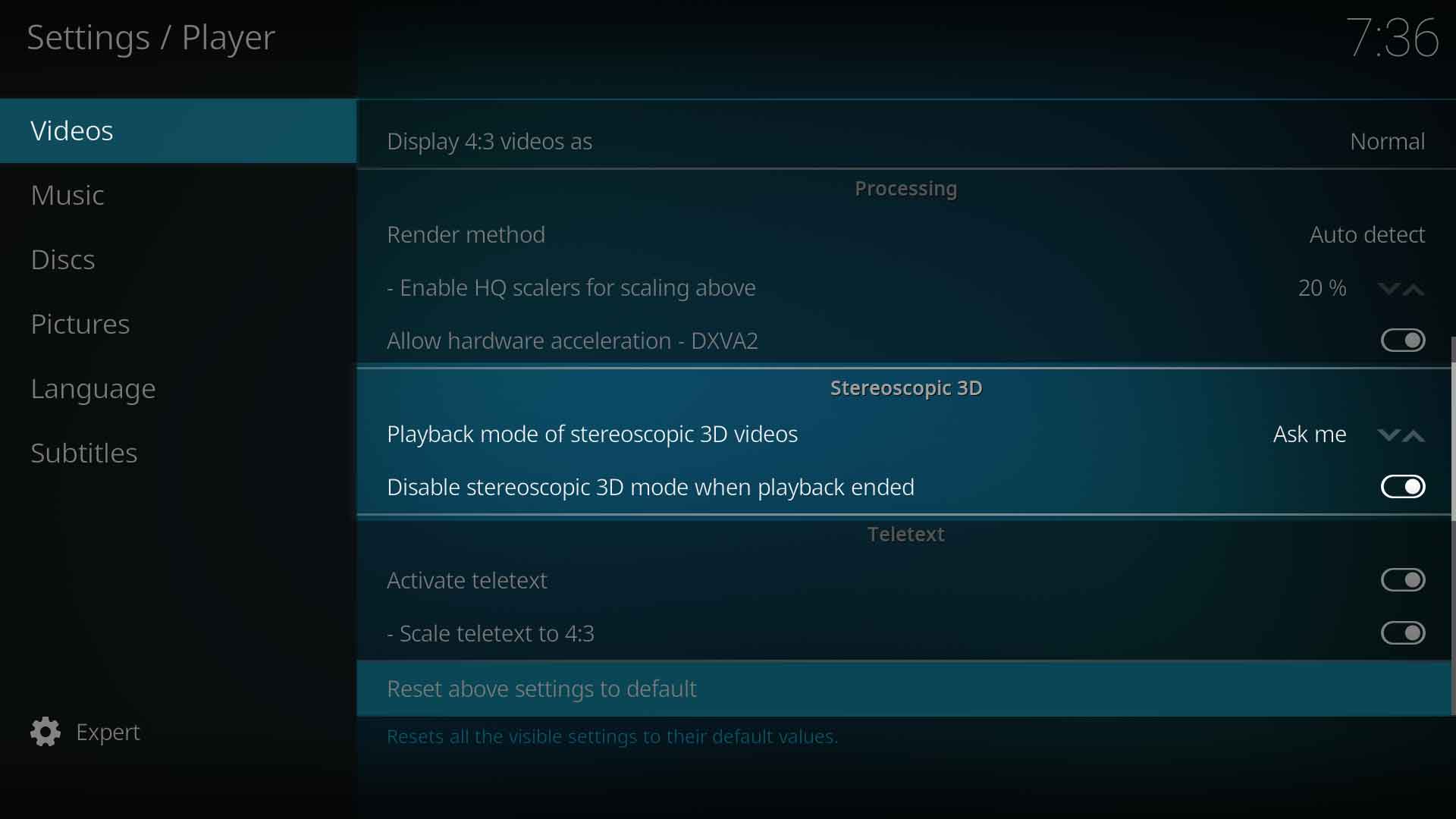
=== Playback mode of stereoscopic videos ===
{|
|- valign="top"
| width=120px | {{nowrap|'''Settings level:'''}}
| Advanced
|- valign="top"
| '''Description:'''
| Select in which mode stereoscopic 3D videos will be played. [Ask me] Will show a dialogue to select the desired mode for each playback. [Preferred mode] Will use the preferred mode specified in the "system->Video hardware" section of the settings. [Monoscopic/2D] will play the video in mono/2D. [Ignore] Disables any stereoscopic 3D processing and handling.
|}
=== Disable stereoscopic mode when playback is stopped ===
{|
|- valign="top"
| width=120px | {{nowrap|'''Settings level:'''}}
| Advanced
|- valign="top"
| '''Description:'''
| While enabled, GUI and some TVs will switch back to 2D mode, beween videos in a playlist or when playback ended. While disabled, GUI and TV will stay in stereoscopic 3D mode. For video playlists with mixed stereoscopic 3D and 2D content, then the GUI will also stay in stereoscopic 3D mode even when a non-stereoscopic 2D video is playing.
|}
; {{see also|3D}}
=== Stereoscopic 3D ===
== Teletext ==
[[File:Settings - Player - Videos - Teletext.jpg|500px|right]]
{| width=85%; class="prettytable"
=== Activate Teletext ===
! width=210px | Setting
{|
! Description
|- valign="top"
! width=100px | Level
| width=120px | {{nowrap|'''Settings level:'''}}
|-
| Advanced
| Playback mode of stereoscopic videos || Select in which mode stereoscopic 3D videos will be played. [Ask me] Will show a dialogue to select the desired mode for each playback. [Preferred mode] Will use the preferred mode specified in the "system->Video hardware" section of the settings. [Monoscopic/2D] will play the video in mono/2D. [Ignore] Disables any stereoscopic 3D processing and handling || Advanced
|- valign="top"
|-
| '''Description:'''
| Disable stereoscopic mode when playback is stopped || While enabled, GUI and some TVs will switch back to 2D mode, beween videos in a playlist or when playback ended. While disabled, GUI and TV will stay in stereoscopic 3D mode. For video playlists with mixed stereoscopic 3D and 2D content, then the GUI will also stay in stereoscopic 3D mode even when a non-stereoscopic 2D video is playing. || Advanced
| Enables Teletext when watching a live TV stream.
|}
|}
=== Teletext ===
{| width=85%; class="prettytable"
=== Scale Teletext to {{nowrap|4:3}} ===
! width=210px | Setting
{|
! Description
|- valign="top"
! width=100px | Level
| width=120px | {{nowrap|'''Settings level:'''}}
|-
| Advanced
| Activate Teletext || Enables Teletext when watching a live TV stream. || Expert
|- valign="top"
|-
| '''Description:'''
| Scale Teletext to 4:3 || When selected scales Teletext to 4:3 ratio. || Expert
| When selected, scales Teletext to 4:3 ratio.
|}
|}
=== Screenshots ===
<gallery widths=600px heights=313px perrow=2>
{{-}}
File:Player_videos1.JPG|Shows "Actions" and "Playback"
File:Player_videos2.JPG|Shows "Processing Windows only"
File:Player_videos4.jpg|Shows "Processing Linux only"
File:Player_videos3.jpg|Shows "Processing "MacOS only", "Stereoscopic 3D" and "Teletext"
Defines the amount of time each press of the Skip button will skip forward or backwards. A (-) will define backwards and no (-) will define forward. You can set multiple times so each press will skip more time in the video. So if, for example you use 10 sec, 30 sec, 60 sec when press the Skip button once it will skip 10 seconds foward, double pressing the Skip button will skip 30 seconds and triple pressing the Skip button will skip 60 seconds.
Defines how much time it takes before the skip step occurs. The range is none (which will cause the skip step to happen immediately) & 250 - 3000ms (milliseconds).
Playback
Adjust display refresh rate
Settings level:
Standard
Description:
Defines when the refresh rate adjustments should take place. Activate to automatically set the refresh rate which is best matched with the video that is playing (default off). This potentially allows for perfectly smooth video reproduction, as video material can be recorded in a variety of frame rates (23.976fps, 24fps, 25fps, 29.97fps, 30 fps, etc.) which need to be properly matched by the refresh rate of the display, in order to be displayed smoothly.
Sync playback to display
Settings level:
Standard
Description:
This setting enables syncing the video to the refresh rate of the monitor.
Minimise black bars
Settings level:
Advanced
Description:
Allow video player to try to fit video to screen by ignoring aspect ratio by a certain amount.
Display 4:3 videos as
Settings level:
Advanced
Description:
Determines the zoom level that 4:3 videos are shown on widescreen displays.
Processing
Render method
Settings level:
Advanced
Description:
Controls the method used by the player to process and display the video, (which is called rendering).
Enable HQ scalers for scaling above
Settings level:
Advanced
Description:
Use high quality scalers when upscaling a video by at least this percentage. A value below 5% makes little sense as video is processed with high GPU load without any visible picture quality improvements
Platform Specific Hardware Acceleration settings
The following settings will show up for the Processing section for their respective platforms:
Windows specific settings (click 'expand' to expand)
Allow hardware acceleration DXVA2
Settings level:
Advanced
Description:
Enable DXVA2 hardware decoding of video files.
Linux specific settings (click 'expand' to expand)
Allow hardware acceleration - VDPAU
Settings level:
Advanced
Description:
Enable VDPAU hardware decoding of video files, mainly used for NVIDIA graphics and in some circumstances AMD graphics.
Prefer VDPAU video mixer
Settings level:
Advanced
Description:
Bypassing VDPAU mixer saves resources on low power systems but slightly reduces picture quality.
Use MPEG-4 VDPAU
Settings level:
Expert
Description:
Enable this option to use hardware acceleration for the MPEG-4 codec. If disabled the CPU will be used instead. Some ION hardware has problems with this being enabled by default.
Allow hardware acceleration - VAAPI
Settings level:
Advanced
Description:
Enable VAAPI hardware decoding of video files, mainly used for Intel graphics and in some circumstances AMD graphics.
Use MPEG-2 VAAPI
Settings level:
Expert
Description:
Enable this option to use hardware acceleration for MPEG-(1/2) codecs. If disabled the CPU will be used instead. Some MPEG-2 videos might have green artifacts.
Use MPEG-4 VAAPI
Settings level:
Expert
Description:
Enable this option to use hardware acceleration for MPEG-4 codec. If disabled the CPU will be used instead.
Use VC-1 VAAPI
Settings level:
Expert
Description:
Enable this option to use hardware acceleration for VC-1 based codecs. If disabled the CPU will be used instead. Especially VC-1 interlaced fails hard on Intel hardware.
Prefer VAAPI render method
Settings level:
Expert
Description:
When enabled, VAAPI render method is preferred and the CPU has less load. If you experience hangs, disable this option.
Mac OS specific settings (click 'expand' to expand)
Allow hardware acceleration - VTBDecoder
Settings level:
Advanced
Description:
Enable VTB hardware decoding of video files.
Stereoscopic 3D
Playback mode of stereoscopic videos
Settings level:
Advanced
Description:
Select in which mode stereoscopic 3D videos will be played. [Ask me] Will show a dialogue to select the desired mode for each playback. [Preferred mode] Will use the preferred mode specified in the "system->Video hardware" section of the settings. [Monoscopic/2D] will play the video in mono/2D. [Ignore] Disables any stereoscopic 3D processing and handling.
Disable stereoscopic mode when playback is stopped
Settings level:
Advanced
Description:
While enabled, GUI and some TVs will switch back to 2D mode, beween videos in a playlist or when playback ended. While disabled, GUI and TV will stay in stereoscopic 3D mode. For video playlists with mixed stereoscopic 3D and 2D content, then the GUI will also stay in stereoscopic 3D mode even when a non-stereoscopic 2D video is playing.