How To: Custom Home Items using Aeon Nox Silvo

|
 Video library Video library |
Video Management |
Custom Home Items |
Aeon Nox Silvo
|


Introduction
This Guide explains the process of creating new Main Menu items to enable separate main menu listings. Example uses include:
- Separating childrens movies from mature movies
- Separately list documentaries, cartoons, sci-fi or any other genre
- Separately list Home Movies
Note: This guide assumes you know how to install Kodi, install skins, and add Sources to your Kodi library, and have installed the AeonNox:SiLVO skin
Any errors or ommissions on this page, report on the forum here
Folder Structure
The correct folder structure will ensure a relatively hassle free experience in setting up these menu buttons.
Organize the video files on your file server/NAS/local hard drive into separate folders for each Main Menu button you require.
The image below is an example of how you might organize your folders and files (Windows 10). Each category that you intend to have as a movie menu item, will have the movies saved in a specific folder.

Create Smart Playlists
The first step is to create a Smart Playlist for each new listing you require. The following is a simple guide to accomplish that:
- Click SYSTEM on the Main Menu, then in the window that opens click on the System icon. In the bottom left corner by the gear symbol ensure EXPERT is chosen.
- Add each folder as a Source to the Kodi library using the Add Video Source dialog box, being sure to select the content type (Movies or TV, etc.) correctly and scraping.
-
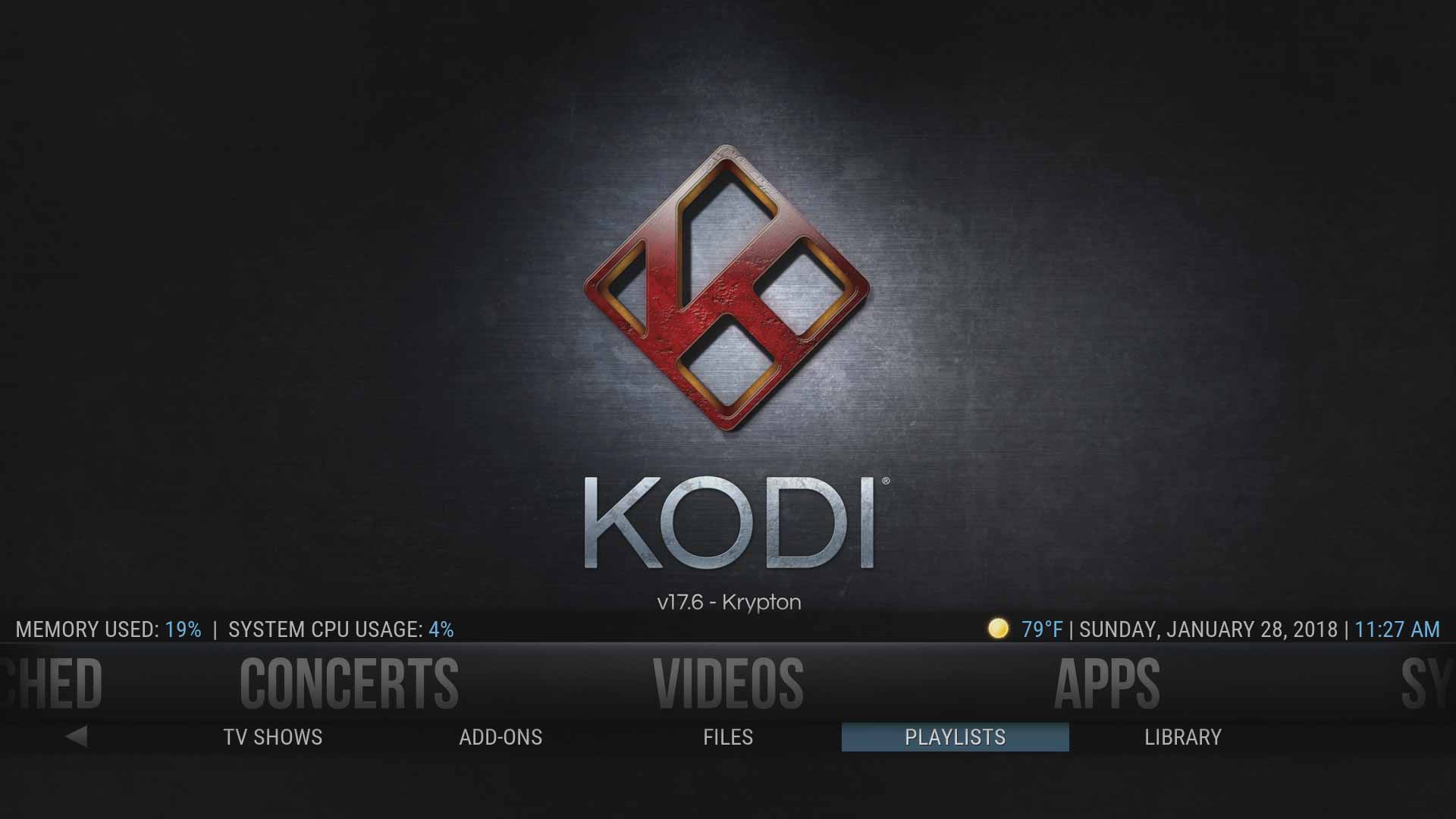 3. After each folder has been added as a Source and scraped, go to the Playlists button under the Videos Main Menu button.
 -
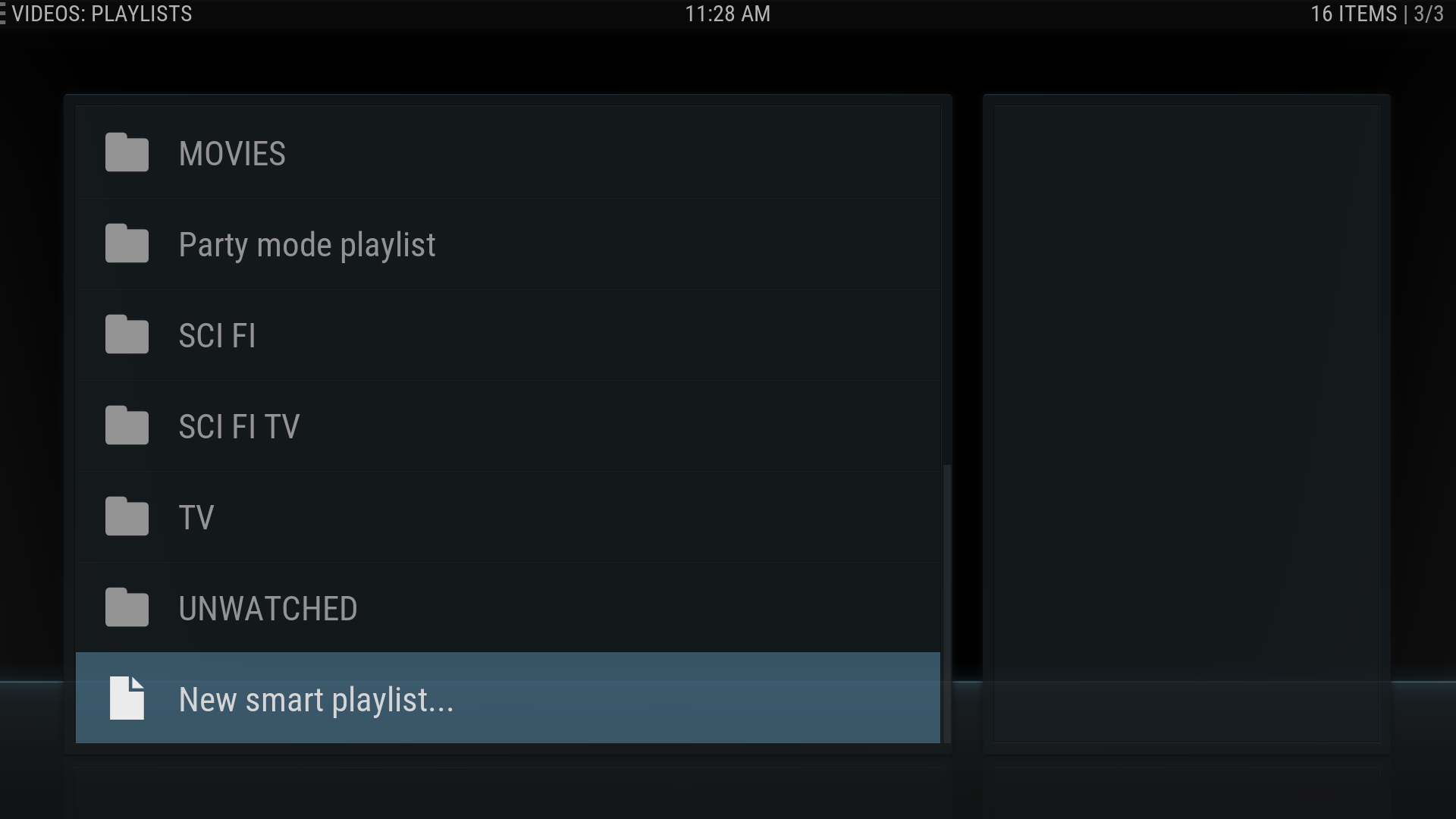 4. Choose New smart playlist…
 -
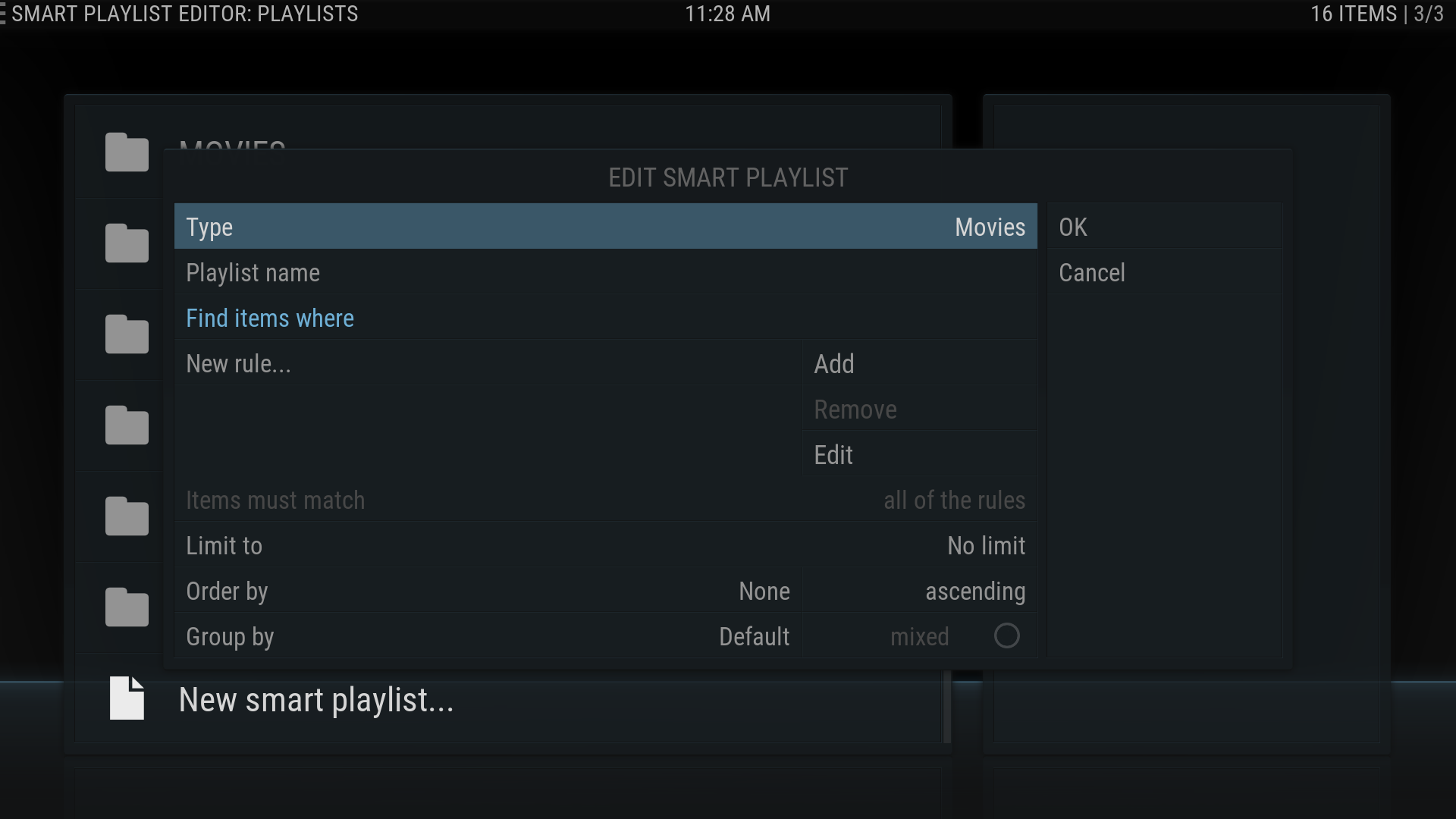 5. In the Type menu choose Movies or TV as appropriate.
 -
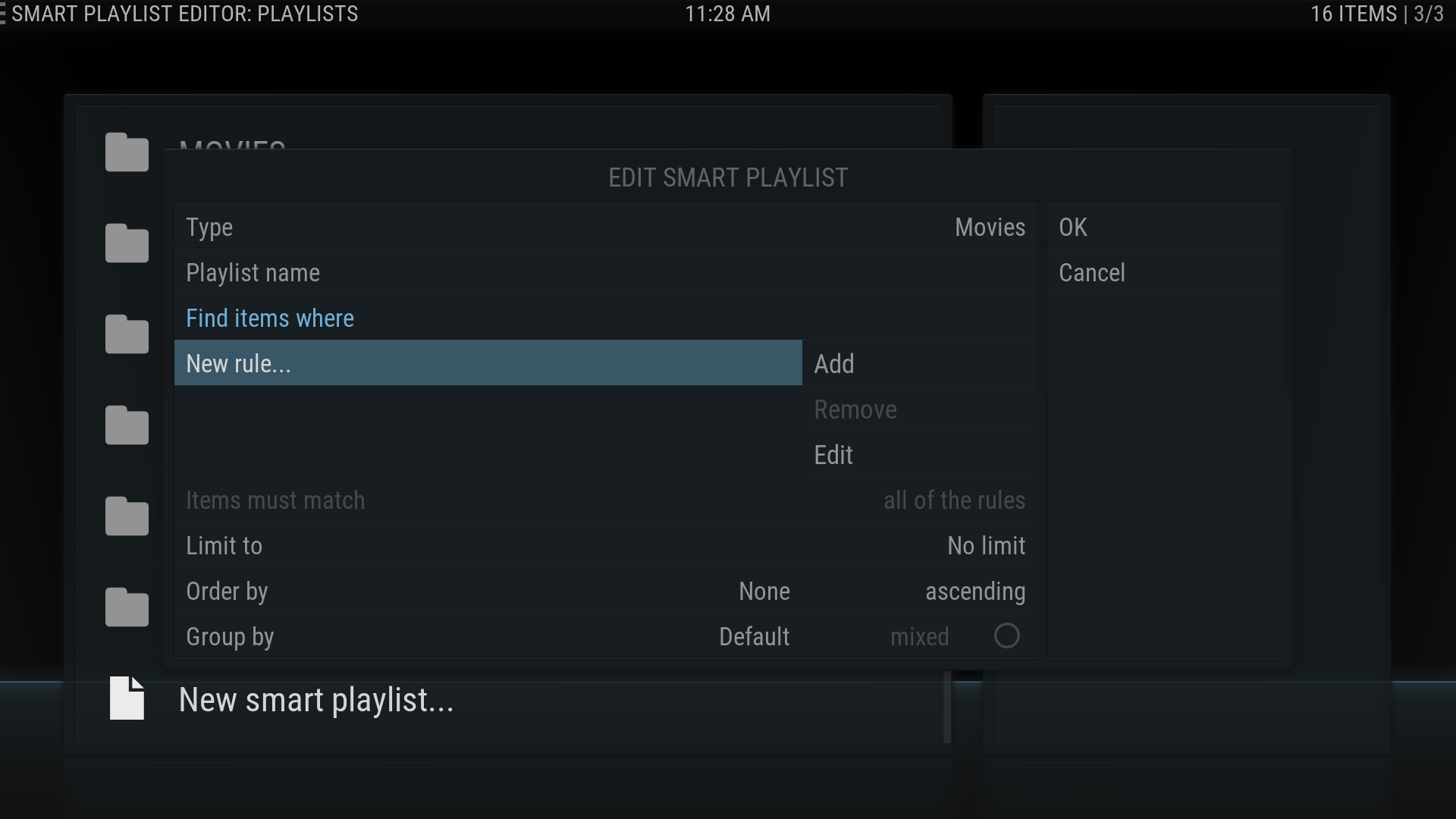 6. In the EDIT SMART PLAYLIST dialog box click on New rule….
 -
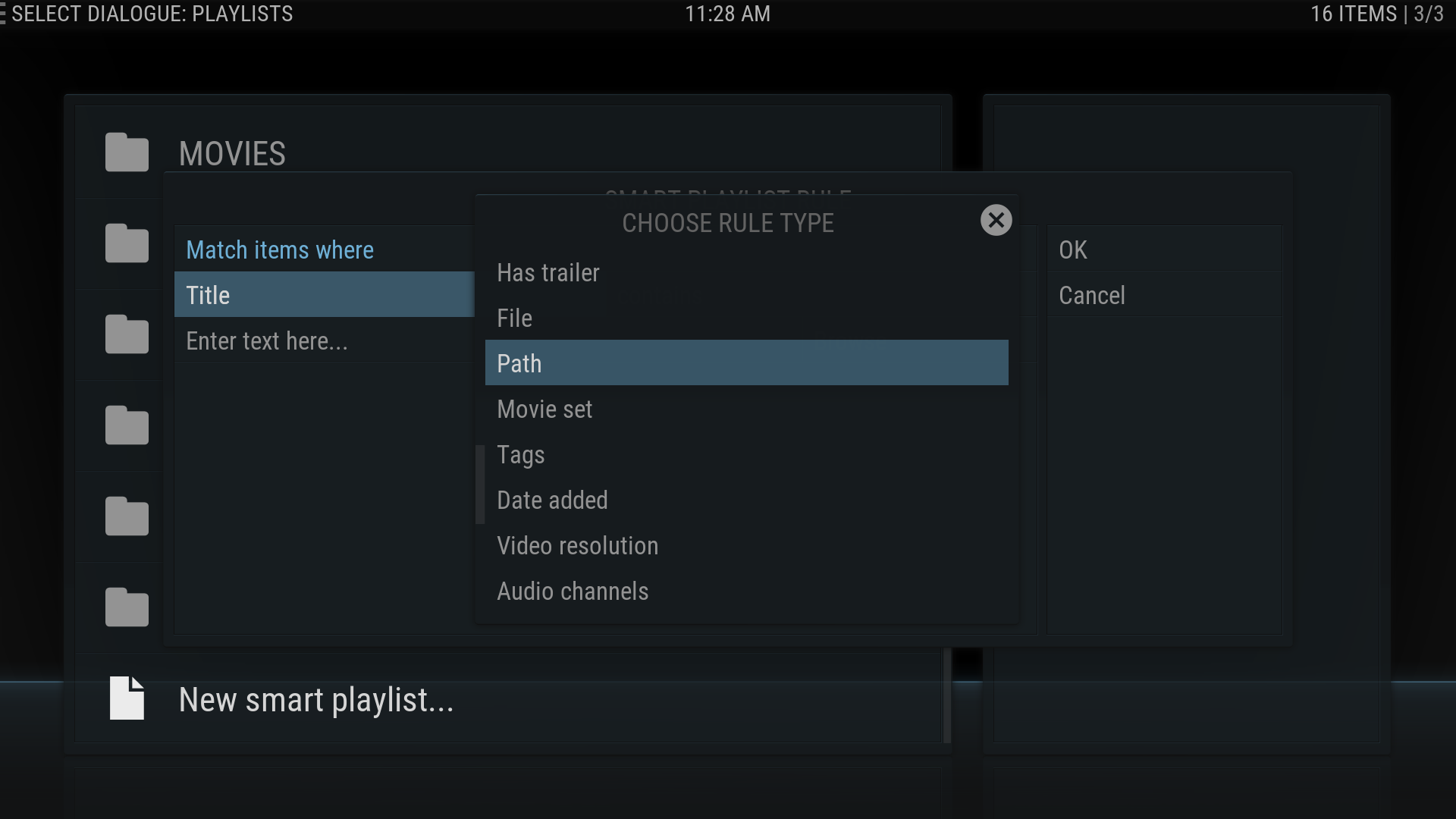 7. In the CHOOSE RULE TYPE dialog box click on the word Title and choose Path from the CHOOSE RULE TYPE menu.
 -
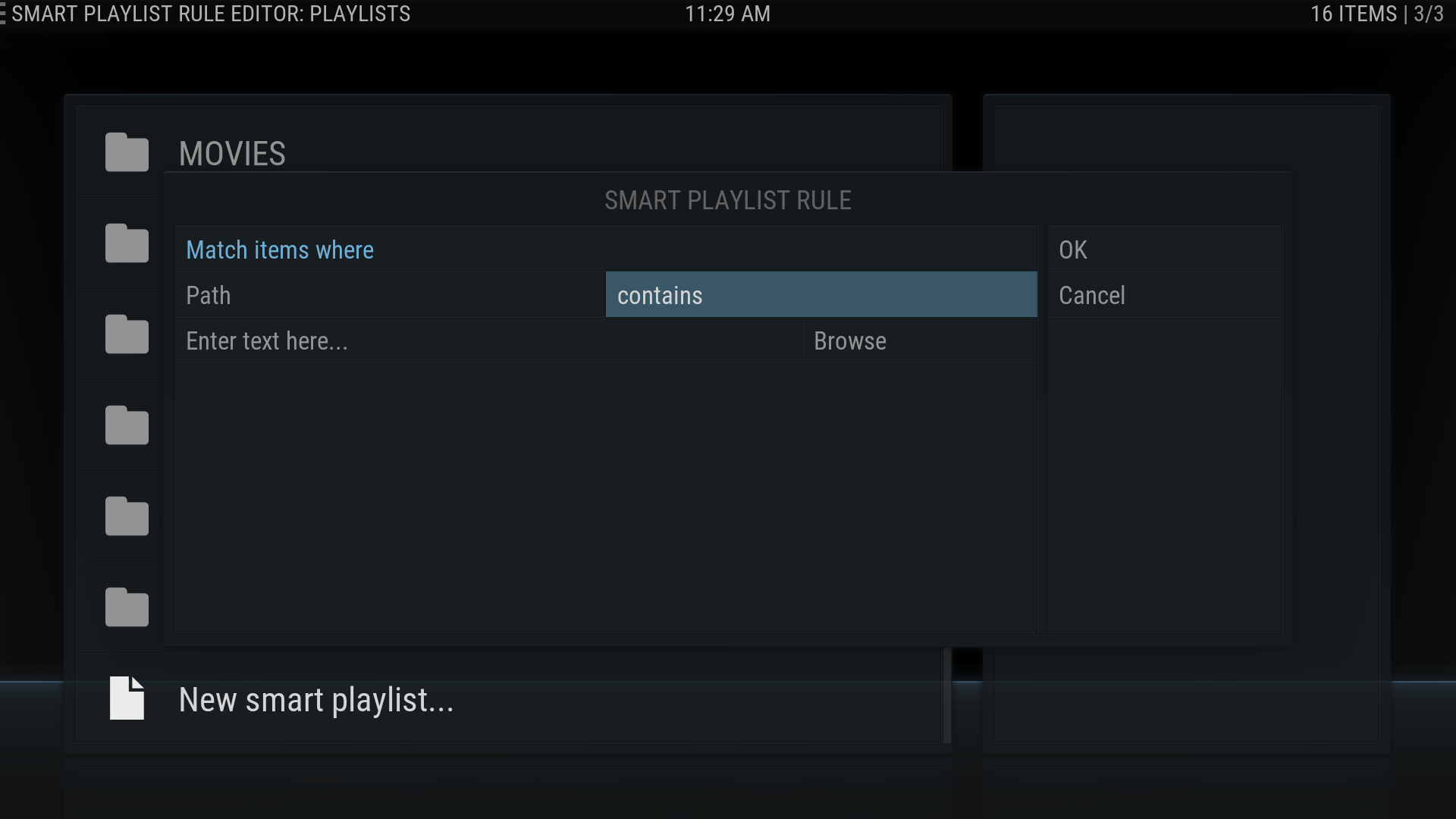 8. Now, click on the word contains.
 -
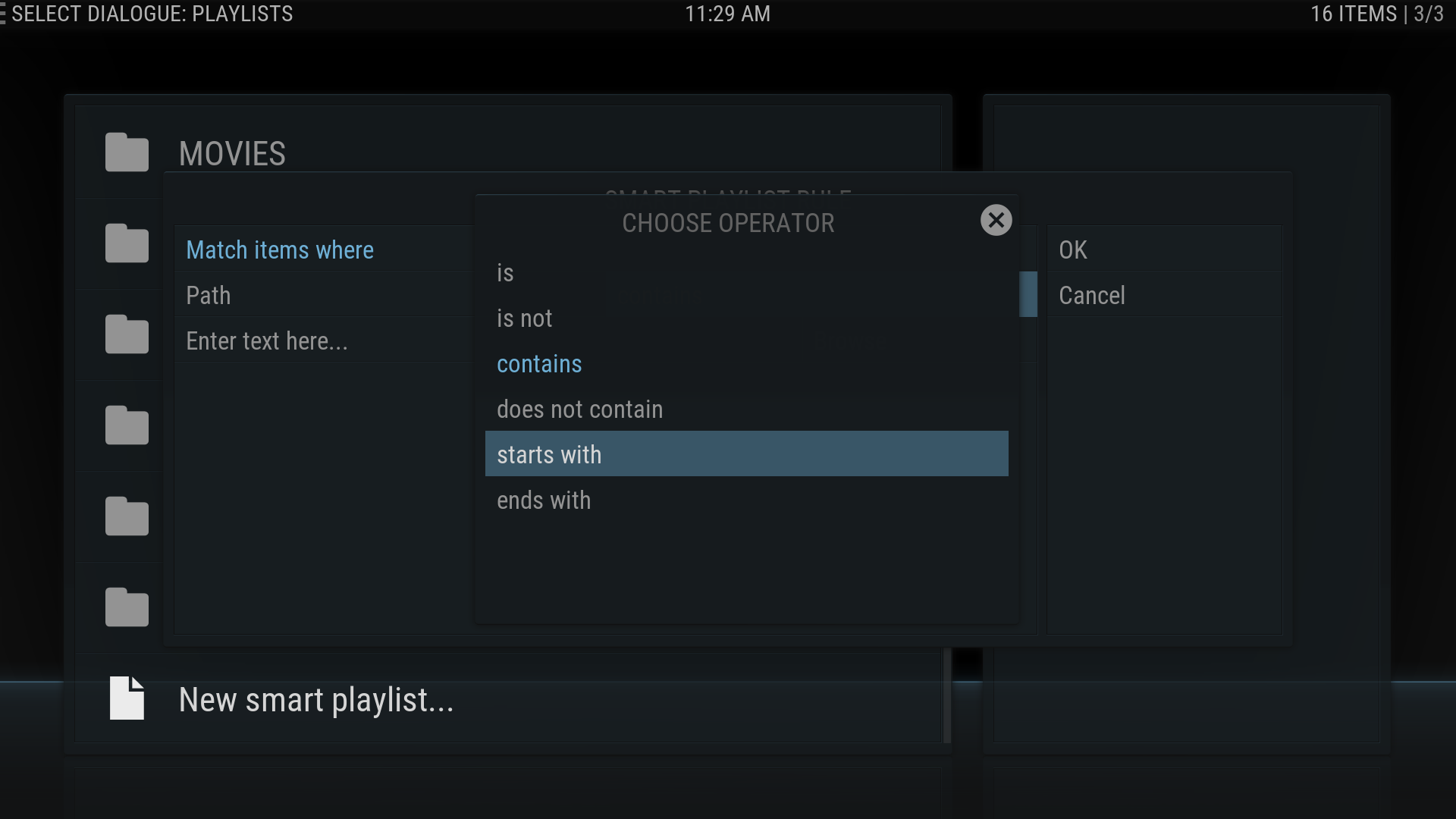 9. Choose starts with from the SMART PLAYLIST RULE dialog box.
 -
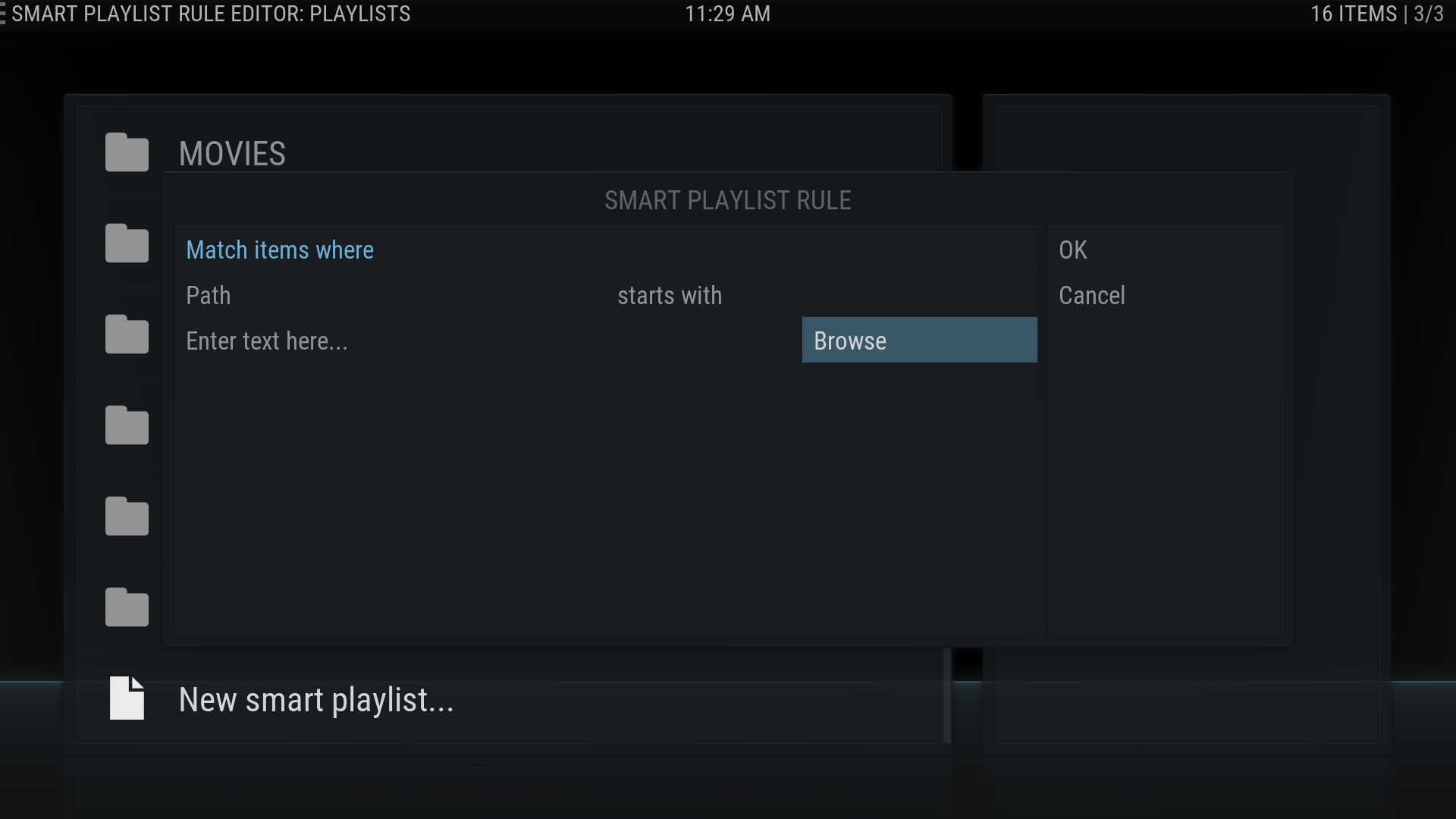 10. Click on the word Browse in the SMART PLAYLIST RULE dialog box.
 -
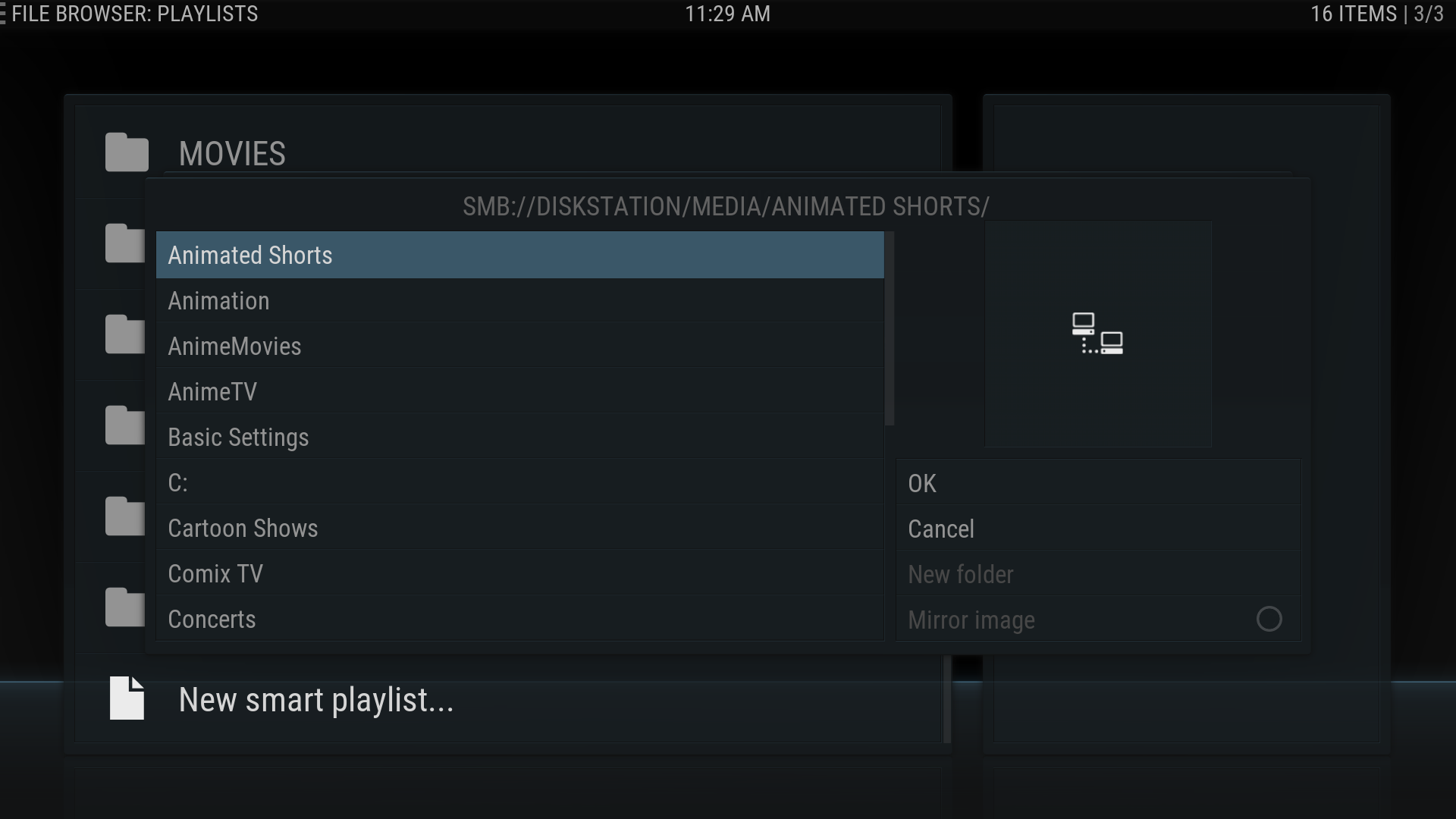 11. Choose the library you want, then click OK.
 -
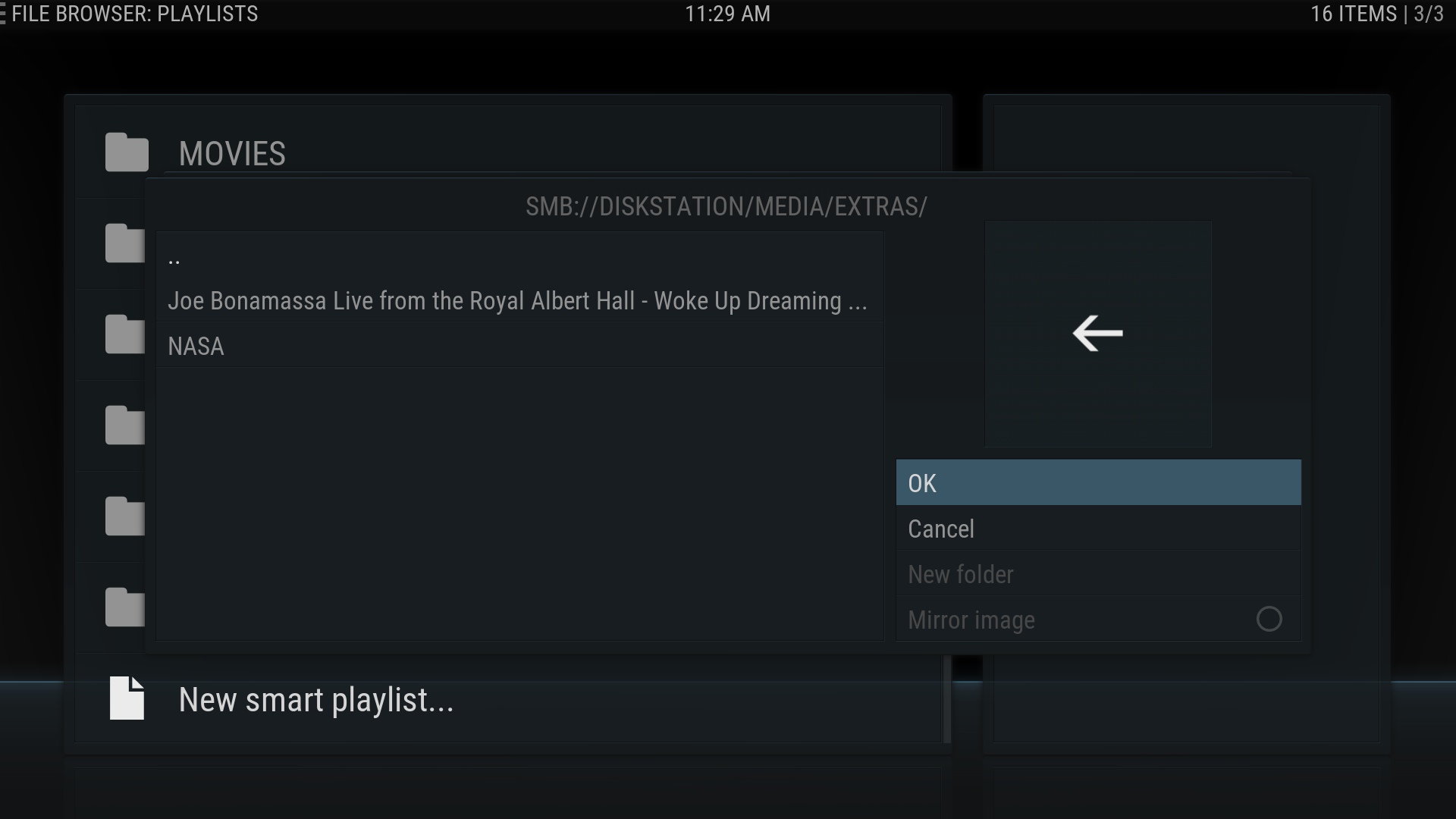 12. The contents of the library will be listed, click OK again.
 -
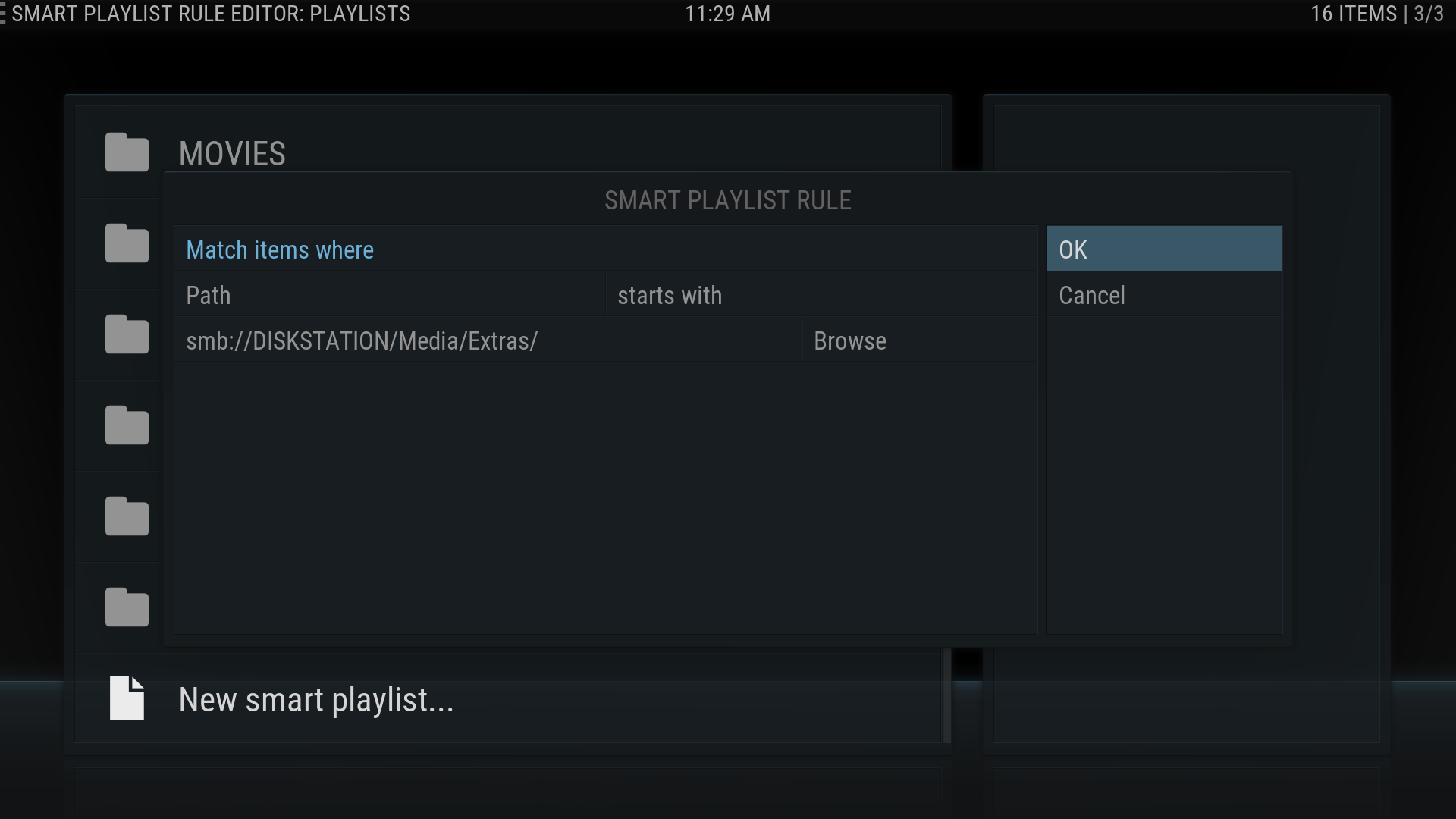 13. Click OK again.
 -
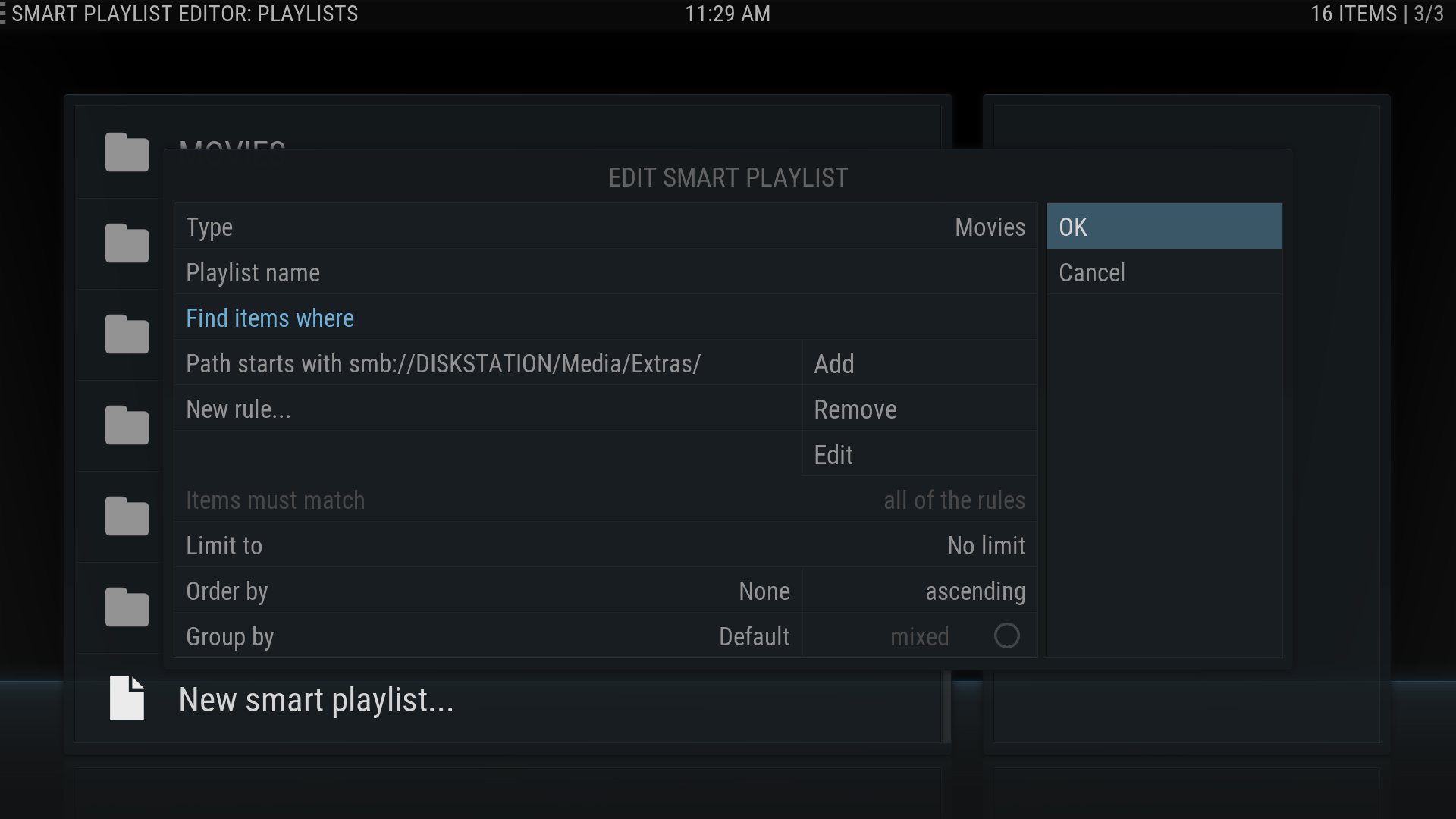 14. Click OK once more.
 -
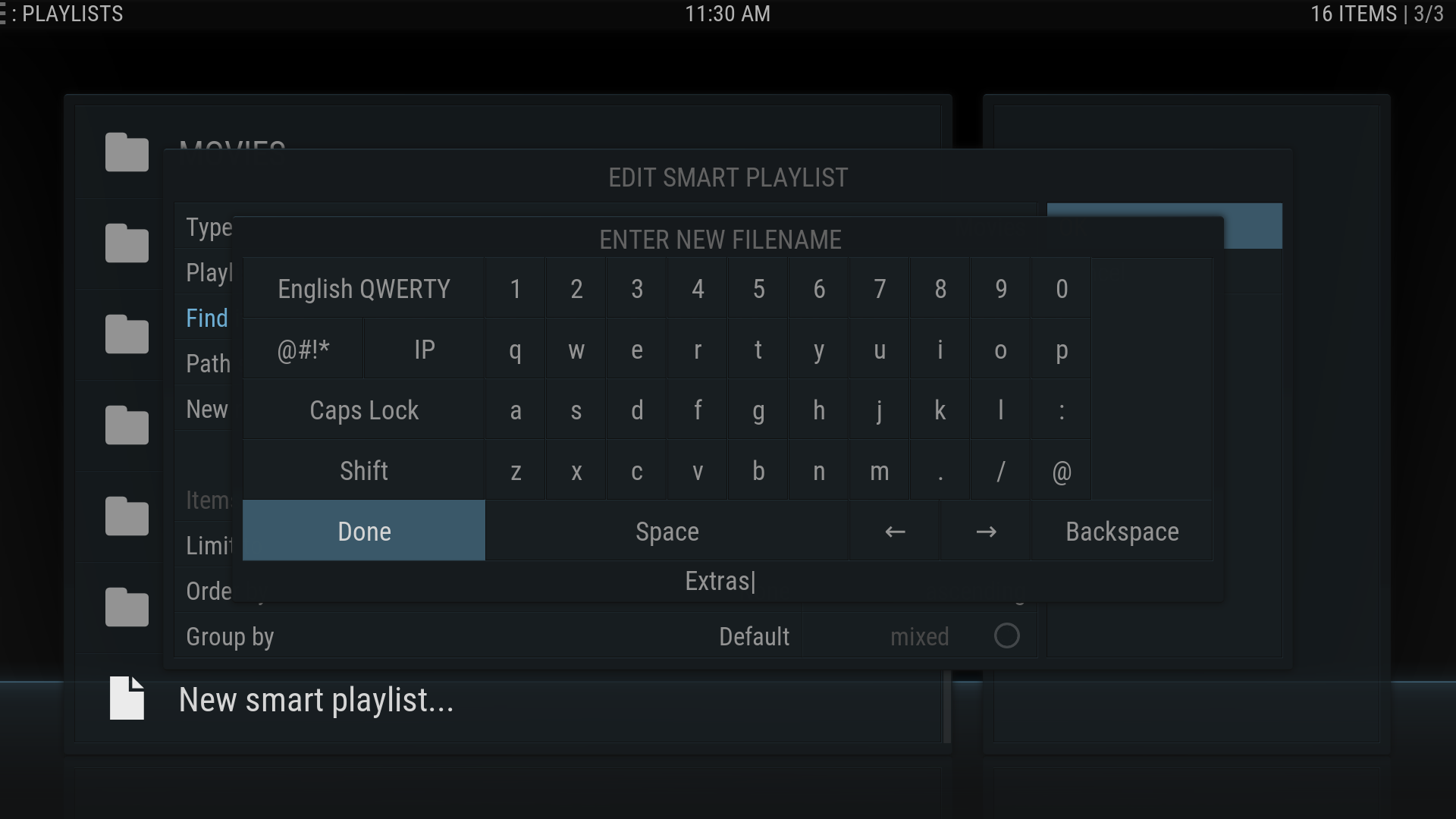 15. An onscreen keyboard will appear, type the name of your new Smart Playlist, click DONE.


- 16. Repeat the above steps as needed to build all the Smart Playlists you want, then back out to the home screen.
Customising The Main Menu
This step will create the new Main Menu items. The next section is a straight continuation of the steps in this section.
-
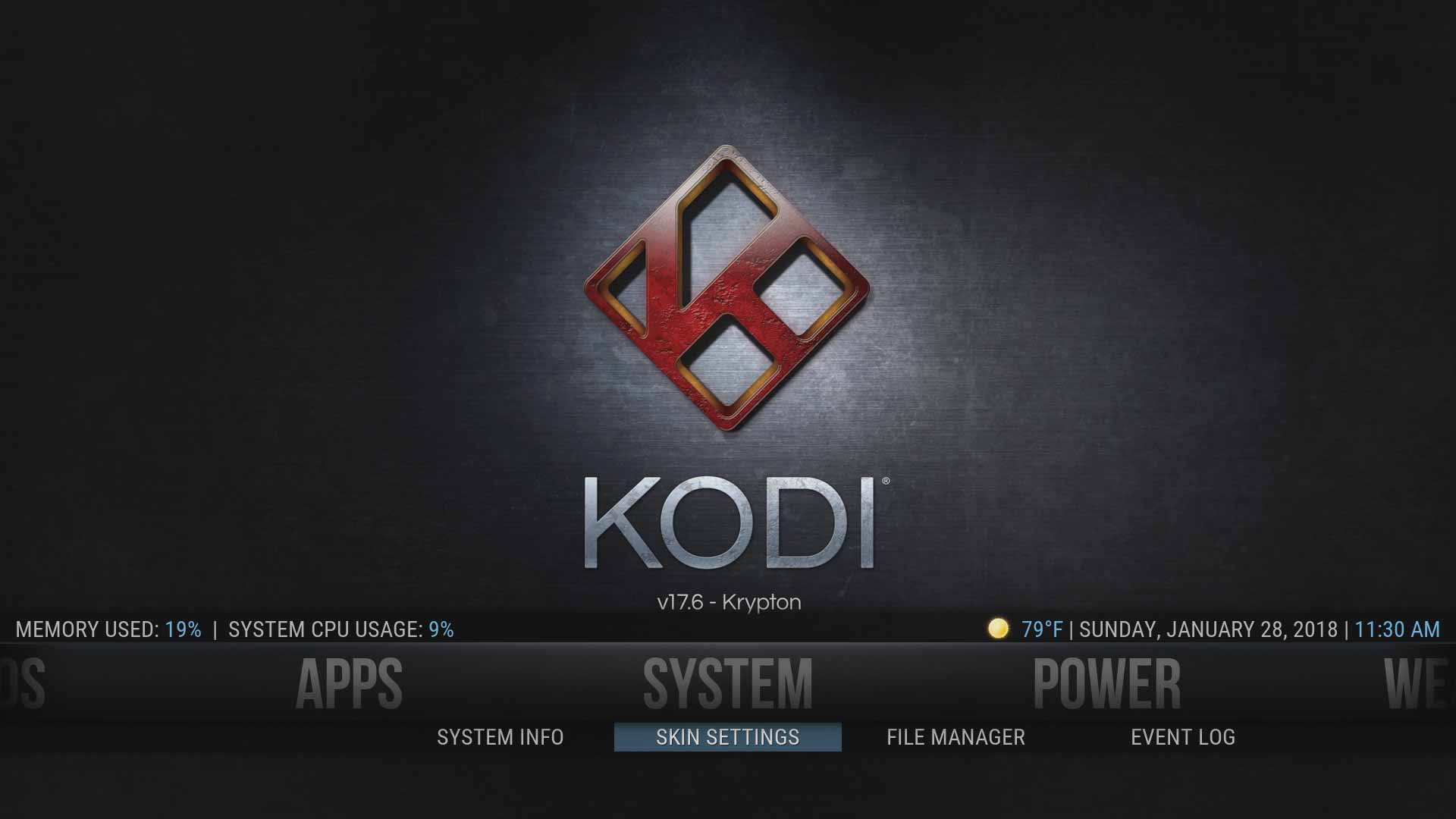 17. Click on SKIN SETTINGS under SYSTEM in the Main Menu.
 -
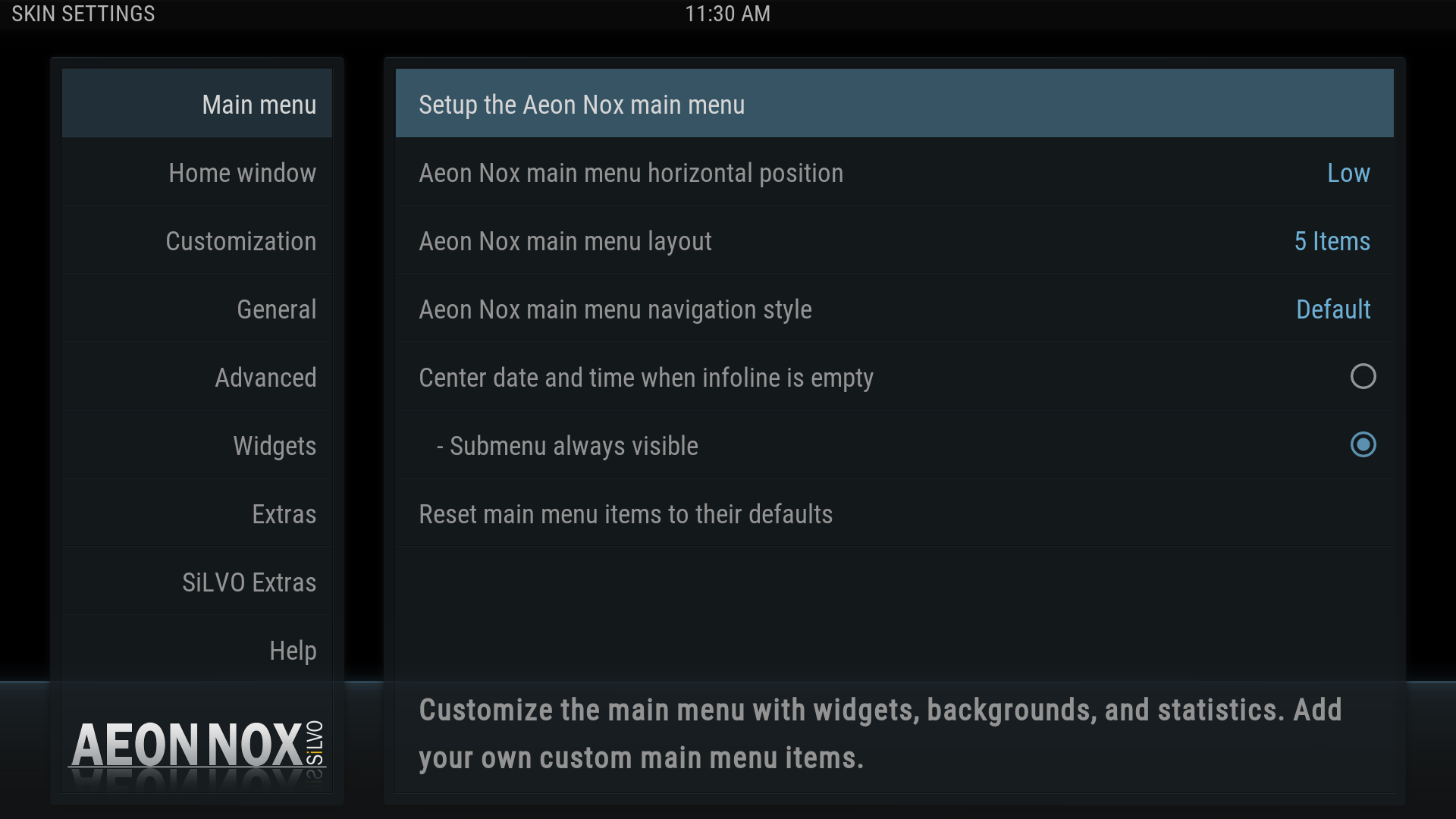 18. In the next screen, click on Setup the Aeon Nox main menu
 -
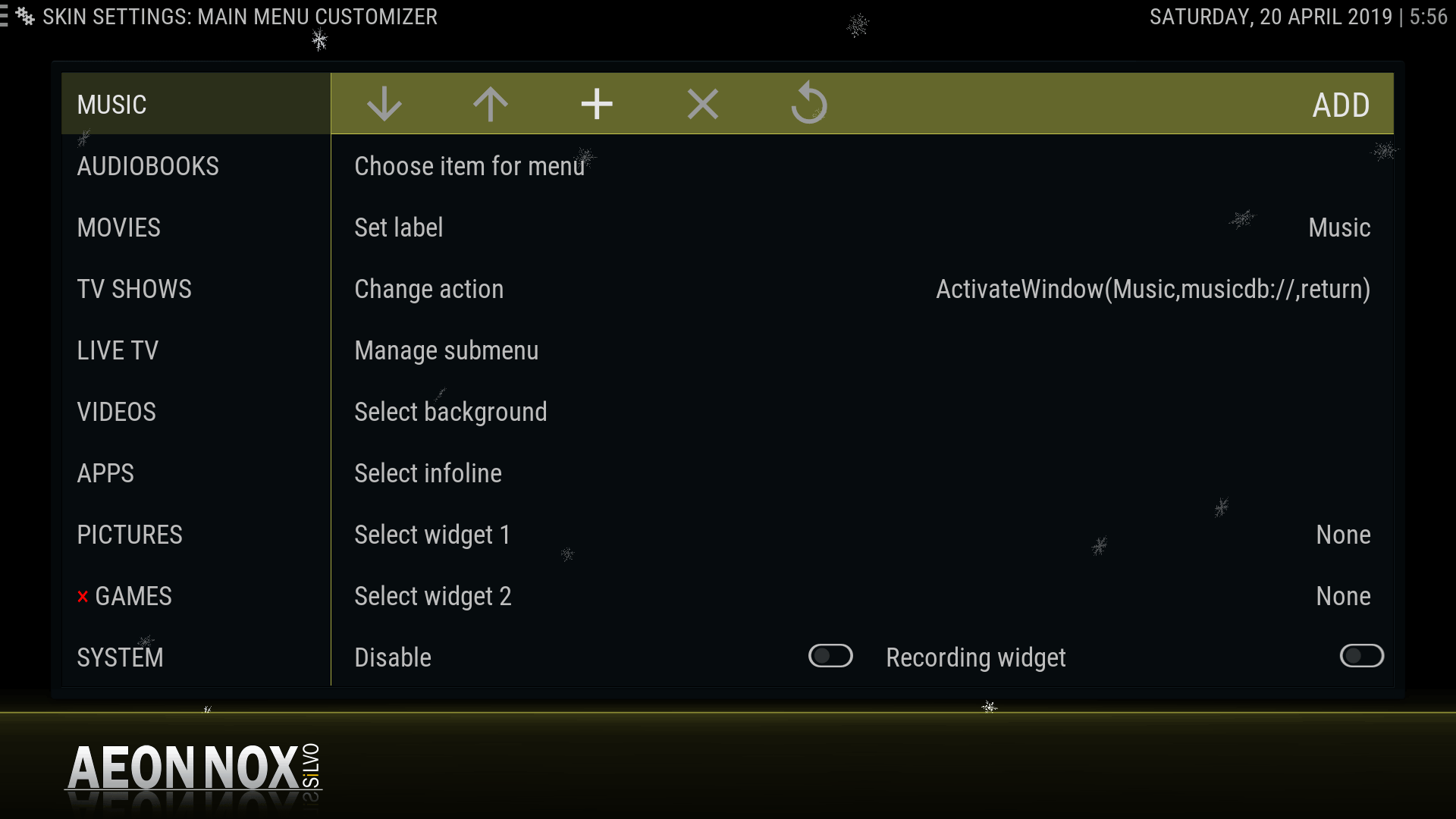 19. The MAIN MENU CUSTOMIZER windows opens and will look like the above image


- Description of options
- The Menu Items are on the left
- Options are along the top row (or next to menu item in previous versions)
- X - deletes the item
- + - adds a new menu item
- ↑ - move menu item up the list
- ↓ - move menu item down the list
- Restore - default menu items that have been removed or modified will be restored to original. User added menu items will remain.
- Note: The default center of them Main Menu is the third active menu item in the list. In this example, it is MOVIES).
Adding The Smart Playlists To The Main Menu
This final step now links the Smart Playlists created in Section 3 to the new Main Menu items created in the previous Section.
-
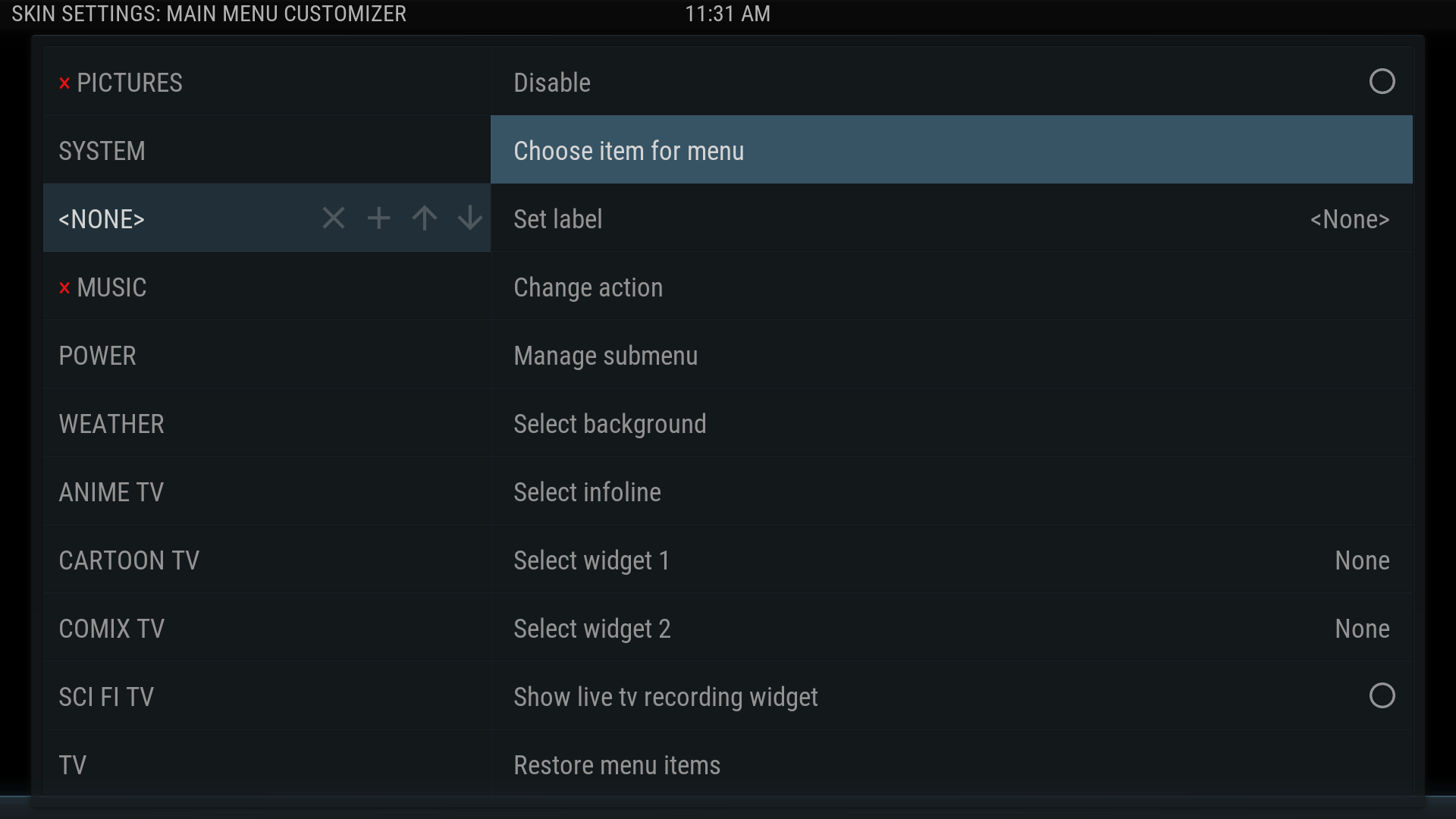 20. Select a Main Menu item you want to change, or click the plus sign to create a new one. If you create a new item, it will appear below the selected menu item with the label NONE. Either way, on the right side, select Choose item for menu and a pop out menu will appear.
 -
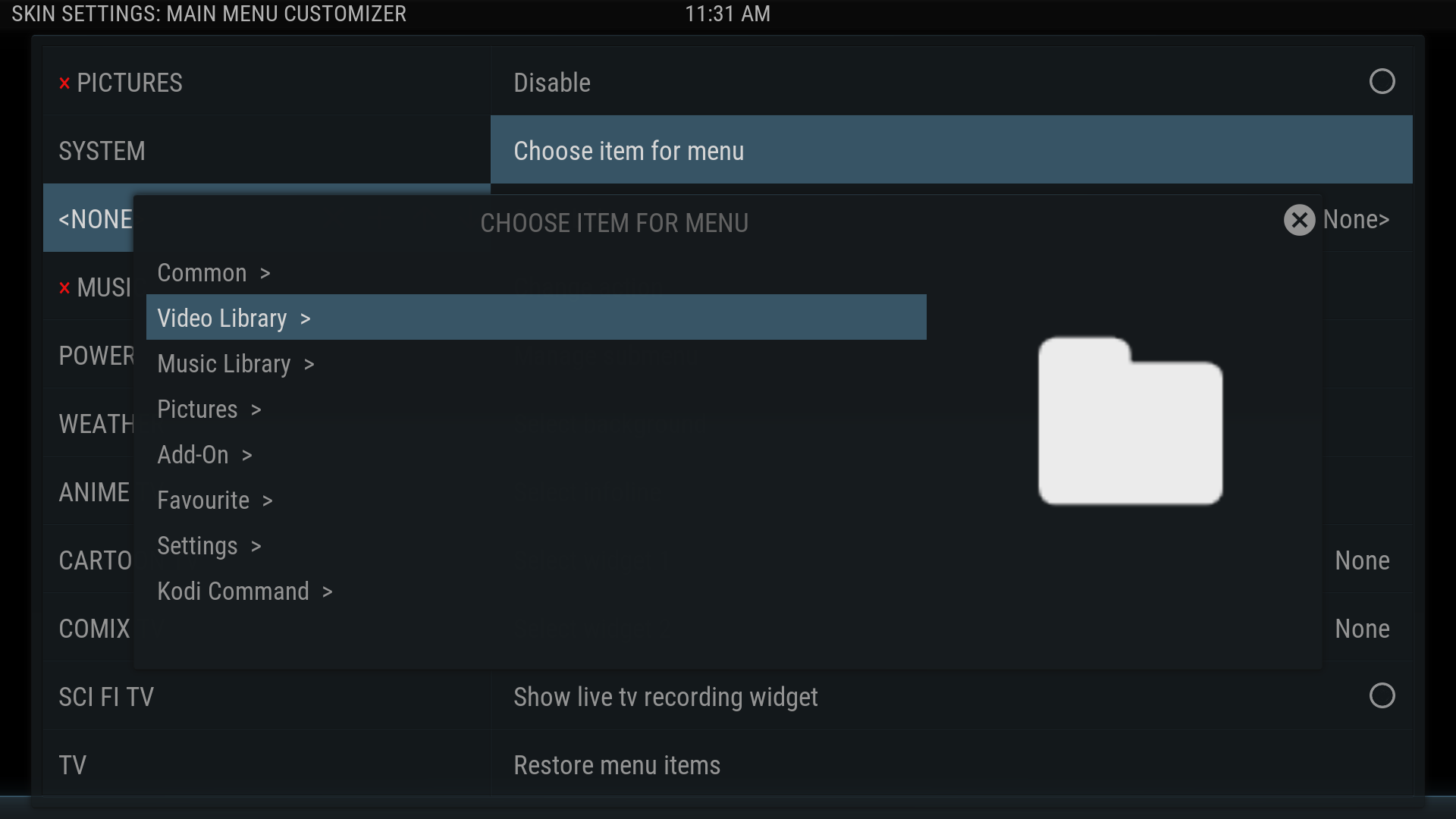 21. Click on Video Library.
 -
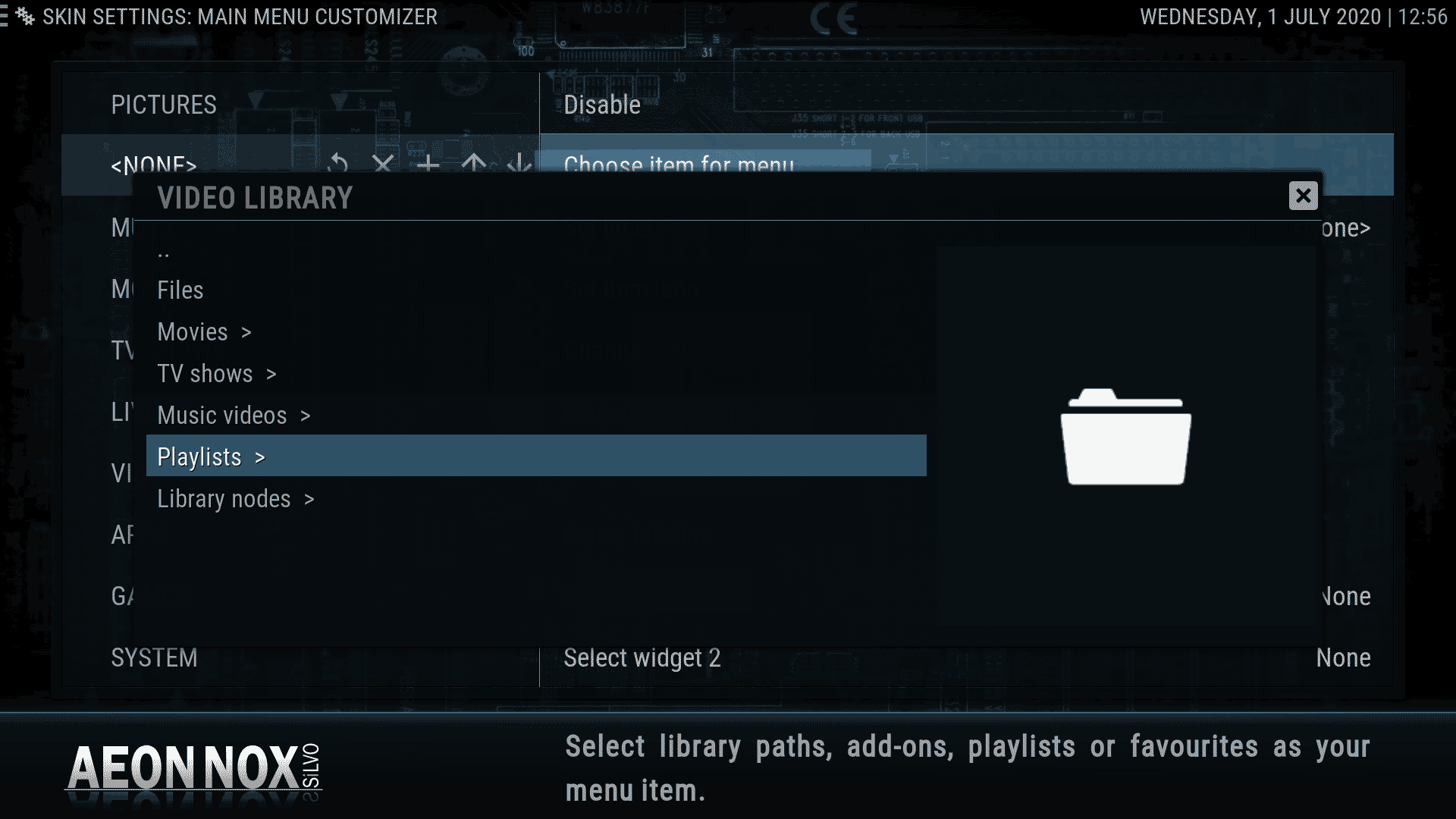 22. In the pop out menu that appears next, choose Playlist >
 -
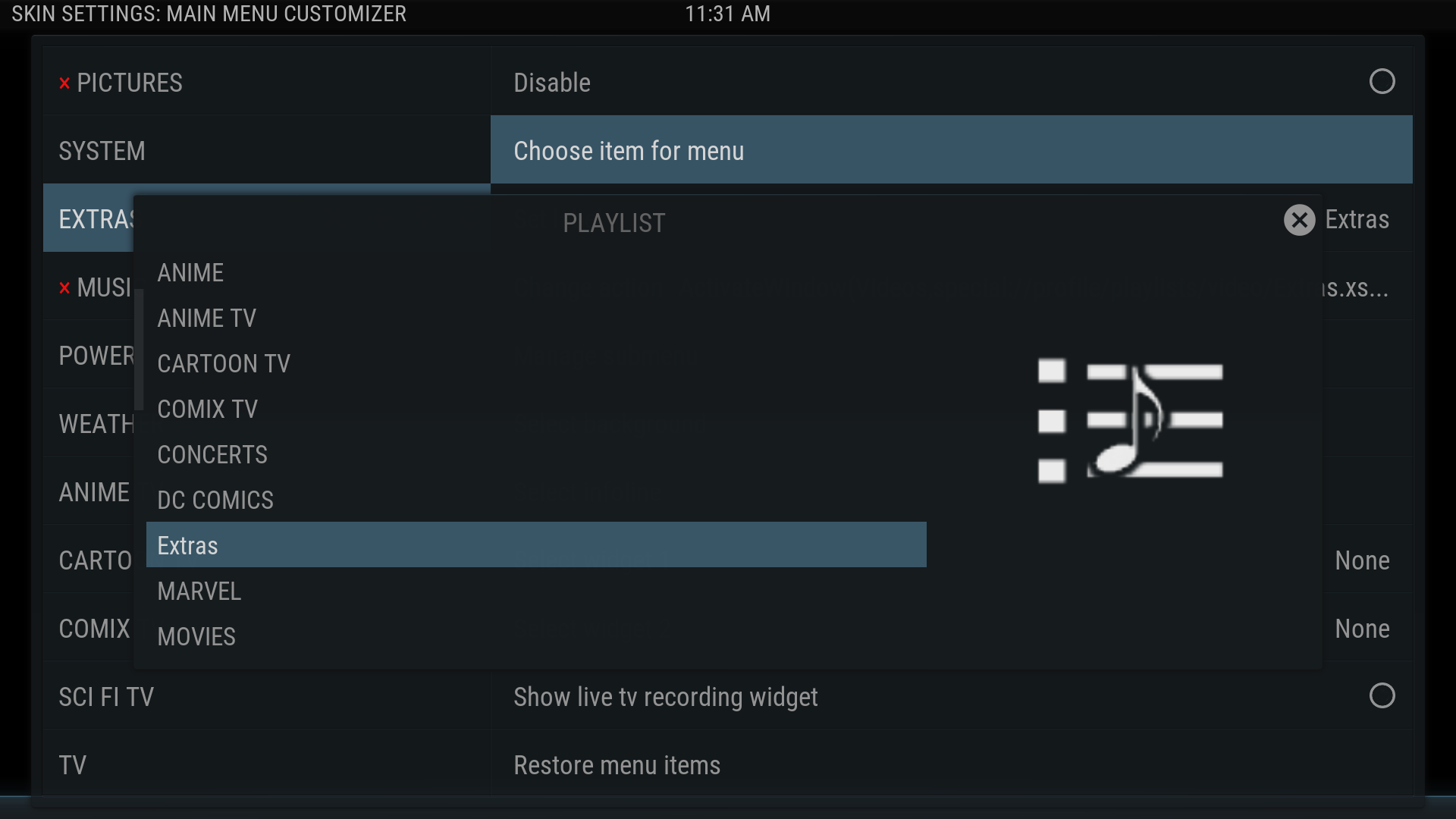 23. In the Playlist pop out menu, choose the required Playlist
 -
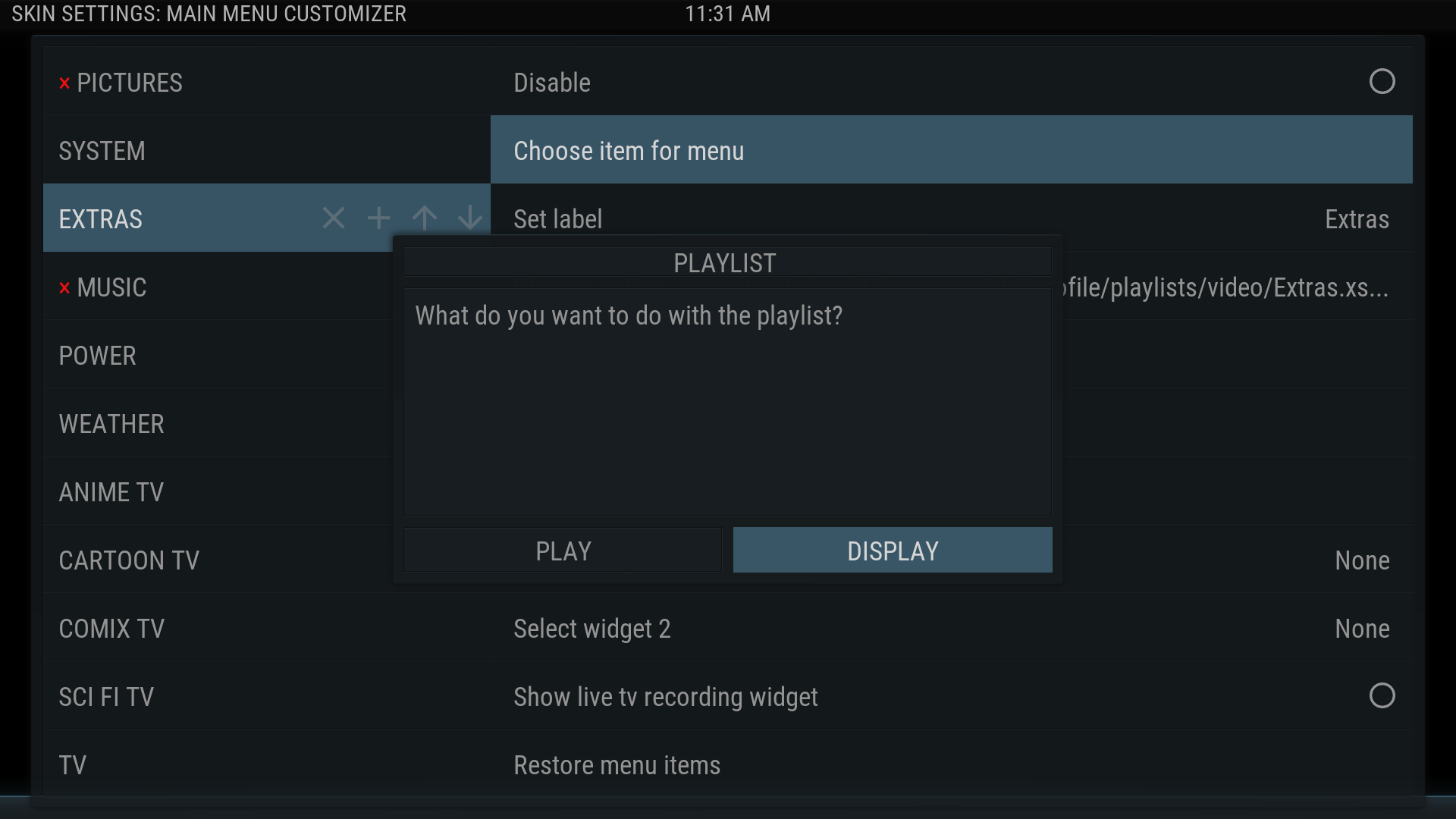 24. In the What do you want to do with the playlist? box, choose Display
 -
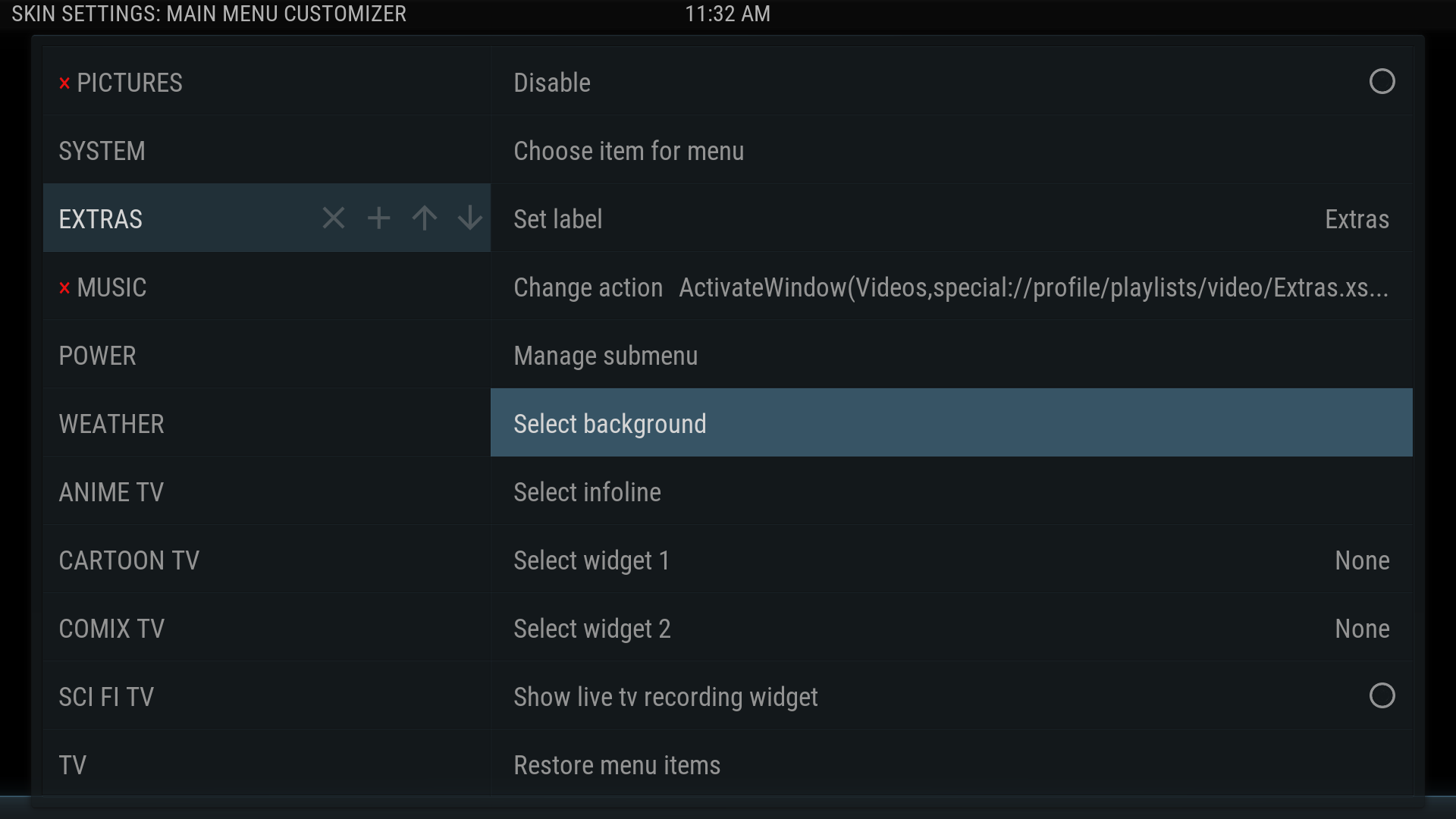 25. If you want, you can select background fanart for the individual playlists. This will rotate through fanart that is specific to that playlist.
 -
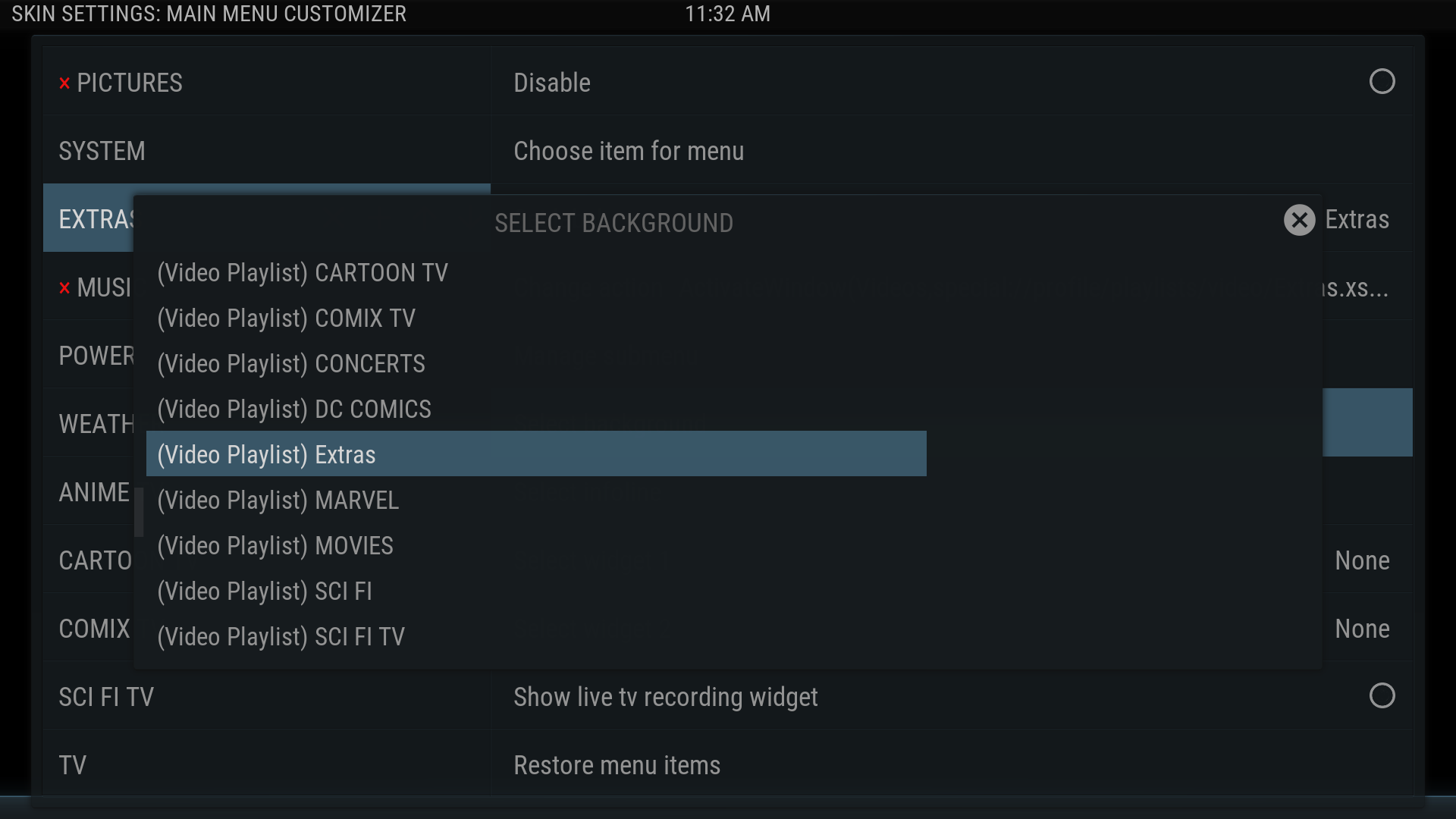 26. Now scroll thru the pop out menu to (Video Playlist) <your playlist> to choose which background images are used


27a. Repeat these steps as needed to add your playlists to the Main Menu, adjust their positions on the Menu to your liking, add widgets, etc.
or
27b. If you have no further buttons to add, simply back out to return to the Home Screen. At this point a script will run to re-build the Main Menu.
Duplicated Listings
If you prefer to not have the same Movie or TV Show listed in the original Movie and TV Show buttons along with being listed in the newly created buttons, then follow these steps:
- Disable the original Movie or TV Show button in the Main Menu Customizer screen as shown in step 19
- Repeat the steps detailed on this page to create a new button with a suitable name and a new Smart Playlist that excludes the videos that are included in the new buttons.
You’re done!
| Return to top |
|---|