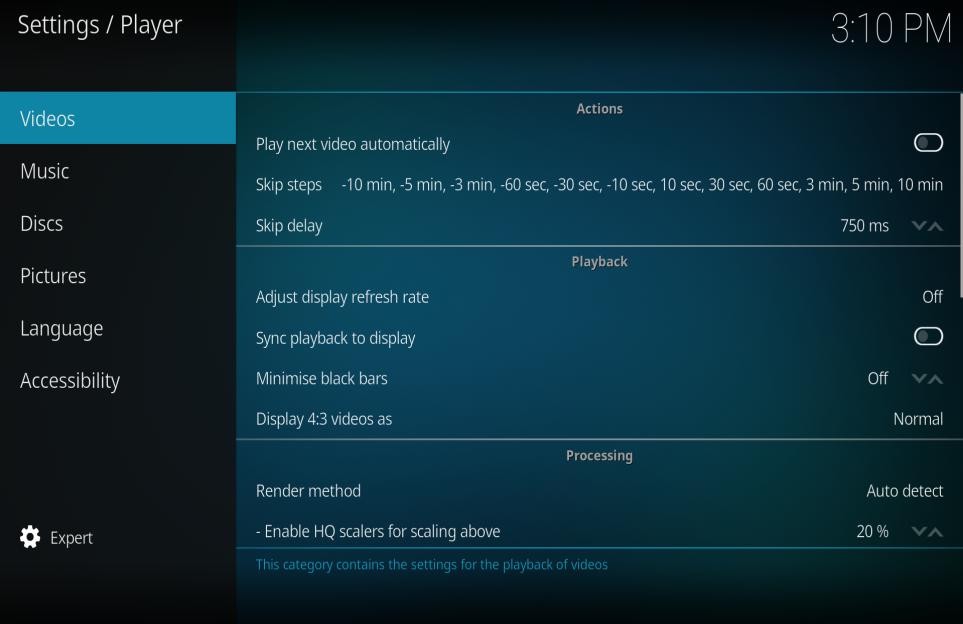
'''Play next video automatically -''' When selected this enables automatic playback of the next file in the list
{| class="wikitable"
|-
'''Skip steps -'''
! Setting !! Description
|-
'''Skip delay -'''
| Play next video automatically || When selected this enables automatic playback of the next file in the list
|-
| Skip steps || ?
|-
| Skip delay || ?
|}
== Playback==
== Playback==
'''Adjust display refresh rate -''' Defines when the refresh rate adjustments should take place.
{| class="wikitable"
|-
! Setting !! Description
|-
| Adjust display refresh rate || Defines when the refresh rate adjustments should take place.
Activate to automatically set the refresh rate which is best matched with the video that is playing (default off). This potentially allows for perfectly smooth video reproduction, as video material can be recorded in a variety of frame rates (23.976fps, 24fps, 25fps, 29.97fps, 30 fps, etc.) which need to be properly matched by the refresh rate of the display, in order to be displayed smoothly.
Activate to automatically set the refresh rate which is best matched with the video that is playing (default off). This potentially allows for perfectly smooth video reproduction, as video material can be recorded in a variety of frame rates (23.976fps, 24fps, 25fps, 29.97fps, 30 fps, etc.) which need to be properly matched by the refresh rate of the display, in order to be displayed smoothly.
|-
'''Sync playback to display -''' This setting enables syncing the video to the refresh rate of the monitor.
| Sync playback to display || This setting enables syncing the video to the refresh rate of the monitor.
|-
'''Minimise black bars -''' Allow video player to try to fit video to screen by ignoring aspect ratio by a certain amount.
| Minimise black bars || Allow video player to try to fit video to screen by ignoring aspect ratio by a certain amount.
|-
'''Display 4:3 videos as -''' Determines the zoom level that 4:3 videos are shown on widescreen displays.
| Display 4:3 videos as || Determines the zoom level that 4:3 videos are shown on widescreen displays.
|}
== Processing ==
== Processing ==
'''Render Method -''' Controls the method used by the player to process and display the video, (which is called rendering).
{| class="wikitable"
|-
'''Enable HQ scalers for scaling above -'''
! Setting !! Description
|-
'''Allow hardware acceleration -''' Enables hardware decoding of video files e.g. VDPAU
| Render Method || Controls the method used by the player to process and display the video, (which is called rendering).
|-
| Enable HQ scalers for scaling above || ?
|-
| Allow hardware acceleration || Enables hardware decoding of video files e.g. VDPAU
|}
== Stereoscopic 3D ==
== Stereoscopic 3D ==
'''Playback mode of stereoscopic videos'''
{| class="wikitable"
|-
'''Disable stereoscopic mode when playback is stopped'''
! Setting !! Description
|-
| Playback mode of stereoscopic videos || ?
|-
| Disable stereoscopic mode when playback is stopped || ?
|}
== Teletext ==
== Teletext ==
'''Activate Teletext -''' Enables Teletext when watching a live TV stream.
{| class="wikitable"
'''
|-
Scale Teletext to 4:3 -''' When selected scales Teletext to 4:3 ratio.
! Setting !! Description
|-
| Activate Teletext || Enables Teletext when watching a live TV stream.
|-
| Scale Teletext to 4:3 || When selected scales Teletext to 4:3 ratio.
When selected this enables automatic playback of the next file in the list
Skip steps
?
Skip delay
?
Playback
Setting
Description
Adjust display refresh rate
Defines when the refresh rate adjustments should take place.
Activate to automatically set the refresh rate which is best matched with the video that is playing (default off). This potentially allows for perfectly smooth video reproduction, as video material can be recorded in a variety of frame rates (23.976fps, 24fps, 25fps, 29.97fps, 30 fps, etc.) which need to be properly matched by the refresh rate of the display, in order to be displayed smoothly.
Sync playback to display
This setting enables syncing the video to the refresh rate of the monitor.
Minimise black bars
Allow video player to try to fit video to screen by ignoring aspect ratio by a certain amount.
Display 4:3 videos as
Determines the zoom level that 4:3 videos are shown on widescreen displays.
Processing
Setting
Description
Render Method
Controls the method used by the player to process and display the video, (which is called rendering).
Enable HQ scalers for scaling above
?
Allow hardware acceleration
Enables hardware decoding of video files e.g. VDPAU
Stereoscopic 3D
Setting
Description
Playback mode of stereoscopic videos
?
Disable stereoscopic mode when playback is stopped