Autoexec Service: Difference between revisions
No edit summary |
No edit summary |
||
| Line 49: | Line 49: | ||
== Simple Examples == | == Simple Examples == | ||
The following example starts your favourite addon: | |||
<syntaxhighlight lang="python" enclose="div"> | <syntaxhighlight lang="python" enclose="div"> | ||
import xbmc | import xbmc | ||
| Line 56: | Line 56: | ||
</syntaxhighlight> | </syntaxhighlight> | ||
This example takes you to the movie overview: | |||
<syntaxhighlight lang="python" enclose="div"> | <syntaxhighlight lang="python" enclose="div"> | ||
import xbmc | import xbmc | ||
xbmc.executebuiltin('ActivateWindow(videos,movietitles)') | |||
</syntaxhighlight> | |||
xbmc.executebuiltin('ActivateWindow( | |||
Here is an example that takes you to the Favourites screen: | |||
<syntaxhighlight lang="python" enclose="div"> | |||
import xbmc | |||
xbmc.executebuiltin('ActivateWindow(FavouritesBrowser)') | |||
</syntaxhighlight> | </syntaxhighlight> | ||
Latest revision as of 20:31, 14 June 2025
Automatically execute code when Kodi starts up.
If you wish to run some code automatically when Kodi starts, you can do so by creating a service add-on.
(This replaces the now deprecated method of adding an autoexec.py file in the userdata folder.[1])
Create a folder for your autoexec add-on
- Navigate to the addons folder in the Kodi Data Folder
- Create a folder named service.autoexec.
-
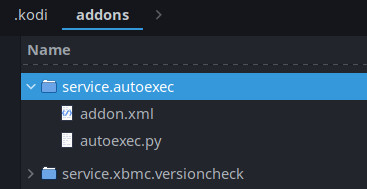 Folder structure

Add an autoexec.py file
Move your existing autoexec.py file to this folder, or if you don't have one yet, create it and check out the code examples below.
Add an addon.xml file
Create an addon.xml file in this folder and copy and paste the following code to it:
<?xml version="1.0" encoding="UTF-8" standalone="yes"?>
<addon id="service.autoexec" name="Autoexec Service" version="1.0.0" provider-name="your username">
	<requires>
		<import addon="xbmc.python" version="3.0.0"/>
	</requires>
	<extension point="xbmc.service" library="autoexec.py">
	</extension>
	<extension point="xbmc.addon.metadata">
		<summary lang="en_GB">Automatically run python code when Kodi starts.</summary>
		<description lang="en_GB">The Autoexec Service will automatically be run on Kodi startup.</description>
		<platform>all</platform>
		<license>GNU GENERAL PUBLIC LICENSE Version 2</license>
	</extension>
</addon>
Enable your addon in kodi
Navigate to the autoexec add-on in the addonbrowser and enable it:
Settings > Add-ons > My add-ons > Services > Autoexec Service
Examples
Simple Examples
The following example starts your favourite addon:
import xbmc

xbmc.executebuiltin('RunScript(script.globalsearch)')
This example takes you to the movie overview:
import xbmc
xbmc.executebuiltin('ActivateWindow(videos,movietitles)')
Here is an example that takes you to the Favourites screen:
import xbmc
xbmc.executebuiltin('ActivateWindow(FavouritesBrowser)')
Example using profiles
If you are using profiles and wish to run specific code based on the user who logs in, it can be done like this:
import xbmc

if xbmc.getInfoLabel('System.ProfileName') == 'Master user':
    xbmc.executebuiltin('RunScript(script.globalsearch)')

elif xbmc.getInfoLabel('System.ProfileName') == 'your username':
    xbmc.executebuiltin('ActivateWindow(videos,movietitles)')