{{collapse top|Click [Expand] to see the Settings for Kodi versions up to version 16}}
<section begin="Settings" />
<big>
<imagemap>
<big>'''GUI Settings'''</big>
Image:SettingsOverview-leia.png|800px|center
[[File:System settings.png|400px|right]]
rect 125 100 386 264 [[File_manager]]
rect 408 100 670 264 [[Add-on_manager]]
rect 694 100 956 264 [[Settings/System_information]]
rect 977 100 1236 264 [[Event_Log]]
rect 125 348 386 510 [[Settings/Player]]
rect 408 348 670 510 [[Settings/Media]]
rect 694 348 956 510 [[Settings/Live_TV]]
rect 977 348 1236 510 [[Settings/Services]]
rect 125 534 385 698 [[Settings/Games]]
rect 408 534 670 698 [[Settings/Interface]]
rect 694 534 956 698 [[Settings/Profiles]]
rect 977 534 1236 698 [[Settings/System]]
</imagemap>
<section end="Settings" />
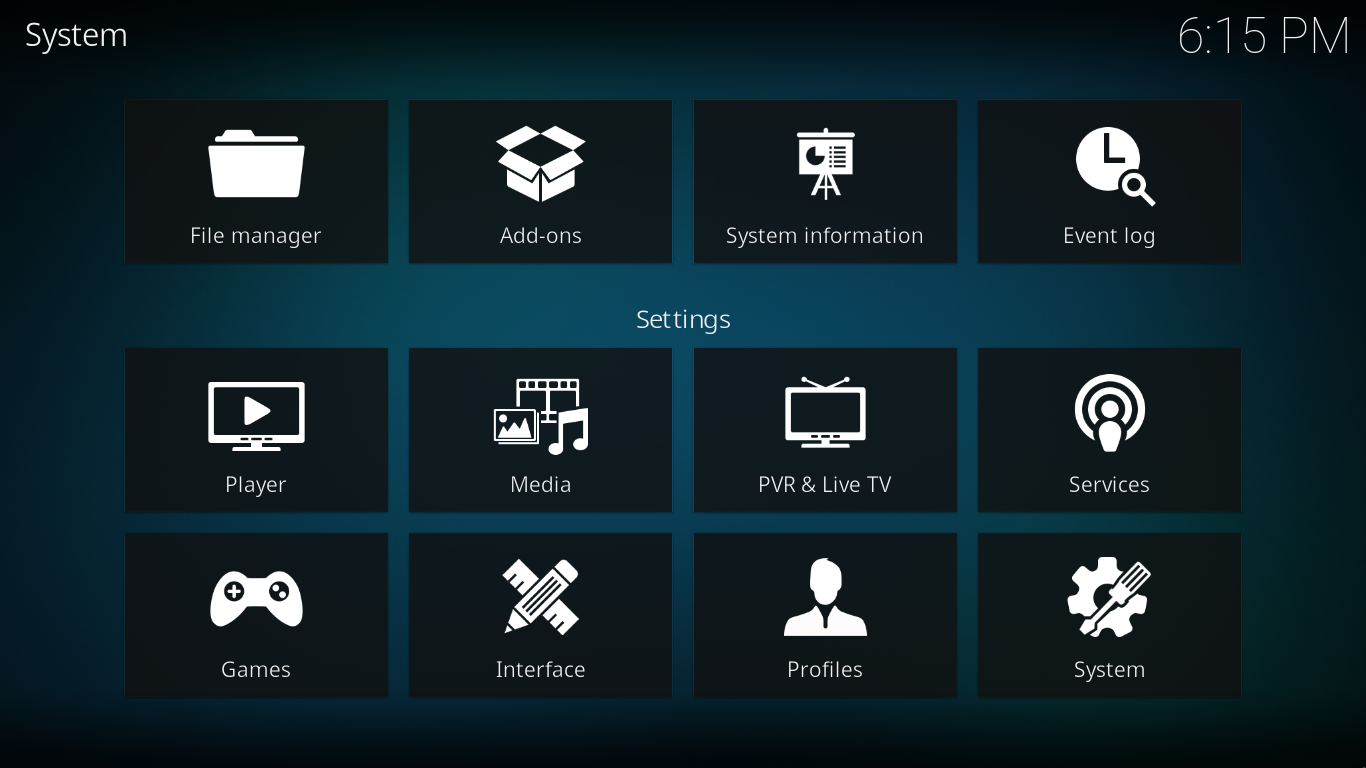
Most of Kodi's global settings can be configured via the GUI (Graphical User Interface) under Settings (labeled "System" under the default skin, Confluence).
Choosing Settings from the Home Screen opens the Settings Window. In this window, you are able to configure Kodi's options:
== Settings Level ==
{{-}}
The "Settings level" will change the number of Settings options visible. The higher the level, the more options shown.
{{Index two column
| image 1 = Crystal Clear app kcoloredit.png
There are four settings levels - Basic, Standard (default), Advanced, Expert. Scroll down to the setting level to change levels.
| link 1 = Settings/Appearance
| link name 1 = Appearance
This setting also affects the settings page of add-ons.
| description 1 = Some video playback settings can (currently) only be accessed while playing a video back and accessing the on-screen-display. For more info see [[Video playback]]. These include subtitle and audio track selection, zoom (aspect ratio) options, and more.
| link 2 = Media sources
| description 2 = [[Media sources]] and [[scrapers]] control what files are listed in Kodi and what is scanned into the library. These settings can also control what information is pulled from the internet.
| image 3 = Nuvola apps kthememgr.png
| link 3 = Add-ons#Add-on settings
| link name 3 = Add-on settings
| description 3 = {{#lst:Add-ons|settings}}
| image 4 = Gdm.png
| link 4 = Profiles
}}
</big>
{{collapse bottom}}
== Advanced settings ==
== Advanced settings ==
Line 112:
Line 44:
{{#lst:advancedsettings.xml|intro}}
{{#lst:advancedsettings.xml|intro}}
== Resetting Kodi settings to default ==
{{see also|userdata}}
Delete your [[userdata]] folder and the parent "Kodi" folder (sometimes named ".Kodi") to remove all Kodi settings and library databases. Deleting some individual files/folders in the [[userdata]] folder will also selectively reset those files to a default state.
== Other settings related pages ==
It is also possible to move GUI Settings into advancedsettings.xml which removes them from these Settings pages.
This file is used for advanced settings and options that do not have GUI controls inside of Kodi. Some settings are experimental or very rarely set, so they can only be used via the advancedsettings.xml file. The file is simply a plain text file and can be edited by various text editors, so long as the name is "advancedsettings.xml". These advanced settings can be used to tweak various things such as episode naming patterns, special network ports, special behaviors, and more.
It is also possible to move GUI Settings into advancedsettings.xml which removes them from these Settings pages.

 Settings