This category contains the settings for how DVD's, Blu-rays & CD's are handled
DVD
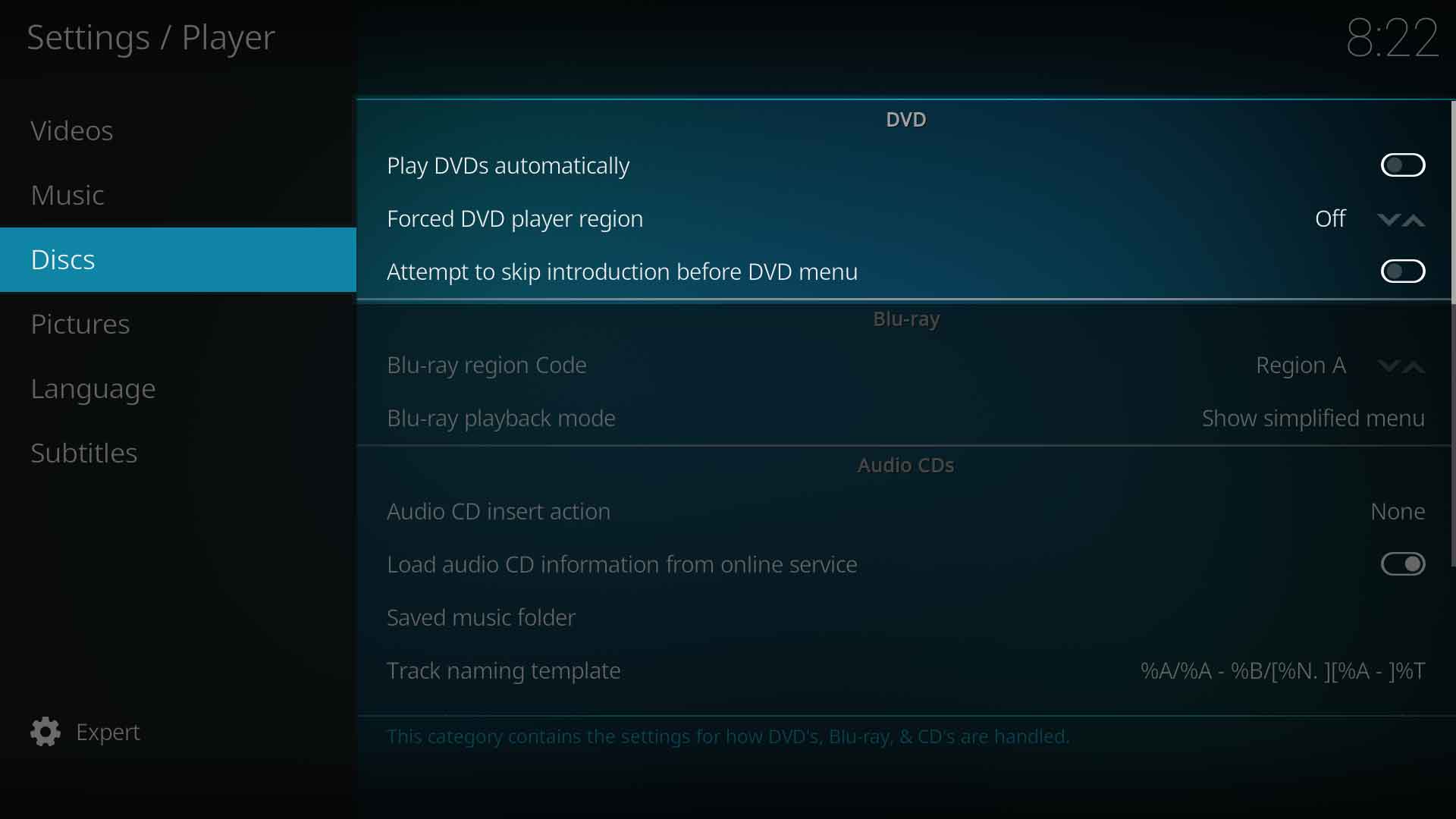
Play DVDs automatically
| Settings level:
|
Basic
|
| Description:
|
Autoruns DVD video when inserted in drive
|
Forced DVD player region
| Settings level:
|
Standard
|
| Description:
|
Forces a region for DVD playback.
|
| Settings level:
|
Advanced
|
| Description:
|
Attempt to skip "unskippable" introductions before DVD menu.
|
Blu-ray
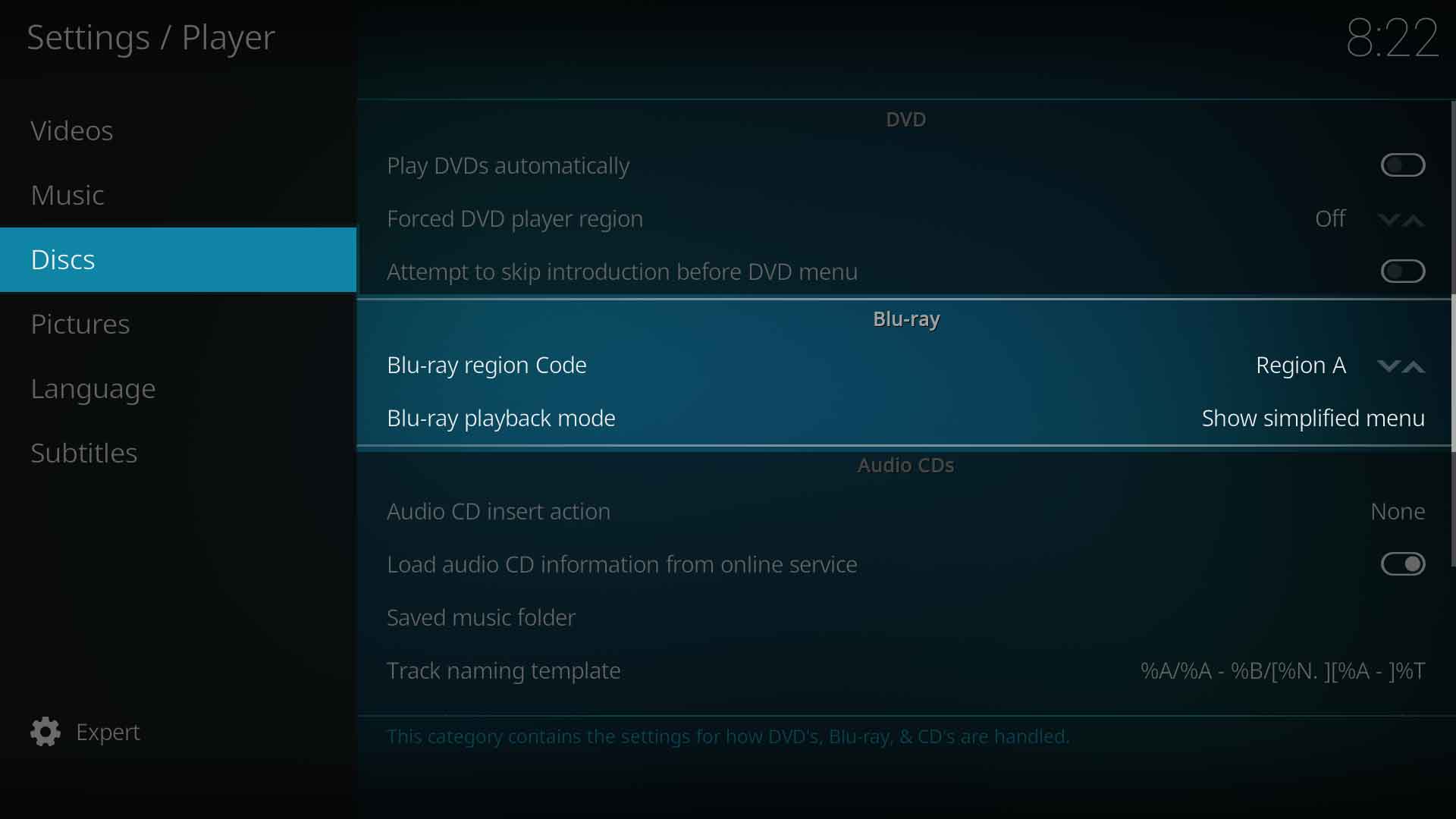
Blu-ray region code
| Settings level:
|
Standard
|
| Description:
|
Defines the BluRay region code. Region A - Americas, East Asiaa and Southeast Asia. Region B- Arica, Middle East, Southwest Asia, Europe, Australia, New Zealand. Region C - Central Asia, mainland China, South Asia, Belarus, Russia, Ukraine, Kazakhstan
|
Blu-ray playback mode
| Settings level:
|
Standard
|
| Description:
|
Specifies how Blu-Rays should be opened / played back. Note: Some disc menus are not fully supported and may cause problems.
|
Audio CDs
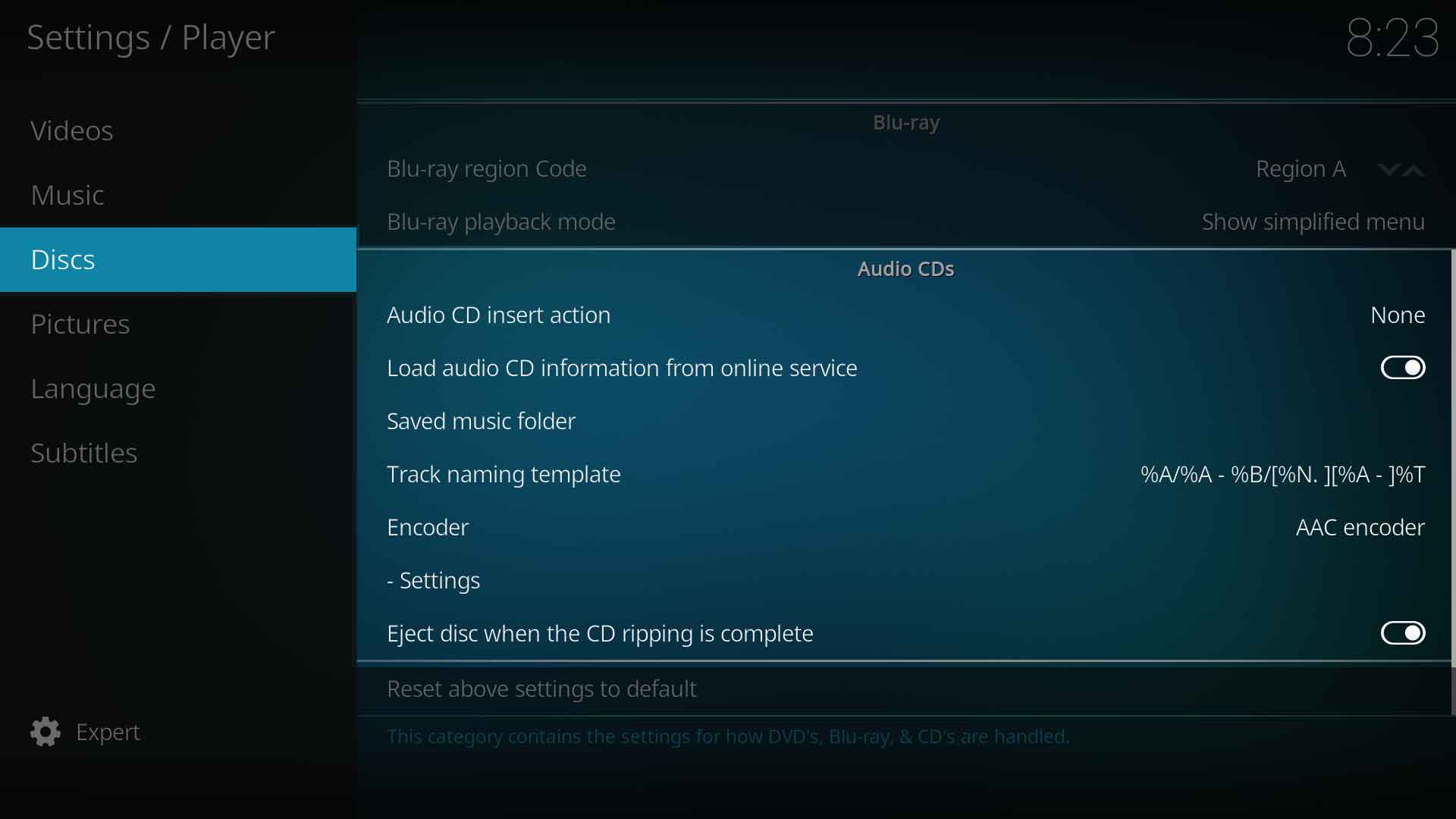
Audio CD insert action
| Settings level:
|
Standard
|
| Description:
|
Defines the action what happens after a disc is inserted. Possible options are: None, Play. Rip
|
Load audio CD information from online service
| Settings level:
|
Standard
|
| Description:
|
Read the informations belonging to an audio CD, like song title and artist, from the Internet database freedb.org.
|
Saved music folder
| Settings level:
|
Expert
|
| Description:
|
Select the location on your hard drive where ripped tracks will be saved to.
|
Track naming template
| Settings level:
|
Expert
|
| Description:
|
Control how saved music is named from the tags. Tags: %N: TrackNumber, %S: DiskNumber, %A: Artist, %T: Title, %B: Album, %G: Genre, %Y: Year, %F: FileName, %D: Duration, %J: Date, %R: Rating, %I: FileSize.
|
Encoder
| Settings level:
|
Expert
|
| Description:
|
Select which audio encode to use when ripping. Note: Ubuntu users can download additional audio encoders via the Official Ubuntu PPA. Kodi users for other OSes don't need to do anything, as all audio encoders are pre-installed in those builds.
|
- Installing audio encoders on Ubuntu will be done like this:
sudo apt-get install <packagename>
- replace <packagename> with one of the list below:
| Package name |
Description
|
kodi-audioencoder-vorbis |
audio encoder for vorbis
|
kodi-audioencoder-flac |
audio encoder add-on for FLAC
|
kodi-audioencoder-lame |
audio encoder for MP3 (lame)
|
kodi-audioencoder-wav |
audio encoder for WAV.
|
Settings
| Settings level:
|
Expert
|
| Description:
|
Specifies the settings for audio-cd ripping with the selected audio encoder.
|
Eject CDs when ripping is complete
| Settings level:
|
Expert
|
| Description:
|
Auto eject disc after ripping is complete.
|


