Adding video sources
Adding Remote sources
For details on the supported protocols and configuration
- See: File sharing
Follow the steps (above) for adding a source, but when you get to the 'browse' section (step 4), you need to do one of the following:
If your remote device is visible from one of the existing choices (e.g 'Network File system' , 'UPnP Devices' etc)
- Select a remote location, and you should be able to browse to the remote server.
If the device is not visible, or
- It is a remote NAS
- It is an SMB server
You will need to add a new network location:
-
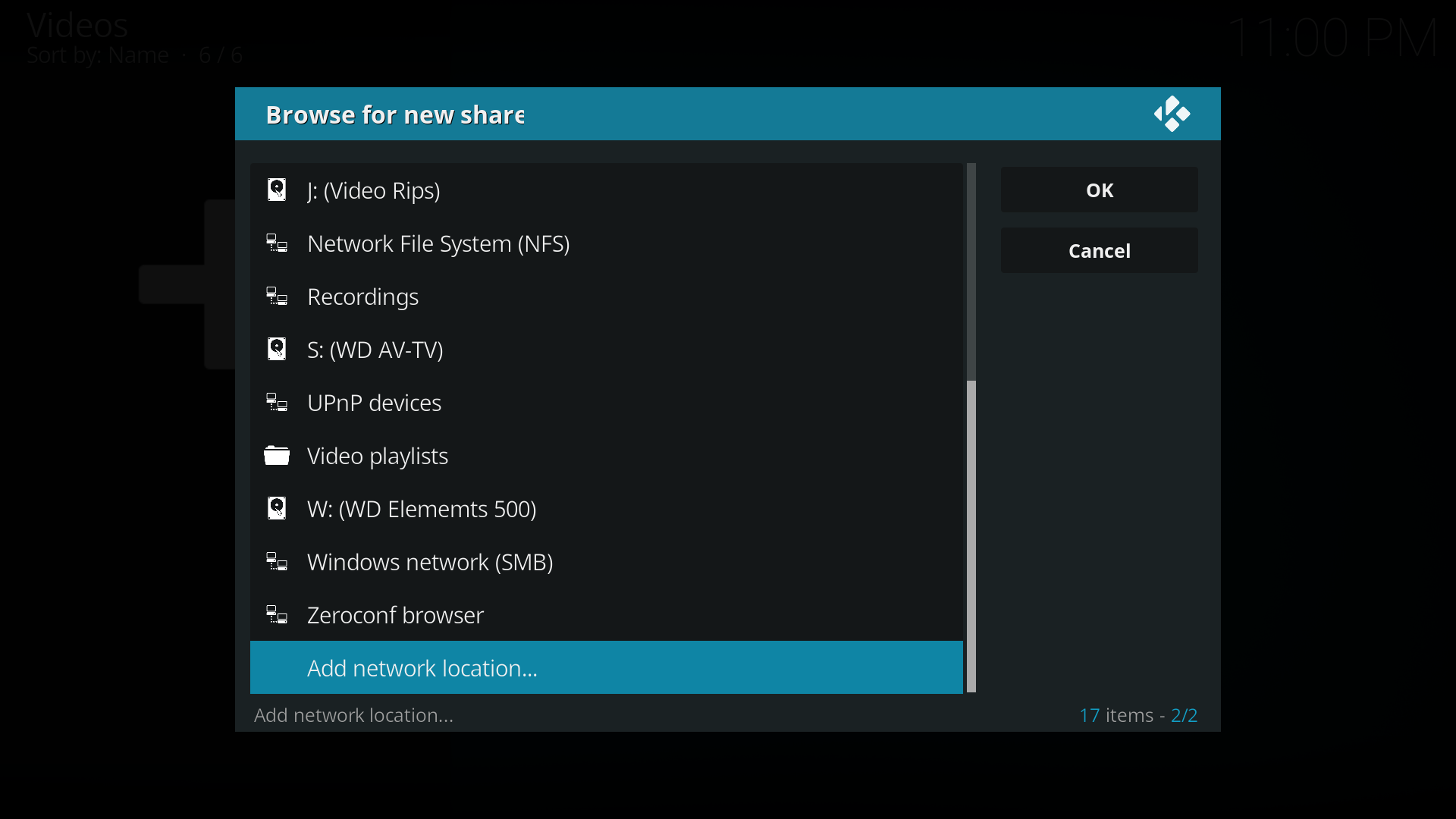 Select Add network location... from the list shares.
 -
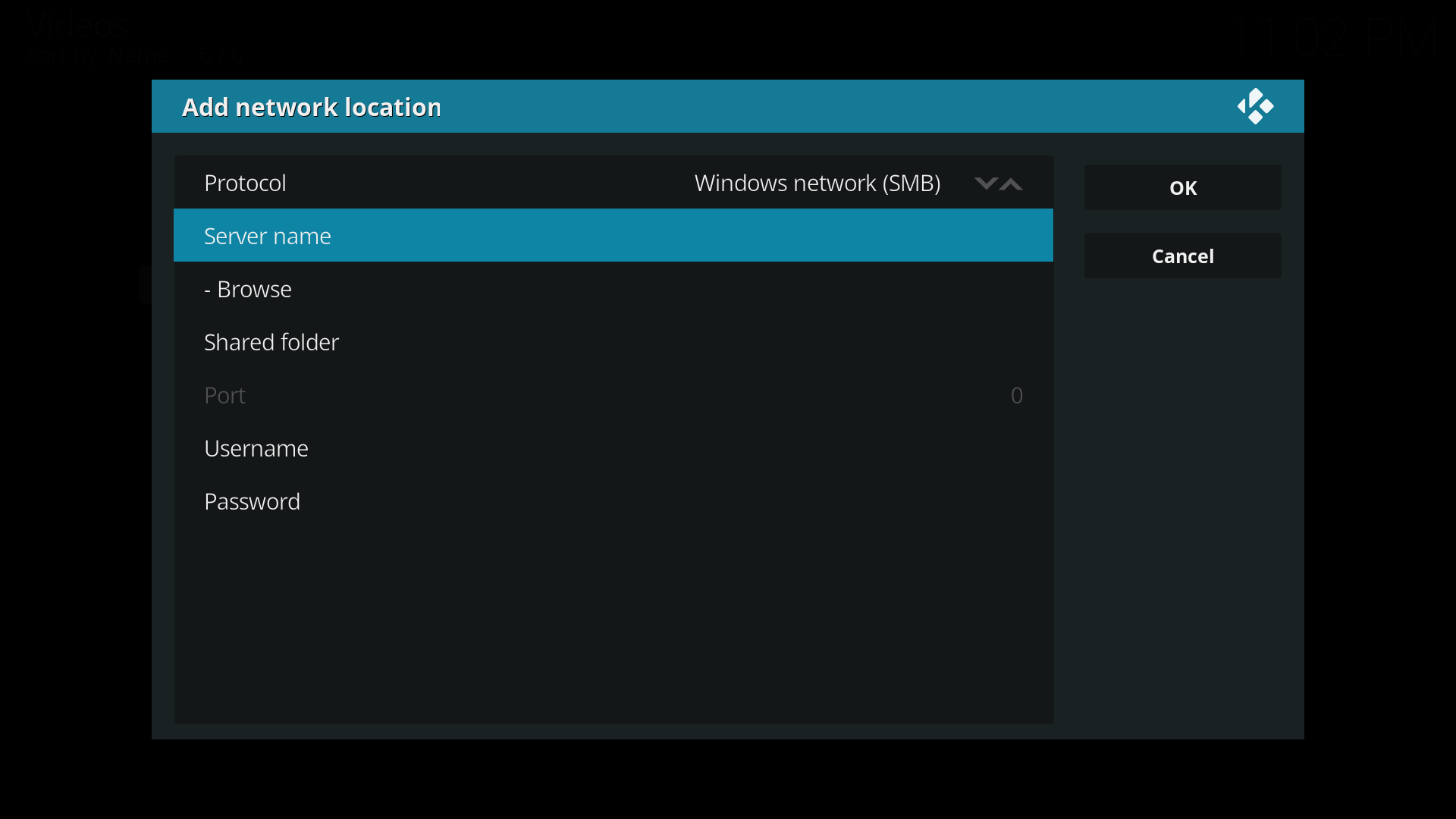 In the new window select the correct Protocol for your Network Share, then select Server Name.
 -
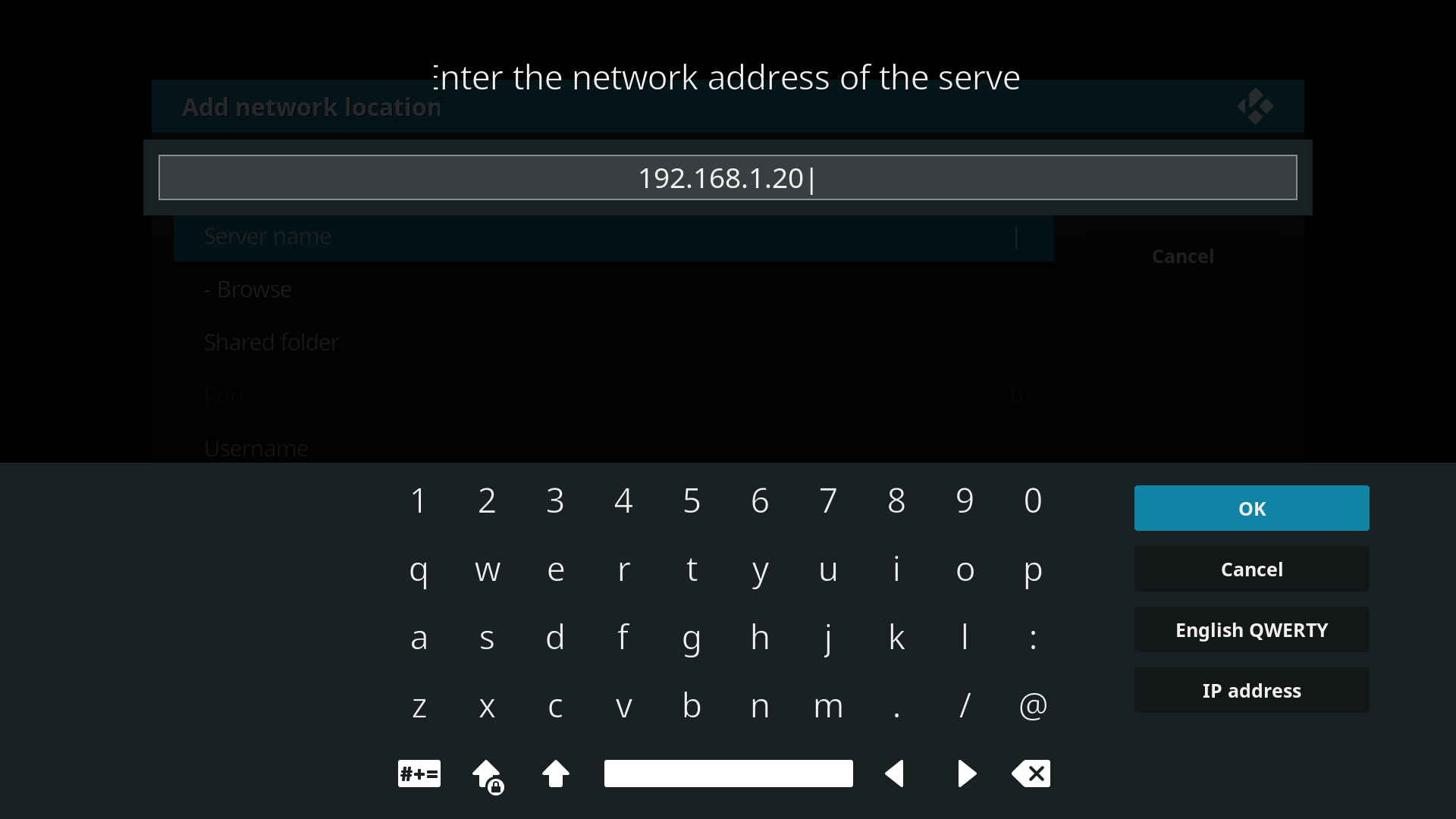 Type in either the IP Address or the Device name of your server. Note: if you use a dynamic IP for your NAS you could lose access to your shares if the IP changes. It is recommended that you use a static IP if adding your share this way.
 -
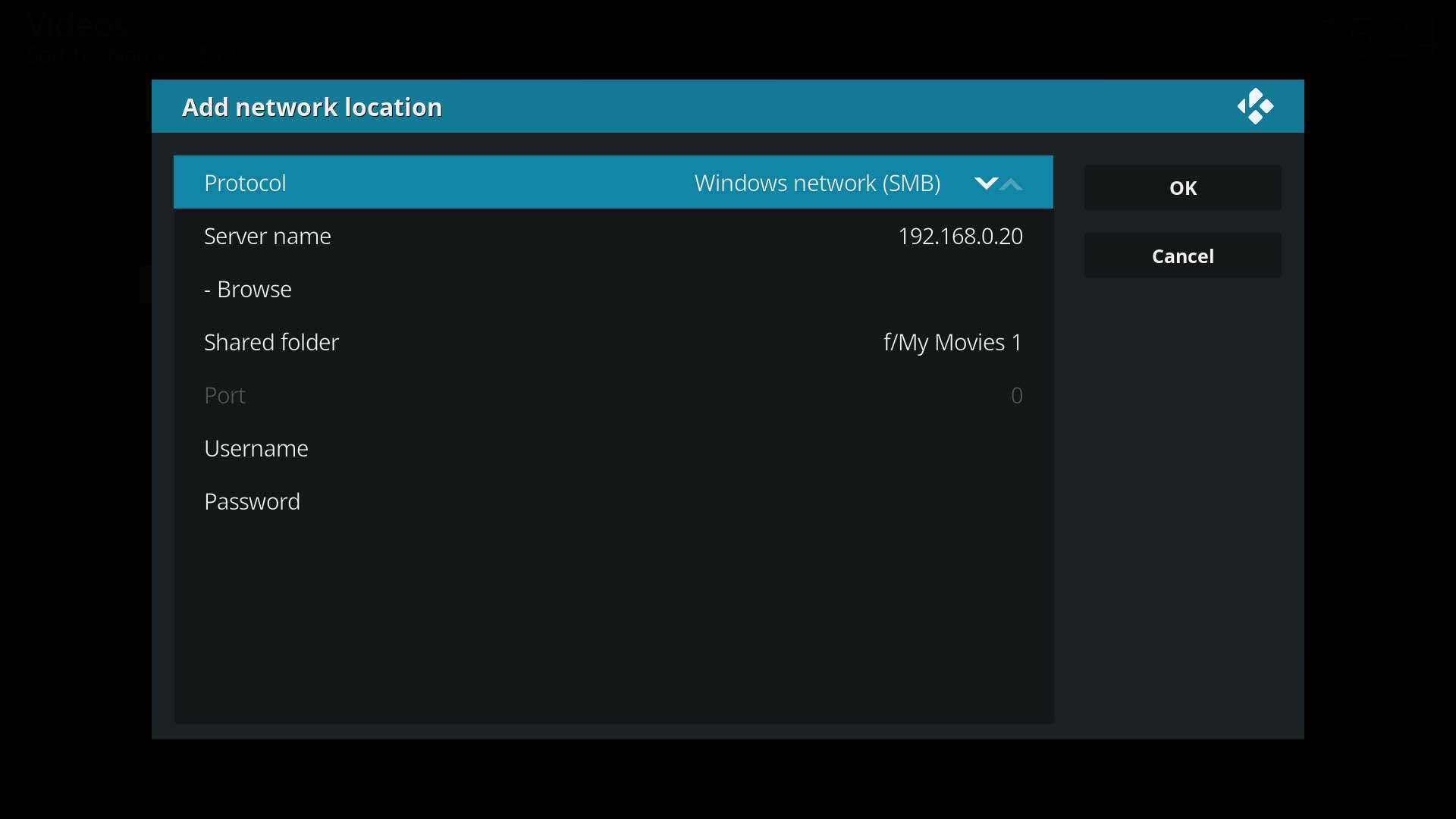 In the Share Folder type in the name of the folder on your NAS that you wish to access. If your share requires a Username and Password add those in the appropriate sections. Select OK and you should now see your share added to the Browse for new share list.


