HOW-TO:Add Time Remaining to Confluence: Difference between revisions
Jump to navigation
Jump to search
mNo edit summary |
mNo edit summary |
||
| Line 2: | Line 2: | ||
<gallery widths=500px heights=313px> | <gallery widths=500px heights=313px> | ||
File:TRorg.png|Original | File:TRorg.png|Original ''Info screen'' {{keypress|I}} | ||
File:TRmod.png|MOD | File:TRmod.png|MOD | ||
File:TRosdorg.png|Original | File:TRosdorg.png|Original ''OSD'' {{keypress|M}} | ||
File:TRosdmod.png|MOD | File:TRosdmod.png|MOD | ||
</gallery> | </gallery> | ||
Revision as of 11:42, 18 July 2015
This tutorial will show how to add time remaining to the Info screen I and OSD M at the end of the progress bar, and move the run time to the bottom of the progress bar on the Info screen. This is achieved by editing VideoFullScreen.xml.
-
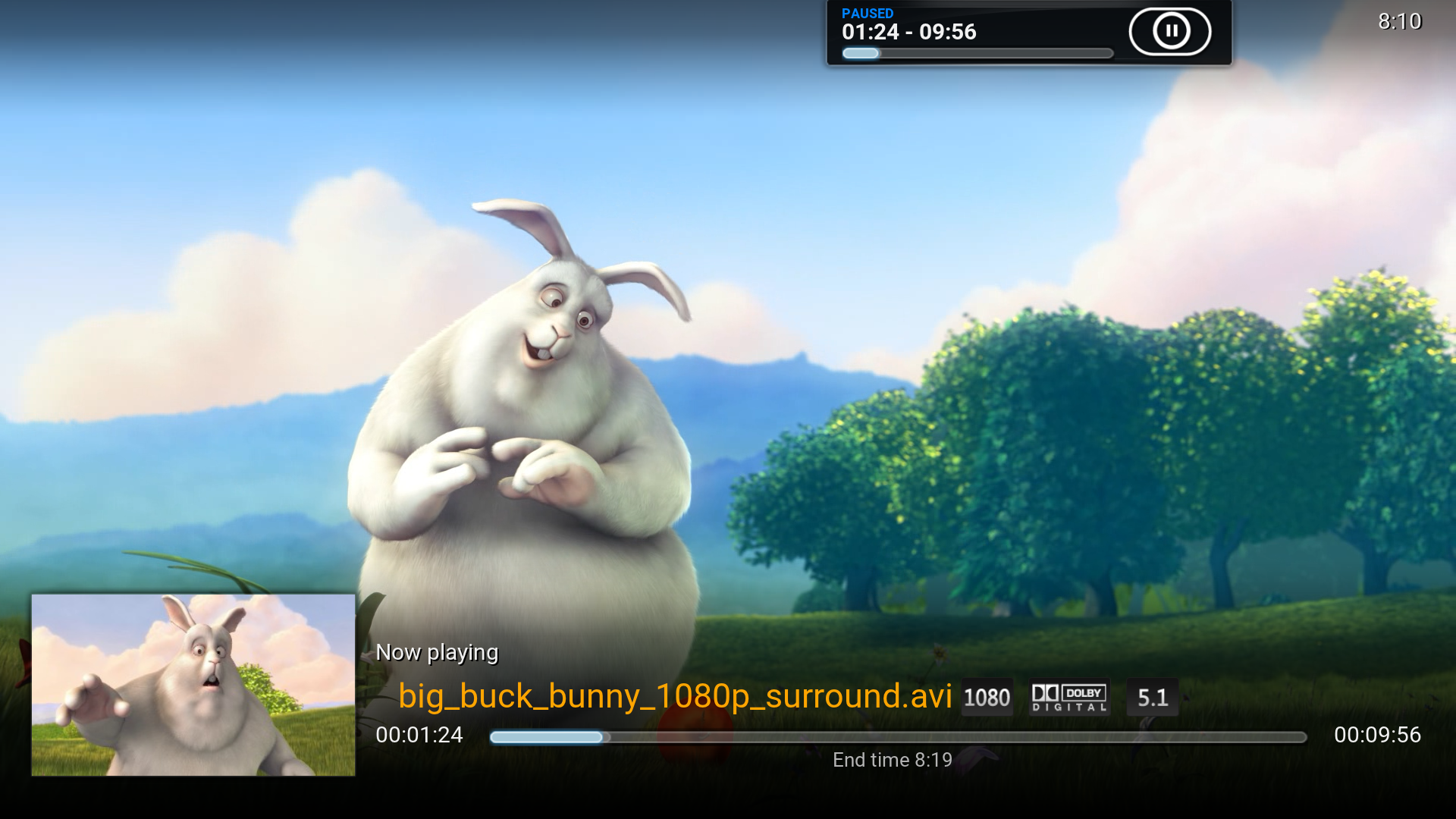 Original Info screen I
 -
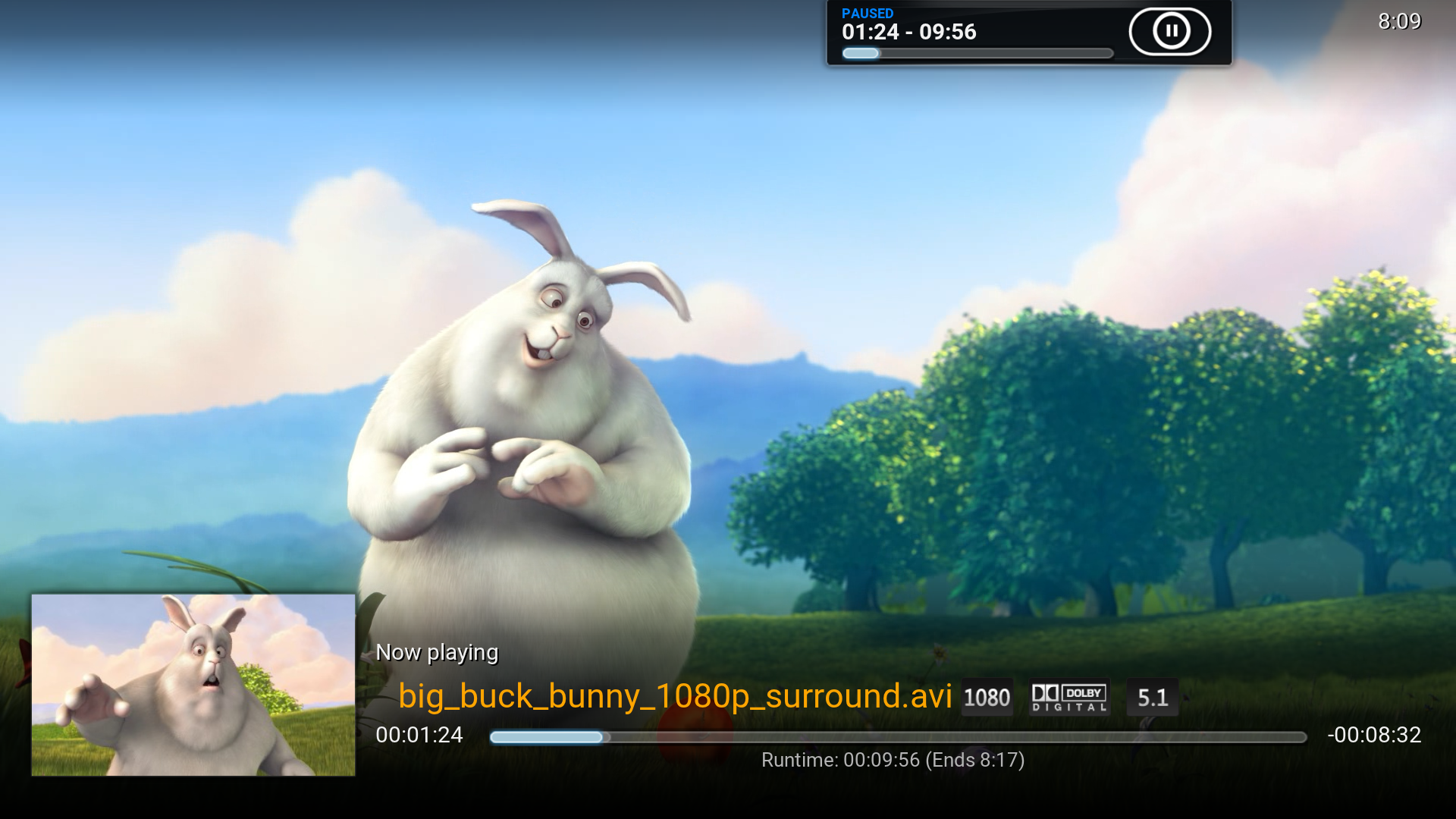 MOD
MOD -
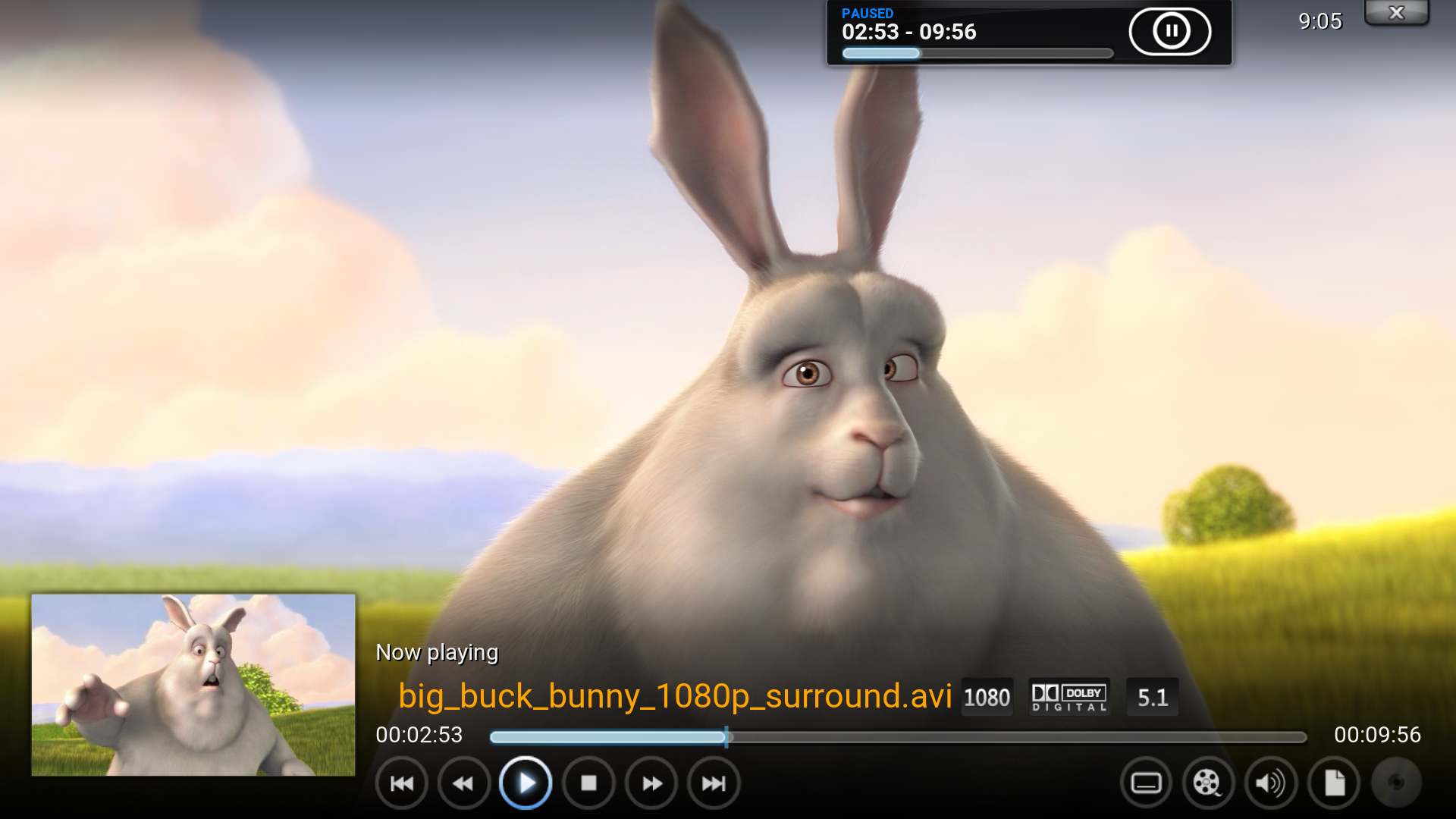 Original OSD M
 -
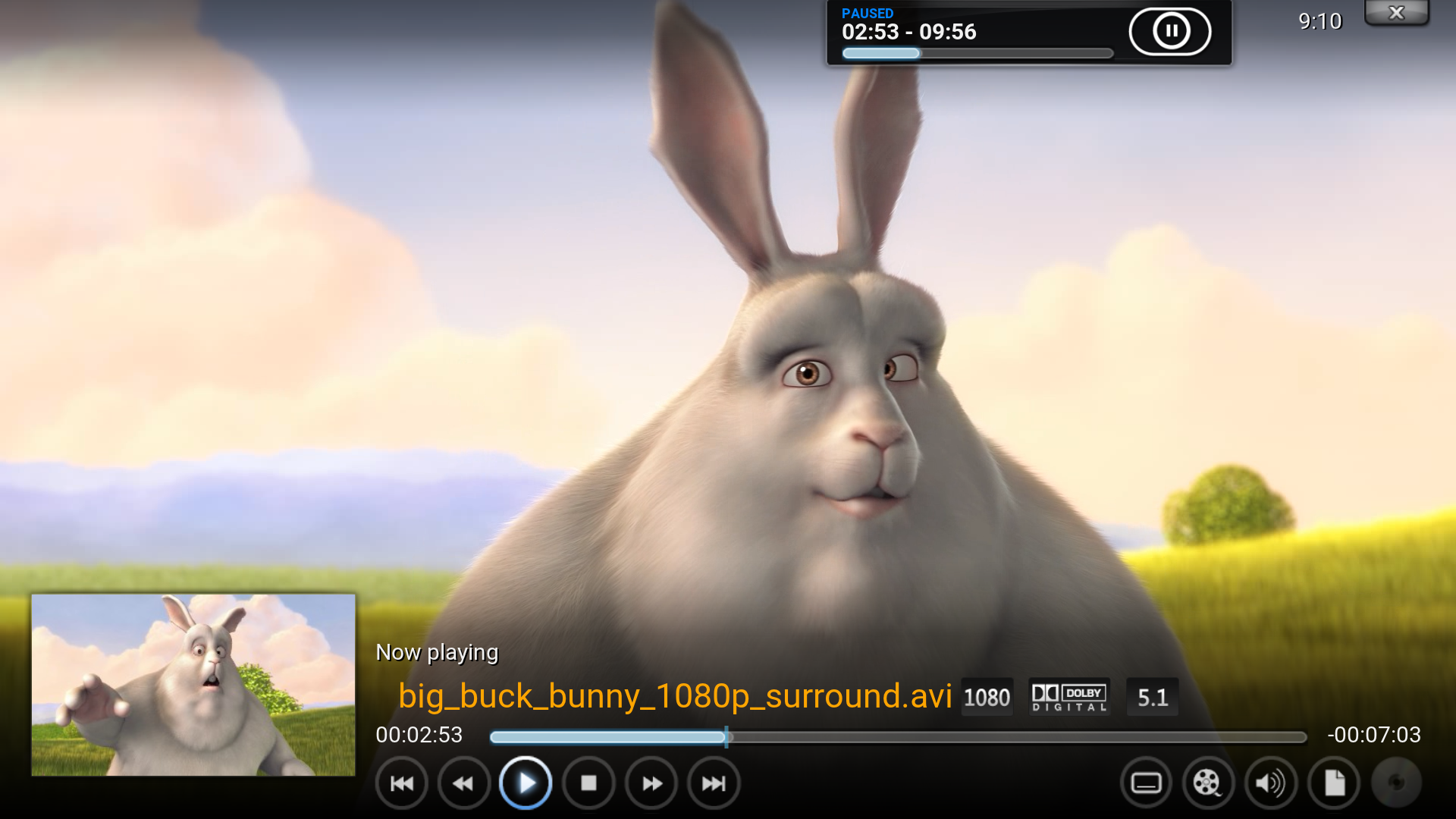 MOD
MOD


Open VideoFullScreen.xml and find this line, comment it out. It will remove end time below the progress bar.
<label>$LOCALIZE[31049] $INFO[Player.FinishTime]</label>
Add this after the above line. It will add run time at the bottom of the progress bar and add end time into brackets.
<label>Runtime: $INFO[Player.Duration(hh:mm:ss)] (Ends $INFO[Player.FinishTime])</label>
Find this line and comment it out. It will remove run time from the end of the progress bar.
<label>$INFO[Player.Duration(hh:mm:ss)]</label>
Add this after the above line. It will add time remaining to the end of the progress bar.
<label>-$INFO[Player.TimeRemaining(hh:mm:ss)]</label>