:Allows you to set the master lock password. Can be one of three types:
:* '''Numeric Password''' - Enter a Numeric Password using the On Screen Keyboard
:* '''Gamepag Button Combo''' - Enter a series of buttons using the Gamepad
:* '''Full-Text Password''' - Enter a plain-text password using the On Screen Keyboard
With the Master Lock, you can restrict access to the following sections when selected:
;Lock Music Section
;Lock Video Section
;Lock Pictures Section
;Lock Programs and Scripts Section
;Lock File Manager
;Lock Settings
;Location of Master Lock code
:The Master Lock code is stored in the "profiles.xml" file in the userdata folder. Should you get locked out, you can delete or edit the "profiles.xml" file.
Display xbmc in a window, or fullscreen on the selected screen.
Display
Changes the resolution that the User Interface is displayed in.
Use a fullscreen window rather than true fullscreen
Windows only when active, do not use the DirectX fullscreen mode. The main benefit is for multi-screen configurations, where xbmc can be used at the same time as other applications without automatically minimizing. Uses a bit more resources and playback may be slightly less smooth.
Blank other displays
In a multi-screen configuration, the screens where xbmc is not displayed are blacked out.
This screen allows you to calibrate the User Interface by adjusting the overscan. Use this tool if the image being displayed is too large or small for your display. Note: Always adjust your hardware display settings before XBMC's settings (such as overscan, etc). Simply adjust the screen so that the arrows are in the top left and bottom right corners and that the entire frame is visible on screen.
It offers the ability to adjust
The overscan of the video - How close to the edges of the screen that the image is displayed
The positition where subtitles are displayed
The position of the on screen display
The pixel ratio - allows you calibrate the aspect ratio at which videos are played back
Allows you to tell xbmc about the type of connection to the audio equipment. Optical/Coax and HDMI enable the passthrough of Dolby Digital and DTS to capable receivers.
Speaker Configuration
?
Boost volume level on downmix
?
- Dolby Digital (AC3) capable receiver
Select this option if your receiver is capable of decoding AC3 streams.
- DTS Capable Receiver
Select this option if your receiver is capable of decoding DTS streams.
Audio output device
?
Input devices
Note: The content of this screen largely depends on the input devices that XBMC detects
Remote control sends keyboard presses
When activated, your keyboard arrows will move the selection on the virtual keyboard. When desactivated, they will move the cursor from your text.
Enable mouse and Touch Screen support
If deactivated, XBMC will ignore all mouse movements and clicks.
Power saving
Put display to sleep when idle
?
Shutdown function timer
?
Shutdown function
?
Debugging
Enable Debug Logging
Toggles debug log on / off. Useful for troubleshooting.
Screenshot folder
Folder used to save screenshots taken within XBMC.
Master lock
NOTE: The Master Lock options are ONLY available while using the Default User profile!!
Allows you to set the master lock password. Can be one of three types:
Numeric Password - Enter a Numeric Password using the On Screen Keyboard
Gamepag Button Combo - Enter a series of buttons using the Gamepad
Full-Text Password - Enter a plain-text password using the On Screen Keyboard
With the Master Lock, you can restrict access to the following sections when selected:
Lock Music Section
Lock Video Section
Lock Pictures Section
Lock Programs and Scripts Section
Lock File Manager
Lock Settings
Location of Master Lock code
The Master Lock code is stored in the "profiles.xml" file in the userdata folder. Should you get locked out, you can delete or edit the "profiles.xml" file.

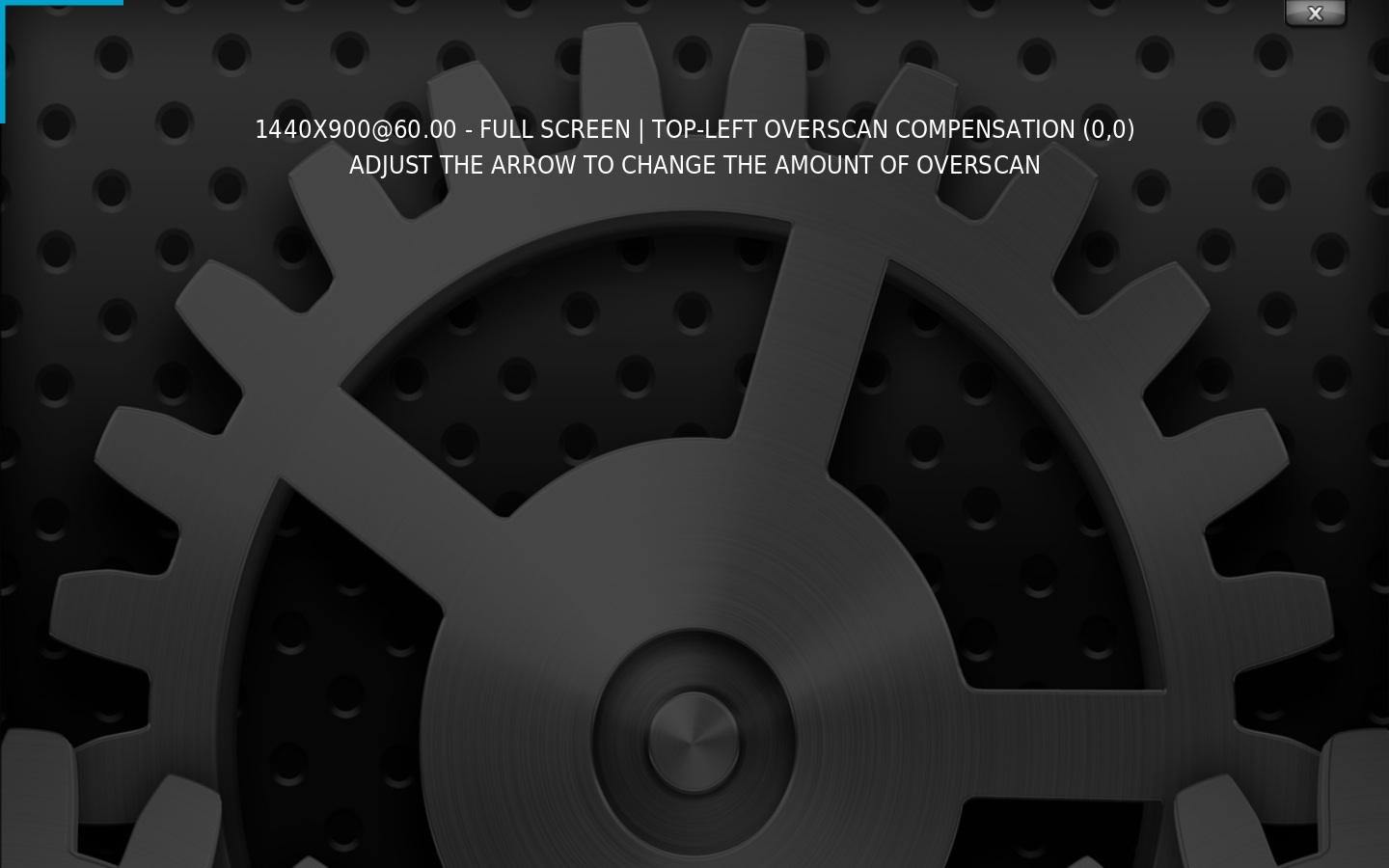 Upper left corner


