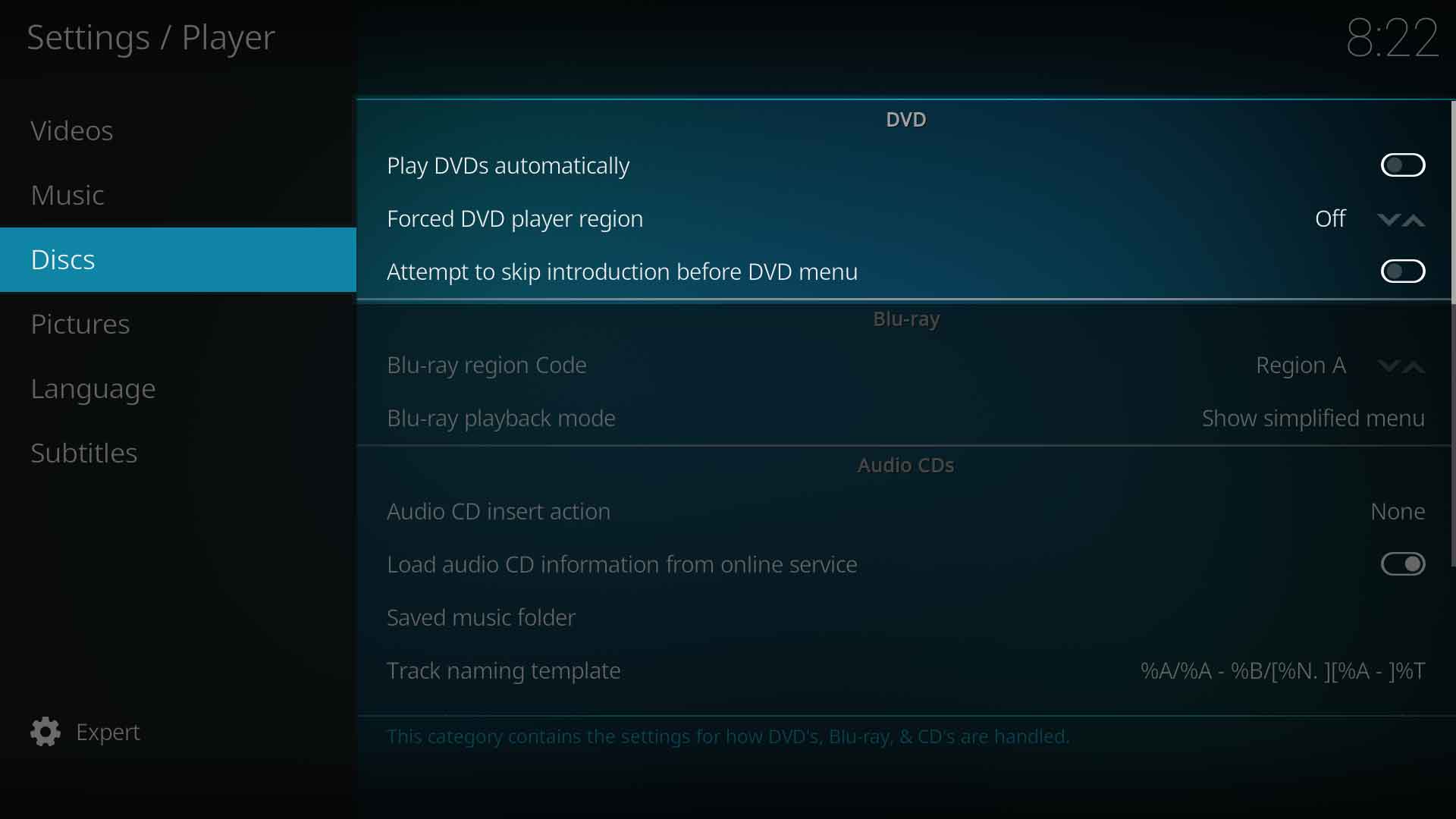
Play DVDs automatically - Autoruns DVD video when inserted in drive
Forced DVD player region - Forces a region for DVD playback.
=== Forced DVD player region ===
{|
|- valign="top"
| width=120px | {{nowrap|'''Settings level:'''}}
| Standard
|- valign="top"
| '''Description:'''
| Forces a region for DVD playback.
|}
Attempt to skip introduction before DVD menu - Attempts to skip 'unskippable' introductions before DVD menu
=== Attempt to skip introduction before DVD menu ===
{|
|- valign="top"
| width=120px | {{nowrap|'''Settings level:'''}}
| Advanced
|- valign="top"
| '''Description:'''
| Attempt to skip "unskippable" introductions before DVD menu.
|}
{{-}}
== Blu-ray ==
== Blu-ray ==
[[File:Player_discs_BR.jpg|500px|right]]
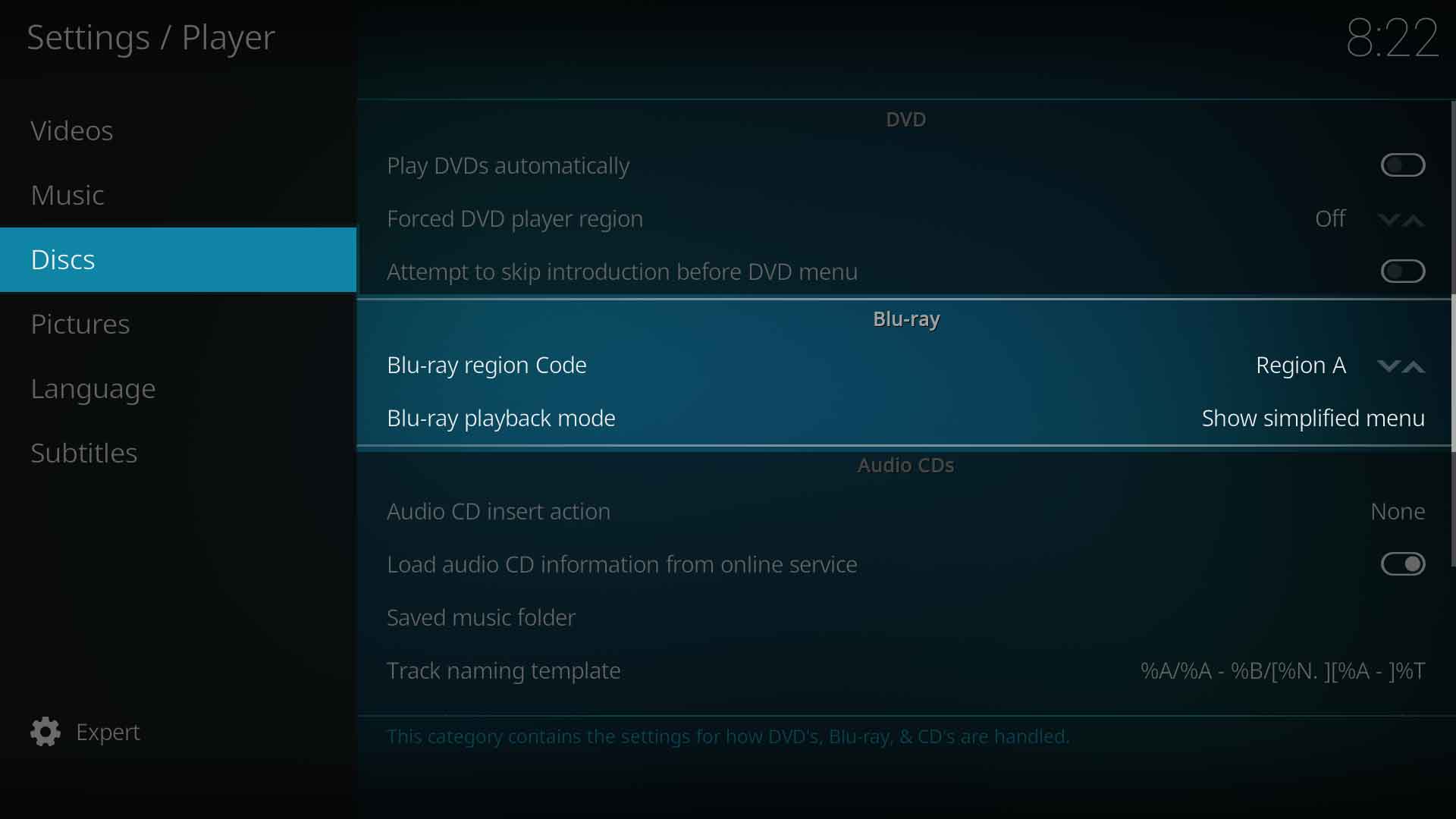
===Blu-ray region code ===
{|
|- valign="top"
| width=120px | {{nowrap|'''Settings level:'''}}
| Standard
|- valign="top"
| '''Description:'''
| Defines the BluRay region code. Region A - Americas, East Asiaa and Southeast Asia. Region B- Arica, Middle East, Southwest Asia, Europe, Australia, New Zealand. Region C - Central Asia, mainland China, South Asia, Belarus, Russia, Ukraine, Kazakhstan
|}
Blu-ray region code -
Blu-ray playback mode -
=== Blu-ray playback mode ===
{|
|- valign="top"
| width=120px | {{nowrap|'''Settings level:'''}}
| Standard
|- valign="top"
| '''Description:'''
| Specifies how Blu-Rays should be opened / played back. Note: Some disc menus are not fully supported and may cause problems.
|}
{{-}}
== Audio CDs ==
== Audio CDs ==
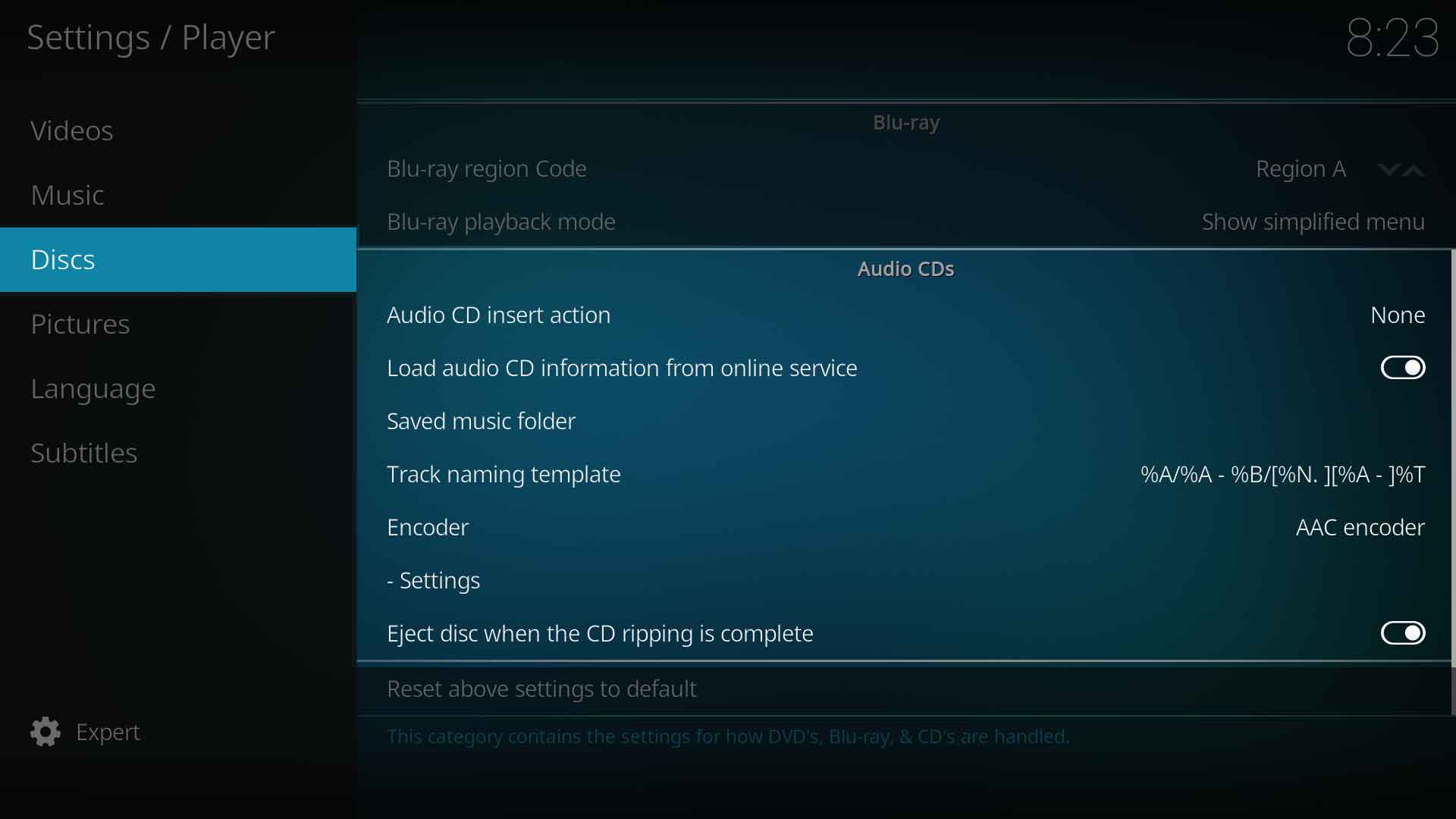
Audio CD insert action -
[[File:Player_discs-AudioCDs.jpg|500px|right]]
=== Audio CD insert action ===
{|
|- valign="top"
| width=120px | {{nowrap|'''Settings level:'''}}
| Standard
|- valign="top"
| '''Description:'''
| Autorun CDs when inserted in drive.
|}
=== Load audio CD information from online service ===
{|
|- valign="top"
| width=120px | {{nowrap|'''Settings level:'''}}
| Standard
|- valign="top"
| '''Description:'''
| Read the informations belonging to an audio CD, like song title and artist, from the Internet database freedb.org.
|}
=== Saved music folder ===
{|
|- valign="top"
| width=120px | {{nowrap|'''Settings level:'''}}
| Expert
|- valign="top"
| '''Description:'''
| Select the location on your hard drive where ripped tracks will be saved to.
|}
=== Track naming template ===
{|
|- valign="top"
| width=120px | {{nowrap|'''Settings level:'''}}
| Expert
|- valign="top"
| '''Description:'''
| Control how saved music is named from the tags. Tags: %N: TrackNumber, %S: DiskNumber, %A: Artist, %T: Title, %B: Album, %G: Genre, %Y: Year, %F: FileName, %D: Duration, %J: Date, %R: Rating, %I: FileSize.
|}
Load audio CD information from online service - This will read the information belonging to a inserted audio CD from an internet database. Thus every song will get its correct name and artist displayed. The IP Address of the CD Database is set in the advancedsettings.xml.
=== Encoder ===
{|
|- valign="top"
| width=120px | {{nowrap|'''Settings level:'''}}
| Expert
|- valign="top"
| '''Description:'''
| Select which audio encode to use when ripping. Note: Ubuntu users can download additional audio encoders via the Official Ubuntu PPA. Kodi users for other OSes don't need to do anything, as all audio encoders are pre-installed in those builds.
|}
Saved music folder - This option defines the location on your hard drive that ripped tracks will be saved to.
: Installing audio encoders on Ubuntu will be done like this:
sudo apt-get install <packagename>
: replace <packagename> with one of the list below:
{| class="prettytable"
|-
! Package name !! Description
|-
| '''<code>kodi-audioencoder-vorbis</code>''' || audio encoder for [[w:vorbis|vorbis]]
|-
| '''<code>kodi-audioencoder-flac</code>''' || audio encoder add-on for [[w:FLAC|FLAC]]
|-
| '''<code>kodi-audioencoder-lame</code>''' || audio encoder for [[w:LAME|MP3 (lame)]]
|-
| '''<code>kodi-audioencoder-wav</code>''' || audio encoder for WAV.
|}
Track naming template - Controls the way that your ripped songs will be named. For a list of options that can be used, see Tags Available for Audio Files.
==== Settings ====
{|
|- valign="top"
| width=120px | {{nowrap|'''Settings level:'''}}
| Expert
|- valign="top"
| '''Description:'''
| Specifies the settings for audio-cd ripping with the selected audio encoder.
|}
Encoder - This option defines which audio encoder to use when ripping.
Note: Ubuntu users can download additional audio encoders via the Official Ubuntu PPA. See Adding audio encoders for Ubuntu for details. Kodi users for other OSes don't need to do anything, as all audio encoders are pre-installed in those builds.
Eject CDs when ripping is complete - You'll never guess what this does.
Attempt to skip "unskippable" introductions before DVD menu.
Blu-ray
Blu-ray region code
Settings level:
Standard
Description:
Defines the BluRay region code. Region A - Americas, East Asiaa and Southeast Asia. Region B- Arica, Middle East, Southwest Asia, Europe, Australia, New Zealand. Region C - Central Asia, mainland China, South Asia, Belarus, Russia, Ukraine, Kazakhstan
Blu-ray playback mode
Settings level:
Standard
Description:
Specifies how Blu-Rays should be opened / played back. Note: Some disc menus are not fully supported and may cause problems.
Audio CDs
Audio CD insert action
Settings level:
Standard
Description:
Autorun CDs when inserted in drive.
Load audio CD information from online service
Settings level:
Standard
Description:
Read the informations belonging to an audio CD, like song title and artist, from the Internet database freedb.org.
Saved music folder
Settings level:
Expert
Description:
Select the location on your hard drive where ripped tracks will be saved to.
Track naming template
Settings level:
Expert
Description:
Control how saved music is named from the tags. Tags: %N: TrackNumber, %S: DiskNumber, %A: Artist, %T: Title, %B: Album, %G: Genre, %Y: Year, %F: FileName, %D: Duration, %J: Date, %R: Rating, %I: FileSize.
Encoder
Settings level:
Expert
Description:
Select which audio encode to use when ripping. Note: Ubuntu users can download additional audio encoders via the Official Ubuntu PPA. Kodi users for other OSes don't need to do anything, as all audio encoders are pre-installed in those builds.
Installing audio encoders on Ubuntu will be done like this: