<!-- This file contains the mapping of keys (gamepad, remote, and keyboard) to actions within XBMC -->
<!-- The <global> section is a fall through - they will only be used if the button is not -->
<!-- used in the current window's section. Note that there is only handling -->
<!-- for a single action per button at this stage. -->
<!-- For joystick/gamepad configuration under linux/win32, see below as it differs from xbox -->
<!-- gamepads. -->
<!-- The format is: -->
__TOC__
<!-- <device> -->
<!-- <button>action</button> -->
<!-- </device> -->
<!-- To map keys from other remotes using the RCA protocol, you may add <universalremote> blocks -->
== Actions ==
<!-- In this case, the tags used are <obc#> where # is the original button code (OBC) of the key -->
[[File:Settings - Player - Videos - Action.jpg|500px|right]]
<!-- You set it up by adding a <universalremote> block to the window or <global> section: -->
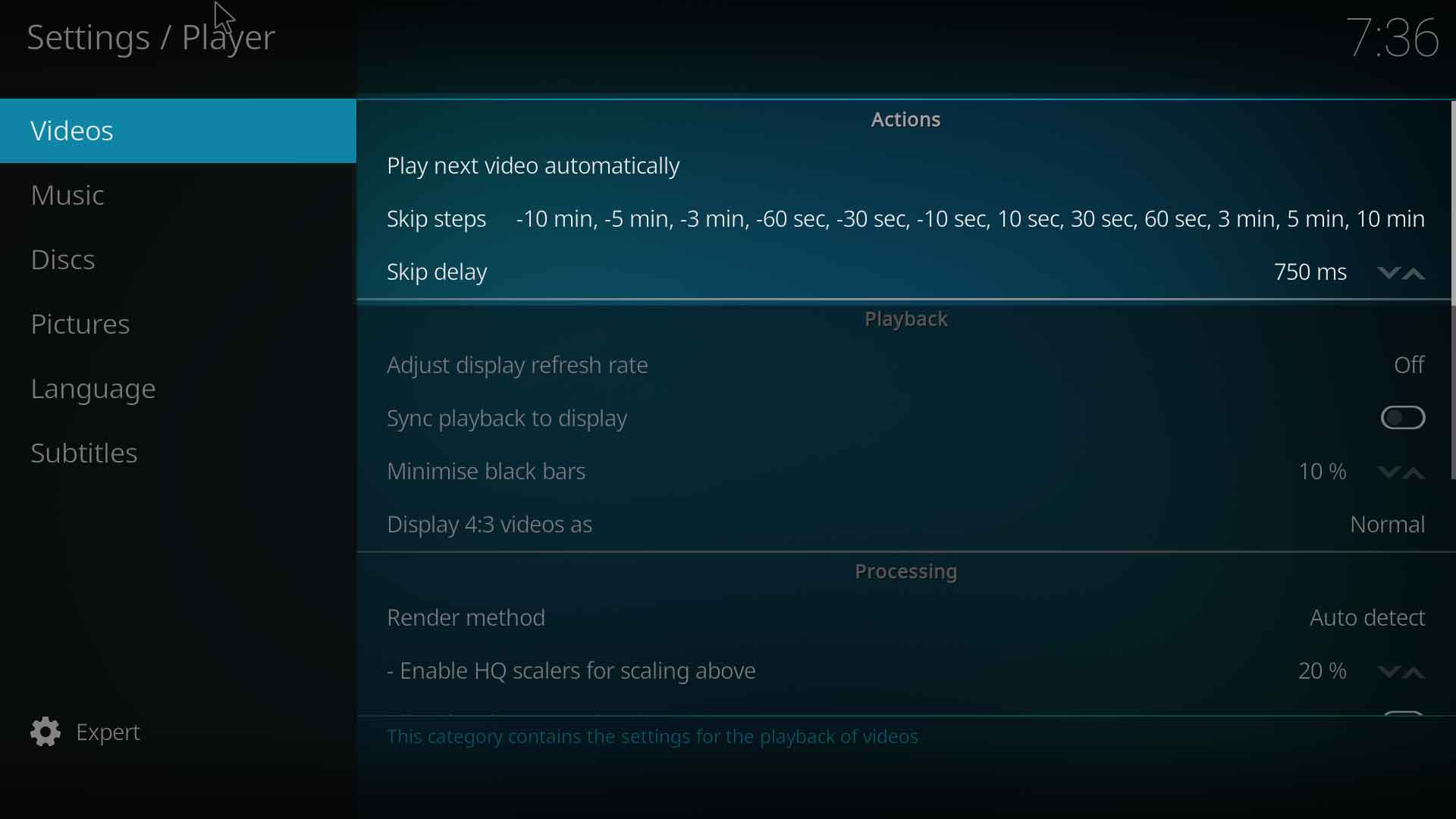
=== Play next video automatically ===
<!-- <universalremote> -->
{|
<!-- <obc45>Stop</obc45> -->
|- valign="top"
<!-- </universalremote> -->
| width=120px | {{nowrap|'''Settings level:'''}}
| Basic
|- valign="top"
| '''Description:'''
| When selected this enables automatic playback of the next file in the list.
|}
; {{small see also|Playlists}}
<!-- Note that the action can be a built-in function. -->
<!-- eg <B>XBMC.ActivateWindow(MyMusic)</B> -->
<!-- would automatically go to My Music on the press of the B button. -->
<!-- Joysticks / Gamepads: -->
=== Skip steps ===
<!-- See the sample PS3 controller configuration below for the format. -->
{|
<!-- -->
|- valign="top"
<!-- Joystick Name: -->
| width=120px | {{nowrap|'''Settings level:'''}}
<!-- Do 'cat /proc/bus/input/devices' or see your xbmc log file to find the names of -->
| Standard
<!-- detected joysticks. The name used in the configuration should match the detected name. -->
|- valign="top"
<!-- -->
| '''Description:'''
<!-- Button Ids: -->
| Defines the amount of time each press of the Skip button will skip forward or backwards. A (-) will define backwards and no (-) will define forward. You can set multiple times so each press will skip more time in the video. So if, for example you use '''10 sec, 30 sec, 60 sec''' when press the Skip button once it will skip 10 seconds foward, double pressing the Skip button will skip 30 seconds and triple pressing the Skip button will skip 60 seconds.
<!-- 'id' is the button ID used by SDL. Joystick button ids of connected joysticks appear -->
|}
<!-- in xbmc.log when they are pressed. Use your log to map custom buttons to actions. -->
; {{small see also|Skip steps}}
<!-- -->
<!-- Axis Ids / Analog Controls -->
<!-- Coming soon. -->
=== Skip delay ===
<keymap>
{|
<global>
|- valign="top"
<keyboard>
| width=120px | {{nowrap|'''Settings level:'''}}
<p>Play</p>
| Standard
<q>Queue</q>
|- valign="top"
<f>FastForward</f>
| '''Description:'''
<r>Rewind</r>
| Defines how much time it takes before the skip step occurs. The range is '''none''' (which will cause the skip step to happen immediately) & '''250 - 3000ms''' (milliseconds).
<y>SwitchPlayer</y>
|}
<left>Left</left>
<right>Right</right>
{{-}}
<up>Up</up>
<down>down</down>
== Playback==
<left mod="ctrl">analogseekback</left>
[[File:Settings - Player - Videos - Playback.jpg|500px|right]]
<right mod="ctrl">analogseekforward</right>
<pageup>PageUp</pageup>
; Adjust display refresh rate
<pagedown>PageDown</pagedown>
: ''Settings level: Standard''
<return>Select</return>
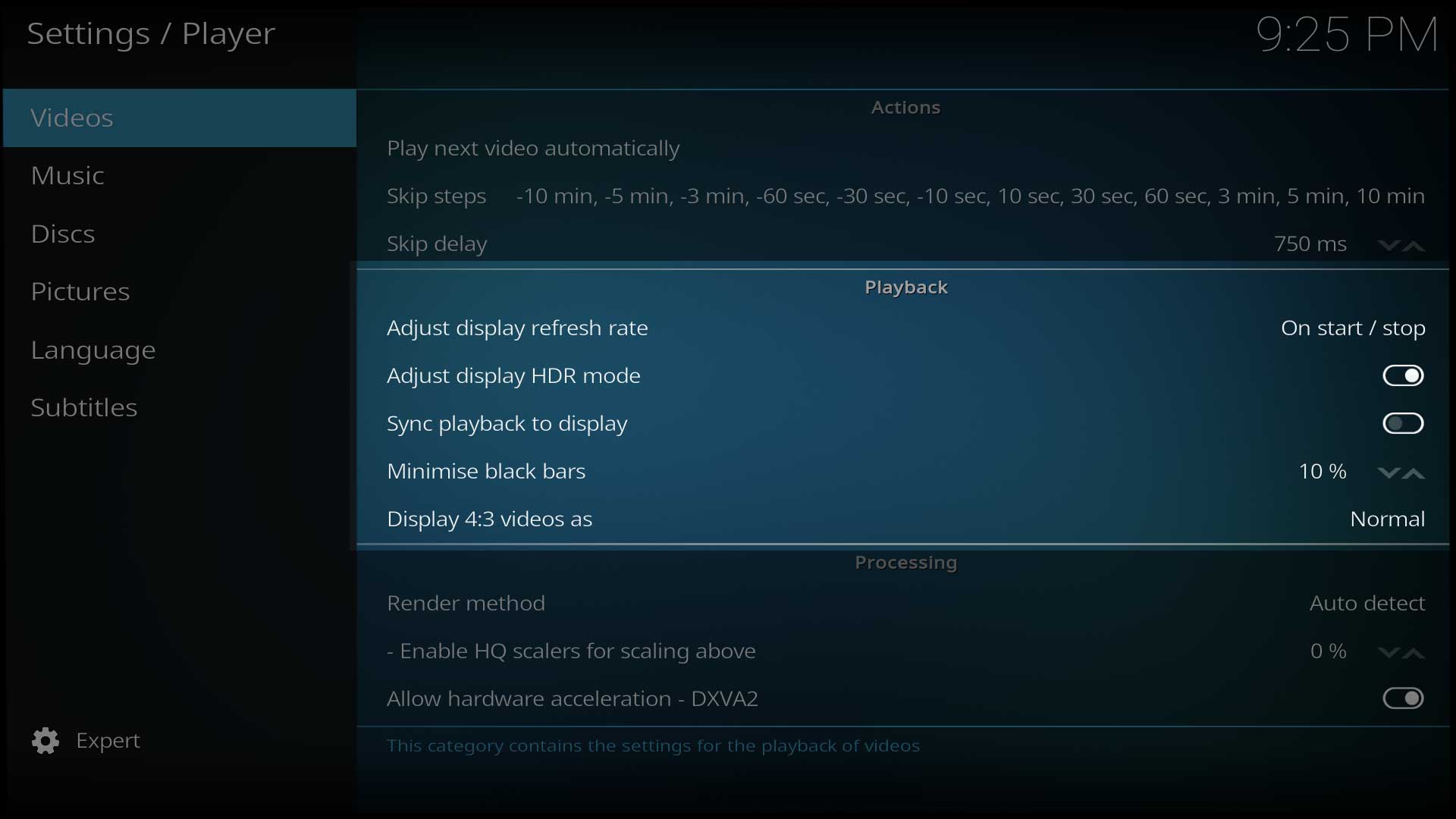
: Defines when the refresh rate adjustments should take place. Activate to automatically set the refresh rate which is best matched with the video that is playing (default off). This potentially allows for perfectly smooth video reproduction, as video material can be recorded in a variety of frame rates (23.976fps, 24fps, 25fps, 29.97fps, 30 fps, etc.) which need to be properly matched by the refresh rate of the display, in order to be displayed smoothly.
<enter>Select</enter>
<backspace>Back</backspace>
<key id='65446'>Back</key>
; Sync playback to display
<m>ActivateWindow(PlayerControls)</m>
: ''Settings level: Standard''
<s>ActivateWindow(shutdownmenu)</s>
: This setting enables syncing the video to the refresh rate of the monitor.
<escape>PreviousMenu</escape>
<i>Info</i>
<menu>ContextMenu</menu>
; Minimise black bars
<c>ContextMenu</c>
: ''Settings level: Advanced''
<space>Pause</space>
: Allow video player to try to fit video to screen by ignoring aspect ratio by a certain amount.
<x>Stop</x>
<period>SkipNext</period>
<comma>SkipPrevious</comma>
; Display {{nowrap|4:3}} videos as
<tab>FullScreen</tab>
: ''Settings level: Advanced''
<printscreen>Screenshot</printscreen>
: Determines the zoom level that 4:3 videos are shown on widescreen displays.
<s mod="ctrl">Screenshot</s>
<minus>VolumeDown</minus>
{{-}}
<plus>VolumeUp</plus>
<equals>VolumeUp</equals>
== Processing ==
<zero>Number0</zero>
[[File:Settings - Player - Videos - Processing.jpg|500px|right]]
<one>Number1</one>
<two>Number2</two>
; Render method
<three>Number3</three>
: ''Settings level: Advanced''
<four>Number4</four>
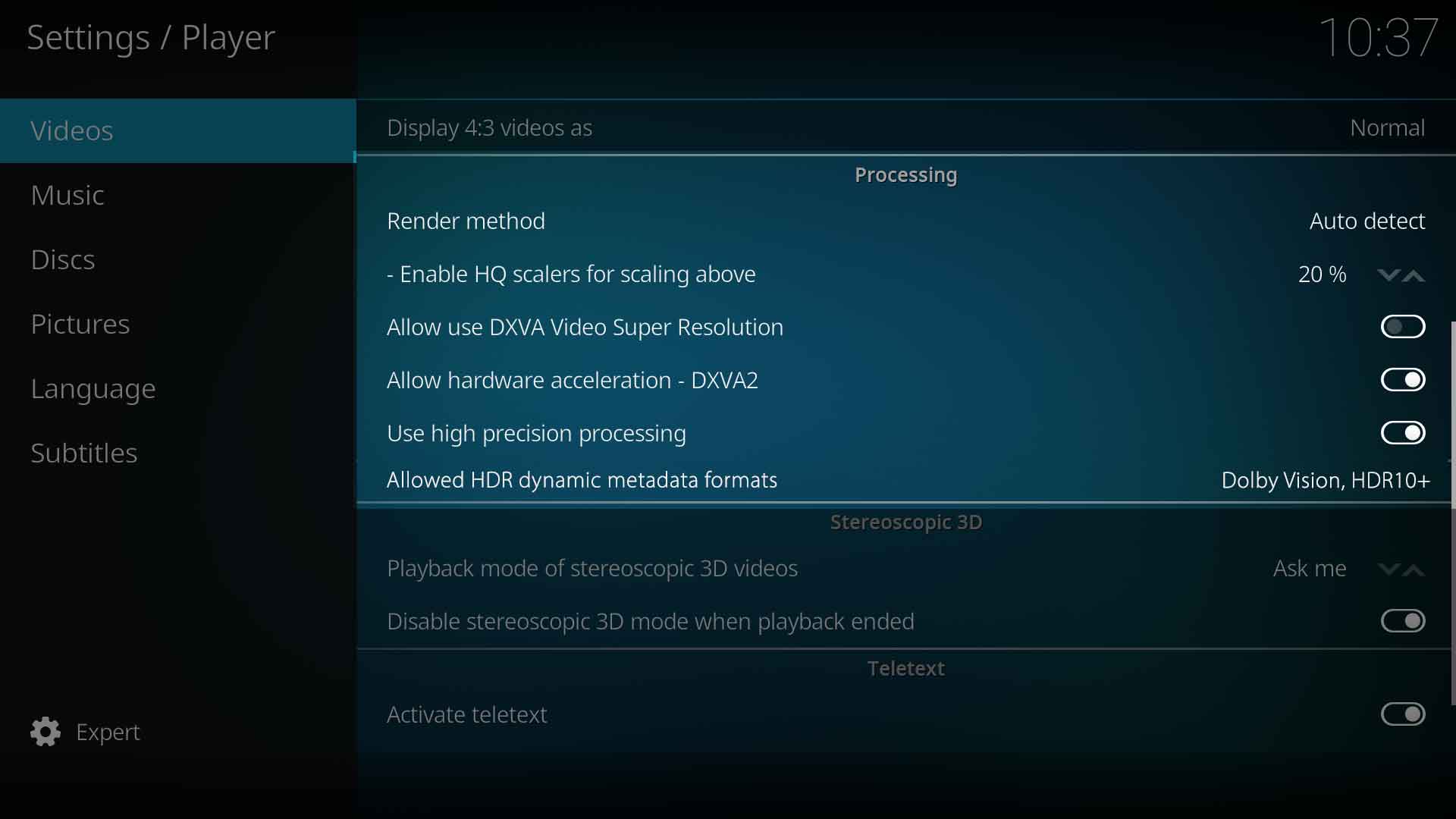
: Controls the method used by the player to process and display the video, (which is called rendering).
<five>Number5</five>
<six>Number6</six>
<seven>Number7</seven>
; Enable HQ scalers for scaling above
<eight>Number8</eight>
: Settings level: Advanced''
<nine>Number9</nine>
: Use high quality scalers when upscaling a video by at least this percentage. A value below 5% makes little sense as video is processed with high GPU load without any visible picture quality improvements
<numpadminus>VolumeDown</numpadminus>
<numpadplus>VolumeUp</numpadplus>
<numpadzero>Number0</numpadzero>
;Additional platform specific settings
<numpadone>Number1</numpadone>
:The following settings will show up for the '''Processing''' section for their respective platforms:
<numpadtwo>Number2</numpadtwo>
<numpadthree>Number3</numpadthree>
{{collapse top|Windows specific settings}}
<numpadfour>Number4</numpadfour>
; Allow hardware acceleration DXVA2
<numpadfive>Number5</numpadfive>
: ''Settings level: Expert''
<numpadsix>Number6</numpadsix>
: Enable VDPAU hardware decoding of video files.
<numpadseven>Number7</numpadseven>
{{collapse bottom}}
<numpadeight>Number8</numpadeight>
<numpadnine>Number9</numpadnine>
{{collapse top|Linux specific settings}}
<backslash>ToggleFullScreen</backslash>
; Allow hardware acceleration - VDPAU
<home>FirstPage</home>
: ''Settings level: Advanced''
<end>LastPage</end>
: Enable VDPAU hardware decoding of video files, mainly used for NVIDIA graphics and in some circumstances AMD graphics.
: Enable VAAPI hardware decoding of video files, mainly used for Intel graphics and in some circumstances AMD graphics.
<browser_back>Back</browser_back>
<browser_forward/>
<browser_refresh/>
; Use MPEG-2 VAAPI
<browser_stop/>
: ''Settings level: Expert''
<browser_search/>
: Enable this option to use hardware acceleration for MPEG-(1/2) codecs. If disabled the CPU will be used instead. Some MPEG-2 videos might have green artifacts.
: Enable this option to use hardware acceleration for MPEG-4 codec. If disabled the CPU will be used instead.
<next_track>SkipNext</next_track>
<prev_track>SkipPrevious</prev_track>
<stop>Stop</stop>
; Use VC-1 VAAPI
<play_pause>Pause</play_pause>
: ''Settings level: Expert''
<launch_mail></launch_mail>
: Enable this option to use hardware acceleration for VC-1 based codecs. If disabled the CPU will be used instead. Especially VC-1 interlaced fails hard on Intel hardware.
<m mod="ctrl">ActivateWindow(music)</m> <!-- MCE My music -->
: ''Settings level: Advanced''
<i mod="ctrl">ActivateWindow(pictures)</i> <!-- MCE My pictures -->
: Select in which mode stereoscopic 3D videos will be played. [Ask me] Will show a dialogue to select the desired mode for each playback. [Preferred mode] Will use the preferred mode specified in the "system->Video hardware" section of the settings. [Monoscopic/2D] will play the video in mono/2D. [Ignore] Disables any stereoscopic 3D processing and handling
<m mod="ctrl,shift">PlayerControl(ShowVideoMenu)</m> <!-- MCE DVD menu -->
<o mod="ctrl">ActivateWindowAndFocus(MyPVR, 34,0, 13,0)</o> <!-- MCE Recorded TV -->
; Disable stereoscopic mode when playback is stopped
<t mod="ctrl">ActivateWindowAndFocus(MyPVR, 32,0, 11,0)</t> <!-- MCE Live TV -->
: ''Settings level: Advanced''
<t mod="ctrl,shift">ActivateWindow(MyPVR)</t> <!-- MCE My TV -->
: While enabled, GUI and some TVs will switch back to 2D mode, beween videos in a playlist or when playback ended. While disabled, GUI and TV will stay in stereoscopic 3D mode. For video playlists with mixed stereoscopic 3D and 2D content, then the GUI will also stay in stereoscopic 3D mode even when a non-stereoscopic 2D video is playing.
<a mod="ctrl">ActivateWindowAndFocus(MyPVR, 33,0, 12,0)</a> <!-- MCE My Radio -->
<!-- MCE keypresses without an obvious use in XBMC -->
{{-}}
<u mod="ctrl">Notification(MCEKeypress, DVD subtitle, 3)</u>
<a mod="ctrl,shift">Notification(MCEKeypress, DVD audio, 3)</a>
== Teletext ==
</keyboard>
[[File:Settings - Player - Videos - Teletext.jpg|500px|right]]
</global>
<LoginScreen>
; Activate Teletext
<keyboard>
: ''Settings level: Expert''
<end mod="ctrl">XBMC.ShutDown()</end>
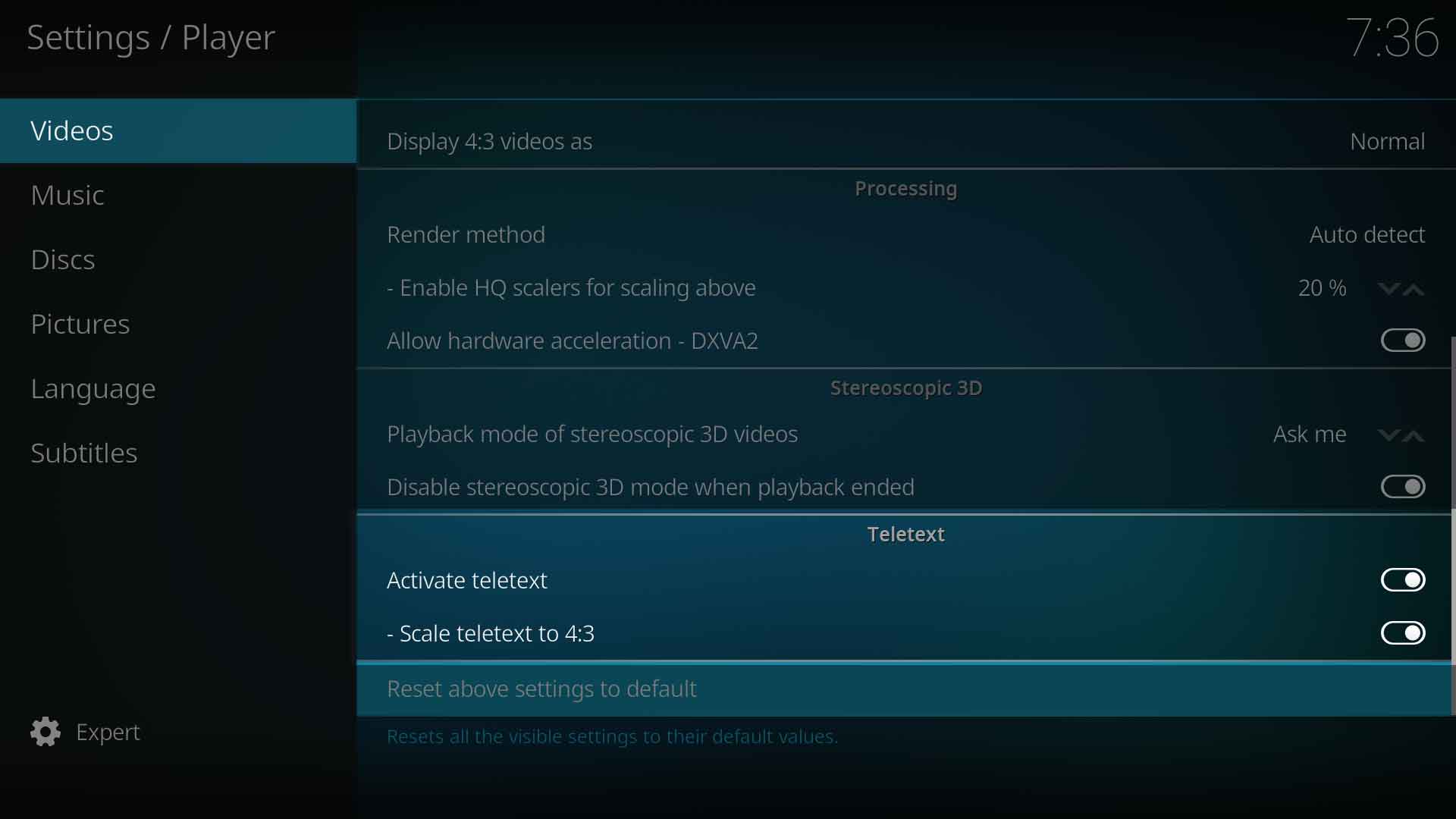
: Enables Teletext when watching a live TV stream.
Defines the amount of time each press of the Skip button will skip forward or backwards. A (-) will define backwards and no (-) will define forward. You can set multiple times so each press will skip more time in the video. So if, for example you use 10 sec, 30 sec, 60 sec when press the Skip button once it will skip 10 seconds foward, double pressing the Skip button will skip 30 seconds and triple pressing the Skip button will skip 60 seconds.
Defines how much time it takes before the skip step occurs. The range is none (which will cause the skip step to happen immediately) & 250 - 3000ms (milliseconds).
Playback
Adjust display refresh rate
Settings level: Standard
Defines when the refresh rate adjustments should take place. Activate to automatically set the refresh rate which is best matched with the video that is playing (default off). This potentially allows for perfectly smooth video reproduction, as video material can be recorded in a variety of frame rates (23.976fps, 24fps, 25fps, 29.97fps, 30 fps, etc.) which need to be properly matched by the refresh rate of the display, in order to be displayed smoothly.
Sync playback to display
Settings level: Standard
This setting enables syncing the video to the refresh rate of the monitor.
Minimise black bars
Settings level: Advanced
Allow video player to try to fit video to screen by ignoring aspect ratio by a certain amount.
Display 4:3 videos as
Settings level: Advanced
Determines the zoom level that 4:3 videos are shown on widescreen displays.
Processing
Render method
Settings level: Advanced
Controls the method used by the player to process and display the video, (which is called rendering).
Enable HQ scalers for scaling above
Settings level: Advanced
Use high quality scalers when upscaling a video by at least this percentage. A value below 5% makes little sense as video is processed with high GPU load without any visible picture quality improvements
Additional platform specific settings
The following settings will show up for the Processing section for their respective platforms:
Windows specific settings
Allow hardware acceleration DXVA2
Settings level: Expert
Enable VDPAU hardware decoding of video files.
Linux specific settings
Allow hardware acceleration - VDPAU
Settings level: Advanced
Enable VDPAU hardware decoding of video files, mainly used for NVIDIA graphics and in some circumstances AMD graphics.
Prefer VDPAU video mixer
Settings level: Advanced
Bypassing VDPAU mixer saves resources on low power systems but slightly reduces picture quality.
Allow hardware acceleration - VAAPI
Settings level: Advanced
Enable VAAPI hardware decoding of video files, mainly used for Intel graphics and in some circumstances AMD graphics.
Use MPEG-2 VAAPI
Settings level: Expert
Enable this option to use hardware acceleration for MPEG-(1/2) codecs. If disabled the CPU will be used instead. Some MPEG-2 videos might have green artifacts.
Use MPEG-4 VAAPI
Settings level: Expert
Enable this option to use hardware acceleration for MPEG-4 codec. If disabled the CPU will be used instead.
Use VC-1 VAAPI
Settings level: Expert
Enable this option to use hardware acceleration for VC-1 based codecs. If disabled the CPU will be used instead. Especially VC-1 interlaced fails hard on Intel hardware.
Prefer VAAPI render method
Settings level: Expert
When enabled, VAAPI render method is preferred and the CPU has less load. If you experience hangs, disable this option.
Select in which mode stereoscopic 3D videos will be played. [Ask me] Will show a dialogue to select the desired mode for each playback. [Preferred mode] Will use the preferred mode specified in the "system->Video hardware" section of the settings. [Monoscopic/2D] will play the video in mono/2D. [Ignore] Disables any stereoscopic 3D processing and handling
Disable stereoscopic mode when playback is stopped
Settings level: Advanced
While enabled, GUI and some TVs will switch back to 2D mode, beween videos in a playlist or when playback ended. While disabled, GUI and TV will stay in stereoscopic 3D mode. For video playlists with mixed stereoscopic 3D and 2D content, then the GUI will also stay in stereoscopic 3D mode even when a non-stereoscopic 2D video is playing.