Archive:HOW-TO:Install Kodi on OUYA

|
 Devices Android OUYA General topics Installing Devices Android OUYA General topics Installing |
Archive:HOW-TO:Install Kodi on OUYA
|
OUYA uses XBMC for Android. We currently recommend this test build, based on Gotham Alpha 1 and libstagefright, for OUYA users. It has hardware video decoding and appears to be mostly stable:
http://mirrors.xbmc.org/test-builds/android/xbmc-20130219-32e99c7-android-hwaccel-armeabi-v7a.apk
or use this short URL address:
There are newer builds of the libstagefright testing branch, but they might have additional issues because they are based on later alpha versions of XBMC, due to the unstable nature of development builds. Using the Alpha 1-based version will be more stable due to less experimental code being involved, but also might not have all of the latest libstagefright changes and fixes. More information on libstagefright can be found here: http://forum.xbmc.org/showthread.php?tid=152005
Steps
There are several methods to installing XBMC to Ouya, and this page describes an "Out-of-the-Box" method.
-
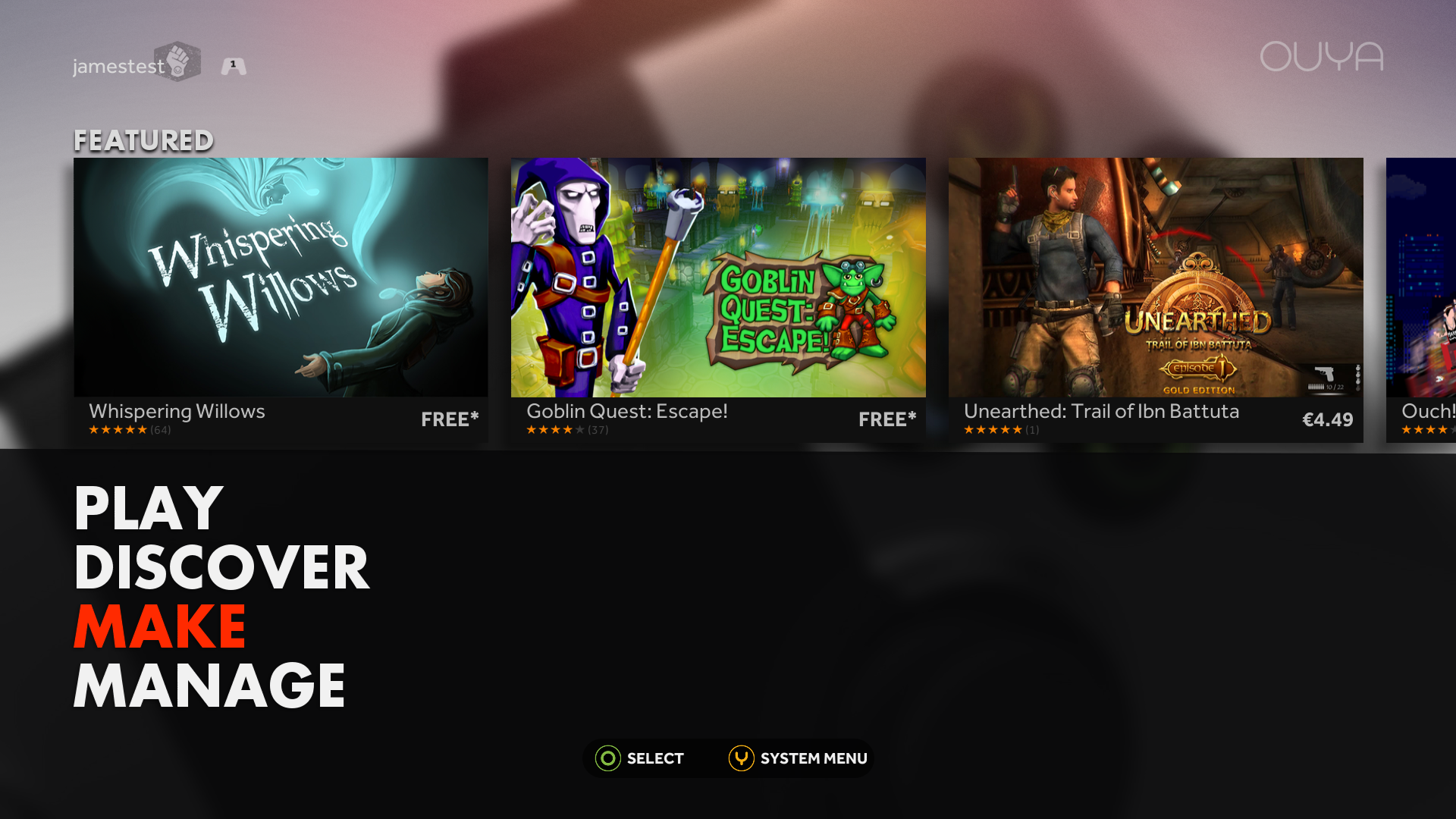 Step 1: First go to the developer section (the Make tab) in Ouya, select Yes or "okay" to enter the developer section.
 -
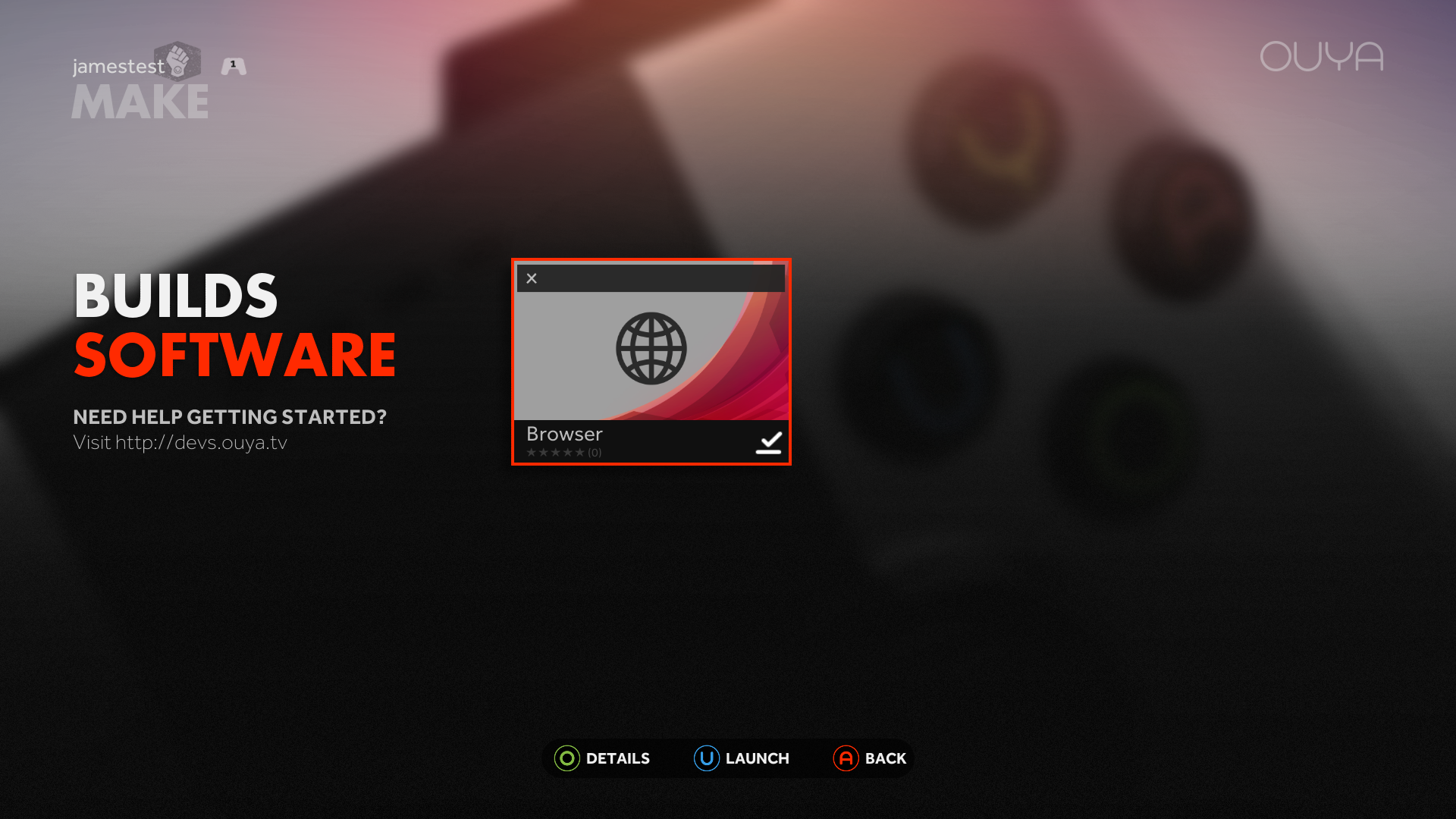 Step 2: Open the default browser and then press Y on the controller to enter in your own URL.
 -
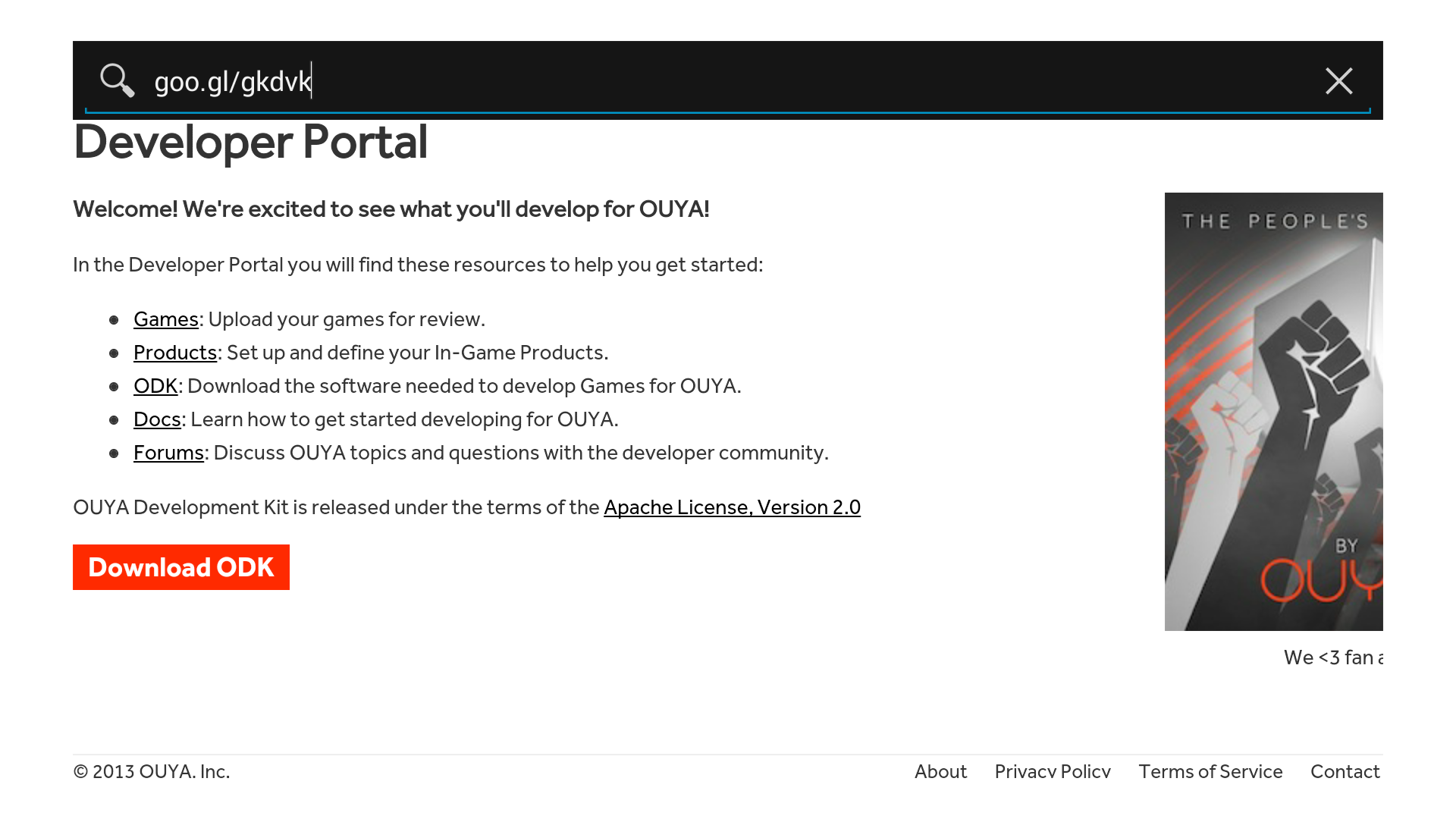 Step 3: Go to
http://goo.gl/gkdvk(it's just a symlink to "http://mirrors.xbmc.org/test-builds/android/xbmc-20130219-32e99c7-android-hwaccel-armeabi-v7a.apk") -
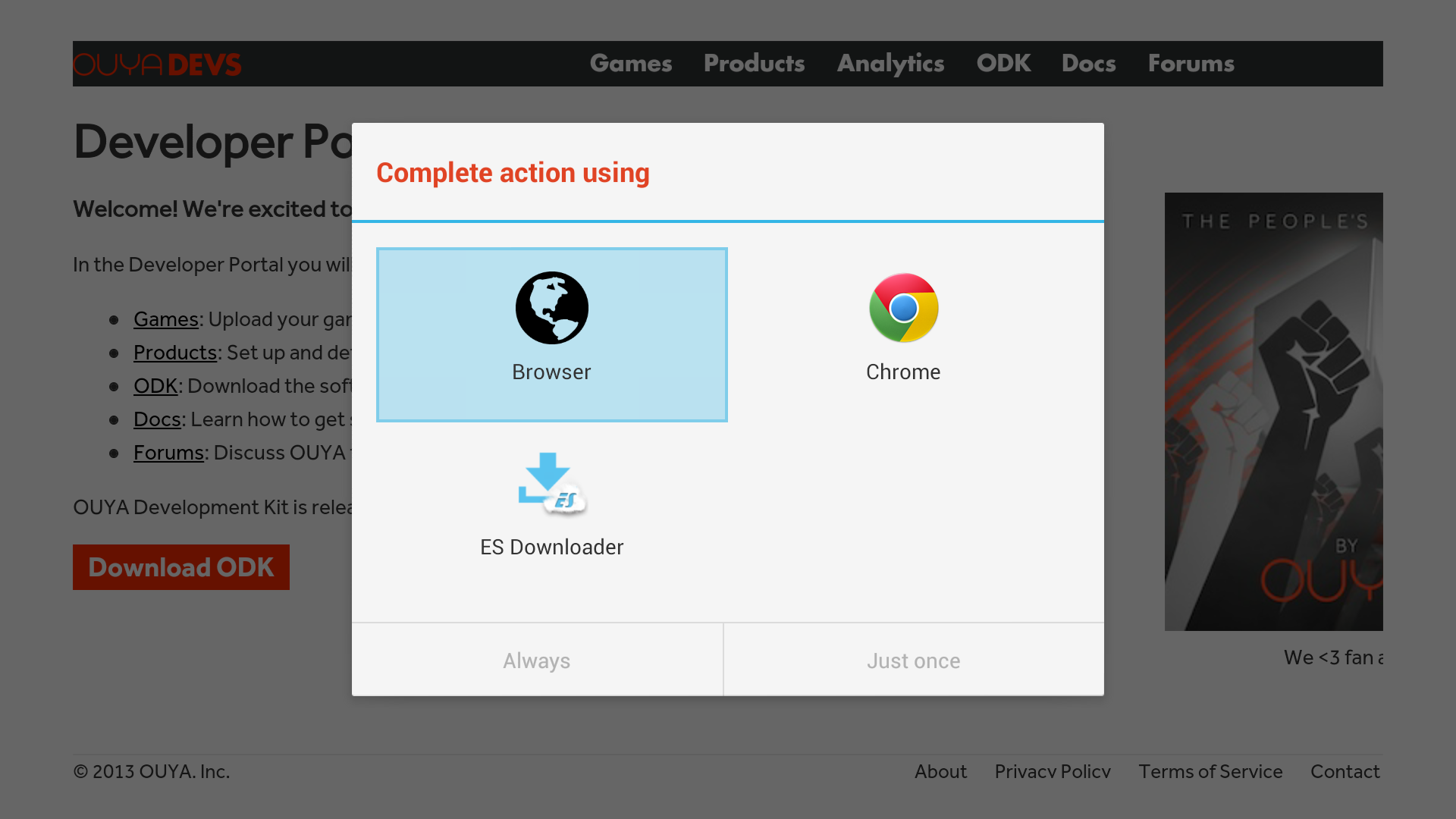 Step 4: The download is 50.3 MB and depending on connection can take a while (1 min on 60mb/s), during the download you won't be able to tell the progress unless you have installed Chrome or ES File Explorer.
(If you have ES File Explorer you can just open after it finishes and install). -
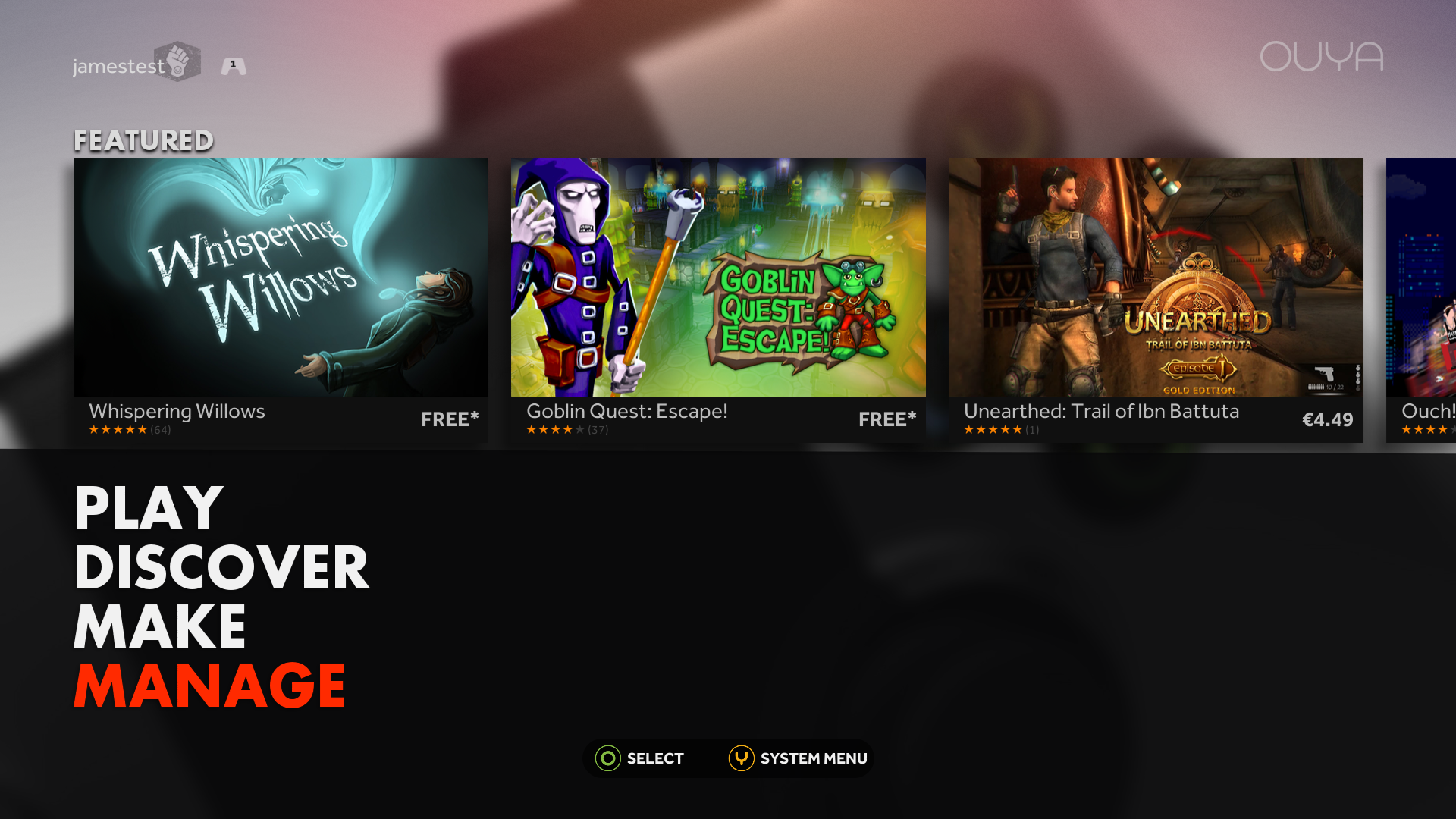 Step 5: Once the download completes, navigate to the Manage tab -> System -> Advanced.
 -
 Step 6: Select Storage and then scroll down to Downloads (some have noted that a reboot of the OUYA may be required after your first download to have this section appear).
 -
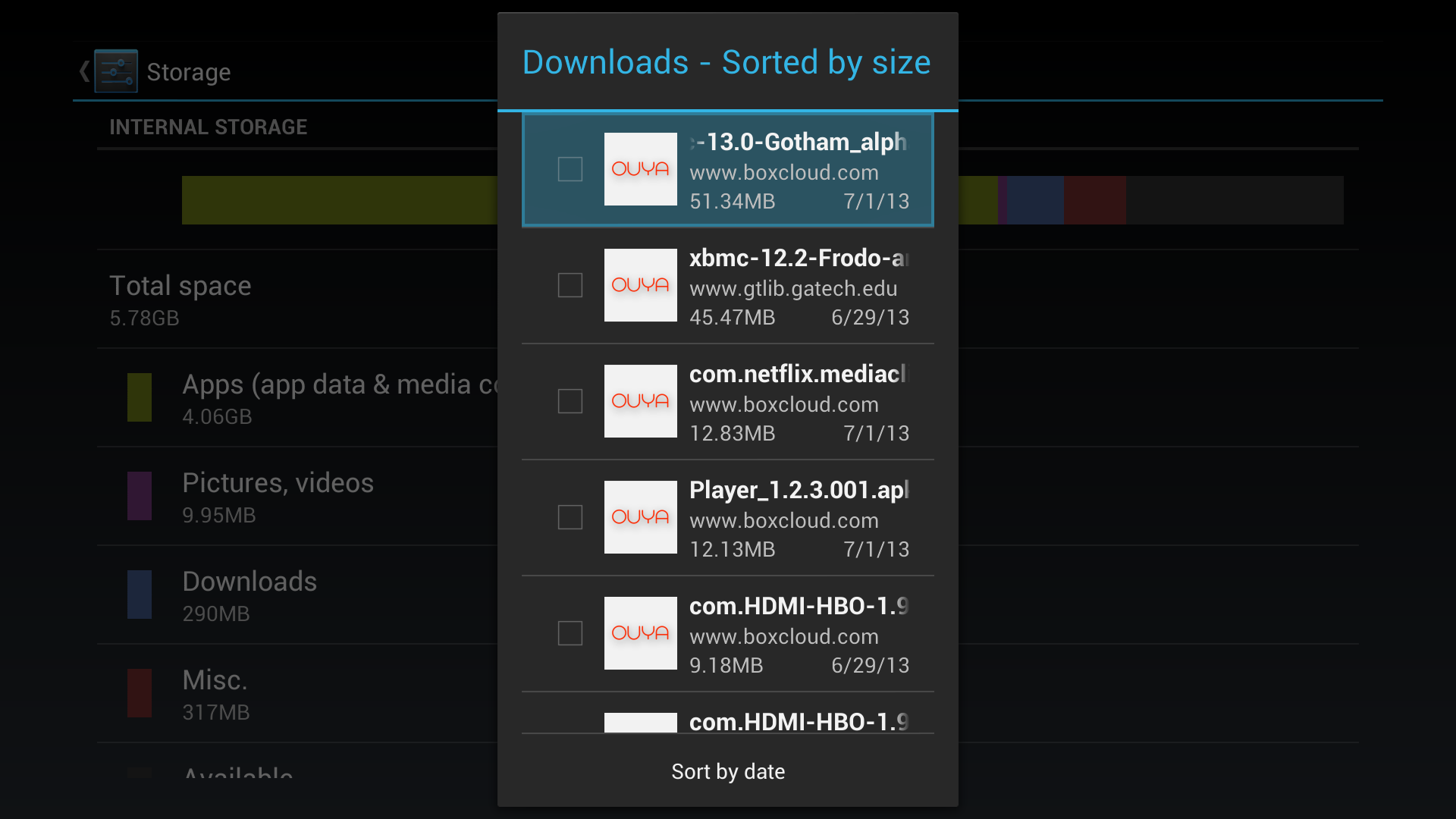 Step 7: There will be a list of all the downloads, select the XBMC download and click install.
 -
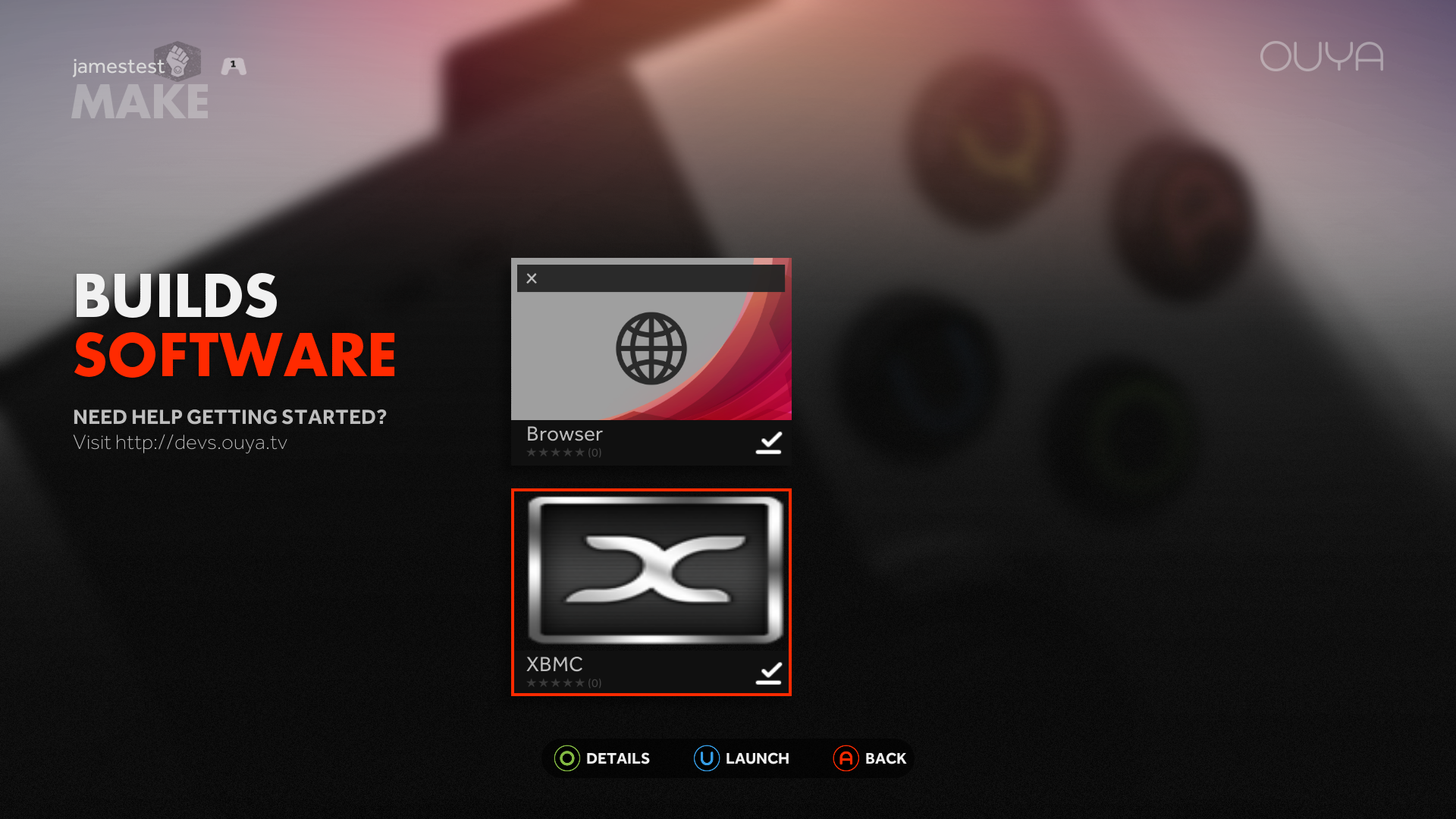 Step 8: ...and you're done! XBMC will be under the Make tab.


