HOW-TO:Install Kodi for iOS: Difference between revisions
| Line 25: | Line 25: | ||
{{anchor|Monthly builds|Beta|Frodo beta|Frodo RC|Beta builds|Nightly builds|Development builds}} | {{anchor|Monthly builds|Beta|Frodo beta|Frodo RC|Beta builds|Nightly builds|Development builds}} | ||
{{main|Development builds}} | {{main|Development builds}} | ||
{{highlight|color=#FFB5B5| {{big|ALWAYS BACKUP YOUR '''[[userdata|USERDATA FOLDER]]''' WHEN USING NIGHTLY BUILDS! }} }} | |||
{| class="prettytable" | {| class="prettytable" | ||
Revision as of 09:02, 13 May 2014

|
 iOS iOS |
HOW-TO:Install Kodi for iOS
|
The current stable release for iOS is Kodi v21.3 Omega.
- Requirements
- If you have any issues, be sure to read the iOS FAQ!
Installing from Cydia
-
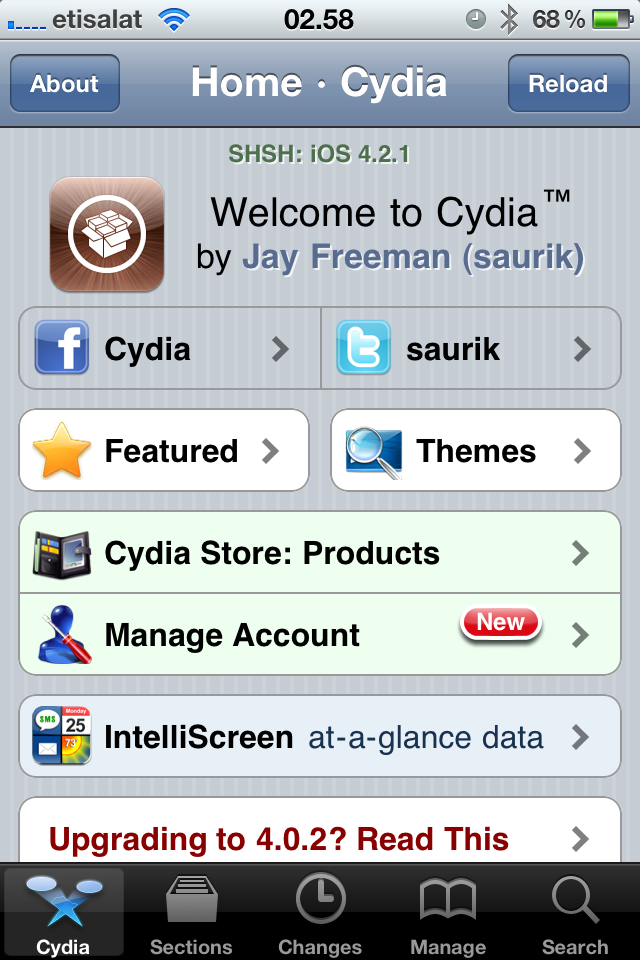 Step 1: Tap the Cydia icon on your homescreen.
 -
Step 2-iPhone: Manage - > Sources -> Edit -> Add
Step 2-iPad: Sources -> Edit -> Add
Step 3: Type in http://mirrors.xbmc.org/apt/ios/ -
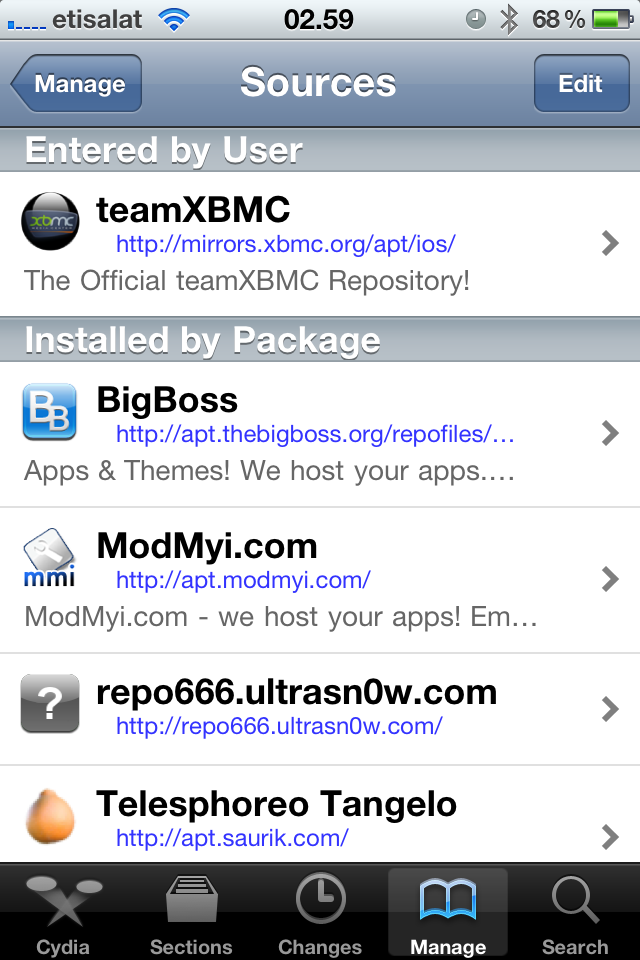 Step 4: Tap on the teamXBMC source.
 -
Step 5: Tap on the XBMC-iOS icon.
-
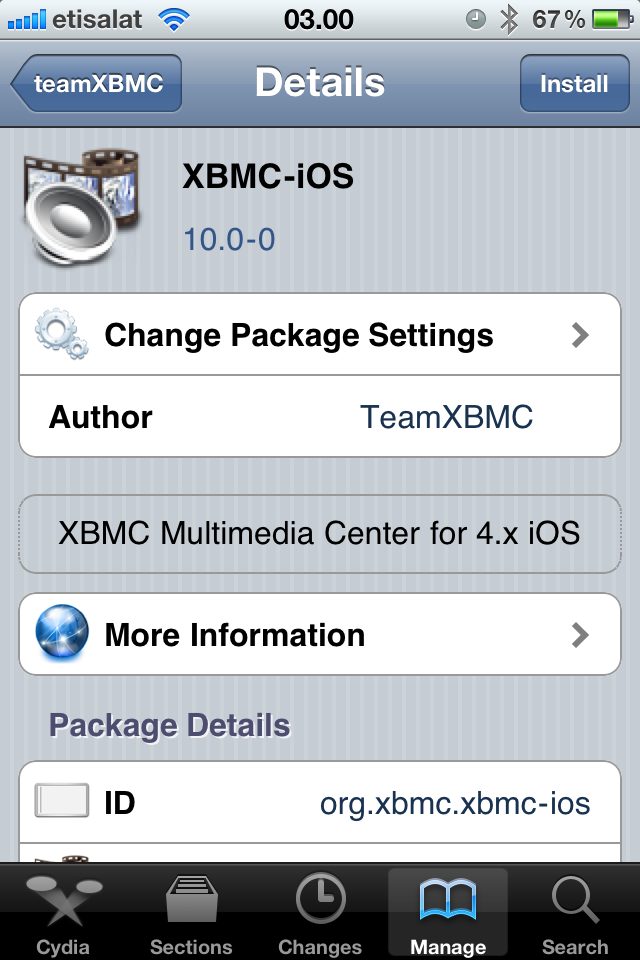 Step 6: Tap install, then confirm.
 -
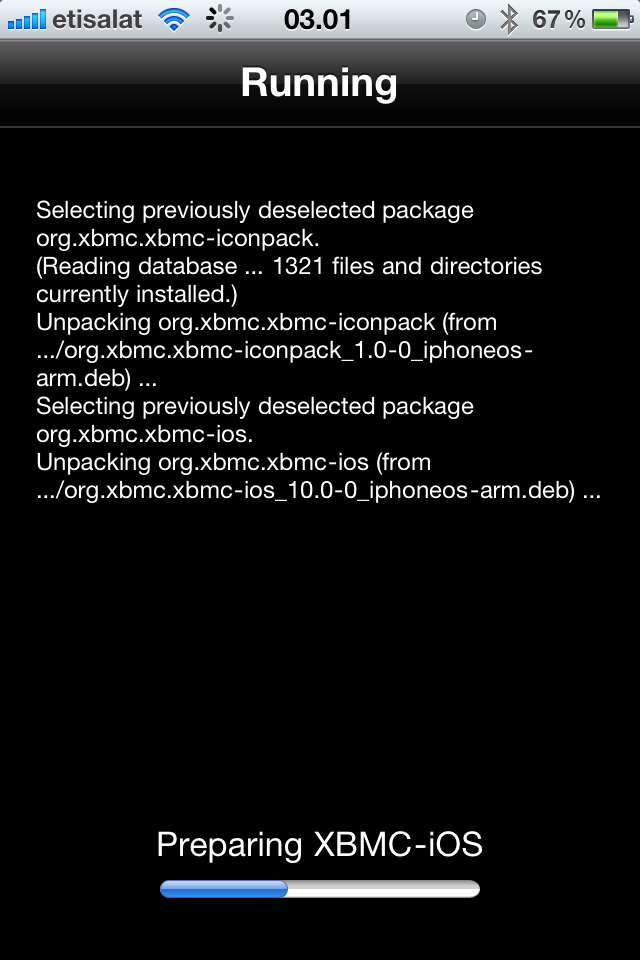 Step 7: Let it install, then exit Cydia. You should now have a new XBMC icon on your screen.


And you're done! You should now be running Kodi v21.3 Omega for iOS. See here to verify your XBMC version.
Updating
Updates for stable releases of XBMC are handled by Cydia and will show up in the "Changes" section when available.
Development and custom builds
ALWAYS BACKUP YOUR USERDATA FOLDER WHEN USING NIGHTLY BUILDS!
| Build | Description | URL |
|---|---|---|
| Nightly build | Nightly builds are unstable test builds that have the latest bug fixes and feature additions. They are not fully tested, so anticipate issues and be sure to backup your userdata folder | Download the newest .deb file from: http://mirrors.xbmc.org/nightlies/darwin/ios/ |
| Monthly build | Monthly builds are more stable than nightly builds, but still contain lots of experimental new code. | Download the newest .deb file from: http://mirrors.xbmc.org/snapshots/darwin/ios/ |
| Betas and release candidates | Betas and release candidates are builds that are being tested to see if they have any bugs left before becoming a stable release. Most major bugs should be fixed in these builds. | Download the newest .deb file from: http://mirrors.xbmc.org/apt/pre-release/ios/deb/ |
- Install iFile from Cydia if you don't already have it.
- In Mobile Safari (or any browser that can download files) open the
.debfile you wish to install, such as from the locations noted above.- EXAMPLE:
http://mirrors.xbmc.org/nightlies/darwin/ios/xbmc-20111202-6729214-master-ios.deb
- EXAMPLE:
- Wait for the download to complete.
- Note: Mobile Safari in iOS 7 won't show the progress bar for downloads, but it will show a loading icon in the menu bar. Just wait a few minutes until the download is done, but don't close Safari.
- Select "Open in..."
- Select iFile from the available apps
- iFile will get a copy of the downloaded file and open an action menu. Select install. When iFile is complete you can tap done at the top.
- In iFile, swipe to delete the downloaded XBMC deb file as it is no longer needed.
See here to verify your XBMC version.
Uninstalling
Uninstalling just XBMC
-
Step 1: Tap the Cydia icon on your homescreen.
-
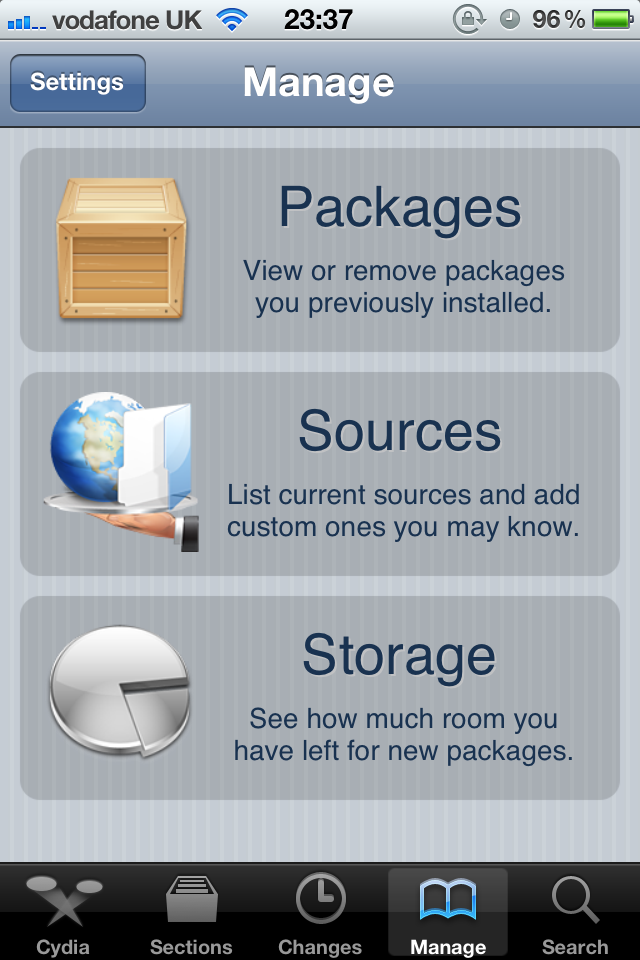 Step 2: Tap Manage from the bottom of the Cydia menu and then tap Packages
 -
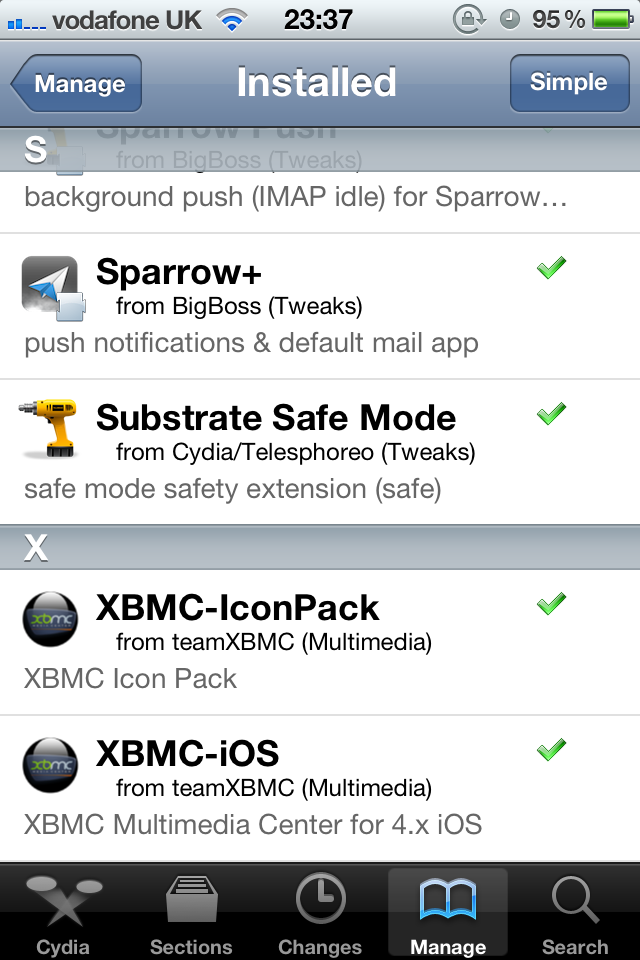 Step 3: Find and tap XBMC-iOS in the list of installed packages.
 -
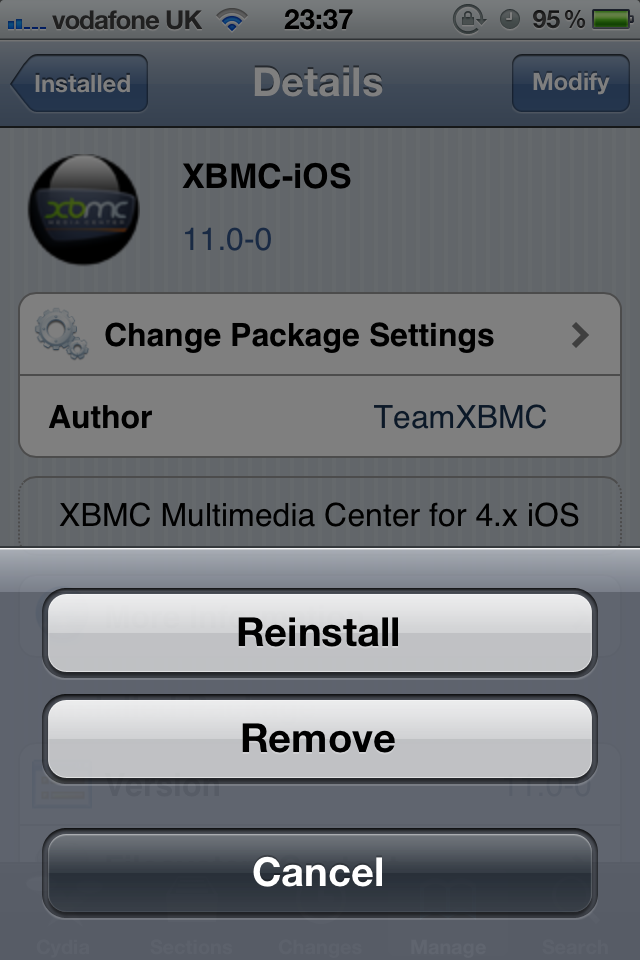 Step 4: Tap on Modify in the top right and then choose Remove from the pop up menu.
Step 5: Let XBMC uninstall and then press Return to Cydia.


You're all done. XBMC will now be uninstalled from your iDevice. If you want you can also uninstall XBMC-IconPack using the same method.
Removing settings
XBMC will uninstall from your iDevice but will leave certain things (databases and everything in your userdata folder) behind to make it easier if you wanted to reinstall. To delete those:
- From the terminal, run
rm -Rf /private/var/mobile/Library/Preferences/XBMC/
- Or
- From iFile
Delete /private/var/mobile/Library/Preferences/XBMC/