Archive:HOW-TO:Add local media sources on OUYA: Difference between revisions
Jump to navigation
Jump to search
No edit summary |
|||
| Line 7: | Line 7: | ||
<gallery widths="600px" heights="450px"> | <gallery widths="600px" heights="450px"> | ||
File:local_1. | File:local_1.png | {{large|'''Step 1:'''}} In XBMC Go to Videos -> Files. | ||
File:local_2. | File:local_2.png | {{large|'''Step 2:'''}} Select “Add Videos” -> “Browse” | ||
File:local_3. | File:local_3.png | {{large|'''Step 3:'''}} (a) For internal SD Card select “External Storage” and then select the proper folder. | ||
File:local_4. | File:local_4.png | | ||
File:local_5.png | {{large|'''Step 3:'''}} (b) For external USB/HDD scroll down to “Root filesystem” -> “usbdrive” then select your folder. | |||
</gallery> | </gallery> | ||
{{large|'''Step 4:'''}} Select what is in the folder (TV/Music/Movies) and press “Okay”<br /> | {{large|'''Step 4:'''}} Select what is in the folder (TV/Music/Movies) and press “Okay”<br /> | ||
Revision as of 07:07, 7 August 2013

|
 Devices Devices |
Android |
OUYA |
Archive:HOW-TO:Add local media sources on OUYA
|
Setup Local Library
(Better Screenshots coming soon...)
Ouya has a bit different setup than normal Android devices with XBMC for adding local media, but is roughly the same. No other app is needed beyond XBMC, Gotham Alpha 1 and libstagefright.
-
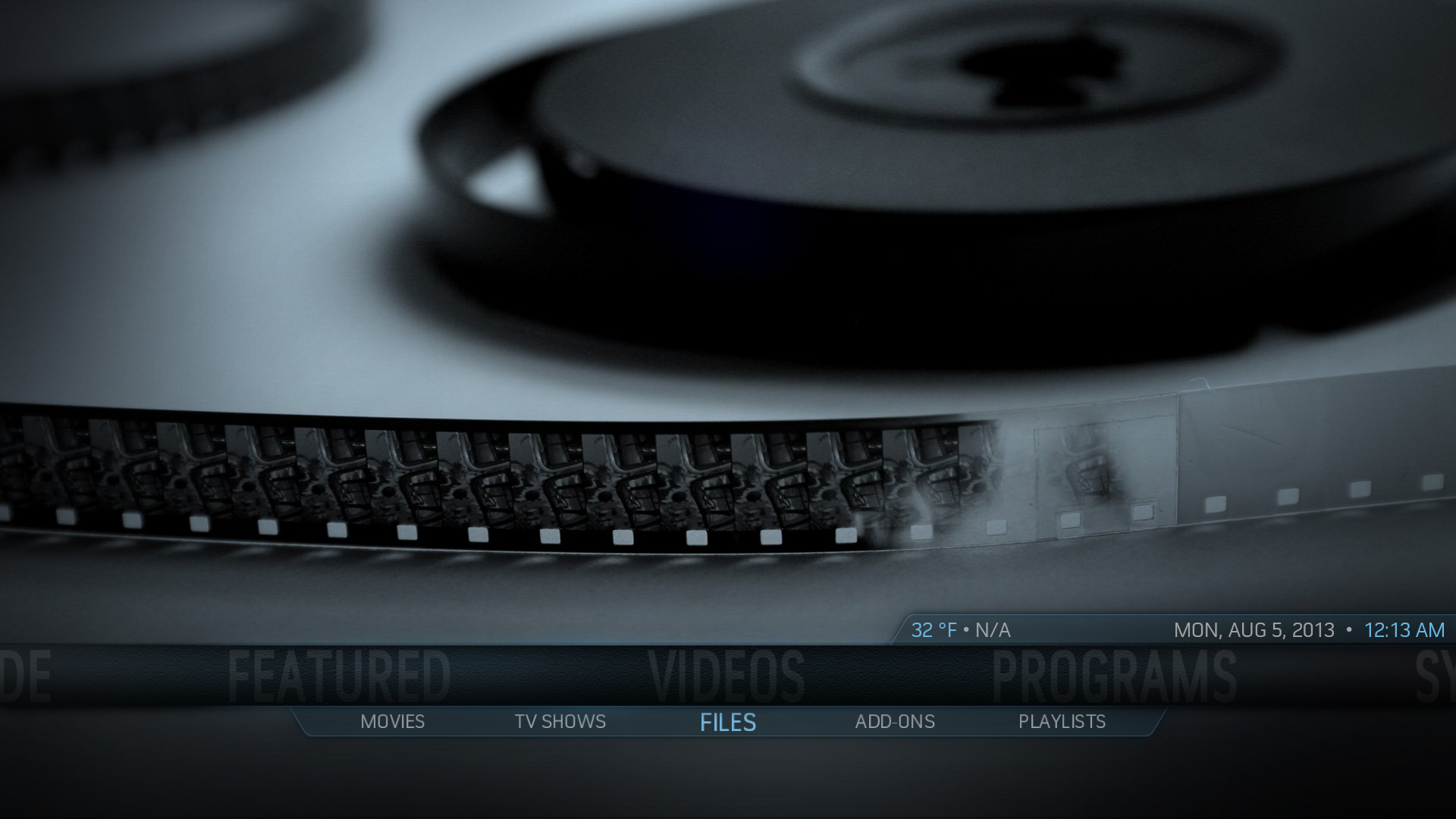 Step 1: In XBMC Go to Videos -> Files.
 -
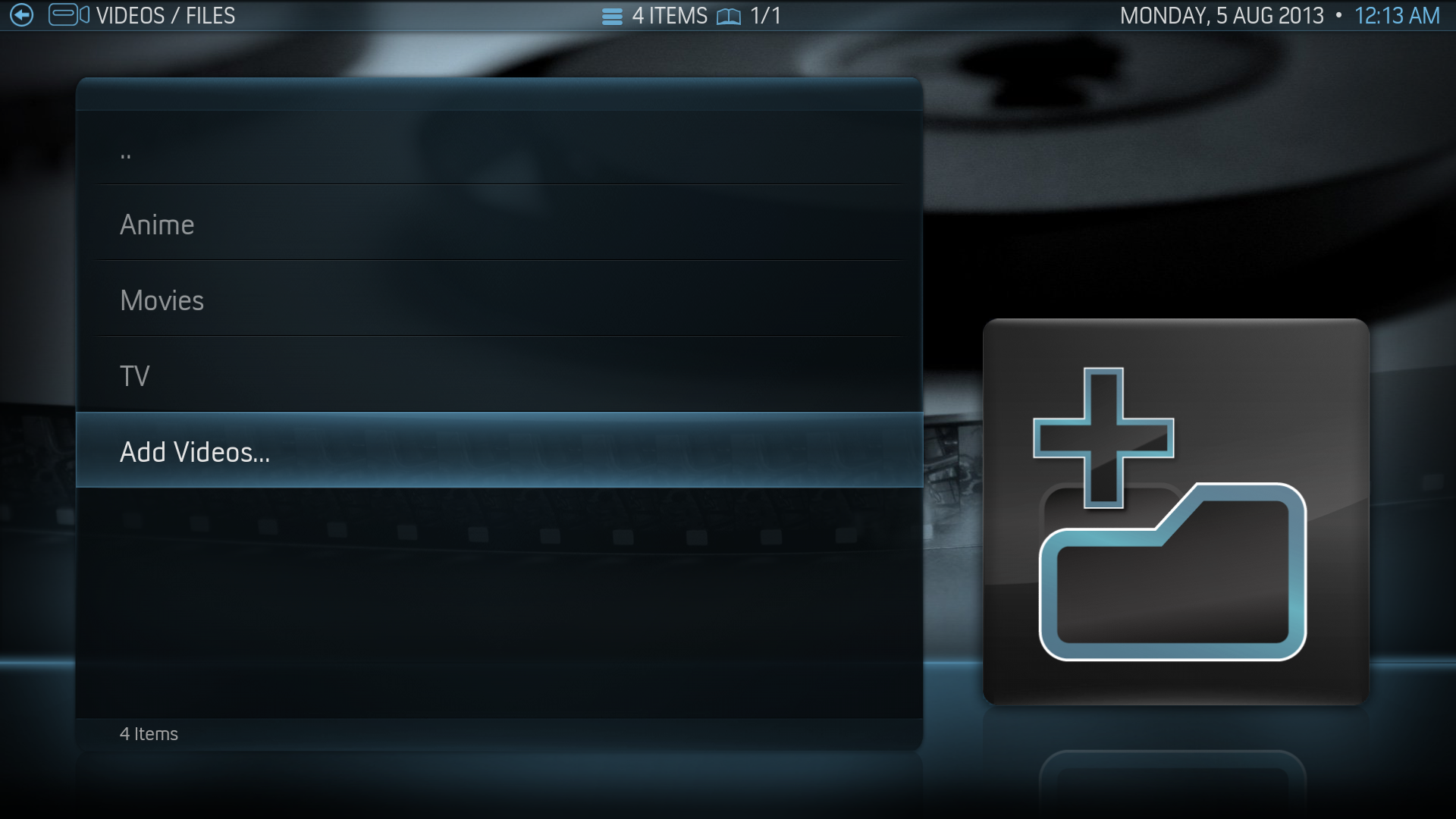 Step 2: Select “Add Videos” -> “Browse”
 -
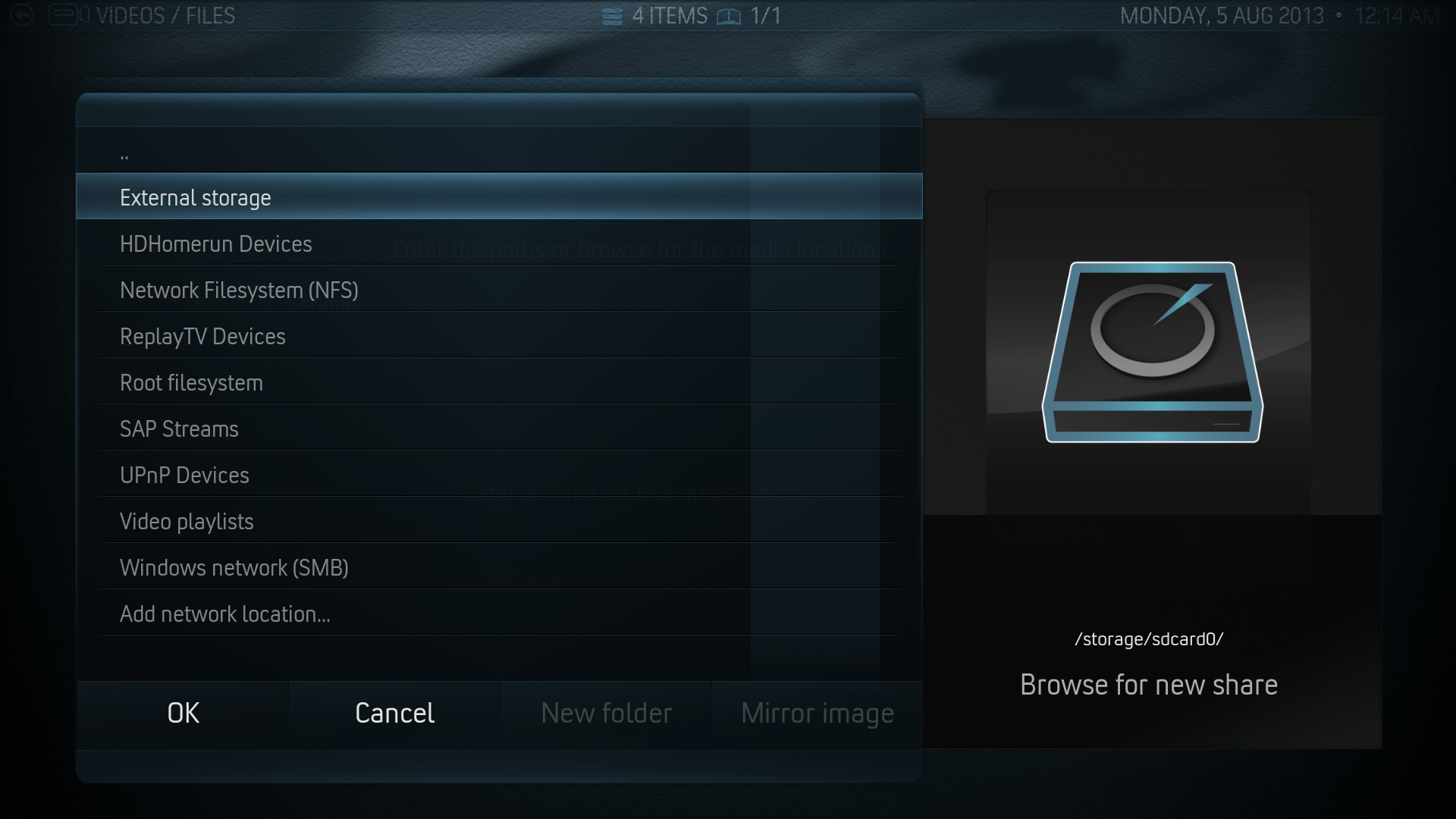 Step 3: (a) For internal SD Card select “External Storage” and then select the proper folder.
 -
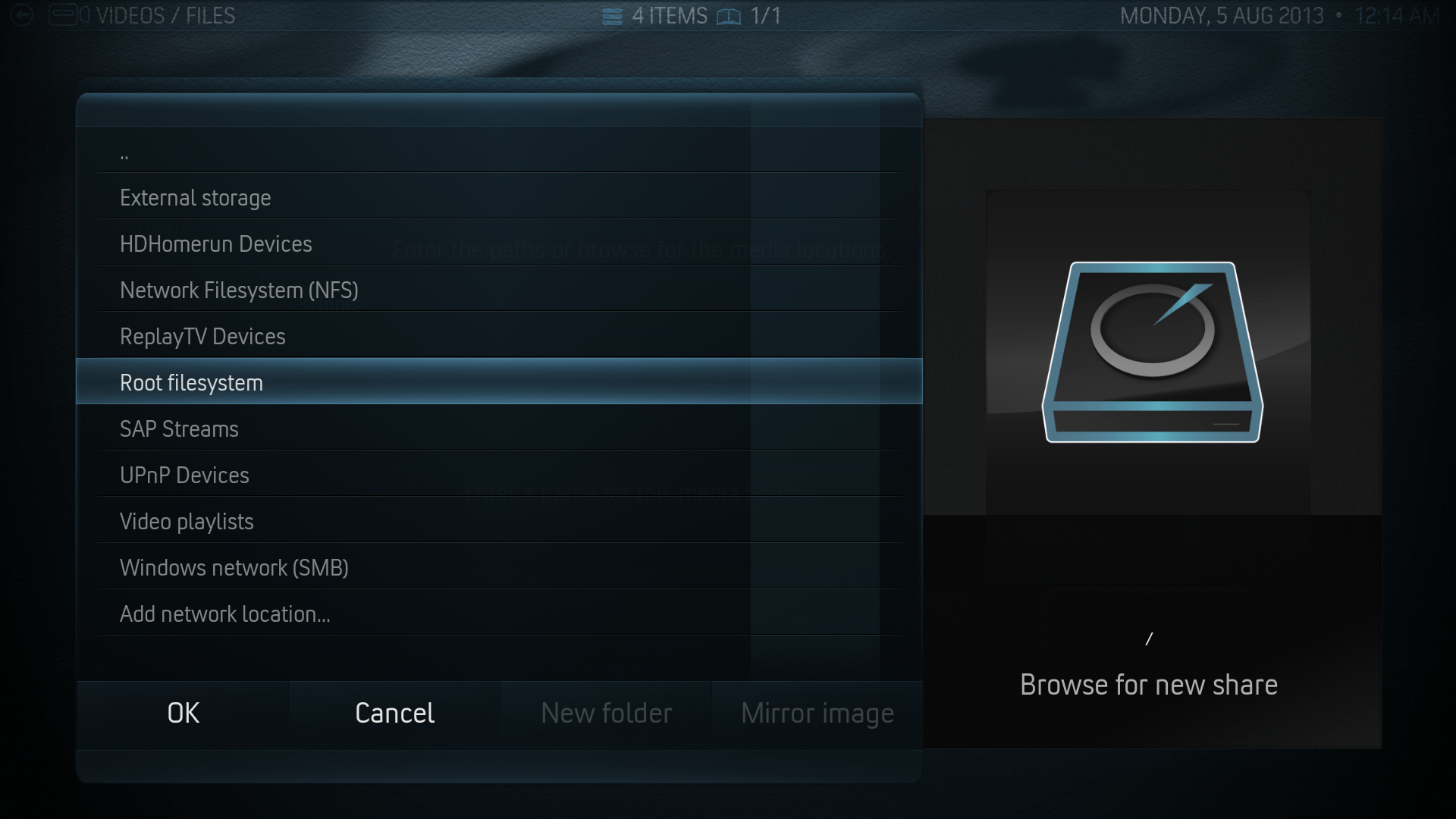
-
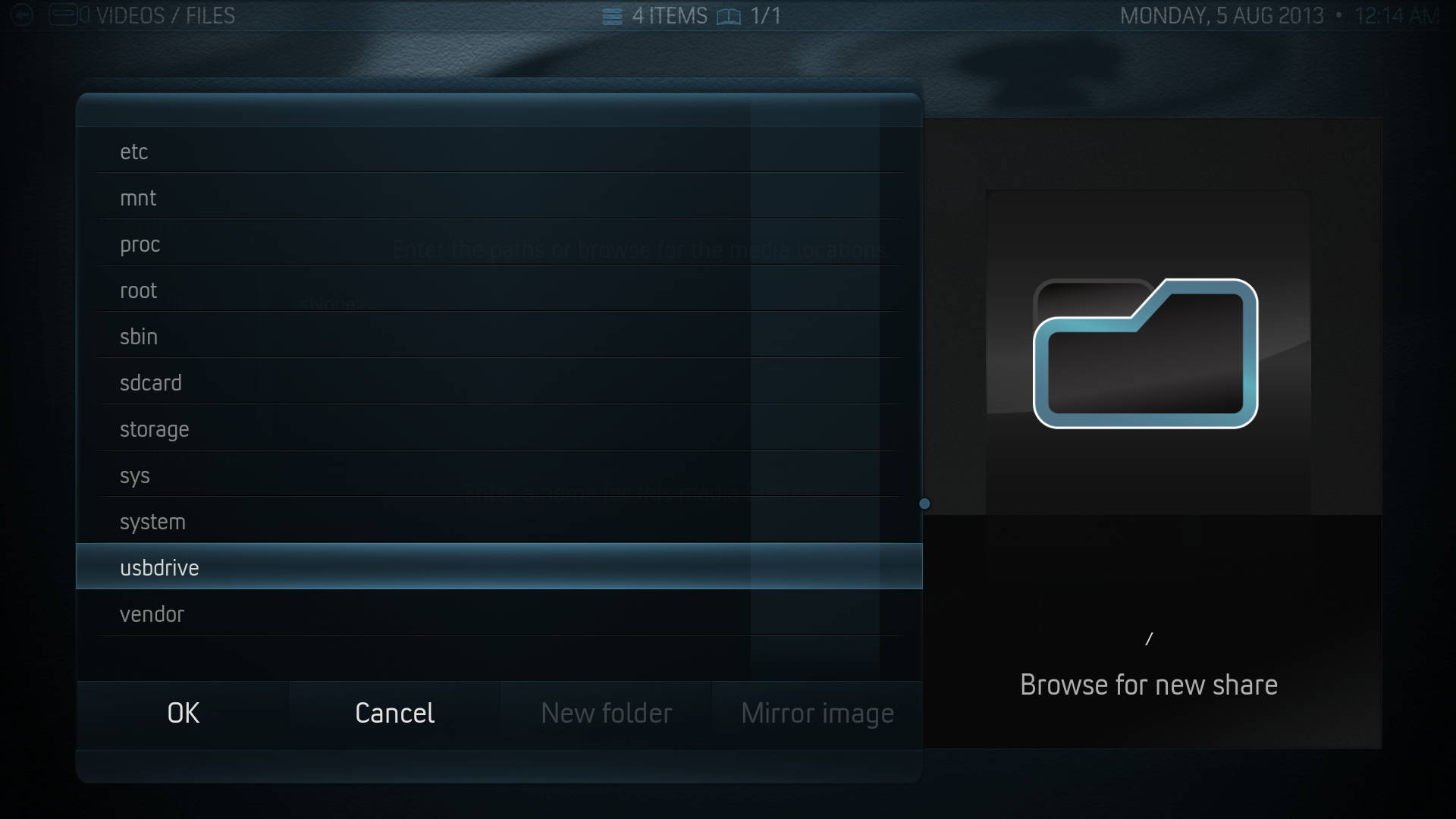 Step 3: (b) For external USB/HDD scroll down to “Root filesystem” -> “usbdrive” then select your folder.


Step 4: Select what is in the folder (TV/Music/Movies) and press “Okay”
Step 5: Update your library like normal....and you're done! You can now watch you videos from the library.