HOW-TO:Install Kodi for iOS: Difference between revisions
No edit summary |
|||
| Line 1: | Line 1: | ||
{{mininav|[[General topics]]{{l2|[[Devices]]}}|[[Installing]]{{l2|[[iOS]]}}|page=HOW-TO:Install XBMC | {{mininav|[[General topics]]{{l2|[[Devices]]}}|[[Installing]]{{l2|[[iOS]]}}|page=HOW-TO:Install XBMC for iOS}} | ||
{{IOS navigation}} | {{IOS navigation}} | ||
The current stable release of XBMC for iOS is [[Frodo FAQ|v12 Frodo]]. | The current stable release of XBMC for iOS is [[Frodo FAQ|v12 Frodo]]. | ||
Revision as of 10:05, 12 June 2013

|
 General topics Devices General topics Devices |
Installing iOS |
HOW-TO:Install XBMC for iOS
|
The current stable release of XBMC for iOS is v12 Frodo.
- Requirements
- If you have any issues, be sure to read the iOS FAQ!
Installing from Cydia
-
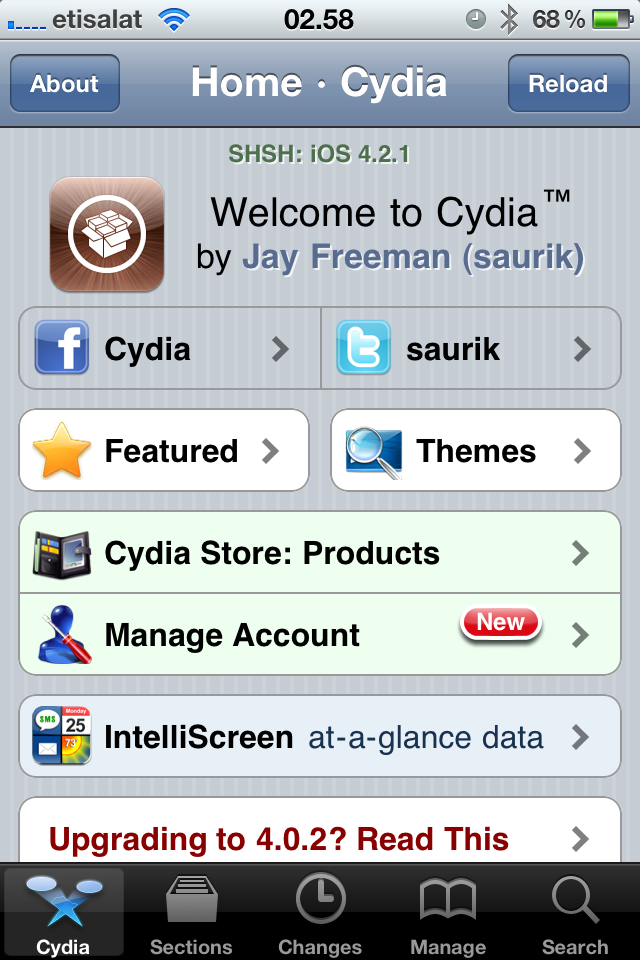 Step 1: Tap the Cydia icon on your homescreen.
 -
Step 2-iPhone: Manage - > Sources -> Edit -> Add
Step 2-iPad: Sources -> Edit -> Add
Step 3: Type in http://mirrors.xbmc.org/apt/ios/ -
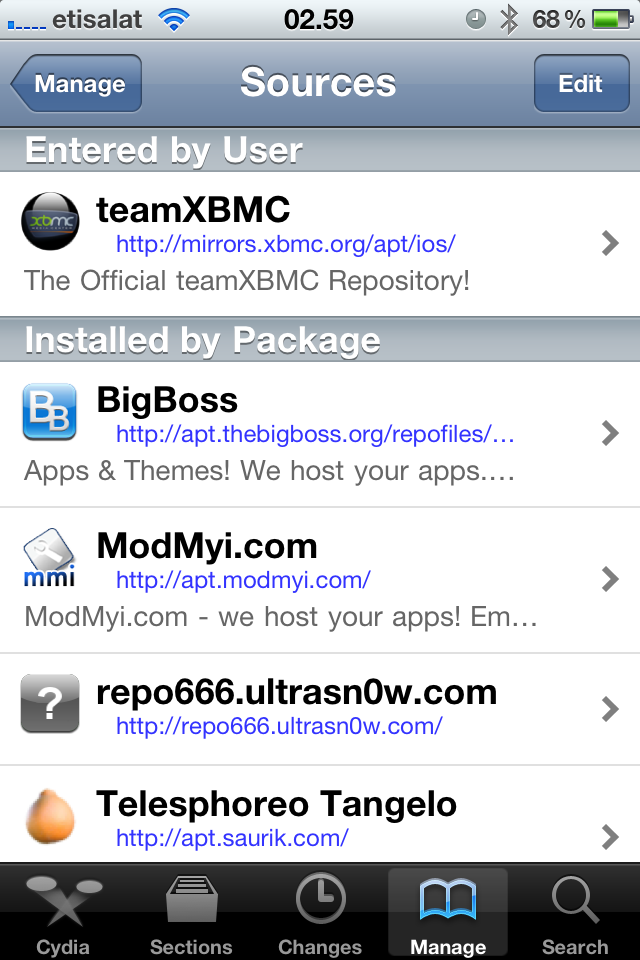 Step 4: Tap on the teamXBMC source.
 -
Step 5: Tap on the XBMC-iOS icon.
-
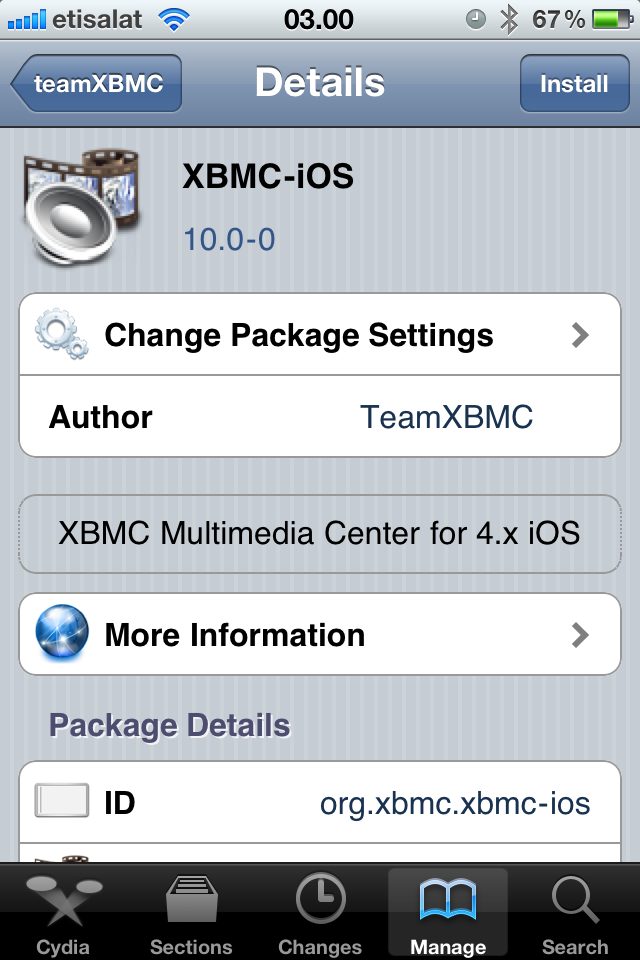 Step 6: Tap install, then confirm.
 -
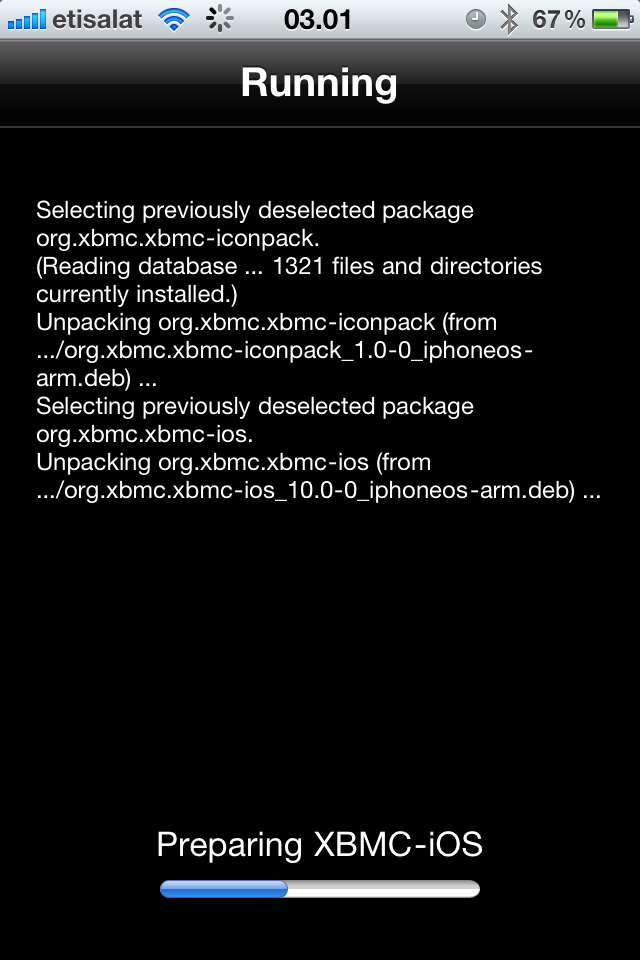 Step 7: Let it install, then exit Cydia. You should now have a new XBMC icon on your screen.


And you're done! You should now be running XBMC v12 Frodo for iOS. See here to verify your XBMC version.
Updating
Updates for stable releases of XBMC are handled by Cydia and will show up in the "Changes" section when available.
Development builds
Nightly builds
Nightly builds are unstable test builds that have the latest bug fixes and feature additions. They are not fully tested, so anticipate issues and be sure to backup your userdata folder.
- Installing from the command line
- Change history: trac timeline or commit history
NOTE: You MUST install the stable version before you can install a nightly build. You only need to install the stable version once and you don't need to uninstall previous versions to upgrade (or downgrade) XBMC.
- Open http://mirrors.xbmc.org/nightlies/darwin/ios/ in a web browser and copy the url of the most recent file in that listing.
- EXAMPLE:
http://mirrors.xbmc.org/nightlies/darwin/ios/xbmc-20111202-6729214-master-ios.deb
- EXAMPLE:
- Open up your terminal/ssh application and enter the following commands:
ssh [email protected]
- EXAMPLE:
ssh [email protected]
- EXAMPLE:
- You will be asked for a password: default password is alpine
- Continue to enter the following commands:
rm -f *xbmc*.deb
curl -O -L URL-FROM-STEP-1-HERE
- EXAMPLE:
curl -O -L http://mirrors.xbmc.org/nightlies/darwin/ios/xbmc-20111202-6729214-master-ios.deb
- EXAMPLE:
dpkg -i *xbmc*.deb
rm *xbmc*.deb
And you're done! You should now have the latest nightly build of XBMC for iOS. See here to verify your XBMC version.
Monthly builds
To install a semi-stable monthly build, follow the nightly build instructions above, but replace the url in step 1 with http://mirrors.xbmc.org/snapshots/darwin/ios/
Installing from the iOS GUI
Opening a downloaded deb file (from Safari, for example) using iFile from Cydia, will also allow for installation.
Uninstalling
Uninstalling just XBMC
-
Step 1: Tap the Cydia icon on your homescreen.
-
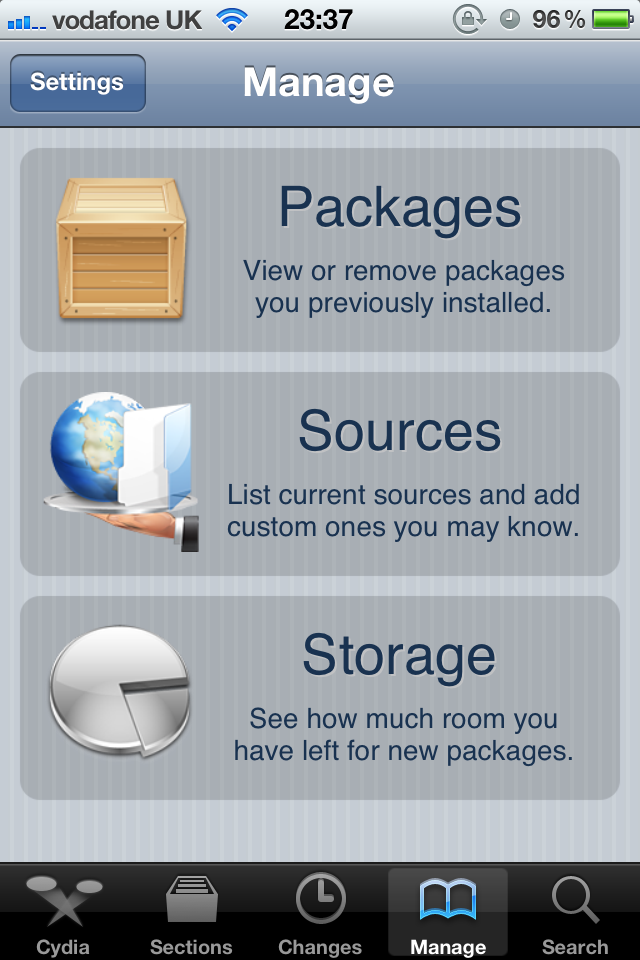 Step 2: Tap Manage from the bottom of the Cydia menu and then tap Packages
 -
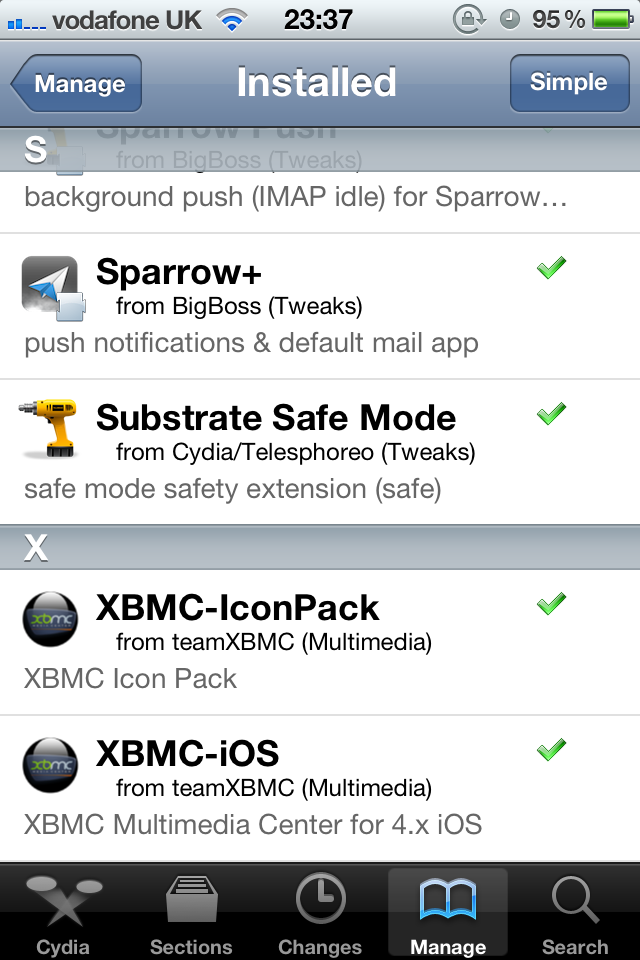 Step 3: Find and tap XBMC-iOS in the list of installed packages.
 -
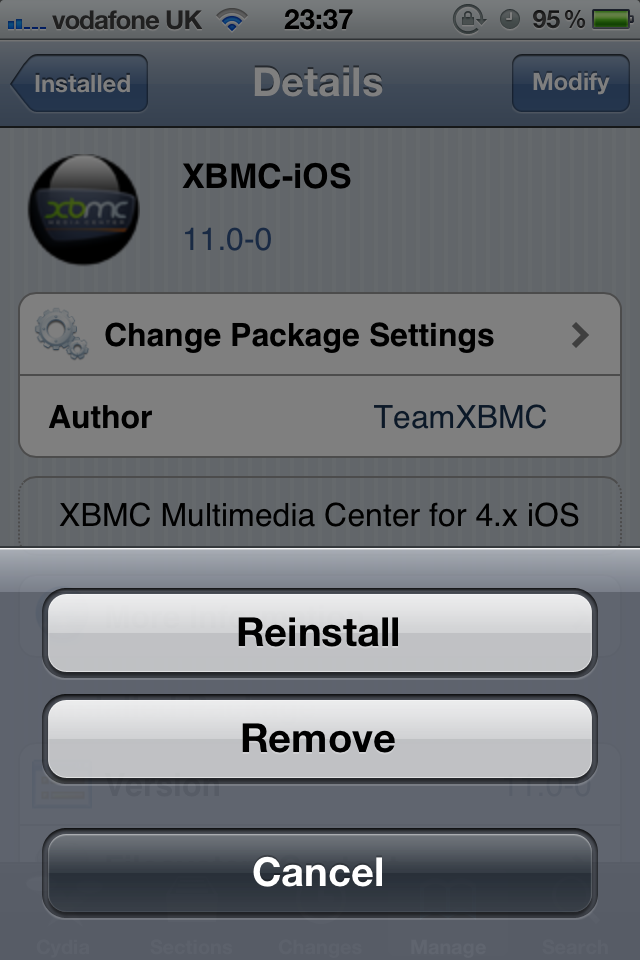 Step 4: Tap on Modify in the top right and then choose Remove from the pop up menu.
Step 5: Let XBMC uninstall and then press Return to Cydia.


You're all done. XBMC will now be uninstalled from your iDevice. If you want you can also uninstall XBMC-IconPack using the same method.
Removing settings
XBMC will uninstall from your iDevice but will leave certain things (databases and everything in your userdata folder) behind to make it easier if you wanted to reinstall. To delete those:
- From the terminal, run
rm -Rf /private/var/mobile/Library/Preferences/XBMC/
- Or
- From iFile
Delete /private/var/mobile/Library/Preferences/XBMC/