HOW-TO:Install Kodi for iOS: Difference between revisions
| Line 26: | Line 26: | ||
=== Updating === | === Updating === | ||
Updates for stable releases of {{kodi}} are handled by Cydia and will show up in the 'Changes' section when available. (After updating the sources) | Updates for stable releases of {{kodi}} are handled by Cydia and will show up in the 'Changes' section when available. (After updating the sources) | ||
=== Uninstalling === | === Uninstalling === | ||
Revision as of 00:58, 21 April 2016

|
 iOS iOS |
HOW-TO:Install Kodi for iOS
|
The current stable release for iOS is Kodi v21.3 Omega.
- Requirements
- If you have any issues, be sure to read the iOS FAQ!
Installing from Cydia

|
Kodi v16 has not been posted to the Team Kodi Cydia repo yet due to server issues. However, you can manually install by by clicking here on your iOS device and opening the resulting file in iFile: [ download deb], using the instructions from here. |
-
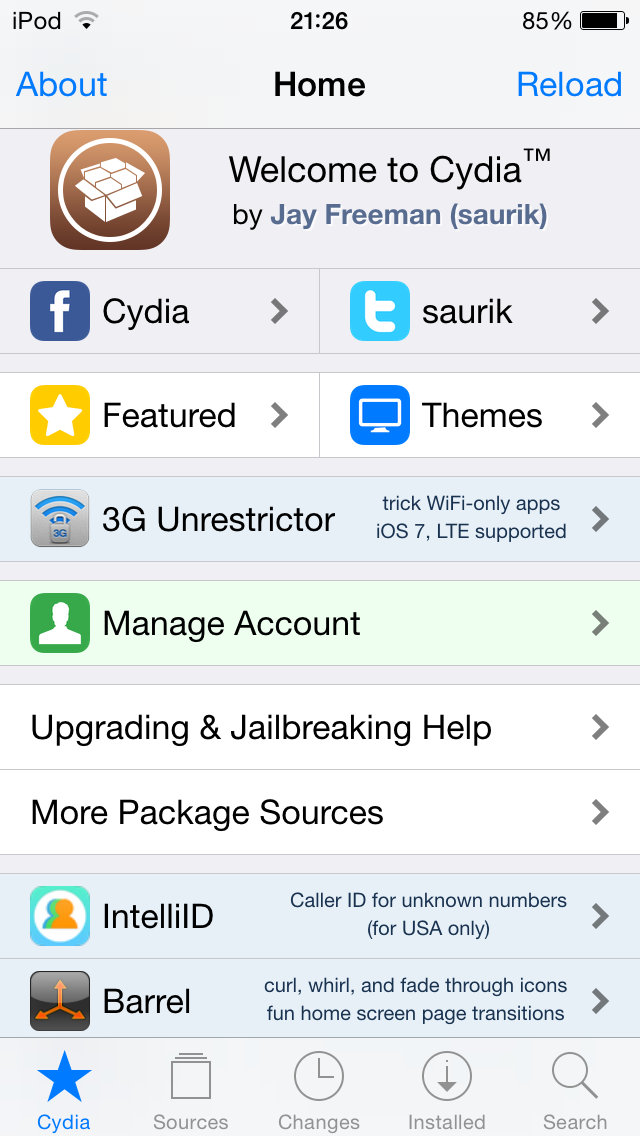 Step 1: Tap the Cydia icon on your homescreen.
 -
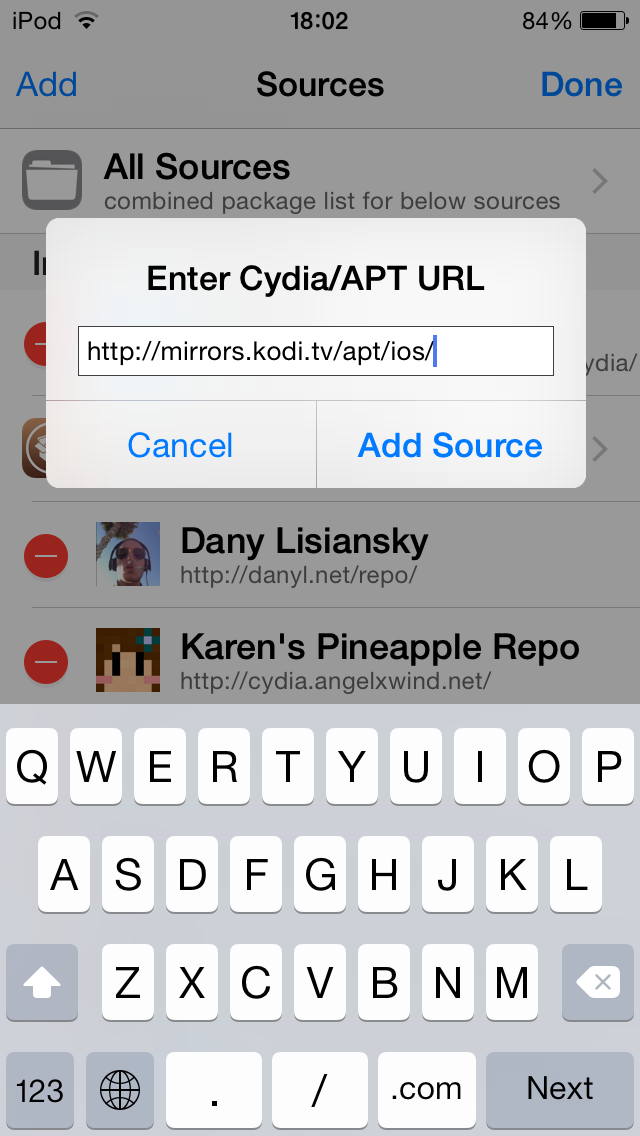 Step 2: Sources -> Edit -> Add
Step 3: Type in http://mirrors.kodi.tv/apt/ios/ -
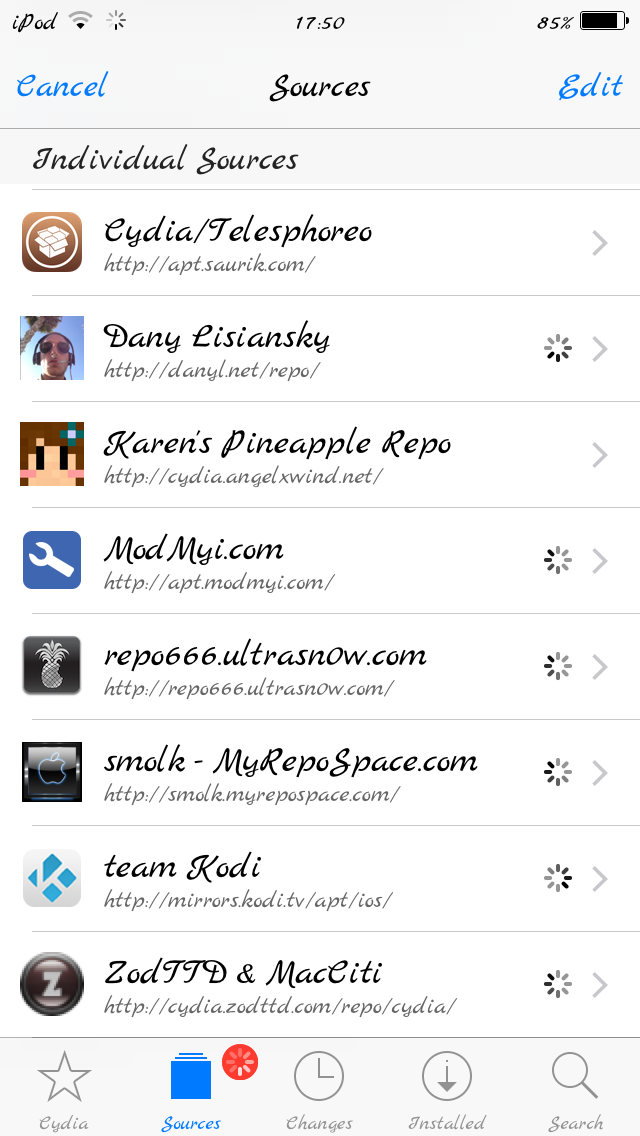 Step 4: Tap on the teamKodi source.
 -
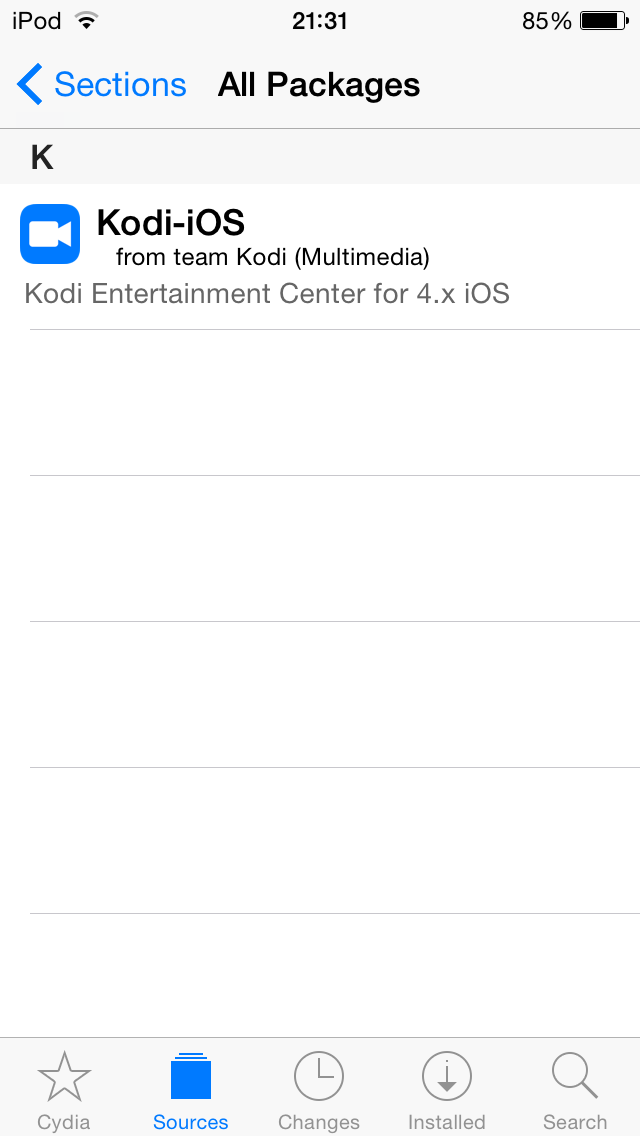 Step 5: Tap on 'All Packages' and then on 'Kodi-iOS'.
 -
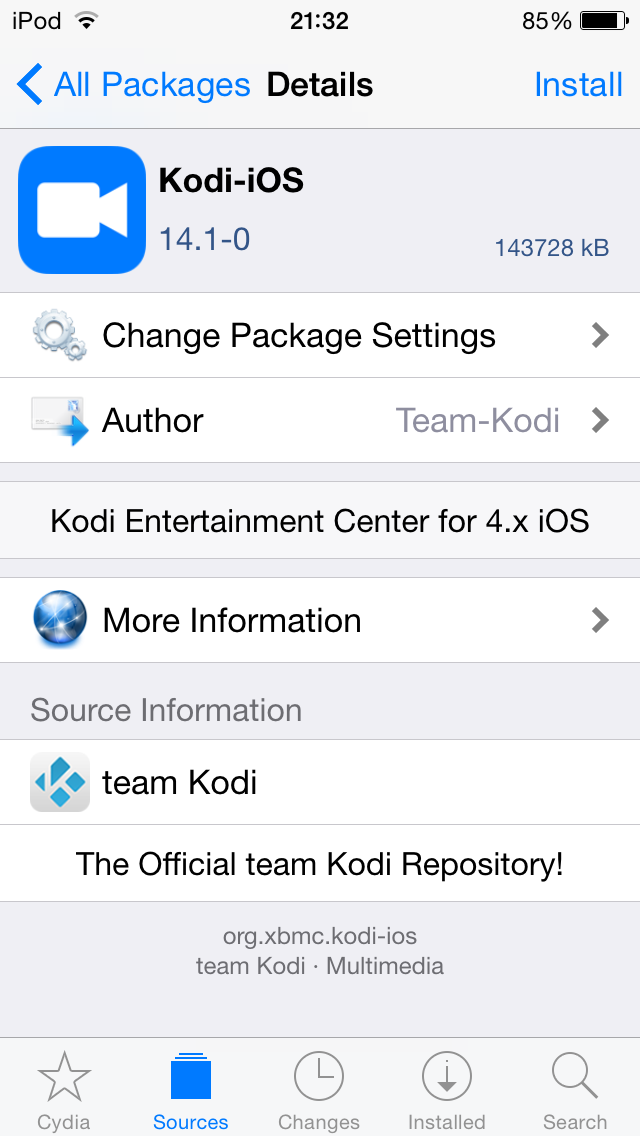 Step 6: Tap install, then confirm.
 -
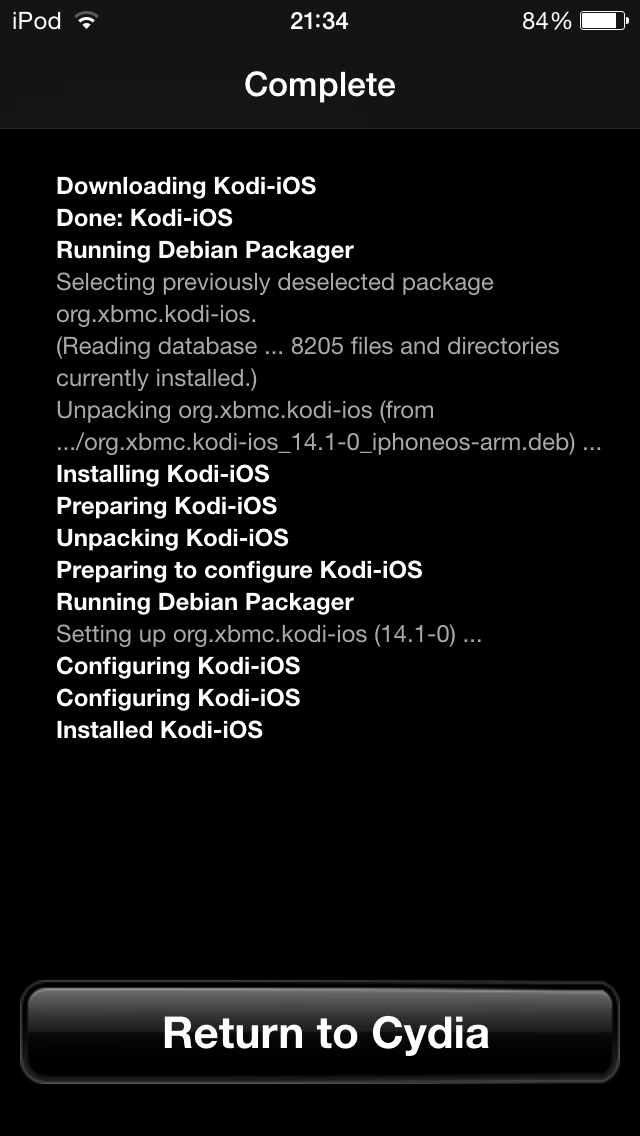 Step 7: Let it install, then exit Cydia. You should now have a new Kodi icon on your screen.


And you're done! You should now be running Kodi v21.3 Omega for iOS. See here to verify your Kodi version.
Updating
Updates for stable releases of Kodi are handled by Cydia and will show up in the 'Changes' section when available. (After updating the sources)
Uninstalling
Uninstalling just XBMC/Kodi
-
Step 1: Tap the Cydia icon on your homescreen.
-
Step 2: Tap 'Installed' from the bottom of the Cydia menu and then tap Packages
-
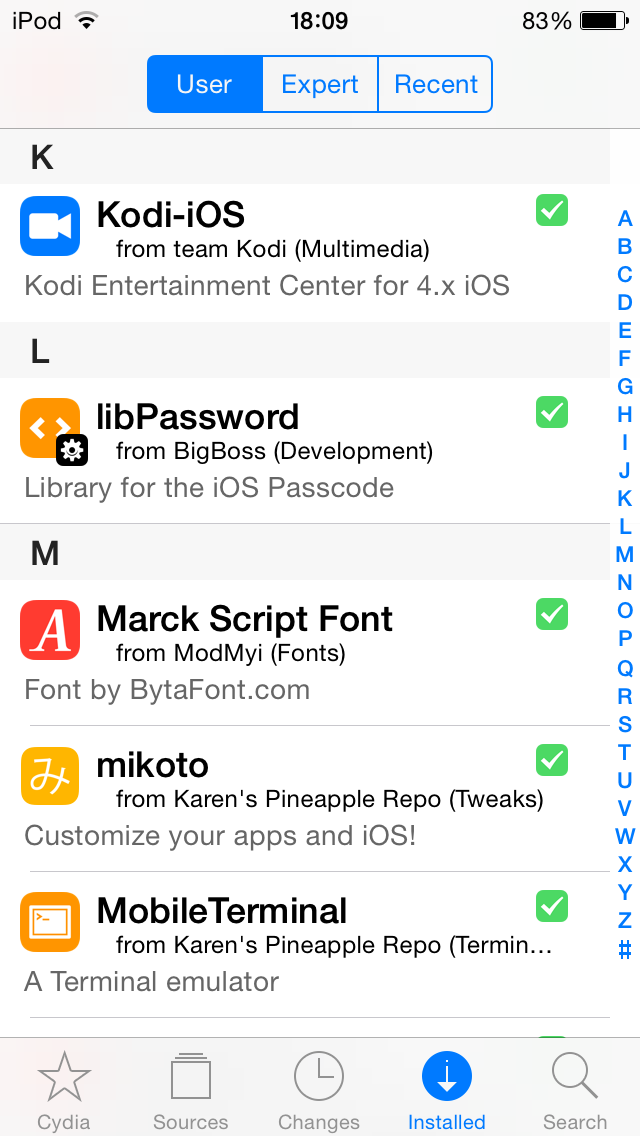 Step 3: Find and tap Kodi in the list of installed packages.
 -
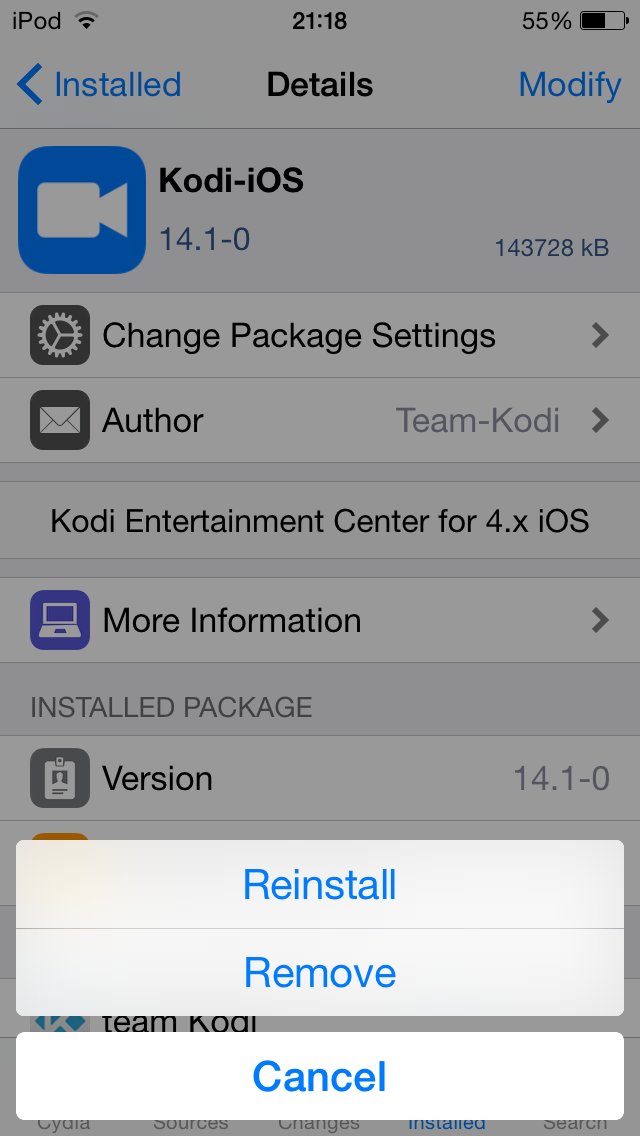 Step 4: Tap on Modify in the top right and then choose Remove from the pop up menu.
Step 5: Let Kodi uninstall and then press 'Return to Cydia'.


You're all done.
Removing settings
Kodi will uninstall from your iDevice but will leave certain things (databases and everything in your userdata folder) behind to make it easier if you wanted to reinstall. To delete those:
- From the terminal, run
rm -Rf /private/var/mobile/Library/Preferences/XBMC/
rm -Rf /private/var/mobile/Library/Preferences/Kodi/
- Or
- From iFile
Delete /private/var/mobile/Library/Preferences/XBMC/
Delete /private/var/mobile/Library/Preferences/Kodi/
Installing using Xcode and iOS App Signer
Prerequisites
- iOS App Signer
- Mac OS X 10.9 or higher
- Xcode 7 or higher
Downloads
| Build | Description |
|---|---|
| Stable builds | These are the current stable and recommended versions of Kodi to install on your device. |
| Nightly builds | Nightly builds are unstable test builds that have the latest bug fixes and feature additions. They are not fully tested, so anticipate issues and be sure to backup your userdata folder |
| Monthly builds | Monthly builds are more stable than nightly builds, but still contain lots of experimental new code. |
| Betas and release candidates | Betas and release candidates are builds that are being tested to see if they have any bugs left before becoming a stable release. Most major bugs should be fixed in these builds. |
Instructions
If you have a paid developer account with a wildcard (*) provisioning profile, you do not need to follow steps 1-6.
-
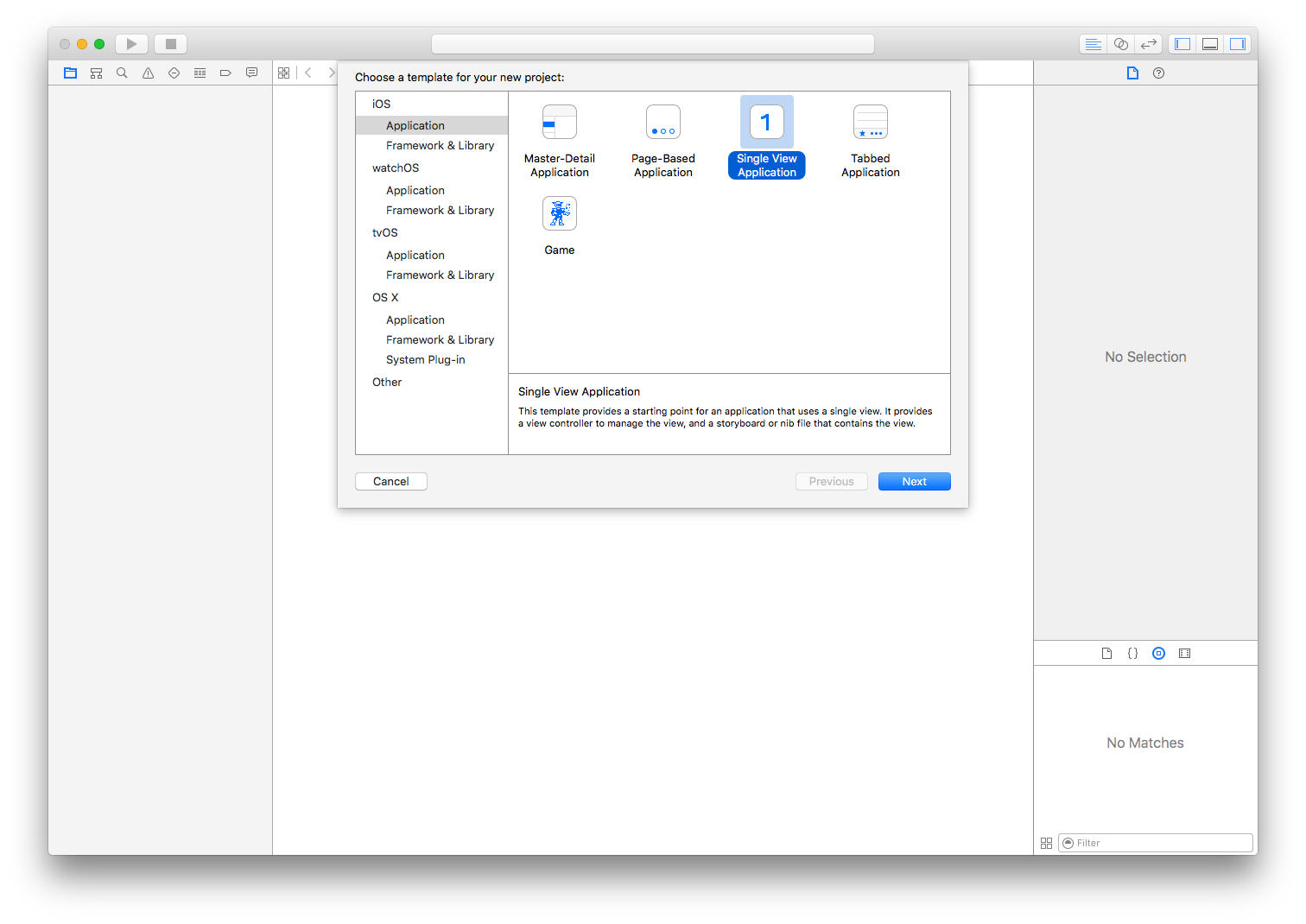 Step 1: Create a new iOS project in Xcode.
 -
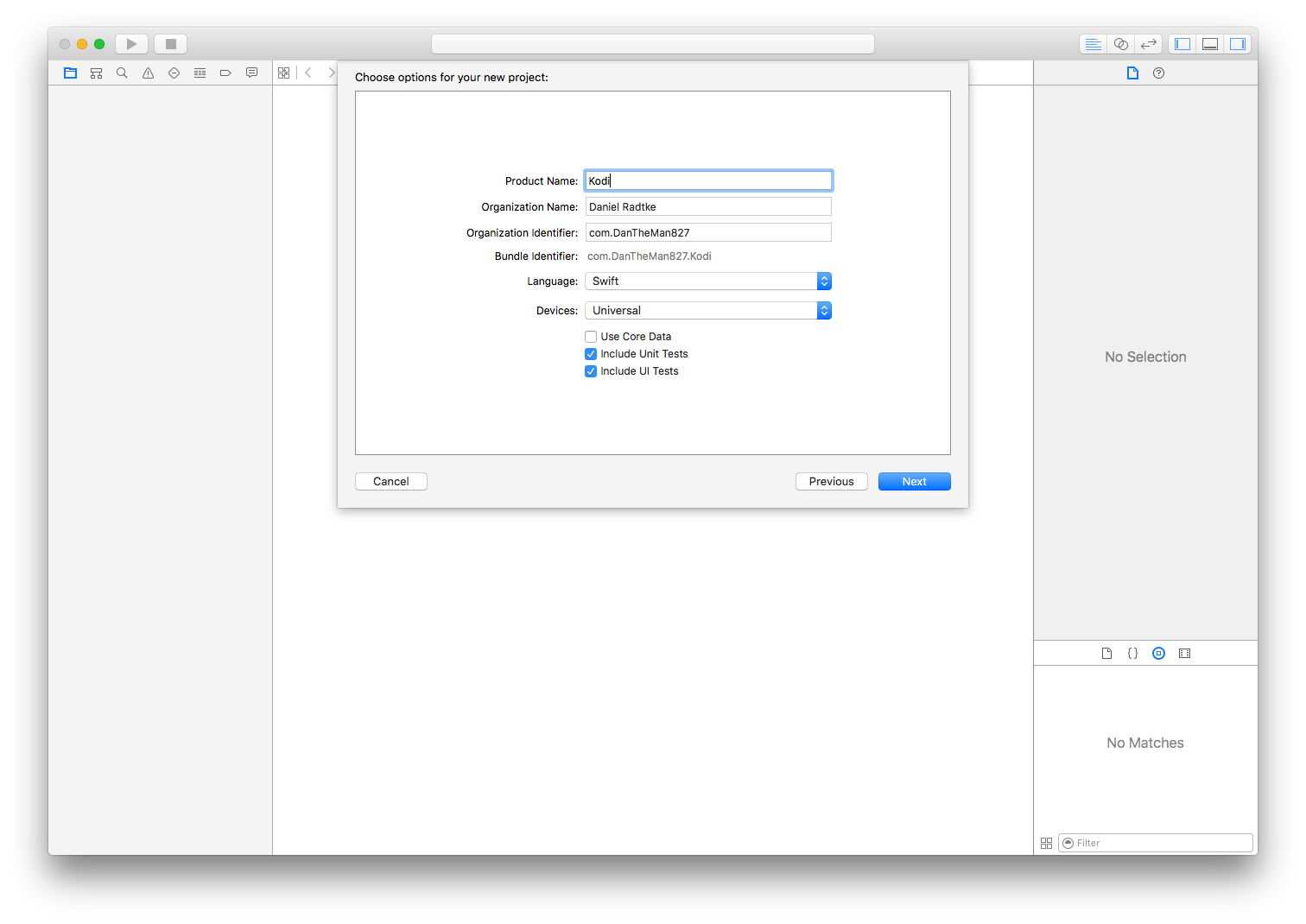 Step 2: Type in a name and unique identifier.
 -
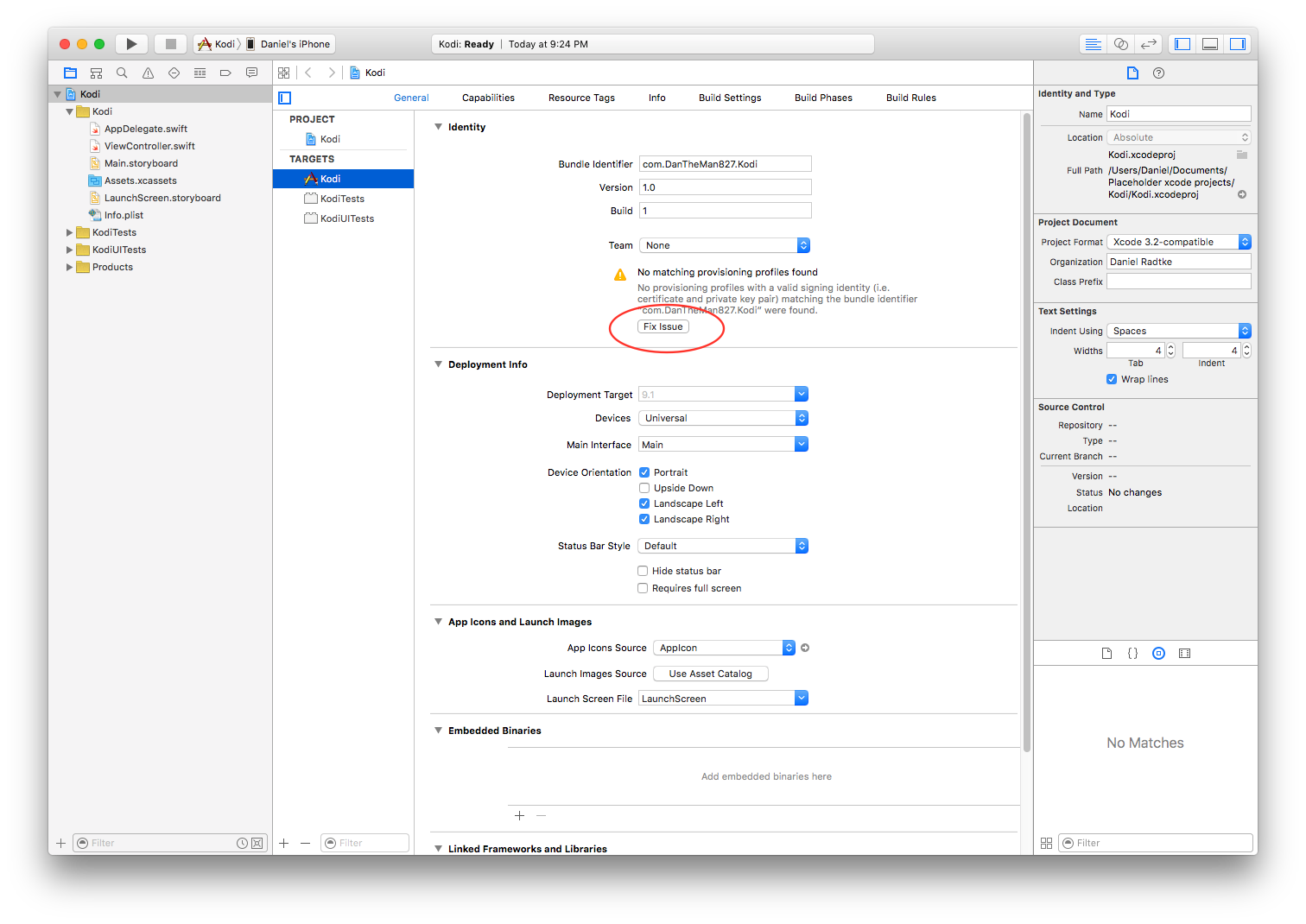 Step 3: After creating the project Xcode will probably complain about not having a provisioning profile, click Fix Issue.
 -
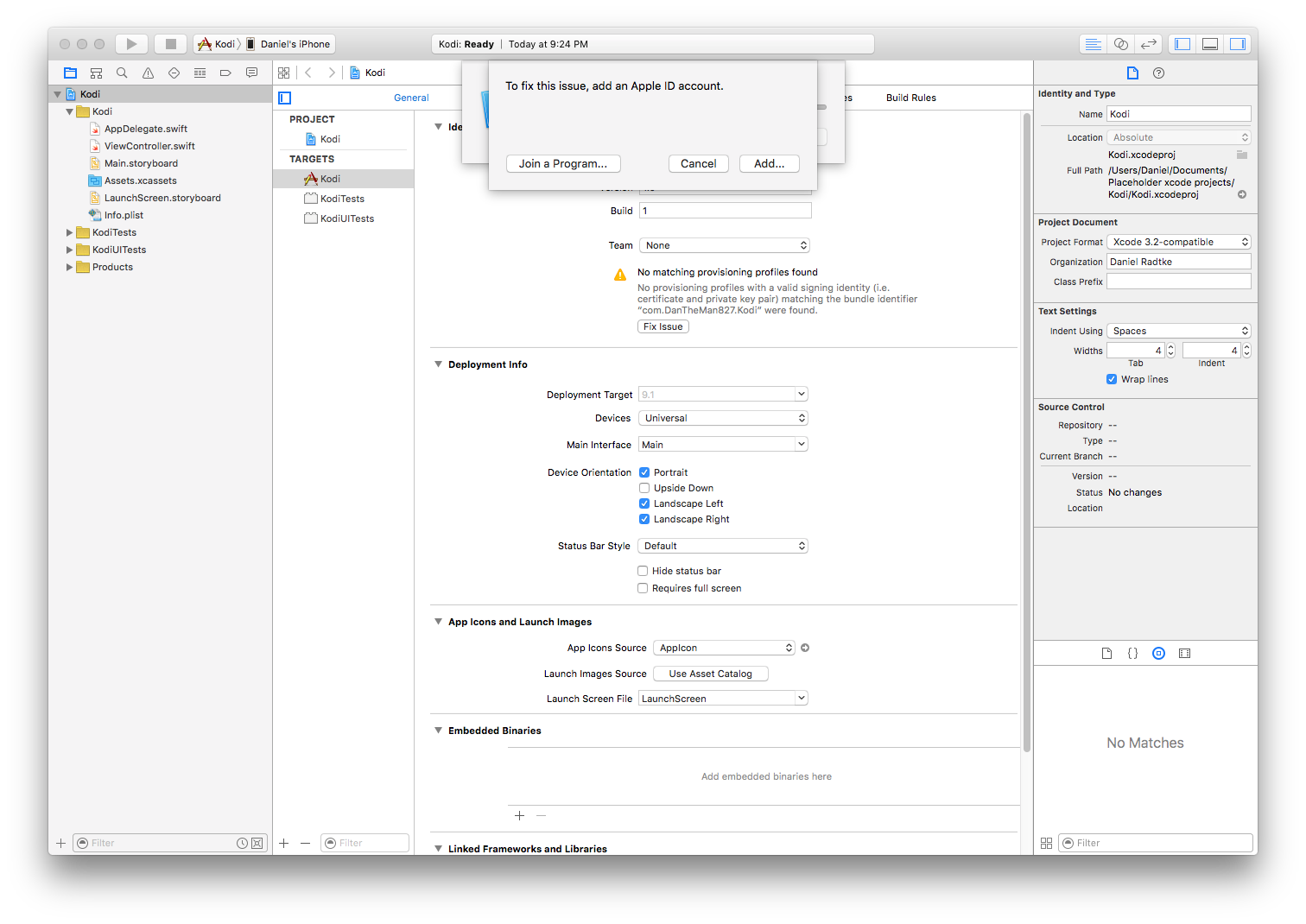 Step 4: Xcode may have you sign into or create your free developer account.
 -
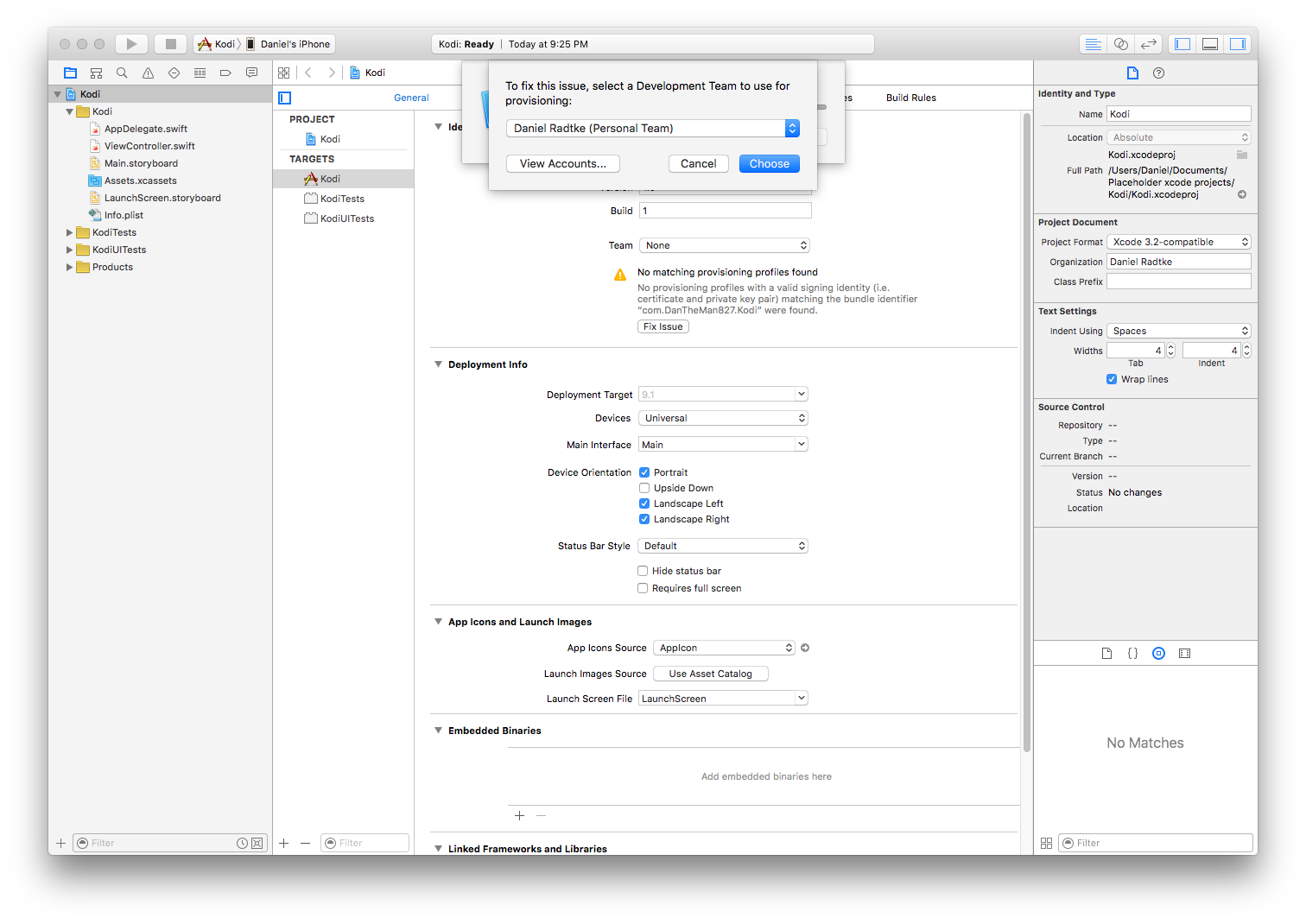 Step 5: Select your development team.
 -
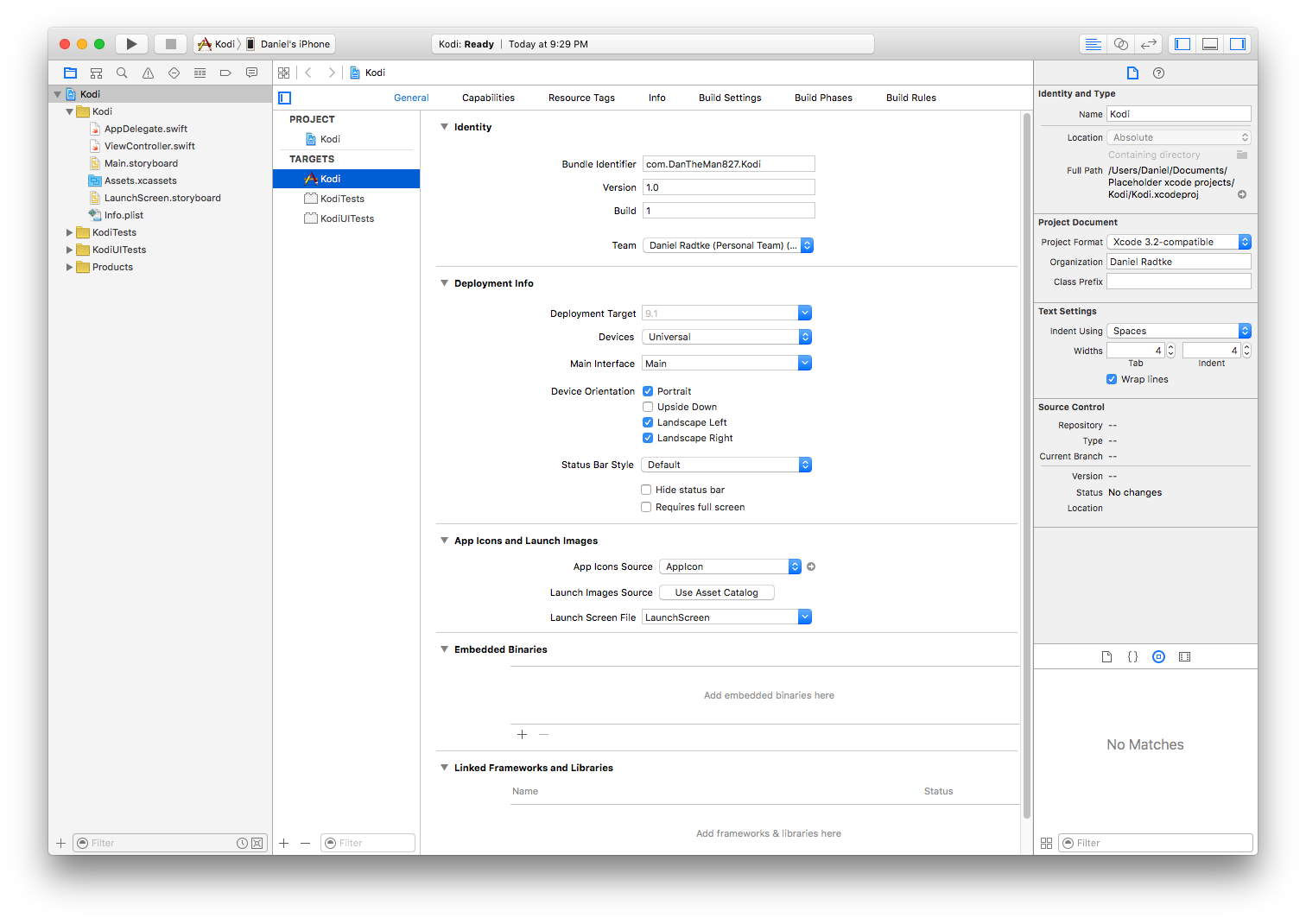 Step 6: After fixing the issue, Xcode shouldn't have any errors.
If you have additional devices- Plug in the device
- Go to the Product Menu
- Under Destination, select your device
- Repeat from step 3
-
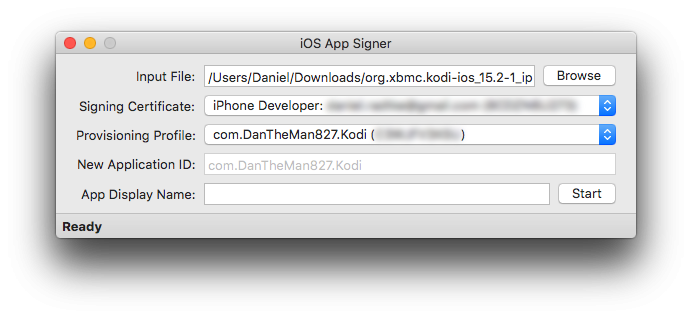 Step 7: Open iOS App Signer and select your signing certificate and provisioning profile, click start and choose a location to save the output.
 -
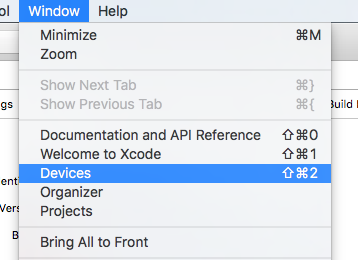 Step 8: In Xcode, click the Window menu and then Devices.
 -
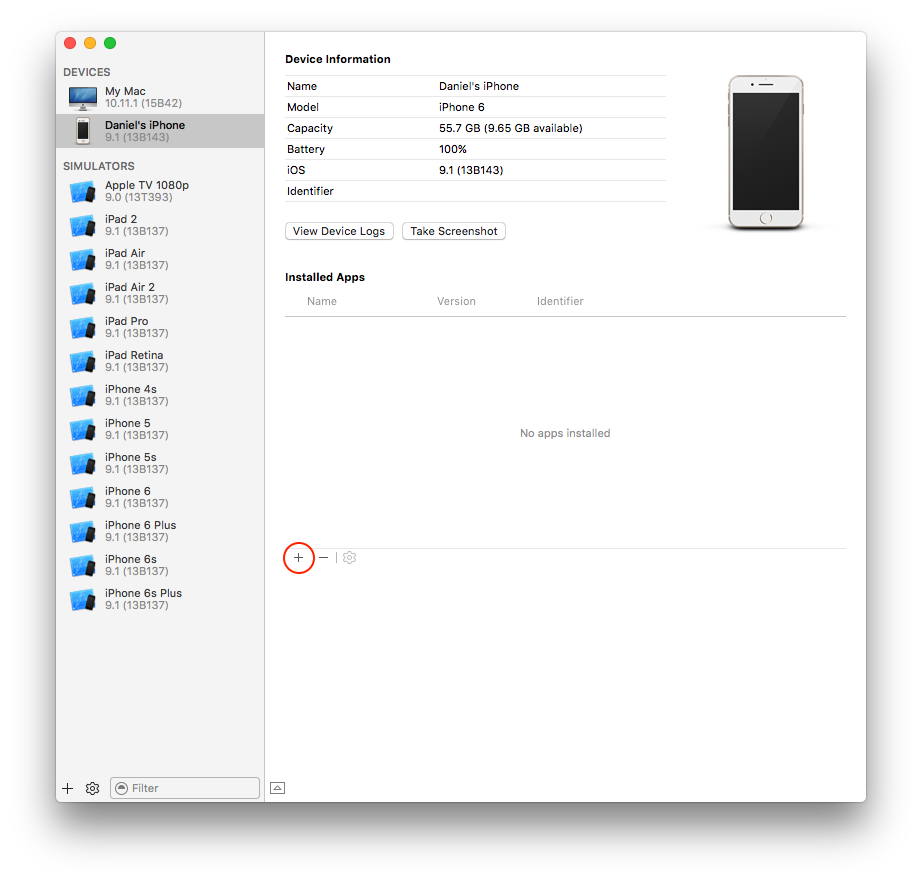 Step 9: Make sure that your device is selected and click the + and then choose the generated file


Updating Kodi
To update Kodi, run iOS App Signer and select the new deb file and the same provisioning profile that you used initially.
Modifying Kodi userdata
To modify the Kodi userdata, you can use any iOS file manager such as iFunbox
Help
If you are having trouble using iOS App Signer, please post in the forum topic