HOW-TO:Install Kodi for webOS: Difference between revisions
Jump to navigation
Jump to search
Sundermann (talk | contribs) |
Sundermann (talk | contribs) No edit summary |
||
| (One intermediate revision by the same user not shown) | |||
| Line 16: | Line 16: | ||
== Current known limitations == | == Current known limitations == | ||
* Binary addons are not available from the repository | * Binary addons are not available from the repository | ||
== Current known quirks == | |||
Audio settings apply only to GUI sounds | |||
Resolution settings only apply to the GUI, media plays back in native resolution | |||
Latest revision as of 22:46, 30 October 2025

|
Kodi is not available from the LG content store, it must be sideloaded instead. |
Supported Hardware
Any webOS 4 or later TV (except for K5LP based TVs)
Prerequisites
- A computer connected to the same network as the TV
- DevMode manager for webOS
- A Kodi IPK file
Install using DevMode Manager for webOS TV
-
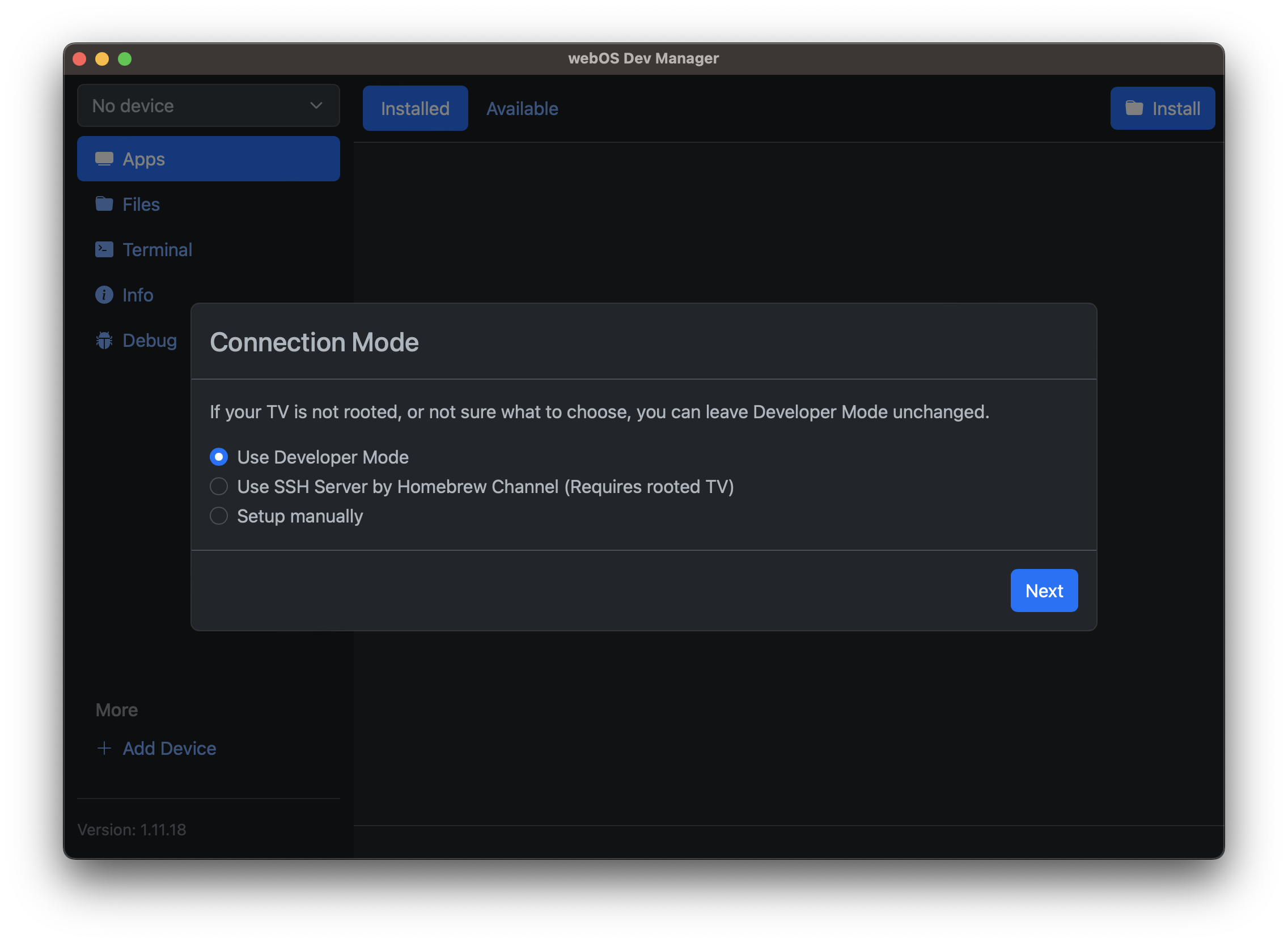 Step 1: If unsure choose Developer Mode here. Follow the steps to set up a LG developer account, install the Developer Mode app and turn it on. Alternatively, if your TV is already rooted you can set up the SSH connection instead and skip to step 3.
 -
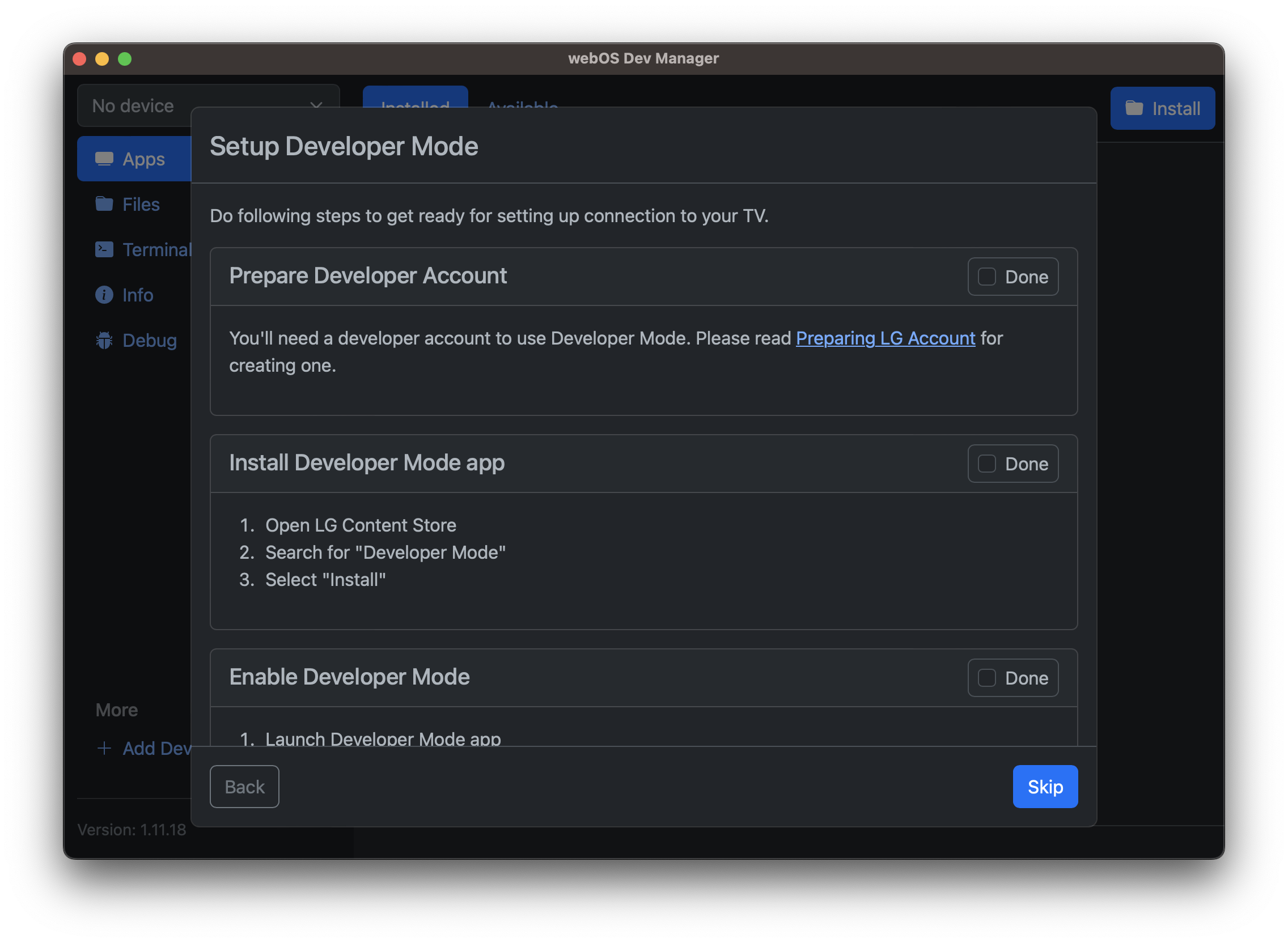 Step 2: Follow the steps to create a LG developer account, install the developer mode app and enable developer mode.
 -
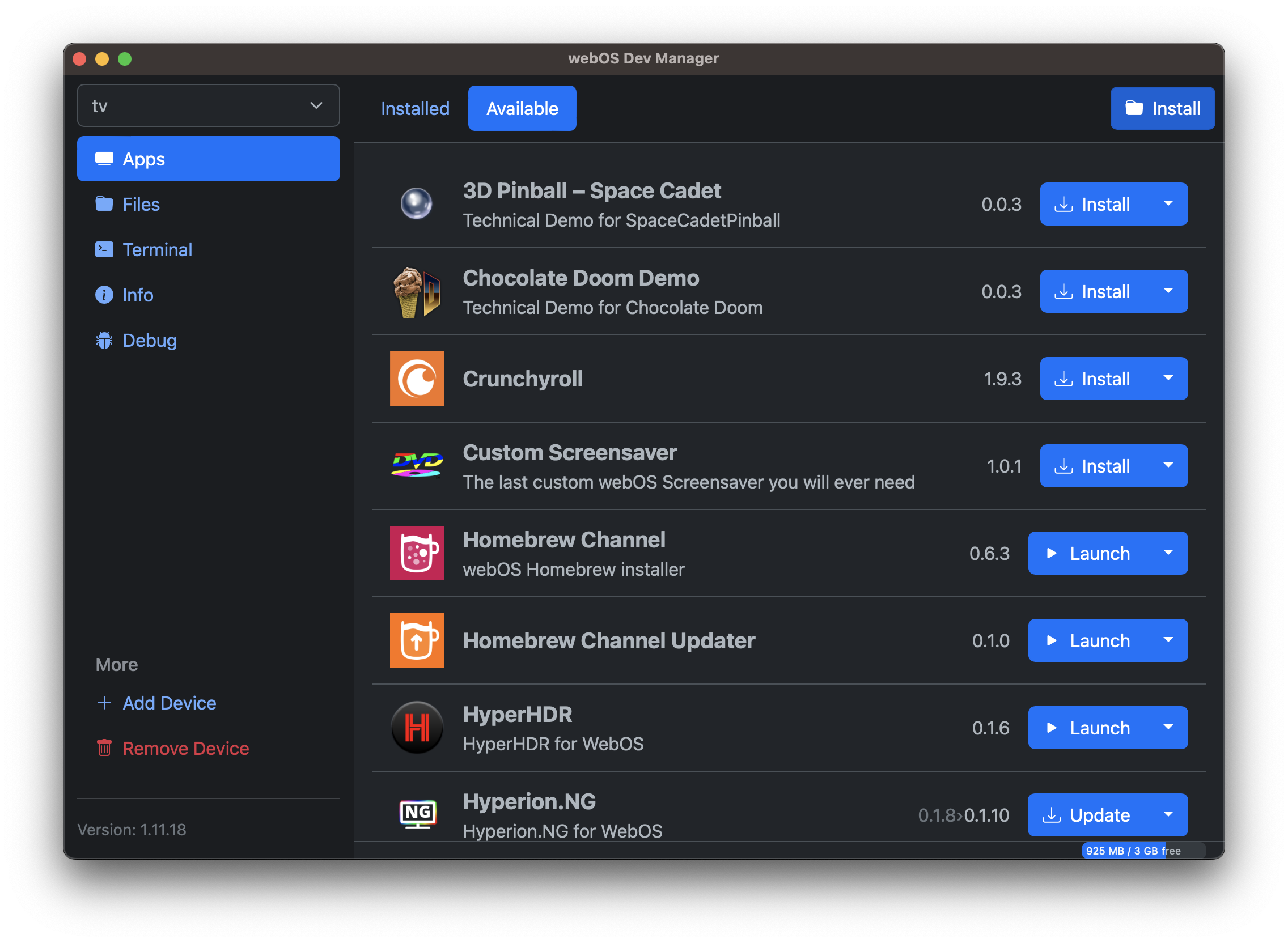 Step 3: Click the install button and select the Kodi IPK file.
 -
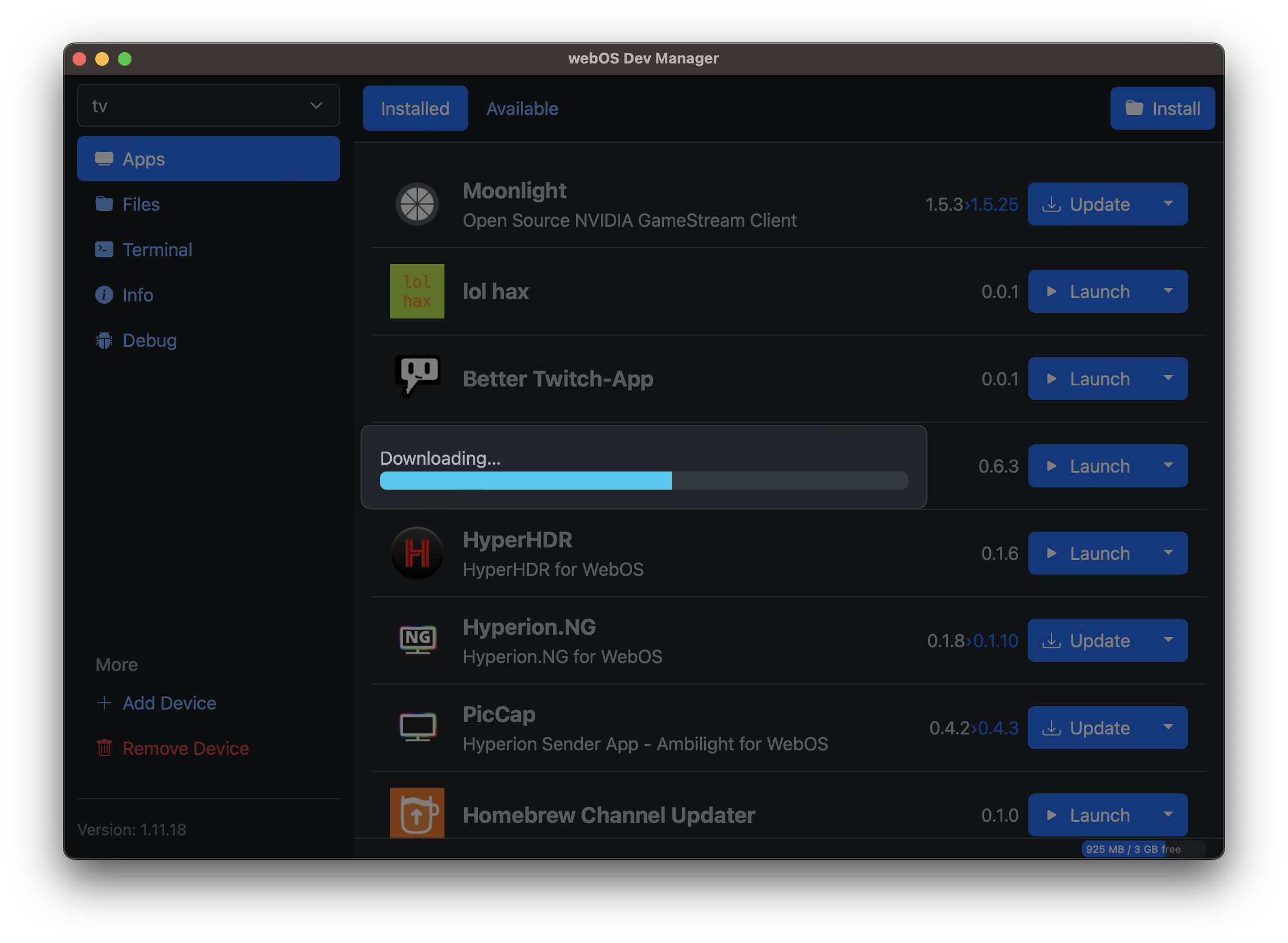 Step 4: Wait for the installation to finish.


Current known limitations
- Binary addons are not available from the repository
Current known quirks
Audio settings apply only to GUI sounds Resolution settings only apply to the GUI, media plays back in native resolution